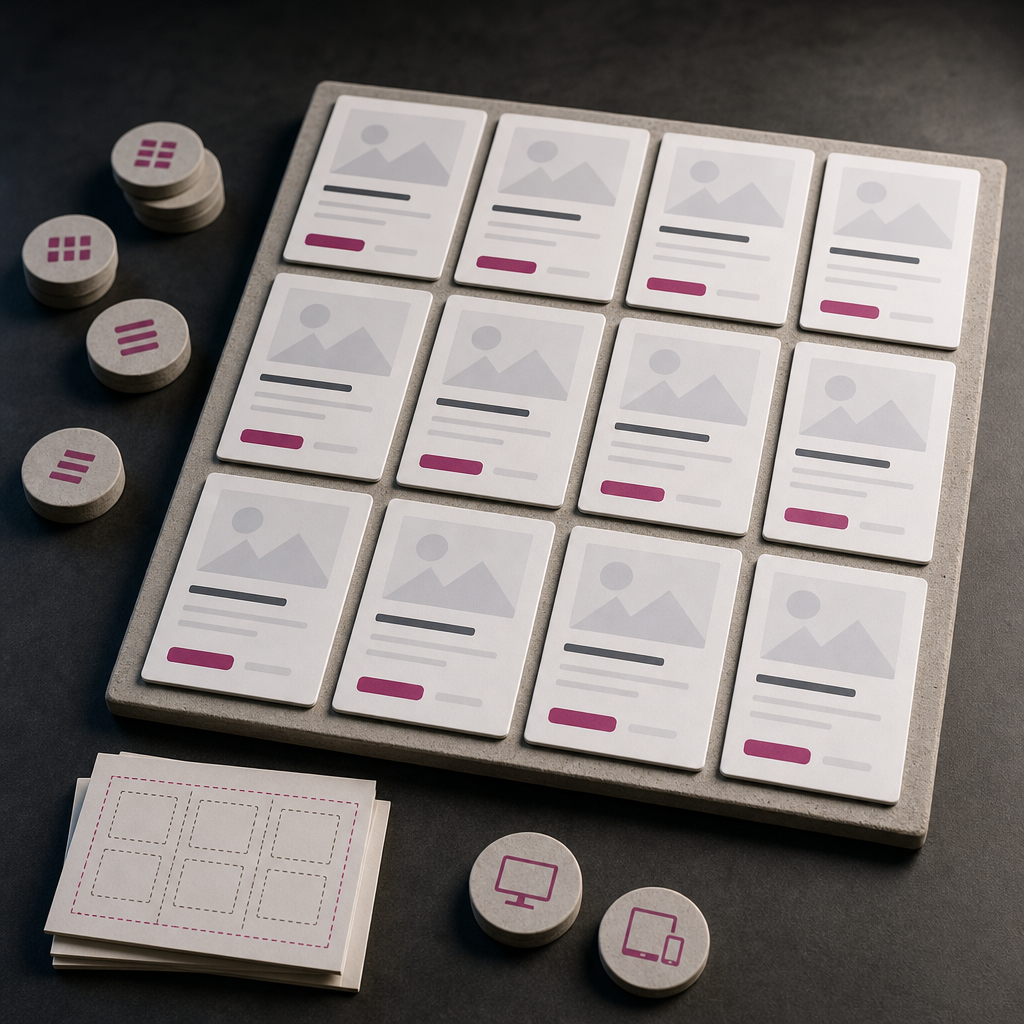
Product cards, pricing plans, categories, and posts often need different numbers of columns on desktop, tablet, and mobile. The traditional approach is to create separate settings for each screen width. However, for many blocks, this creates unnecessary manual work.
CSS Grid with the minmax() and auto-fit functions allows the browser to determine how many columns fit within the available width. As space becomes limited, elements move to a new row without requiring separate breakpoints. In Elementor, this approach is especially convenient for repeating cards with a roughly consistent structure.
How a Responsive Grid with minmax() and auto-fit Works
In CSS Grid, column widths are defined with the grid-template-columns property. The combination repeat(auto-fit, minmax(240px, 1fr)) means: create as many columns as can fit inside the container, but do not make any column narrower than 240 pixels.
The minmax() function defines the minimum and maximum width values. In this example, 240px is the minimum card width, while 1fr represents a share of the available space. If four cards fit in a row, they distribute the width between them. If there is no longer enough room for four cards, one of them automatically moves to the next row.
The auto-fit value collapses or removes empty tracks so that existing elements can use the available space. For most card grids, this produces the expected behavior: columns expand, while the number of columns changes according to the container width.
- minmax(240px, 1fr) sets a comfortable minimum width for a card.
- auto-fit automatically determines the number of columns.
- gap controls the spacing between cards.
- Separate rules for 768px or 480px may not be necessary.
How to Prepare the Container in Elementor
Create a container that holds the cards and use Grid mode for it if this option is available in your Elementor configuration. The parent container must be the grid, while the cards become its child elements.
Add the adaptive-grid CSS class to the container. The class name can be different, but it must exactly match the name used in the CSS. The class is usually assigned in the container settings under the CSS Classes section. Do not add this class separately to each card—it is intended for the shared parent container.
You can place the CSS in Elementor Custom CSS if this option is available with your plan or settings, or in the site's global styles. Before publishing, check that the styles are actually being loaded on the required page.
- Make sure all cards are inside the same container.
- Check that the adaptive-grid class is spelled correctly.
- Do not assign child cards a fixed width that conflicts with Grid.
- After adding the CSS, clear the site and browser cache if the changes are not visible.
.adaptive-grid {
  display: grid;
  grid-template-columns: repeat(auto-fit, minmax(240px, 1fr));
  gap: 24px;
}
How to Choose minmax() and gap for Different Blocks
The value 240px is not a universal rule. It is the minimum width at which the card content should remain easy to read. For short categories with a small icon, 180–220px may be enough. For pricing plans with a price, a list of benefits, and a button, it is better to start with 260–320px.
Consider not only the screen width but also the internal content. If headings regularly wrap onto four or five lines, the card may look unbalanced even when its width is technically correct. In that case, increase the minimum value or shorten the text.
The gap value also affects when elements move to a new row. For example, four 240px cards plus three 24px gaps require at least 1032px, excluding the container's internal padding. If the available width is smaller, the browser will reduce the number of columns.
- For compact categories, try minmax(180px, 1fr).
- For standard information cards, a range of 220–280px often works well.
- For pricing plans and complex blocks, use a larger minimum width.
- An excessively large gap can move a four-column grid to three columns earlier than expected.
auto-fit or auto-fill: Which Function Should You Choose?
For most card grids, auto-fit is a convenient choice. It allows existing elements to expand into free space when the container has room for fewer cards than the potential number of columns.
auto-fill preserves virtual columns even when there are no elements to occupy them. As a result, cards may remain narrower, and empty space may appear at the end of the row. This behavior can be useful for specific layouts, but auto-fit usually looks more natural for standard cards.
If you do not want the cards in the last row to expand across the entire available width, you can consider auto-fill or additional alignment rules. The right choice depends on the design: stretching is often acceptable for news cards, while it may be undesirable for pricing plans.
- Use auto-fit for a flexible grid that fills the row.
- Consider auto-fill when the structure of potential columns is important.
- Check the last row separately, because this is where the difference is most noticeable.
What to Check on Tablet and Mobile
A grid without breakpoints does not mean it no longer needs testing. The browser will calculate the columns correctly, but internal spacing, fixed widths, and long words can still break the layout.
First, check the width of the container itself. If it has large horizontal padding, considerably less space will remain for a card on mobile than the viewport width might suggest. For example, with a 240px minimum and 32px of total internal padding, the card may switch to a single column earlier than expected.
Next, test the longest headings, buttons, prices, and images. A card should not create horizontal scrolling. For images, it is generally important that they do not exceed the width of their parent element, while long words or URLs should not expand the column.
- Check the grid width together with the container's padding.
- Review the layout on a narrow smartphone, not only in the standard desktop preview.
- Look for horizontal scrolling and identify the element causing it.
- Check the buttons: their text should not extend beyond the card.
- Make sure there is sufficient contrast and a visible gap between cards.
Common Mistakes and How to Fix Them
The most common mistake is assigning a fixed width to cards. If a child element has width: 300px or a minimum width larger than the value in minmax(), it may overflow the grid. Remove the conflicting rule or make it compatible with Grid.
Another issue is using percentage widths with Grid unnecessarily. Grid already distributes the available space between columns, so manually setting width: 33.333% on cards can cause unnecessary wrapping and overflow.
Also check styles inherited from a flex container. The flex-basis, flex-grow, and flex-shrink properties do not control Grid columns, but other rules, such as min-width or large margins, can affect the result.
If the elements do not wrap, check whether the CSS class is applied to the correct container, whether display: grid has been overridden by another rule, and whether the updated styles have loaded.
- Do not assign cards a fixed width without a clear reason.
- Check the min-width, margin, and padding of child elements.
- Avoid unnecessarily mixing Grid on the parent level with manually assigned percentage widths on cards.
- Use your browser's DevTools to check which CSS rule is actually being applied.
When Breakpoints Are Still Necessary
CSS Grid with minmax() handles the automatic wrapping of cards well, but it does not replace every responsive setting. A breakpoint may be appropriate when different devices require changes beyond the number of columns, such as a change to the component's design.
For example, on mobile, pricing cards may need a different block order, a smaller font, a hidden description, or a full-width button. These changes are outside Grid's responsibility and require separate CSS rules or Elementor responsive settings.
Do not add a breakpoint only to manually set one, two, or three columns. If the elements share the same structure, minmax() and auto-fit usually handle this more accurately with less code.
- Keep the Grid free of breakpoints for cards with the same structure.
- Use breakpoints when the component's structure or typography changes.
- Evaluate not only the number of columns but also readability and ease of interaction.
Frequently asked questions
Can I create this grid without Elementor Pro?
Yes, if your setup allows you to add global CSS or theme styles. CSS Grid itself does not depend on Elementor Pro. However, the location for adding Custom CSS may vary depending on your plan, theme, and site settings.
Why do the cards become too narrow?
Check the minimum value in minmax(), the container width, its horizontal padding, and the styles applied to child elements. If a card contains a lot of text or complex content, increase the minimum width, for example from 220px to 280px.
What is the difference between auto-fit and auto-fill?
auto-fit expands existing cards to use the available space, while auto-fill preserves potential columns. For most responsive card grids, auto-fit is the more convenient option.
Do I need to add a separate breakpoint for mobile?
Not necessarily. If the task is simply to move from several columns to one automatically, minmax() and auto-fit can handle it without media queries. A breakpoint is needed when the card's structure or styling changes on mobile.
Conclusion
For cards with the same structure, CSS Grid with repeat(auto-fit, minmax()) in Elementor is a simple way to create a responsive grid without manually configuring multiple breakpoints. The browser determines how many columns fit and moves elements to a new row as the available width decreases.
Start with minmax(240px, 1fr) and gap: 24px, then test the actual content on tablet and mobile. If the cards feel too narrow, increase the minimum width; if there is too much empty space, adjust the gap, padding, or container structure.