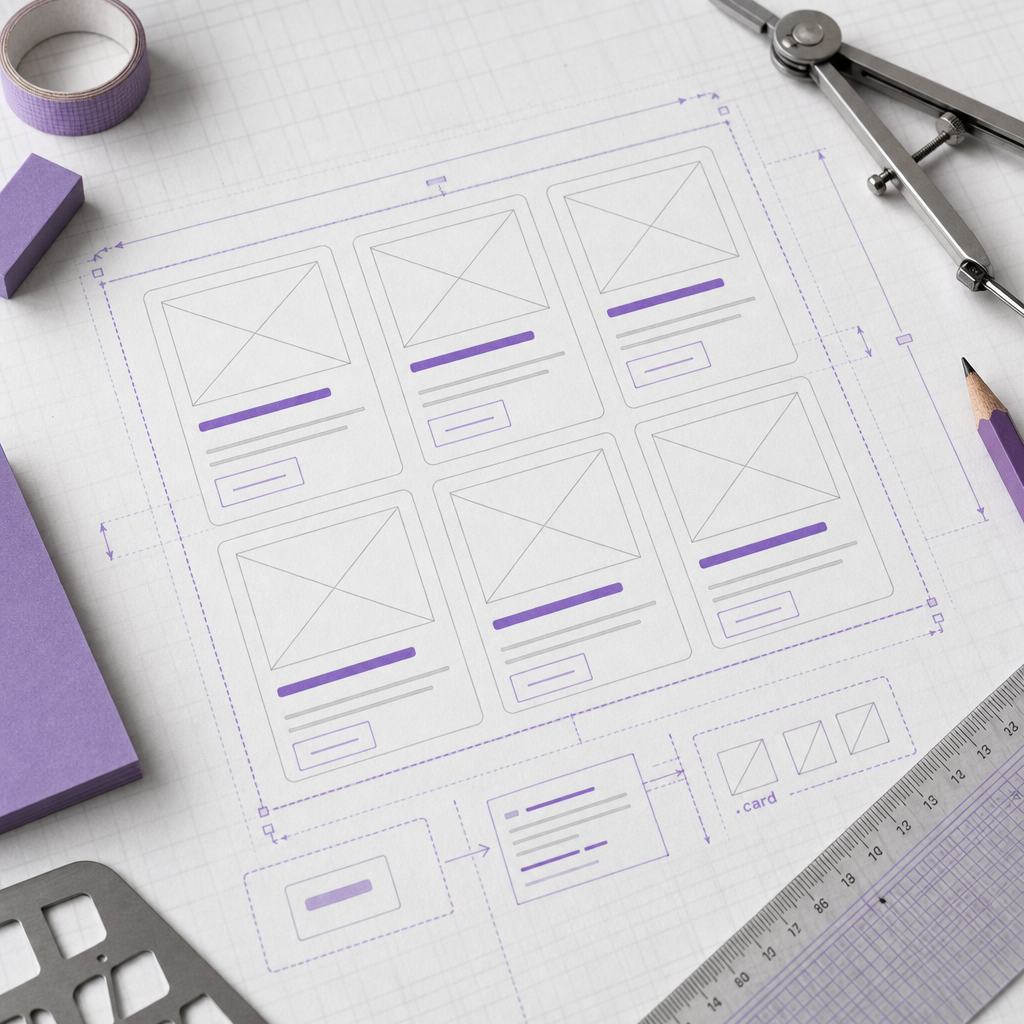
When a card includes an image, heading, description, and button, you may want the entire block to be clickable. The simplest solution is to place a transparent link over the card. However, this type of overlay often covers internal buttons, interferes with hover effects, and creates keyboard navigation problems.
A more reliable approach is to keep a real link on the heading or button and make the container a semantic article element. If needed, you can use JavaScript to pass clicks on the card’s empty area to that link without blocking other interactive elements.
Why You Should Not Place a Transparent Link Over the Entire Card
An overlay link is an a element stretched across the entire card using position: absolute. The solution may work visually, but it can create problems with the HTML structure and user interaction.
If another button, filter, or link to a different resource is placed inside that link, you create a nested interactive structure. Nested a elements are invalid under HTML rules, and it becomes harder for keyboard and screen reader users to understand what will be activated.
In addition, a transparent layer can intercept hover and click events. As a result, buttons, category links, image effects, or other interactive elements inside the card may stop working correctly.
- do not create one large link around the card if it contains other links;
- do not use an empty button solely to imitate clickability;
- do not hide the only important link from keyboard users with CSS.
Basic Card Structure in Elementor
Create the card as a separate Elementor container. You can set its HTML Tag to article under Layout → HTML Tag. If the interface has a different name in your version, choose the semantic article tag from the available HTML elements.
Add the CSS class card to the container. Inside it, place an image, heading, short description, and button or link. The primary link should be real and visible to users: for example, the heading can link to the content page, while the button can use the same or another clearly defined target URL.
Use the appropriate h2 or h3 level for the card heading, depending on the page structure. Add the link directly to the heading text through the Heading widget’s Link settings instead of placing a separate overlay layer over it.
- card container: HTML Tag — article;
- container class: card;
- heading: h2 or h3 with a link;
- additional button: a standard Button widget with its own link;
- decorative image: no separate link if it duplicates the heading link.
How to Name the Primary Link
To make the primary link easier to style or handle with a script later, give the heading widget a separate class, such as card__link. You can assign the class to the widget wrapper rather than to the a element itself, depending on the structure generated by Elementor.
If you do not need JavaScript in the card, a standard heading link is enough. Users can see what is interactive, and search engines receive a clear HTML a element.
How to Make a Card Look Clickable with CSS
Even without scripts, you can give users a clear visual signal: the heading and button should change color, underline, or other styles on hover and focus. You can raise the card or change its shadow on hover, but this should remain a visual effect rather than a substitute for a link.
The :focus-visible pseudo-class is especially important for keyboard navigation. It displays focus when users move through the page with the Tab key and preserves a visible indicator for people who do not use a mouse.
- maintain sufficient contrast for text and focus states;
- do not use color change as the only indication of interactivity;
- test hover and focus separately because they do not always behave in the same way.
.card {
  transition: transform 0.2s ease, box-shadow 0.2s ease;
}

.card:hover,
.card:focus-within {
  transform: translateY(-2px);
  box-shadow: 0 8px 24px rgba(0, 0, 0, 0.12);
}

.card__link a,
.card__link {
  color: inherit;
  text-decoration: none;
}

.card__link a:hover,
.card__link a:focus-visible {
  text-decoration: underline;
  text-underline-offset: 0.15em;
}

.card__link a:focus-visible,
.card a:focus-visible,
.card button:focus-visible {
  outline: 3px solid currentColor;
  outline-offset: 3px;
}
How to Pass Clicks from the Card’s Empty Area to the Heading
If the requirement is specifically for a click on the card’s empty area to open the content, you can use a small amount of JavaScript. The script does not create an overlay or change the HTML structure. It only activates the primary link when the user clicks an area of the card that is not another interactive button or link.
Add the card__link class to the widget or wrapper that contains the primary link. You can place the code in the location allowed for custom JavaScript on your site or through a code insertion tool. The exact path in the Elementor panel may vary depending on the editor, theme, and WordPress settings.
- the script must not intercept clicks on internal a, button, input, or select elements;
- each card should have one clearly defined primary link;
- do not add role="link" and tabindex="0" to the container without a separate accessibility review, as this may create a duplicate focus stop.
document.querySelectorAll('.card').forEach(function (card) {
  const primaryLink = card.querySelector('.card__link a, a.card__link');

  if (!primaryLink) return;

  card.addEventListener('click', function (event) {
    const target = event.target;

    if (!(target instanceof Element)) return;
    if (target.closest('a, button, input, textarea, select, label')) return;

    primaryLink.click();
  });
});
What Happens with the Keyboard
With this approach, keyboard users move directly to the real link in the heading. It receives focus and opens with the Enter key, so the entire article does not need to be made focusable separately.
This is intentional: a mouse or touchscreen can activate the card’s empty area, while keyboard navigation works through the standard focusable element. This keeps the structure understandable for screen readers.
Cards with Multiple Links and Buttons
Not every card should lead to one page. For example, the heading may open an article, the author may link to a profile page, the category may lead to an archive, and the button may perform a separate action. In this situation, passing every click to the primary link would be incorrect.
Keep JavaScript limited to the card’s empty area. The code from the previous example ignores clicks on links and buttons, so each internal element retains its own action. At the same time, labels should be specific: “Read the article,” “Author profile,” or “View all products” are clearer than a generic “Learn more.”
- do not unnecessarily duplicate the same link on the image, heading, and button;
- if links are duplicated, check the tab order;
- use button for an action within the card and a for navigation to a URL;
- do not automatically open every link in a new tab without a clear reason.
Accessibility, SEO, and Checks Before Publishing
A semantic article helps group content logically, but it does not turn the card itself into a link. For search engines and assistive technologies, real headings, descriptive text, and a correct a element with a page URL are important.
Test the card without a mouse: press Tab and confirm that focus is visible, the navigation order is logical, and Enter opens the correct page. Then test clicks on the heading, button, image, and empty area. If the card contains a form or another widget, check that the script does not intercept its event.
It is also useful to inspect the page in your browser’s developer tools. Each card should contain one article, links should not be nested inside one another, and the DOM should not contain an invisible element covering the entire block.
- check that focus-visible is clearly displayed;
- check the contrast of text, buttons, and hover states;
- check responsiveness on a touchscreen;
- check that links point to the correct URLs;
- test the page with a screen reader if the cards are important for navigation.
Common Elementor Mistakes
A common mistake is to make the container clickable with a decorative button and then stretch that button across the entire block. Such a button can cover every element, even if it is transparent. Another problem is removing the focus outline, which causes keyboard users to lose their position.
You should also avoid assigning role="button" to a card when it actually leads to another page. Use the a element for navigation and button for an action that does not involve navigation. An incorrect ARIA role does not fix invalid HTML structure.
If the card opens the page even when an internal button is clicked after you add the script, check the target.closest selector and add every interactive element used in your component to the exclusion list.
- do not rely on JavaScript as the only way to access the content;
- do not hide the primary link outside the visible area;
- do not use the same card class for elements with different logic;
- after making changes, clear the cache and check the published page rather than only the Elementor editor.
Frequently asked questions
Can I make the entire Elementor container a link without JavaScript?
A native article container does not become a link. You can add a link to the heading or button and use JavaScript for clicks on the empty area. This is safer than placing a transparent a element over the entire card.
Do I need to add a link to both the image and the heading?
Not necessarily. If the image leads to the same page, duplicating the link can increase the number of identical focus stops. In many cases, a heading link and a clear button are enough.
Does this implementation affect SEO?
A correct a element, descriptive anchor text, logical headings, and accessible HTML provide a better foundation than a transparent overlay. None of these approaches alone guarantees search rankings, but semantic structure makes the page easier to process.
Why does JavaScript open the primary link when I click a button inside the card?
The usual cause is that the script does not exclude button or another interactive element from event handling. Check the condition target.closest('a, button, input, textarea, select, label') and add any component-specific elements used in your card.
Conclusion
An effective Elementor card does not need a transparent overlay link. Create an article container, add the card class, place a real link on the heading or button, and style the hover and focus states.
If you also need the empty area to be clickable, carefully pass its click to the primary link with JavaScript. The key requirement is not to intercept actions from internal buttons and links. This keeps the card convenient for mouse users, understandable for keyboard users, and correct as an HTML structure.