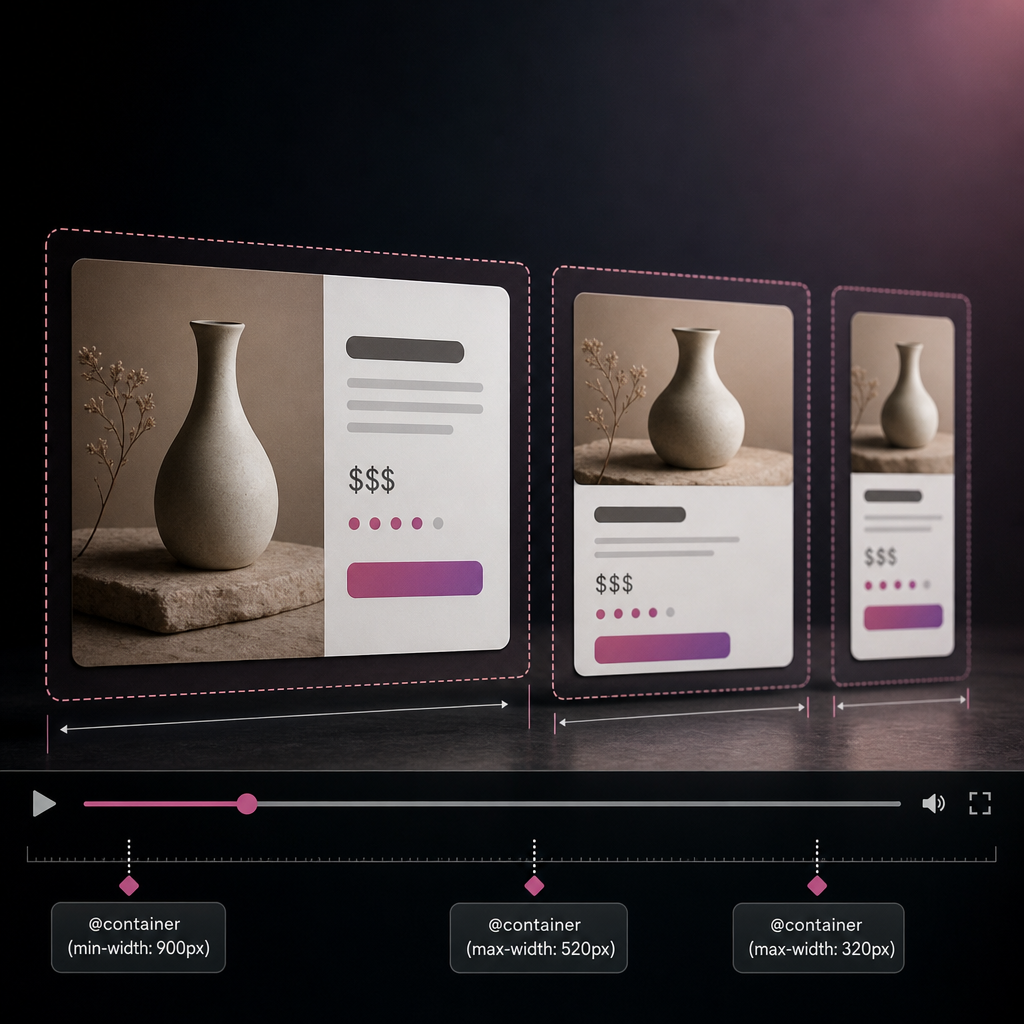
Most responsive styles use media queries: a block changes when the viewport width changes. This approach works well for the overall page structure, but it is not always suitable for individual components.
For example, a card may occupy half of a wide screen, appear in a sidebar, or be displayed inside a Loop Grid. In each case, its actual width differs from the monitor width. Container queries make it possible to respond specifically to the available width of the parent container.
What Are Container Queries and How Do They Differ from Media Queries?
A media query checks viewport characteristics such as the browser window width, screen orientation, or resolution. For example, the rule `@media (max-width: 768px)` applies on a narrow screen regardless of how much space a particular card actually receives.
A container query checks the size of a defined container. As a result, the same component can have a compact layout in a sidebar and an expanded layout in a wide section, even when the page is opened on the same monitor.
This does not mean abandoning breakpoints entirely. Media queries remain useful for the global grid, navigation, and general spacing. Container queries are better suited to independent, reusable components.
- media queries are based on the viewport;
- container queries are based on the width of the parent container;
- the component becomes more independent of where it is placed;
- the same styles can be reused in different sections of a page.
Preparing the Structure in Elementor
For this example, create a parent container that contains a product card or another reusable component. The parent element will define the available width, while the inner card will respond to it.
In Elementor, add the CSS class `card-area` to the parent container. Add the class `product-card` to the inner card element that requires responsive behavior. Enter the class without a dot: the dot is used in the CSS selector.
If the page contains several independent areas with cards, each area can have its own `card-area` container. This allows components to respond to their own width rather than the width of the entire page.
- parent container: `card-area`;
- inner card: `product-card`;
- make sure the card is actually a descendant of the container rather than a sibling element;
- if CSS is added through Elementor, make sure the Custom CSS field is available in your configuration; if necessary, place the rule in the theme’s global styles or another connected CSS file.
Basic Container Query Setup
First, declare the parent element as a query container. To adapt to horizontal width, use `container-type: inline-size`. The browser will then be able to check the width of `card-area` in `@container` rules.
Next, define the card’s default appearance and change it for a narrow container. In this example, the wide card has two columns, while a container width of up to 520 pixels changes it to a single-column layout.
- the `inline-size` value is based on the size in the inline direction, which corresponds to horizontal width in the standard writing mode;
- 520 pixels is an example threshold, not a universal standard;
- the threshold should be determined by the actual component width and the length of its content.
.card-area {
  container-type: inline-size;
}

.product-card {
  display: grid;
  grid-template-columns: minmax(0, 1fr) minmax(0, 1.2fr);
  gap: 24px;
}

@container (max-width: 520px) {
  .product-card {
    grid-template-columns: 1fr;
  }
}
Making the Query Clearer in a Complex Structure
When a page contains nested containers, the browser generally uses the nearest parent element declared as a container. This is sufficient for a simple structure, but in a complex template it is better to name the container explicitly.
To do this, add `container-name` to the parent element and specify the name in the `@container` rule. This makes the CSS easier to read and reduces the risk that the query will accidentally target another nested container.
- use a name when descendants contain multiple containers;
- the container name must be identical in `container-name` and `@container`;
- avoid overly general names such as `main` when a project contains many independent components.
.card-area {
  container-type: inline-size;
  container-name: card-area;
}

@container card-area (max-width: 520px) {
  .product-card {
    grid-template-columns: 1fr;
  }
}
Examples of Using Container Queries in Elementor
Container queries are especially useful when the same component can appear in different parts of a website. This includes product cards, blog post cards, pricing blocks, author profiles, sidebar widgets, and Loop Grid elements.
For example, in a wide section a card can place the image on the left and the text on the right. In a narrow sidebar, this structure becomes inconvenient, so the image, heading, and button can switch to a vertical layout.
The same principle can be applied to more than columns. Depending on the container width, you can change spacing, heading size, flex direction, the number of columns in an inner grid, or the visibility of secondary decorative elements.
- product cards in a Loop Grid;
- image and text blocks in a sidebar;
- reusable widgets in Elementor Theme Builder templates;
- components used both at full width and inside columns;
- inner grids with different numbers of columns depending on the available space.
.card-area {
  container-type: inline-size;
}

.product-card__content {
  display: flex;
  align-items: center;
  gap: 20px;
}

@container (max-width: 420px) {
  .product-card__content {
    align-items: stretch;
    flex-direction: column;
    gap: 12px;
  }

  .product-card__title {
    font-size: 1.15rem;
  }
}
Testing and Common Errors
After adding the CSS, check the page in Elementor’s responsive preview, but do not limit testing to changing the viewport width. It is important to test components in their actual context: inside a column, a sidebar, a Loop Grid, and nested containers.
If the rule does not work, first check the DOM structure and class names. A container query applies to the container’s descendants. It does not apply to the container element itself in the way beginners often expect.
Also check whether Elementor, the theme, or plugins are overriding the new rules. Avoid using `!important` indiscriminately: first review the selectors and the order in which the styles are loaded.
- the class was entered incorrectly or with a dot in the Elementor field;
- the CSS uses `.card-area`, but the class was assigned to an element other than the parent container;
- the card is not a descendant of the container;
- the query is checking another, closer nested container;
- the card has a fixed width that prevents it from shrinking correctly;
- the content contains long words, images, or buttons that overflow the narrow block;
- the CSS cache was not refreshed after saving the changes.
What Exactly to Test
Reduce not only the browser window width but also the width of the column containing the card. Pay particular attention to boundary values around 520 pixels: the transition should occur predictably, without jumps or horizontal scrolling.
Make sure headings, prices, buttons, and images are not clipped at narrow widths. Then test the page in current browsers and on real devices, since Elementor’s editor does not always reproduce every detail of the final template.
How to Combine Container Queries with Elementor Responsive Styles
There is no need to move all of a site’s responsive behavior to container queries. Global changes—such as changing the main section from four columns to two or switching to a mobile menu—are best left to media queries and Elementor’s standard responsive settings.
Container queries are better suited to the internal logic of a component. This separation simplifies maintenance: Elementor controls the overall page composition, while the CSS component determines how it behaves within the space it receives.
Start with one component and a few clear thresholds. Too many conditions make debugging more difficult and can create conflicts between Elementor’s standard responsive styles and custom CSS.
- media queries—for the structure of the entire page;
- container queries—for cards and independent blocks;
- Elementor responsive settings—for simple changes that do not require complex logic;
- custom CSS—for reusable components and precise control.
Frequently asked questions
Do container queries replace all breakpoints in Elementor?
No. They complement media queries rather than replacing them. Container queries are useful for internal components, while the global grid, menus, and overall page structure often require conventional breakpoints.
Can container queries be used in a Loop Grid?
Yes, provided that each card or card group has a valid parent container with `container-type`. Check the actual Loop Item template structure, because it determines which element will serve as the query container.
Why does `@container` not change the styles of the container itself?
Container queries are intended to style the descendants of a container. If you need to change the appearance of the parent element itself, you will generally need to adjust the CSS structure or use another approach, such as a media query for the outer composition.
Is Elementor Pro required for this CSS?
The container query mechanism is a CSS feature and does not belong to Elementor. However, the method for adding Custom CSS depends on your Elementor configuration, theme, and connected tools. If the required field is unavailable, you can add the rule through the site’s global styles.
What width value should I choose for `max-width`?
Choose it based on the component’s content rather than standard device names. Reduce the card width until the two-column layout begins to look cramped, and use that point as the transition threshold.
Conclusion
Container queries help you create Elementor components that adapt to the actual space available to them. They are especially useful for cards, Loop Grids, sidebars, and reusable blocks that may appear in different parts of a page.
To get started, add `container-type: inline-size` to the parent container, assign a class to the inner component, and define the required rules with `@container`. Then check the nesting, content overflow, and card behavior in real layouts.