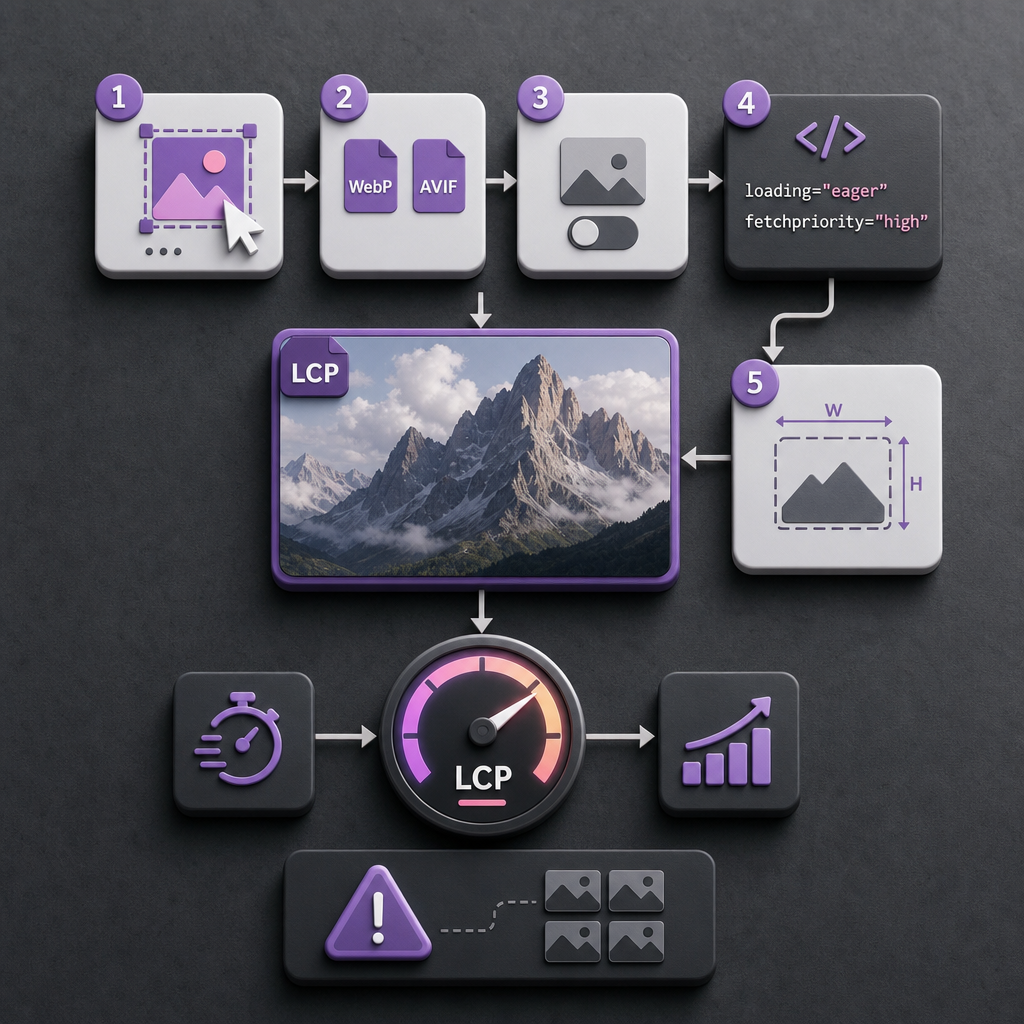
The largest visible element in the above-the-fold area is often an image in the hero section: a banner, cover, or large photo. If it loads late, the Largest Contentful Paint (LCP) metric suffers—the time it takes for the largest element in the visible part of the page to appear.
In WordPress and Elementor, delays can be caused by lazy loading, an oversized file, an unsuitable format, missing dimensions, or a low request priority. Below is a practical process for identifying the cause and correctly configuring one key LCP image without loading unnecessary resources.
What Is an LCP Image and Why Does It Matter?
LCP is a Core Web Vitals metric that shows when the user sees the largest content element in the upper part of the page. It may be an image, but it can also be a large heading, video, or block with a background image. On Elementor pages, the LCP element is most often a hero image or a large image in the Image Widget.
The browser does not always load this image first. If it has lazy loading enabled, the request may be deferred until the browser decides that the image is approaching the viewport. For an image that is already visible when the page opens, this creates unnecessary delay.
At the same time, not every large image should be forced to load with high priority. The goal is to identify one main above-the-fold element and optimize that element specifically.
- The LCP image should be visible without scrolling.
- The image should load without lazy loading.
- A high request priority is appropriate for it.
- The file should provide sufficient quality without being larger than required for its actual display size.
How to Identify the LCP Image
Do not optimize images at random. Open the page in an incognito window or use your browser's developer tools, then test it with Lighthouse or PageSpeed Insights. The report usually shows which element was identified as the Largest Contentful Paint element.
For an additional check, open the Network tab in DevTools, reload the page, and find the request for the hero image. Pay attention to when the request starts, which file is actually loaded, and whether it is waiting for other resources to finish.
Check the page separately on mobile and desktop. On mobile, the LCP element may be a different image, a different responsive image version, or even a heading instead of the desktop banner.
- Make sure the LCP element is actually an image.
- Check whether it is an img element rather than a CSS background-image.
- Check that an excessively large desktop version is not loaded first on mobile.
- Clear the cache after making changes; otherwise, the report may show an outdated version of the page.
Prepare the Right Image File
The file format and dimensions directly affect loading time. For most photographs and complex illustrations, consider WebP or AVIF. They usually produce a smaller file than JPEG or PNG at a similar level of visual quality.
The format alone will not solve the problem if the source image is excessively large. For example, there is no reason to load an image several thousand pixels wide if it is displayed much smaller in the hero section. Prepare a version that matches the actual container size and screen density.
For photographs, WebP or AVIF with a controlled compression level is usually suitable. PNG is more appropriate for transparent images, logos, or graphics where the sharpness of small details is important. After conversion, always check that artifacts have not appeared in textures or high-contrast areas.
- Do not upload an unoptimized original directly from a camera.
- Do not enlarge a small image with CSS—this reduces quality and does not speed up loading.
- Check whether the optimization plugin is creating multiple duplicate versions of the same file.
- For responsive behavior, use the correct WordPress image sizes instead of one oversized image for every screen.
How to Configure the Image Widget in Elementor
Open the page in Elementor and select the Image Widget containing the main above-the-fold image. Make sure it is the element identified during the LCP test, not simply the largest image on the page.
In the image settings, select an optimized WebP or AVIF file if that version is available and correctly supported by your configuration. If the format is generated automatically by an optimization plugin, inspect the page's HTML: what matters is which file the browser receives, not just the name shown in the media library.
Disable lazy loading for the hero image. In different versions of Elementor, WordPress, and optimization plugins, the names and locations of the relevant settings may vary. If Elementor does not provide a separate toggle, check whether the loading attribute is being added automatically by WordPress or a third-party plugin.
In Advanced → Attributes, you can add attributes for the key image. In Elementor's custom attribute fields, the usual format is “name|value”, with each attribute on a new line.
- loading|eager
- fetchpriority|high
loading|eager
fetchpriority|high
What to Check After Adding the Attributes
Save the changes and clear the Elementor cache, page cache, and CDN cache if one is being used. Then open the source HTML or the element inspector and make sure the attributes were added specifically to the img element.
Sometimes an optimization plugin changes or removes attributes while generating the final HTML. If loading="lazy" remains in the code, the Elementor setting has not been applied completely, and you need to check for conflicts with caching, image optimization, or WordPress features.
- The final code should contain loading="eager", not just a setting in the editor.
- fetchpriority="high" must belong specifically to the LCP image.
- Do not add these attributes to every Image Widget on the page.
Set Width and Height to Prevent Layout Shifts
It is helpful for the browser to know the image dimensions before the image has finished loading. The width and height attributes reserve the required space in the layout and reduce the risk of content shifting when the image appears. This affects not only page stability but also the perceived speed of the page.
WordPress often adds these dimensions automatically, but you should verify them in the final HTML. If the image is inserted through a section or container background style, width and height may be missing because it is not a standard img element.
Do not replace the actual proportions with arbitrary values. The width-to-height ratio in the HTML, CSS, and image file should be consistent; otherwise, the image may stretch or crop unpredictably.
- Check that width and height are present in the final img element.
- Preserve the image's natural aspect ratio.
- For responsive display, use CSS such as max-width: 100%; height: auto;.
- Do not set a fixed height if the design uses a different aspect ratio on mobile devices.
What to Do If the Hero Image Is Set as a Section Background
A CSS background image is not an img element, so loading="eager" or fetchpriority="high" cannot be applied to it directly through the Image Widget's Attributes settings. If the background is identified as the LCP element, the delay may be caused by CSS, styles, render-blocking resources, or late loading of the file.
When an image is an important part of the content, it is often more practical to use a standard Image Widget or another img HTML element. This gives the browser more information about the resource and simplifies work with responsive versions and attributes.
If the design requires a background-image, do not add preload without analysis. Preloading makes sense only for a resource that is definitely needed immediately; an incorrect preload can create an unnecessary request or compete with CSS, fonts, and other critical resources.
- First determine whether the background-image is actually the LCP element.
- Do not load the same file simultaneously as a background and an img element.
- Check the mobile background: the browser may be loading an unnecessary desktop version.
- Use preload only after checking the waterfall and the recommendations in the relevant report.
Common LCP Optimization Mistakes
The most common mistake is enabling eager loading and high priority for every image. The browser begins loading many resources at once, so the critical image may not receive any real advantage. For most images below the fold, lazy loading is instead the correct approach.
Another problem is evaluating the result only by file size. LCP may remain slow because of server response time, render-blocking CSS and JavaScript, a slow CDN, ineffective caching, or late HTML generation. Image optimization is important, but it is not always the only cause.
You should also avoid relying solely on the Elementor editor's assessment. Check the published page after clearing the cache, and review the actual HTML and network requests.
- Do not use eager loading for every image.
- Do not keep a huge PNG simply because it looks higher quality.
- Do not test only while logged in, as caching may work differently in that state.
- Do not draw conclusions from a single local test—compare several runs and different device types.
- After making changes, check not only LCP but also CLS and the overall appearance of the page.
Frequently asked questions
Do I need to set loading="eager" for all above-the-fold images?
No. Eager loading is generally needed only for the one main image that serves as the LCP element. Configure other images according to their actual position and role on the page.
Is adding fetchpriority="high" enough if the image still has lazy loading?
No. High priority does not cancel deferred loading. For the key image, make sure it does not have loading="lazy" and starts loading immediately.
Why are the Elementor attributes not visible in the final HTML?
They may be changed by WordPress, a caching or optimization plugin, a CDN, or another HTML-processing feature. Clear the caches and inspect the published page, rather than only checking the editor settings.
Is it mandatory to convert the LCP image to AVIF?
No. AVIF can significantly reduce file size, but compatibility, quality, and correct delivery are also important. A well-optimized WebP can be a practical option as well.
Conclusion
To speed up LCP in Elementor, first identify the actual largest above-the-fold element and then optimize that element specifically. Compress the file, use WebP or AVIF, disable lazy loading, add loading="eager" and fetchpriority="high", and check the width and height attributes.
After making changes, always analyze the final HTML, network requests, and results on mobile devices. The key principle is to give high priority to only one critical resource while allowing the remaining images to load efficiently.