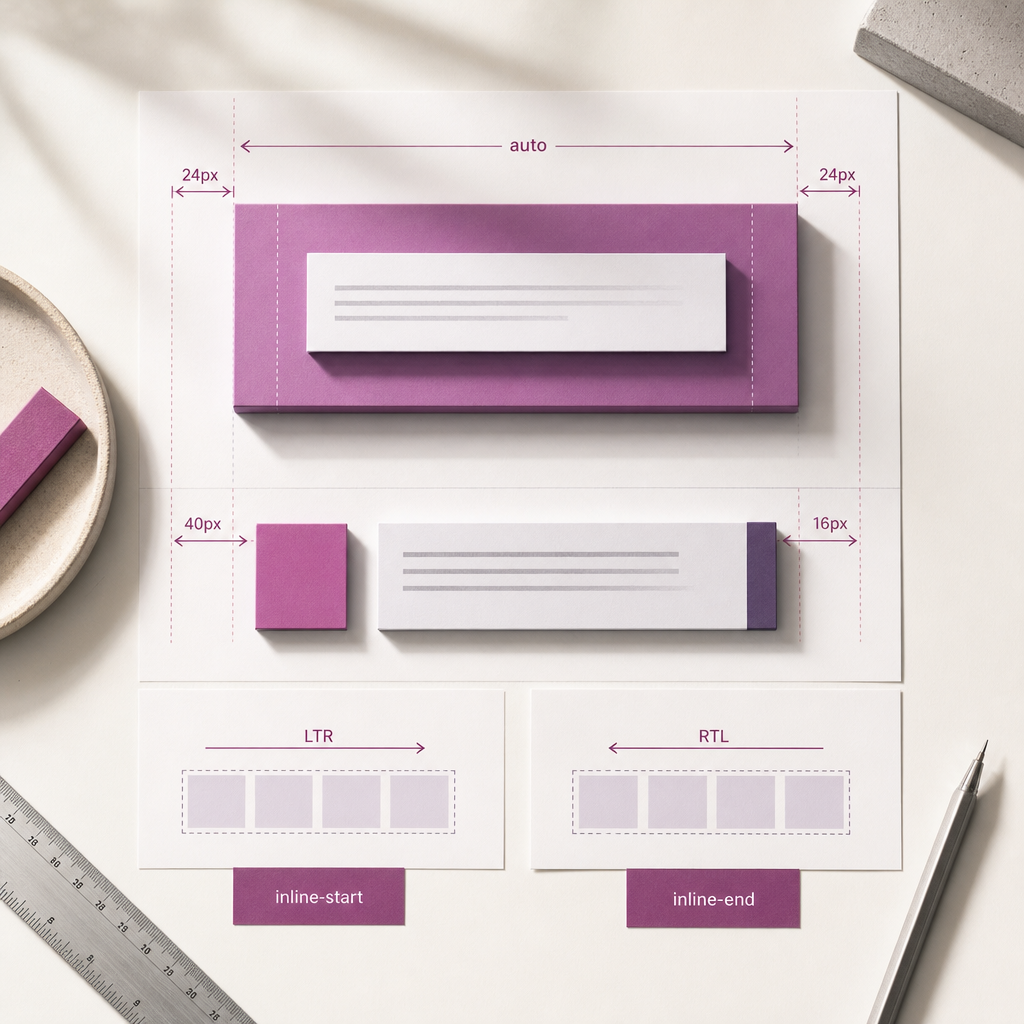
When creating a multilingual website in Elementor, standard properties such as margin-left, margin-right, padding-left, and padding-right can create extra work. They are tied to the physical side of the screen, so they do not change automatically when the writing direction of a page or block is set to RTL.
Logical CSS properties describe the start and end of a line rather than its left or right side. As a result, the same CSS can work for Ukrainian and English versions in the LTR direction, as well as for an Arabic version in RTL.
How Physical Properties Differ from Logical Properties
In traditional CSS, left spacing is set with margin-left or padding-left. In RTL, this may not be the side that the user perceives as the beginning of the line. Logical properties take direction into account: in LTR, inline-start corresponds to the left side, while in RTL it corresponds to the right side.
The inline axis describes the horizontal direction of text, while the block axis describes the direction in which blocks are arranged. Therefore, padding-inline corresponds to horizontal internal spacing, while padding-block corresponds to vertical spacing.
- margin-inline — horizontal outer spacing on both sides.
- padding-inline — horizontal inner spacing on both sides.
- margin-inline-start — spacing at the beginning of the line.
- margin-inline-end — spacing at the end of the line.
- padding-block — vertical inner spacing.
- inset-inline-start — positioning from the beginning of the line for elements with position.
.content-block {
  padding-inline: 24px;
  margin-inline: auto;
}
How to Add Logical Properties in Elementor
First, select the container or widget to which you want to apply the rule. In its settings, add a CSS class, such as content-block, without the dot. The dot is used in the CSS selector itself.
You can add CSS through Custom CSS if this option is available in your Elementor configuration, or through the theme’s or WordPress’s global styles. It is important to place the rule where it will load for the required pages and will not be accidentally limited to the editor only.
After saving, open the page in its regular viewing mode rather than only in the Elementor editor. Check that the class is present in the HTML and that the rule is not being overridden by widget, theme, or responsive styles.
- In Elementor’s class field, enter content-block, not .content-block.
- One class can be used for a group of similar blocks.
- For a single exceptional element, it is better to use a separate class than to modify the general rule.
- After making changes, clear the cache of your caching plugin, CDN, or browser if the old styles continue to appear.
.content-block {
  padding-inline: 24px;
  margin-inline: auto;
}
Specific Spacing for the Beginning and End of a Line
When identical spacing on the left and right is not suitable, use inline-start and inline-end. This is useful for cards, icons, decorative elements, and text blocks that need to shift together with the writing direction.
For example, in LTR, margin-inline-start: 40px creates spacing on the left. In RTL, the same declaration creates spacing on the right. Separate rules for the Arabic version are not required if RTL is correctly set on the page or container.
- inline-start — the beginning of the line: left in LTR and right in RTL.
- inline-end — the end of the line: right in LTR and left in RTL.
- block-start and block-end are related to the vertical direction, not the left or right side.
- Logical properties do not define the direction themselves; they only respond to an already established direction.
.content-block {
  margin-inline-start: 40px;
  padding-inline-end: 16px;
}
Examples for Common Elementor Elements
Logical properties are convenient for sections, containers, buttons, cards, and decorative elements. They are especially useful when an element has a visual relationship with the beginning or end of a text line.
For a button with an icon, you can set the gap and inner spacing without tying them to the left or right side. If the icon or its position changes in RTL through a separate rule, check that this does not duplicate the logic of the flex container.
- For a content area: padding-inline and margin-inline.
- For a badge or decorative line: inset-inline-start or inset-inline-end.
- For a border on one side: border-inline-start or border-inline-end.
- For rounded corners: border-start-start-radius and other logical alternatives when the design should depend on direction.
- For a fixed-position element: inset-inline-start instead of left, and inset-inline-end instead of right.
.icon-label {
  padding-inline-start: 12px;
  border-inline-start: 3px solid #2f6fed;
}

.badge {
  position: absolute;
  inset-inline-end: 16px;
  inset-block-start: 16px;
}
How to Configure and Check RTL Direction Correctly
Logical properties work correctly only when the browser knows the text direction. For an Arabic version, this is usually set with direction: rtl at the HTML document level or on the relevant language container. For Ukrainian and English, use direction: ltr.
Do not force direction: rtl on every widget. This can change text alignment, the order of flex items, and the behavior of nested components. It is better to set the direction at the page, language-version, or large-container level, and create local exceptions only when necessary.
- Check the page in both LTR and RTL, not just one direction.
- Test mobile, tablet, and desktop widths separately.
- Check menus, cards, buttons, sliders, forms, and blocks with position: absolute.
- In DevTools, inspect the computed margin and padding values and make sure the required rule has not been overridden.
- Check long Arabic headings and texts: they can change the height of blocks even when the spacing is correct.
[dir="rtl"] .content-block {
  /* Add this block only for exceptions,
     if logical properties are not sufficient */
}

[dir="ltr"] {
  direction: ltr;
}

[dir="rtl"] {
  direction: rtl;
}
Common Mistakes and Limitations
The most common mistake is mixing physical and logical properties in the same component. For example, padding-inline-start may be overridden by a later padding-left declaration or by a responsive Elementor rule. Choose one approach for a specific component and check the order in which the styles are loaded.
Another issue occurs when direction is changed on a child element while the expectation is that the entire layout will automatically rearrange itself. Text direction, the order of flex items, and the placement of absolutely positioned elements may require separate checks.
Logical properties do not replace all RTL settings. Arrow icons, background images, SVGs, sliders, and custom animations may have their own orientation. They need to be tested separately.
- Do not put a dot before the class name in Elementor’s field.
- Do not use margin-inline: auto if the element has no constrained width or should not be centered.
- Do not confuse padding-inline with padding-block: the former changes horizontal spacing, while the latter changes vertical spacing.
- Do not duplicate identical rules for LTR and RTL unnecessarily.
- Do not assume that correct spacing will automatically fix the order of elements in a complex flex or grid layout.
.content-block {
  margin-inline: auto;
  max-inline-size: 960px;
  padding-inline: 24px;
  padding-block: 32px;
}
Frequently asked questions
Do logical CSS properties work in Elementor without a separate RTL plugin?
Yes. The CSS properties themselves do not depend on an Elementor plugin. The page or container only needs to have its direction correctly defined as ltr or rtl, and the CSS must be added in a location that applies to the required element.
Do all margin-left and padding-right declarations need to be replaced with logical properties?
Not necessarily. Replace them where the spacing depends on the beginning or end of the line and needs to change in RTL. Physical properties can remain in place for decorative or intentionally fixed positions.
Why does margin-inline-start not change when switching languages?
Most often, the direction or dir attribute is not changing for the page, or the rule is being overridden by other CSS. Check the HTML container, the computed direction value, and the order of the styles in DevTools.
Can logical properties be used with position: absolute?
Yes. Instead of left and right, you can use inset-inline-start and inset-inline-end, and instead of top and bottom, use inset-block-start and inset-block-end. This helps anchor an element to a logical rather than physical side.
Conclusion
Logical CSS properties make Elementor layouts more resilient to changes in language direction. They allow spacing to be described through the beginning and end of a line, so one set of rules works for both LTR and RTL.
Start by replacing horizontal margin and padding declarations with margin-inline, padding-inline, inline-start, and inline-end. Then check the document direction, responsive styles, and components with icons or absolute positioning. This approach reduces the number of exceptions and simplifies multilingual website maintenance.