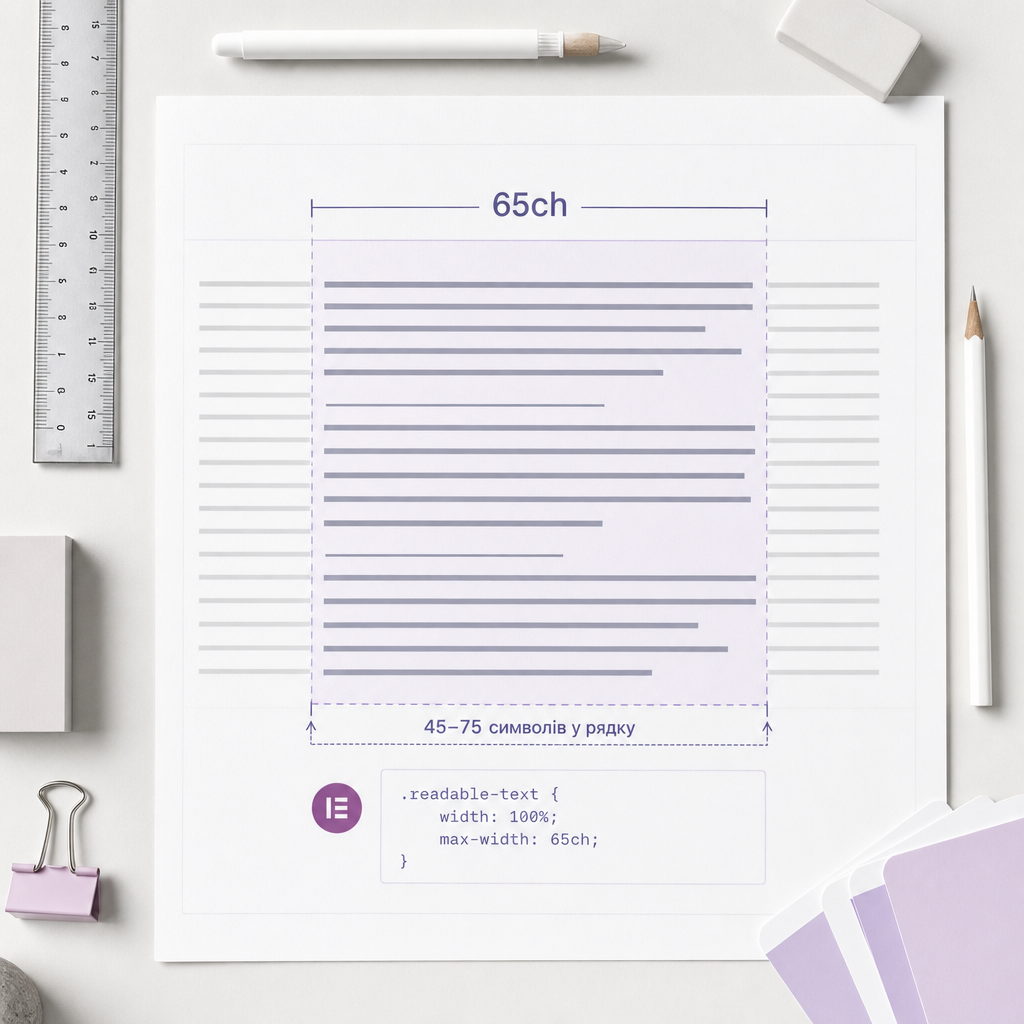
A wide text block does not always mean better design. When a line stretches across the entire screen, it becomes harder for the eye to move from the end of one line to the beginning of the next. As a result, even a well-chosen typeface can feel uncomfortable to read.
For articles, service descriptions, FAQs, and other large text sections, it is worth limiting line length. In Elementor, you can do this with the CSS max-width property and the ch unit, which is based on the width of characters in the current font.
Why Text Block Width Affects Readability
When text occupies the full width of a monitor, a single line may contain too many characters. Readers have to move their eyes across a greater distance, and it is easy to lose their place when moving to the next line. On narrow screens, the problem often changes to the opposite one: short lines create too many line breaks and visually fragment the text.
Web text is often designed around approximately 45–75 characters per line. This is not a strict rule for every website, but a practical range that helps balance reading comfort with efficient use of space.
It is important to consider more than the container width: the typeface, font size, weight, line height, and the amount of text on the page also matter. The same width in pixels will look different with a narrow typeface than with a wide one.
- lines that are too long can cause reading fatigue;
- lines that are too short increase the number of line breaks;
- a limited width makes long sections look neater;
- readers can scan headings, paragraphs, and lists more easily.
What Is the ch Unit in CSS?
The ch unit approximately corresponds to the width of the “0” character in the current font. Therefore, 65ch can be understood as an approximate width suitable for around 65 characters. It does not count the exact number of characters in every line: letters have different widths, and spaces, numbers, and punctuation also affect the result.
Unlike a fixed value in px, ch adapts more naturally when the font changes. If you change the typeface or font size for a text block, its width remains visually tied to the rhythm of the text.
For most long text blocks, you can start with a value between 60ch and 70ch. If the lines seem too long, reduce the value. If the text looks excessively narrow and has too many line breaks, increase it slightly.
- 45–55ch — a compact width for short explanations or a narrow column;
- 60–70ch — a versatile starting range for articles and descriptions;
- 70–75ch — an upper limit that should be checked visually with the specific font.
How to Limit Text Width in Elementor
First, select the text widget or container that should be limited. In the element settings, open the section for CSS classes and add the class readable-text without a period. The period is used in the CSS selector, not when entering the class name.
Next, add the CSS rule in a location available for your project: the element’s Custom CSS field or another method of adding custom styles used on the website. The name and location of this field may vary depending on the Elementor configuration and available features.
The basic version looks like this:
- element class: readable-text;
- width: 100% allows the block to stay within the boundaries of its parent container;
- max-width: 65ch limits the maximum line length;
- margin-inline: auto can be added if the block should be centered.
.readable-text {
  width: 100%;
  max-width: 65ch;
}
Version with a Centered Block
If the text block is placed in a wide container and should remain centered, use automatic margins. This affects the position of the block itself but does not change its maximum width.
.readable-text {
  width: 100%;
  max-width: 65ch;
  margin-inline: auto;
}
How to Choose the Right max-width Value
A value of 65ch is a useful starting point, but it is not a universal answer for every website. Line width is affected by the typeface, text size, content language, and word length. Ukrainian contains many long words, so the same width may look denser than it does in English text.
Start with 60–65ch and check the actual text on the page. It is better to evaluate several paragraphs, lists, and headings rather than a single short line. If paragraphs look like wide horizontal strips, reduce the value. If the text column feels too narrow, increase it gradually.
Do not choose a very small value simply to make the design feel “airy.” Excessively narrow text increases page height, scrolling, and the number of line breaks.
- check both long and short paragraphs;
- compare the result for regular text, lists, and quotations;
- do not judge the result only by the width of an empty block;
- change the value in small steps, for example from 65ch to 60ch or 70ch.
Responsiveness: What Happens on Mobile Devices
The combination of width: 100% and max-width works as follows: the block can use all available space but cannot become wider than the specified limit. On a large screen, the text is limited by the ch value; on a narrow smartphone, it shrinks together with its parent container.
For this reason, you usually do not need to set a separate mobile width in pixels. However, the result also depends on the container’s internal spacing. If the parent block has large padding values, the usable width for the text will be smaller.
Check the page at least in desktop, tablet, and mobile views. Make sure that no horizontal scrolling appears, long words are not cut off, and the font size remains comfortable to read.
- do not use a fixed width such as 700px for every screen size;
- check the container padding and column width;
- review text containing long words, URLs, or technical terms;
- clear the cache after changing the CSS if the old styles continue to appear.
Where This Technique Is Most Useful
Limiting width with ch is especially useful wherever users read several consecutive paragraphs. It helps create a predictable text column regardless of the width of the main layout.
This class is not always necessary for short captions, buttons, navigation, or small cards. Their width is often determined by the content or grid structure. You also do not need to limit the entire container with ch if it contains images, tables, or interactive elements.
- blog articles and news;
- service and product descriptions;
- FAQ sections;
- instructions and reference materials;
- long text sections on landing pages;
- case studies or testimonial pages.
Common Configuration Mistakes
The most common mistake is adding the class to one element while writing the CSS for a different selector or misspelling the class name. Make sure that readable-text is entered in the class field and that .readable-text is used in the code.
Another problem is trying to solve readability through width alone. Even an optimal column cannot compensate for a font size that is too small, insufficient line-height, weak contrast, or a lack of spacing between paragraphs.
You should also avoid applying max-width to every text element on the website without checking the result. Headings, short captions, and body text serve different purposes. Some elements may require separate rules.
- do not add a period before the class name in Elementor settings;
- do not confuse max-width with width: 65ch — the latter may make the block behave less flexibly;
- do not use the same width for text and media without a clear reason;
- check for styles with higher specificity that override your rule;
- evaluate the result with real content, not only in the editor.
Frequently asked questions
Do I have to use exactly 65ch?
No. 65ch is a practical starting value. Depending on the specific font and layout, values such as 55ch, 60ch, or 70ch may work better. Choose the value based on the actual readability of the text.
Does ch work for Cyrillic text?
Yes. CSS supports the ch unit regardless of the language. It is based on the width of a character in the selected font, but it does not guarantee the same actual number of characters in every line.
Do I need separate CSS for the mobile version?
Usually not if you use width: 100% together with max-width: 65ch. However, you should still check the mobile version because of container spacing, font size, and possible long words.
Why does max-width not change the text width in Elementor?
Check whether the class was added to the correct element, whether there is an error in the selector, and whether the CSS is actually connected to the page. The rule may also be overridden by a style with higher specificity or by a cached CSS version.
Can I apply readable-text to a container with several elements?
Yes, but the result depends on the structure. If the container contains only text elements, this is often convenient. If it includes images, buttons, or tables, it is better to limit the width of the individual text block.
Conclusion
The ch unit provides a simple way to control line length in Elementor without tying the layout rigidly to pixels. Add the readable-text class, set width: 100% and a max-width of approximately 60–70ch, then check the result with real content.
This is not a replacement for standard typography work, but a practical addition to it. The best result comes from combining a moderate text width, sufficient line height, good contrast, and proper responsiveness.