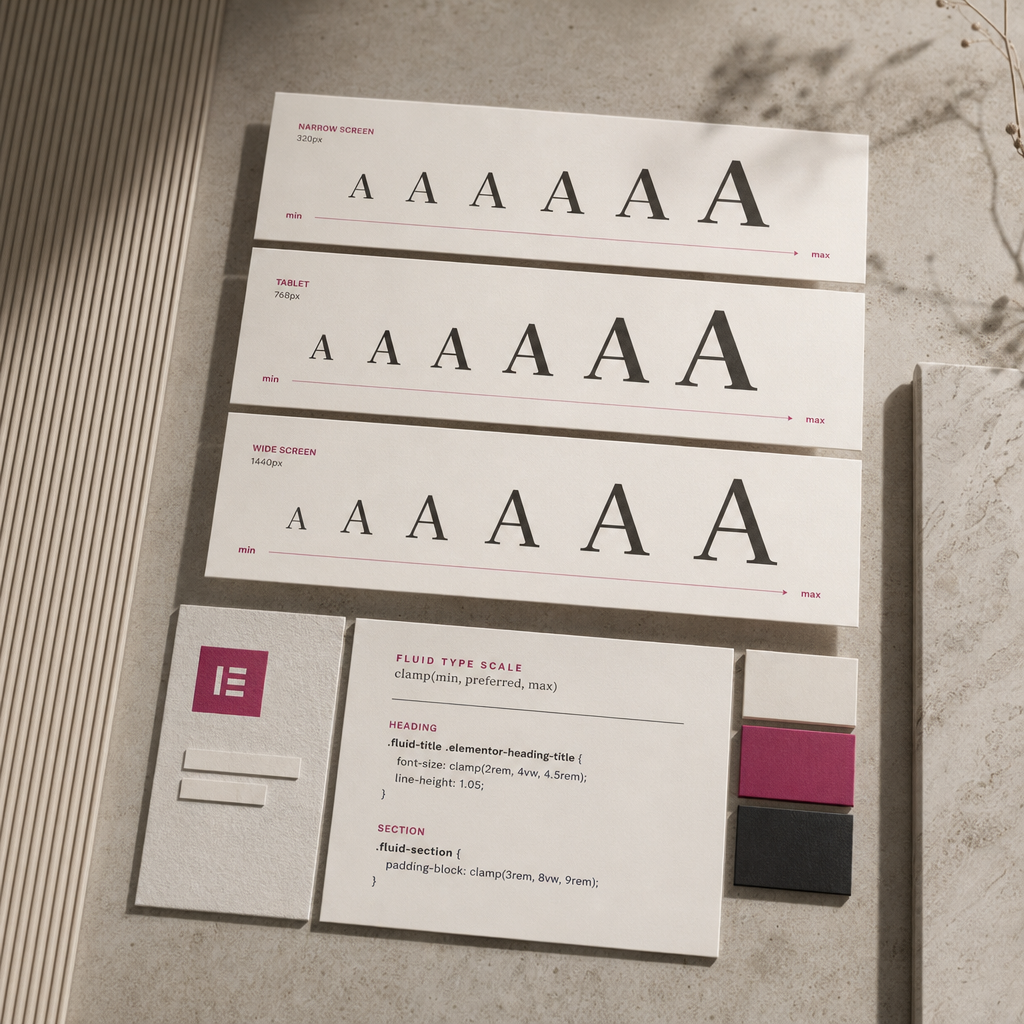
In Elementor’s standard responsive settings, font sizes often change in jumps: one value for desktop, another for tablet, and a third for mobile. Between these breakpoints, a heading may look disproportionately large or too small.
The CSS clamp() function helps create fluid typography. It defines a minimum, flexible, and maximum value at the same time, allowing text to adapt to the screen width without extensive manual adjustments.
What Is clamp() and How Does It Work?
The function uses the syntax clamp(minimum, flexible value, maximum). The browser uses the middle value as the basis for scaling but never goes below the lower limit or above the upper limit.
For example, in clamp(2rem, 4vw, 4.5rem), 2rem is the minimum font size, 4vw is the value that depends on the viewport width, and 4.5rem is the maximum size. On a narrow screen, the text will not become smaller than 2rem, while on a wide screen it will not grow beyond 4.5rem.
The vw unit equals one percent of the viewport width. Therefore, 4vw changes as the window width changes, unlike fixed px or rem values.
- the minimum protects against text becoming too small on mobile devices;
- the flexible value provides smooth scaling;
- the maximum prevents the heading from becoming disproportionately large on wide monitors.
font-size: clamp(2rem, 4vw, 4.5rem);How to Add a Fluid Heading Size in Elementor
First, open the Heading widget and add a CSS class to it, such as fluid-title. Enter the class without a period—the period is used only in the CSS selector.
Next, add the rule in Custom CSS if that option is available in your Elementor configuration, or insert it into the theme’s additional CSS styles. The exact location of the field may depend on the editor, plan, and site settings.
The selector below accounts for the standard internal structure of the Heading widget: the class is placed on the wrapper, while the heading text is inside an element with the elementor-heading-title class.
- open the required Heading widget;
- add the fluid-title class in the widget settings;
- add the CSS rule;
- save the changes and check the result at different screen widths.
.fluid-title .elementor-heading-title {
  font-size: clamp(2rem, 4vw, 4.5rem);
  line-height: 1.05;
}
What to Check If the Style Is Not Applied
Check whether the class was added to the correct widget rather than to a different section. Also make sure the CSS is loading on the page and is not being overridden by a style with greater specificity.
If the class was added directly to the heading element, the selector may be different. In that case, you can use a simpler rule such as .fluid-title { font-size: ... }, but first inspect the HTML in your browser’s developer tools.
Choosing Values for Different Types of Text
There is no universal clamp() value. The right setting depends on the font, heading length, container width, and purpose of the block. A hero heading can be large, while a card or section heading should be much more restrained.
For the main page heading, you can start with a range of 2–4.5rem. For second-level headings, a smaller range such as 1.5–3rem may be more appropriate. These are only starting points: the final result should be evaluated in the actual layout.
- a larger maximum size is acceptable for short headings;
- for long headings, reduce the maximum to avoid unnecessary line breaks;
- the minimum should remain comfortable to read on mobile devices;
- line-height should be checked separately, as the same value does not suit every typeface.
.section-title .elementor-heading-title {
  font-size: clamp(1.5rem, 3vw, 3rem);
  line-height: 1.15;
}

.hero-title .elementor-heading-title {
  font-size: clamp(2rem, 5vw, 5.5rem);
  line-height: 1;
}
Fluid Spacing with clamp()
The same function can be used not only for text but also for padding and margin. This helps reduce abrupt changes in section height between breakpoints.
The padding-block property sets the top and bottom inner spacing at the same time. If you need better support or more explicit behavior in a particular project, you can write these values separately with padding-top and padding-bottom.
- padding-block controls vertical spacing;
- padding-inline can be used for horizontal spacing;
- avoid applying excessively large maximum values to every section, or the page may become unnecessarily stretched.
.fluid-section {
  padding-block: clamp(3rem, 8vw, 9rem);
}

.fluid-section {
  padding-inline: clamp(1rem, 4vw, 4rem);
}
How to Check the Result on Different Screens
After adding the CSS, do not limit testing to Elementor’s three responsive modes. Gradually reduce and increase the browser width, because problems often appear between standard breakpoints.
Evaluate not only the numerical font size but also the composition: the number of lines, line length, spacing from neighboring elements, and the height of the first screen.
- check a narrow smartphone and a wider mobile screen;
- make sure the heading does not extend beyond the container;
- check a tablet in both portrait and landscape orientations;
- review the page on a wide monitor;
- test long headings, high browser zoom levels, and localized text.
Common Mistakes When Using clamp()
The most common mistake is using too wide a range between the minimum and maximum values. In this situation, a heading may look impressive on one screen but create unnecessary line breaks on another.
Another problem is using vw alone without limits. The text may become unreadable on a small screen or excessively large on a wide one. This is why clamp() should almost always include both boundaries.
You should also avoid blindly replacing all responsive settings. Breakpoint rules are still needed for some components, such as when the structure changes on mobile rather than only the size.
- do not confuse the fluid-title class with an HTML heading tag;
- do not add measurement units to the entire clamp() expression—each value needs its own unit;
- do not use the same clamp() value for every heading level;
- make sure line-height does not cause lines to overlap;
- after making changes, clear the CSS cache if the site or caching plugin is displaying outdated styles.
Frequently asked questions
Do I need Elementor Pro to use clamp()?
The clamp() function is a standard CSS function and does not depend on Elementor. You only need a place to add custom CSS: the relevant Elementor field, the theme’s additional styles, or another permitted method of adding CSS.
Can I use clamp() for regular body text?
Yes, but the range should be small for body text. For example, you can smoothly change the size between 1rem and 1.125rem while maintaining comfortable readability. For paragraphs, line length and line-height are more important than significant scaling.
Why does the heading size not change when I resize the window?
Check the class, selector, active breakpoint, and the specificity of other styles. Also make sure you are testing the viewport width rather than only resizing the inner editing area.
Do I need to stop using breakpoints after adding clamp()?
No. clamp() works well for smoothly scaling sizes and spacing, but breakpoints remain useful for changing the structure, order, visibility, or alignment of blocks.
Conclusion
clamp() makes Elementor typography more flexible: headings and spacing adapt gradually to the screen width while staying within defined limits. This reduces the number of manual responsive values and helps prevent abrupt transitions between breakpoints.
Start with a moderate range, test long headings at real screen widths, and adjust the minimum, flexible value, and maximum for the specific layout.