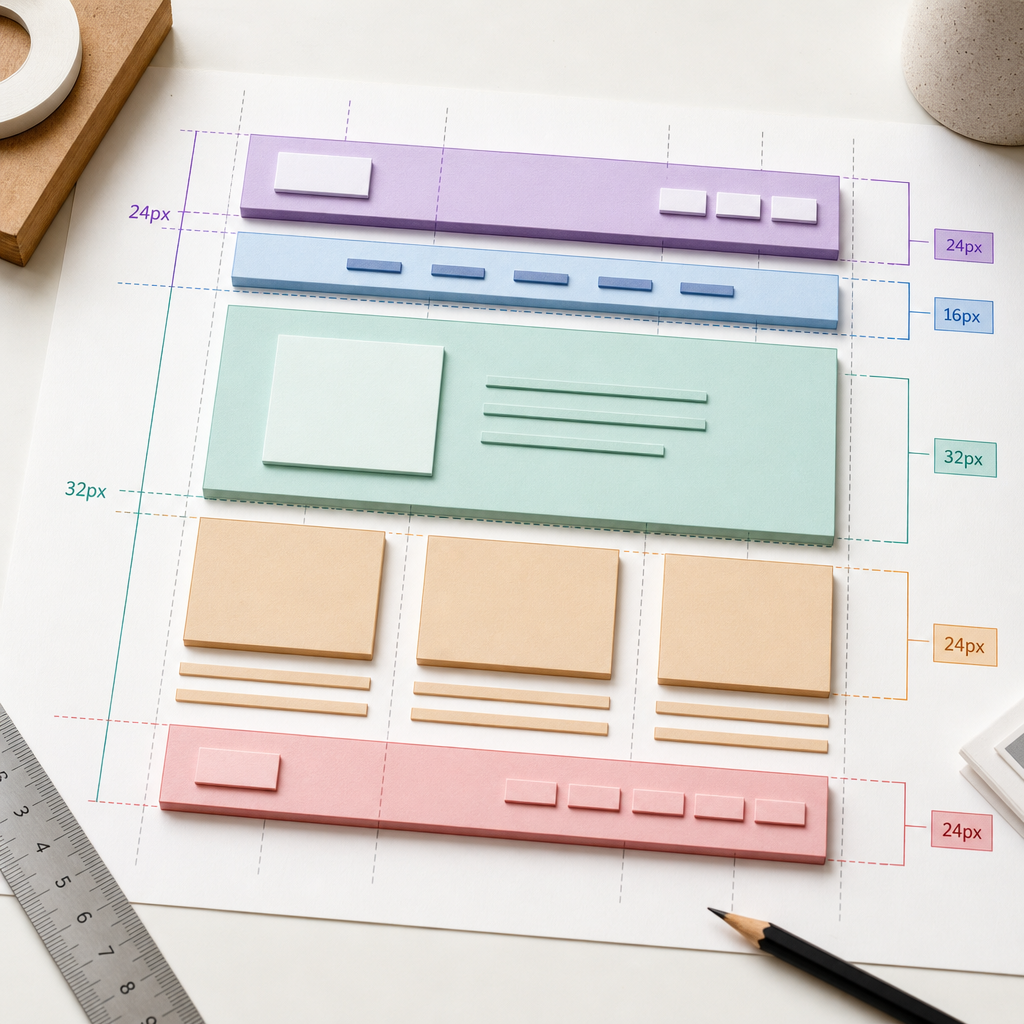
In Elementor, a container can be marked not only as a standard div but also with a semantic HTML tag such as header, nav, main, section, article, or footer. This helps browsers, screen readers, and search engines better understand the purpose of each page block.
Semantic markup does not replace high-quality content, a logical heading structure, or technical optimization. However, it creates a more coherent document structure, improves accessibility, and reduces the number of ambiguous containers in the HTML code.
What Are Semantic HTML Tags?
An HTML tag describes an element’s role rather than its visual appearance. For example, header identifies an introductory or navigational area, nav marks a navigation block, and article represents an independent piece of content. These elements may look identical visually, but their purpose is different for accessibility technologies and document analysis.
In Elementor, you generally select a semantic tag in the container or section settings through a field related to the HTML tag. The name and location of this option may vary depending on the Elementor version and element type, so rely on the setting available in the editor rather than an exact menu name.
- Semantics explain the page structure but do not create an automatic SEO advantage.
- Choose a tag based on the container’s content and role.
- Use div for ordinary grouping of elements.
Which HTML Tag Should You Choose for Main Elementor Blocks?
The simplest rule is to identify a block’s purpose first and choose the tag afterward. Do not use a semantic element merely because it seems more “correct” or more SEO-friendly.
- header — the site header, an introductory part of a page, or the heading area of an individual piece of content. A header may contain a logo, name, short description, and navigation.
- nav — a container with a set of primary navigation links. Examples include the main menu, a footer menu, or navigation within a large section. Not every group of links requires nav.
- main — the document’s primary, unique content. A page will generally have one main element containing the content specific to that page, not the global header or footer.
- section — a thematically related, standalone section of a page. Examples include Services, Benefits, Testimonials, or Frequently Asked Questions, provided the block has its own topic and heading.
- article — independent content that can be distributed or used separately from the rest of the page. Examples include a blog post, news item, review, catalog entry, or publication card.
- footer — the bottom part of a site or an individual piece of content. It may contain contact details, copyright information, additional links, and other supporting information.
- div — a neutral container for grouping elements, creating grids, managing spacing, adding decorative wrappers, and organizing the layout technically.
How to Build a Logical Page Structure
A typical page may have a header with the logo and menu, one main element containing the primary content, and a footer with contact details and additional links. Inside main, you can place thematic sections, while blog posts or other independent content items can be marked as article.
Semantic nesting should not become excessive. For example, a section may contain several article elements if it is a section listing publications. At the same time, not every inner container needs to become a section: a column, row, button group, or wrapper with background styling usually only needs a div.
- Use main for the central content of a specific page, not for every large block.
- Add section when a block has its own topic and is logically identified by a heading.
- Use article for content that has independent value outside its parent block.
- Do not create multiple main elements on one page without a clear technical reason.
- Do not mechanically replace every div with a semantic tag.
Example Page Structure
For a company home page, a logical model might include a header with the brand and primary menu, a main element with sections about services and benefits, a section containing testimonials, article elements for individual news items, and a footer with contact details. If service cards are not independent publications, div is often sufficient; section may also be appropriate depending on the block’s structure.
Elementor Headings: Hierarchy Matters More Than Size
HTML headings describe levels of content rather than text size. On a typical page, H1 is used for the page’s main topic, H2 for primary sections, and H3 for subsections within an H2 section.
In Elementor, do not choose H2 or H3 simply because its visual style looks appropriate. First select the correct heading level, then configure its size, font, line height, and spacing separately in the styles.
- The page should have a clear primary H1 heading.
- Avoid skipping heading levels without a reason: H3 normally follows H2, not H4.
- Do not use a heading for decorative text that is not the name of a section.
- The text in the Heading widget should reflect the actual content structure.
- A section heading should describe its content rather than use only generic wording such as “Learn More”.
Semantics, Accessibility, and SEO: What Do They Really Provide?
Semantic tags help screen reader users navigate a document more quickly by allowing them to move to the navigation, main content, or individual sections. This is especially important for long pages and websites that use repeated templates.
Search engines may use HTML structure as one signal for understanding content, but choosing section instead of div does not guarantee higher rankings. Results depend on page content, internal structure, performance, mobile usability, and other factors.
Semantic markup also makes a project easier to maintain. When a container’s role is clear from the code, developers can find the required block, review templates, and work with accessibility more easily.
- Semantic HTML does not replace alt text, accessible forms, sufficient contrast, or keyboard navigation.
- Do not add ARIA attributes instead of choosing the correct native HTML elements.
- What matters is not the number of semantic tags but whether they match the actual content structure.
Common Mistakes When Working with Elementor Containers
Problems most often arise when semantics are treated as a decorative setting. The result is a page with many section and article elements whose logic is no clearer than before.
- Turning every container into a section. If a container only creates a grid or groups several elements, use div.
- Using article for every card. Article is appropriate when a card represents an independent piece of content, post, news item, or standalone entity.
- Using multiple main elements on one page. One main element is generally enough for the primary unique content.
- Choosing an H tag based on font size. This damages the heading hierarchy and makes navigation more difficult for screen reader users.
- Using nav for any group of links. A group of utility or contextual links is not always page navigation.
- Creating excessively deep nesting. A large number of unnecessary wrappers makes the code more difficult to manage and maintain.
- Changing tags without checking templates. If the same container is used globally, changing its HTML tag may affect every page.
How to Check the Semantic Structure Before Publishing
It is best to check the structure not only in the Elementor editor but also on the published page. Some templates, widgets, or plugins may add their own wrappers and headings.
- Open the page in a browser and use the developer tools to check the actual HTML tags.
- Find the H1 and make sure it describes the page’s main topic.
- Review the headings in sequence: H1, H2, H3, without accidental level jumps.
- Check that there is one logical main element and that global template elements have not been placed inside it.
- Make sure nav contains navigation links and article represents genuinely independent content.
- Test the page with a keyboard and accessibility evaluation tools if the site has higher WCAG requirements.
- Clear the cache after making changes if an optimization or caching plugin may be displaying an older version of the HTML.
Frequently asked questions
Does choosing section instead of div affect Google rankings?
Choosing section by itself does not guarantee improved rankings. It helps describe the document structure, but SEO results depend on a combination of factors, including content quality, the site’s technical condition, performance, usability, and search intent relevance.
How many H1 tags should an Elementor page have?
A page should have one clear primary H1 that describes its topic. Also check that Elementor, the theme, or plugins are not adding unexpected H1 elements to the logo, template, or widgets.
Can you use multiple header and footer elements?
Yes. Header and footer can describe not only the entire site but also individual pieces of content or logical parts of a document. However, for the global site header and footer, one corresponding block in the template is usually sufficient.
When should a card be marked as article?
Use article when a card represents independent content, such as a blog post, news item, review, product, or another entity that can be understood on its own. A purely decorative card or grid element only needs a div.
Do you need to change all div elements in an existing project?
No. Update only the blocks whose role is clear and genuinely matches a semantic tag. Replacing containers in bulk without analyzing them can make the structure more complicated without providing practical value.
Conclusion
In Elementor, semantic structure begins not with using the maximum number of specialized tags but with correctly understanding the role of each container. Use header, nav, main, section, article, and footer where they accurately match the content, and keep div for neutral grouping.
Before publishing, check the actual HTML, heading hierarchy, number of main elements, and navigation logic. This approach makes the page clearer for users, accessibility technologies, and search engines without adding unnecessary complexity to the code.