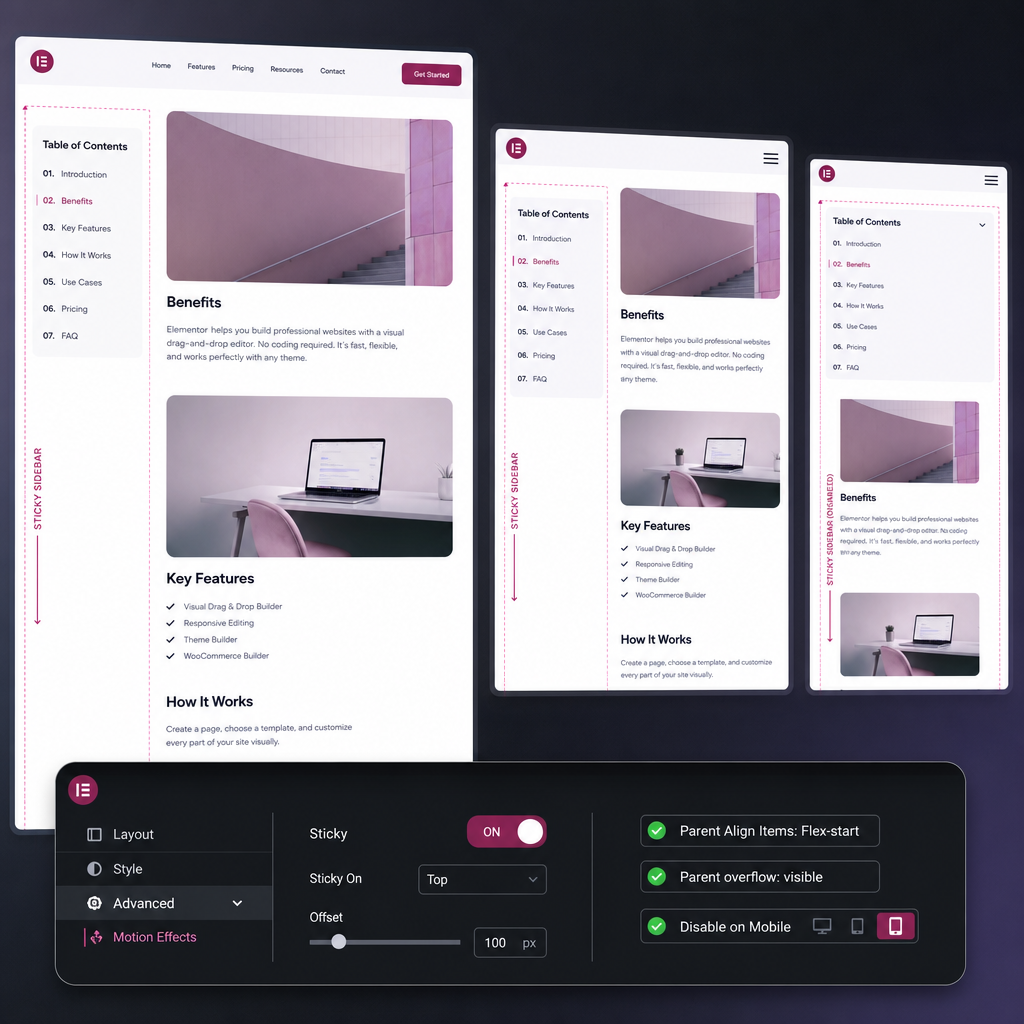
A sticky sidebar keeps a block visible while the page is being scrolled. This is useful for an article table of contents, catalog filters, a contact card, navigation, or a short call to action.
In Elementor, sticky positioning often fails not because of the widget itself, but because of the container structure. The result is affected by the parent element’s height, overflow values, Flexbox alignment, a fixed header, and responsive settings. Below is a step-by-step setup and troubleshooting process.
How Sticky Positioning Works in Elementor
A sticky element initially behaves like a regular block in the document flow. When the page is scrolled to it, the block sticks to the specified boundary—usually the top edge of the browser window. Once the parent container ends, the element stops moving, so it does not extend beyond the section.
This differs from fixed positioning. A fixed block is attached to the browser window and can remain on screen regardless of its parent container. A sticky sidebar, by contrast, works only within the boundaries of its parent element.
Therefore, two conditions are required for correct behavior: the parent container must be tall enough, and the sticky block must not stretch to the full height of that container.
- Sticky works best in a two-column layout with the main content and a sidebar.
- If the parent container is shorter than the sidebar or nearly the same height, the effect may not be noticeable.
- Sticky does not create a separate layer above the content, so it does not replace a fixed panel.
Basic Sticky Sidebar Setup
Before configuring the setting, make sure you are editing the container or widget that should remain visible while scrolling. There is no need to enable sticky positioning for the entire row if only the sidebar needs to be fixed in place.
- Open the required container or widget in Elementor.
- Go to the Advanced tab.
- Open the Motion Effects section.
- Set the Sticky option to Top.
- If necessary, set the Effects Offset—the distance from the top edge of the window.
- Update the page and check the result in Preview mode or on the published page.
Which Element Should Be Made Sticky
In most cases, sticky positioning should be applied to the inner sidebar container rather than the outer container that holds both columns. This allows the main content and sidebar to remain part of the same layout while moving independently.
If the sidebar contains several blocks, place them in an inner container and apply sticky positioning to that container. This helps prevent individual widgets from sticking at different positions or creating unwanted gaps.
- Do not apply sticky positioning to the parent row if it contains both the main text and the sidebar.
- Check that the sticky container does not have excessive height or an unnecessary minimum size.
- If the sidebar contains a long list, make sure its height does not exceed the available space on the screen.
Configuring the Parent Container
The most common cause of faulty sticky behavior is the configuration of the parent Flexbox container. In a horizontal Elementor container, child elements may stretch vertically because of the default Stretch alignment.
When the sidebar stretches to the full height of the row, the browser may not have enough free height for a noticeable sticky effect. For the parent container, try setting Align Items to Flex-start. The sidebar will then retain a height based on its own content.
- Select the parent container that contains the main content and sidebar.
- In the Layout settings, find Align Items.
- Change Stretch to Flex-start.
- Check that the sidebar does not have a height of 100%, a minimum height, or stretching caused by another container.
- Make sure there is enough long-form main content next to the sidebar.
Why the Parent Container’s Height Matters
A sticky element cannot scroll for longer than its parent container exists. If the sidebar is located in a short section, the effect will end together with that section, even if the page contains a large amount of content below it.
For an article or catalog page, it is usually enough for the main column to be noticeably taller than the sidebar. If both columns have the same height because of forced stretching, sticky positioning may appear not to work.
- Do not assign the same fixed height to both columns unless it is necessary.
- Check the section’s minimum height and internal padding.
- Pay attention to nested containers: the issue may be caused not by the nearest parent, but by one of the outer parent elements.
Overflow, Header, and Effects Offset
Sticky positioning may stop working if one of the parent containers has overflow: hidden. This rule clips content outside the container and may change the area relative to which the browser calculates scrolling. In Elementor, check the overflow setting on the sticky container and its parents.
If hiding overflow is not required, use the default value or another option that does not restrict the visible area. Check the settings at every nesting level, not only in the sidebar container.
Also account for a fixed header. Without a top offset, the sticky block may end up underneath it. In Motion Effects, set an Effects Offset close to the actual header height, then check the page while scrolling.
- Check overflow in the sidebar’s inner container.
- Check overflow in the parent container for the columns and in the outer section.
- If the header changes height while scrolling, test several offset values.
- Do not add an excessively large offset: the sticky element will start sticking too low and leave unnecessary empty space.
Responsive Settings for Tablets and Mobile Devices
On a wide screen, the sidebar usually sits beside the text, so sticky positioning works naturally. On mobile devices, the columns become vertical, and the sidebar may occupy a significant part of the screen, cover the content, or create an inconveniently long scrolling experience.
In Elementor, Motion Effects settings can be configured separately for different device types if the relevant responsive controls are available in your configuration. On mobile, it is usually advisable to disable Sticky or keep it enabled only where it genuinely improves navigation.
- Check sticky behavior on an actual smartphone, not only by resizing the browser window.
- Disable sticky on mobile if the sidebar covers the main content.
- On tablets, test both portrait and landscape orientation.
- Check that a large Effects Offset configured for desktop has not been carried over.
- After changing responsive settings, clear the cache if the page still displays an older version of the styles.
How to Find the Cause When Sticky Does Not Work
Check the issue step by step, starting with the simplest possibilities. Open the page in a clean browser window, scroll below the top edge of the sidebar, and see whether its position changes. If it does not, temporarily remove unnecessary styles and nested containers to isolate the conflict.
- Make sure Sticky is applied to the required element, not only to its parent container.
- Check that there is enough neighboring content in terms of height.
- Change Align Items: Stretch to Flex-start in the parent container.
- Check overflow on all parent elements.
- Temporarily remove transform, custom scrolling effects, and third-party CSS rules.
- Check whether another element with a higher z-index is covering the sidebar.
- Test the page without optimization or caching plugins if styles are being applied incorrectly.
Common Layout Mistakes
Sometimes sticky positioning works technically, but the user cannot see it. For example, the sidebar may already be close to the top edge, its height may be nearly equal to the viewport height, or the header may cover the upper part of the block.
Another common cause is applying sticky positioning to a container with internal scrolling. In this setup, an individual block scrolls instead of the entire page, so its behavior may differ from what you expect.
- Do not confuse sticky positioning with a permanently fixed panel.
- Do not use several different positioning methods at the same time unless necessary.
- Check whether a section with a restricted height is clipping the sidebar.
- After publishing, check the page in the same browser and on the same type of device for which the layout was configured.
Practical Setup for an Article Page
For an article table of contents, create a horizontal parent container with two child containers: the main text and the sidebar. Place a table-of-contents container inside the sidebar, set Sticky: Top for it, and account for the header height in Effects Offset.
Set Align Items: Flex-start for the parent container and do not use overflow: hidden unless there is a specific reason. Make sure the main text is longer than the table of contents. On mobile, disable sticky if the table of contents should appear before the article or takes up too much space.
The same principle applies to catalog filters and contact cards: apply sticky positioning to the inner block, while the outer container and the length of the main content determine the limits of its movement.
- First configure the container structure, then adjust spacing and decorative effects.
- Test scrolling after every significant change.
- Evaluate not only desktop behavior but also the convenience of interacting with the layout on mobile devices.
Frequently asked questions
Why does sticky positioning in Elementor stop immediately?
Most often, the parent container is not tall enough, the sidebar is stretched to the full height because of Align Items: Stretch, or one of the parents has overflow settings that restrict the scrolling area.
What Effects Offset value should I use for a sticky sidebar?
The offset should account for the actual height of the fixed header plus a small additional gap. The exact value depends on your layout, so test it while scrolling.
Should sticky positioning be disabled on mobile?
Not always, but it is often advisable. If the sidebar covers the text, takes up the entire screen, or makes scrolling difficult, disable Sticky for the mobile breakpoint.
What is the difference between sticky and fixed positioning?
Sticky positioning makes an element stick while scrolling but keeps it within the boundaries of its parent container. Fixed positioning attaches the element to the browser window, allowing it to remain on screen regardless of the section’s height.
Conclusion
For a sticky sidebar in Elementor to work reliably, configure not only Motion Effects but also the entire container structure. Start with Sticky: Top and Effects Offset, then check Align Items, the parent container’s height, and overflow.
If the effect is not needed on narrow screens, disable it for mobile devices. A properly configured sticky sidebar should support navigation rather than cover the main content.