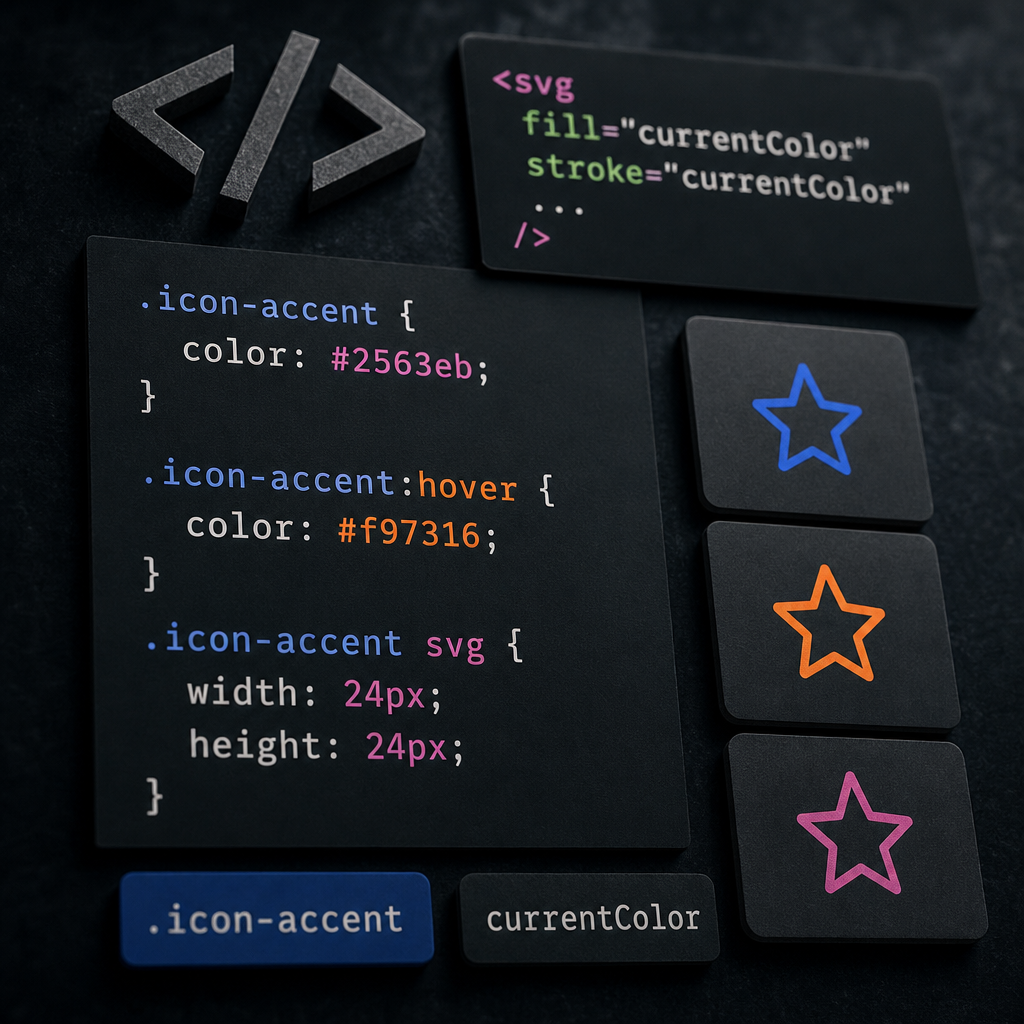
You do not need to prepare separate SVG files for the default, hover, and active states of icons in Elementor. If an icon uses the currentColor value, its color is inherited from the color CSS property of its parent element.
This lets you control the icon color through classes, Elementor global styles, pseudo-classes, and media queries. The SVG itself remains unchanged. This approach is especially convenient for buttons, menus, cards, feature lists, and decorative interface icons.
What Is currentColor in SVG?
currentColor is a special CSS value equal to the current value of the color property. In regular text, it lets you use the text color for a border, icon, or another element. In SVG, the same principle works with the fill and stroke attributes.
If an icon path contains fill="currentColor", the fill takes its color from CSS. If stroke="currentColor" is used, the outline is colored according to the same principle.
For example, an SVG with a fixed fill="#2563eb" will always be blue until the file itself or its styles are changed. An SVG with fill="currentColor" can become orange on hover, white on a dark background, or another color in the mobile version.
- fill controls the fill color of shapes.
- stroke controls lines and outlines.
- color is set with CSS for the element or its parent container.
- currentColor does not create a new color; it uses the color already set through color.
<svg viewBox="0 0 24 24" fill="none" xmlns="http://www.w3.org/2000/svg">
  <path d="..." fill="currentColor"/>
</svg>
How to Prepare an SVG File for Color Changes
Before uploading an icon, open the SVG in a text editor or a vector graphics editor that lets you view its code. Find fixed color values in the svg, path, circle, rect, line, and other elements.
Replace specific colors with currentColor. These may be color names, HEX values, rgb(), rgba(), or hsl() values. If the icon consists of several paths with the same color, check each one rather than only the outer svg tag.
You do not need to replace fill="none". This value means that there is no fill, and changing it to currentColor may alter the icon’s appearance. Likewise, do not change stroke-width, stroke-linecap, or stroke-linejoin: these control geometry and how lines are rendered, not their color.
- Replace fill="#000000" or fill="black" with fill="currentColor".
- Replace stroke="#000000" with stroke="currentColor".
- Check inline styles such as style="fill:#2563eb"—they may also fix the color.
- Make sure the SVG does not contain multiple layers with different colors if you need a monochrome icon.
- After editing, test the file separately: it should display correctly and contain no unnecessary scripts or unsafe code.
<!-- Before -->
<path d="..." fill="#2563eb"/>

<!-- After -->
<path d="..." fill="currentColor"/>
How to Add an SVG Icon in Elementor
For currentColor to work, the SVG must be part of the HTML document or used in a context where CSS can affect its contents. In practice, you can use the Icon Widget with a custom SVG if the current Elementor configuration allows it to be uploaded and rendered as an SVG, or insert the SVG inline through the appropriate HTML element.
Add the icon to the page, then assign a class such as icon-accent to the outer element in Advanced → CSS Classes. If the SVG is inserted manually, make sure it is inline code in the markup rather than a file reference through img.
The CSS class can then be used as the color control point. Elementor does not modify the SVG file itself; it only passes the required color value to the element.
- Use the Icon Widget or an inline SVG.
- Add a class to the widget or container that contains the icon.
- Check that the SVG contains currentColor.
- Clear the cache after changing the file if the browser continues to display the old version.
.icon-accent {
  color: #2563eb;
}

.icon-accent:hover {
  color: #f97316;
}

.icon-accent svg {
  width: 24px;
  height: 24px;
}
Configuring Default, Hover, and Active States
A common scenario is a blue icon in its default state and an orange icon on hover. Because the SVG uses currentColor, you only need to change color on the outer element. All paths that use currentColor will automatically change shade.
For an active menu item or a selected card, you can use an additional class. The way this class is added depends on the page structure: it may be a class on the element, its container, or a state generated by the navigation.
If the icon should match the active text color, it is convenient to inherit color instead of duplicating HEX values. For example, an icon inside a button can automatically remain white in all button states.
- Default state: .icon-accent { color: #2563eb; }.
- Hover: .icon-accent:hover { color: #f97316; }.
- Keyboard focus: add .icon-accent:focus-visible when needed.
- Active state: use a class such as .is-active or a selector that matches the component structure.
- For a dark theme, change color in a media query or through a global theme class.
.icon-accent {
  color: #2563eb;
  transition: color 180ms ease;
}

.icon-accent:hover,
.icon-accent:focus-visible,
.icon-accent.is-active {
  color: #f97316;
}

@media (max-width: 767px) {
  .icon-accent {
    color: #1d4ed8;
  }
}
Why an SVG Added Through the Image Widget Does Not Respond to currentColor
When an SVG is added as a regular image through the Image Widget, the browser loads it as an external resource inside an img element. The parent element’s CSS color does not penetrate this SVG document, so currentColor does not receive the expected value.
As a result, a class may change the color of the img element or its container, but not the fill of the paths inside the file. This is not a currentColor error; it is a limitation of the way the SVG is embedded.
If you need to change the color of an external SVG file, you can prepare separate files, use a CSS mask for simple monochrome shapes, or insert the icon inline. For scenarios with multiple states, inline SVG or a widget that inserts the SVG into the DOM is usually the most convenient option.
- img src="icon.svg" — the SVG remains an external resource.
- Inline <svg>...</svg> — CSS can affect its fill and stroke.
- Do not confuse changing opacity or filter on img with changing the fill inside the SVG.
- If Elementor sanitizes or does not accept inline code, check the permitted way to add SVGs in your configuration.
Common Mistakes and How to Check the Result
The most common reason currentColor does not work is that one of the paths still contains a hard-coded color. Another frequent cause is that the CSS class was added to the wrong element or an Elementor style has higher specificity.
You can investigate the issue using your browser’s developer tools. Hover over the SVG in the Elements tab, find the path, and check the actual fill or stroke value applied. If a HEX code remains there, the file or the style needs to be corrected.
Also check hover, keyboard focus, and mobile widths separately. On touch devices, hover is not a full replacement for an active or focus state, so important interactive elements should have an accessible focus state.
- A fixed fill on a path overrides the expected color change.
- style="fill:..." inside the SVG may have priority over simple CSS.
- For multicolor icons, currentColor turns all corresponding parts into one color.
- Do not use color as the only way to communicate a state: add text, a shape, an underline, or another visible signal.
- Check the icon’s contrast against the background in every state.
.icon-accent svg,
.icon-accent svg path {
  /* Use this option only if the base style is not applied */
  fill: currentColor;
}

.icon-accent svg path[fill="none"] {
  fill: none;
}
Frequently asked questions
Can currentColor be used for a stroke icon?
Yes. For paths drawn with a line, replace the fixed value with stroke="currentColor". If necessary, keep fill="none" so the inner area is not filled.
Do I need to create a separate SVG for hover?
No, if the icon’s shape does not change. To change only its color, one SVG with currentColor and a CSS rule for :hover, :focus-visible, or an active class is enough.
Why does the class change the text color but not the icon?
Check whether the SVG is inserted inline or through a widget that allows it to be styled in the DOM. If the icon is added through img, currentColor from the parent element is not passed into the external SVG.
Is currentColor suitable for multicolor SVGs?
Generally not if you need to preserve several different colors. All parts using currentColor will inherit one color. For a multicolor icon, use separate CSS variables, fixed colors, or a different SVG structure.
Where is it best to set the size of an SVG icon?
You can set the size through width and height on the svg element or using the widget’s settings. Also check the viewBox: without a correct viewBox, scaling may not work properly.
Conclusion
currentColor lets you separate an SVG’s appearance from its color. One prepared file can be used in different Elementor components by changing only the CSS color property.
For correct operation, replace fixed fill and stroke values with currentColor, add the icon inline or through the appropriate Icon Widget, and check that no hard-coded styles remain inside the paths. This allows hover, active states, dark themes, and responsive changes to be configured without duplicating SVG files.