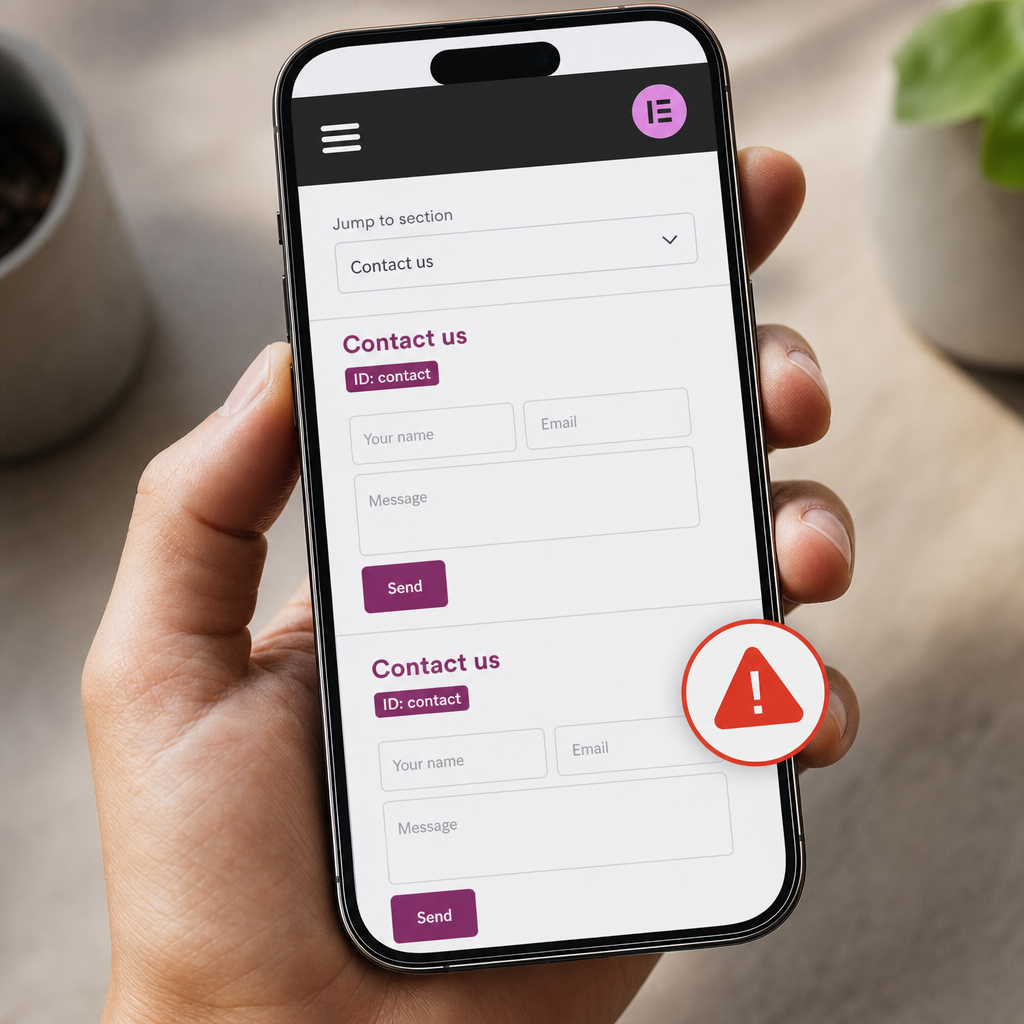
An element ID in Elementor is used for more than just navigation to a section. Anchors, Popups, JavaScript, CSS rules, and form elements may all reference it. If the same ID is accidentally assigned to several elements on a page, different features may start behaving unpredictably.
Duplicates most often appear after sections are cloned or a ready-made block is copied. For example, a page may already contain a section with the ID contact, and after its copy is inserted, the new block retains the same value. Below, we will explain how to create IDs correctly, find duplicates, and determine when a CSS class should be used instead of an ID.
What Is an Element ID in Elementor?
An ID is a unique identifier for an HTML element on a specific page. In Elementor, it is usually assigned in the settings of an element or container under Advanced, in the CSS ID field. Enter the value without the hash symbol: for example, contact-home, not #contact-home.
After publication, this value becomes the id attribute in the HTML code. It can be referenced through a page URL with an anchor, a link such as #contact-home, CSS, or JavaScript.
It is important to distinguish the ID of a WordPress page, post, or template from the Elementor element's CSS ID. This article concerns the identifier of an element within the page markup.
- One ID should correspond to one element within a page.
- An ID is case-sensitive: contact and Contact are different values.
- A # is used before the ID in a URL anchor, but this symbol is generally not entered in the CSS ID field.
Why Duplicate IDs Cause Problems
HTML supports the id attribute, but its value must be unique within a document. When several elements have the same ID, the browser, Elementor, or a third-party script may select a different element from the one expected by the developer.
With a simple anchor, this may result in scrolling to the first section with that identifier. If the header, main content, and footer all contain blocks with the ID contact, a link to #contact has no unambiguous target.
JavaScript methods and plugins may also work incorrectly. For example, a script that searches for an element by ID may change only the first matching block or attach an event to the wrong button.
The consequences can be more serious in forms: duplicate IDs on fields or in label-to-field relationships reduce accessibility and may cause focus to move to the wrong field. Popups and integrations may also respond to an incorrect or ambiguous selector.
- An anchor scrolls to the wrong block or does not work.
- A Popup opens from the wrong button or section.
- JavaScript changes the first element instead of the required one.
- CSS or a third-party plugin is applied unpredictably.
- A form label may be associated with the wrong field.
How to Name IDs Correctly in Elementor
An ID should be short, clear, and stable. It is best to use Latin letters, numbers, and hyphens. The name should describe the purpose of the section rather than its current position in the editor.
Use different values for different pages or parts of a page. For example, instead of using two identical contact IDs, create contact-home and contact-footer. If a form is intended for consultations, consultation-form would be a more appropriate name.
Do not use spaces, Cyrillic characters, the hash symbol, or unnecessary special characters. Such values may be processed incorrectly in URLs, CSS selectors, or JavaScript. Underscores may work technically, but hyphens are generally easier to read in addresses and code.
- Good: about, services, contact-home, pricing-table, consultation-form.
- Not recommended: Контакты, contact us, #contact, contact@home.
- Do not start a name with a random number unless it has a clear meaning.
- Do not use the same ID for mobile and desktop versions if both blocks are present in the DOM at the same time.
How to Add and Check an ID in the Elementor Editor
Open the required page in Elementor and select the section, container, or widget that should be linked. In the Advanced settings, find the CSS ID field and enter a unique value without #.
After saving or updating the page, check the published version rather than relying only on the editing mode. If the site uses caching, changes may not be visible until you clear the browser, plugin, or CDN cache.
Elementor Navigator is useful for finding the required block in a complex page structure. Check the ID value itself in the Advanced settings of the selected element. If the page contains many similar blocks, open them one by one and compare their CSS ID fields.
- Open Navigator and find the required section or container.
- Go to Advanced and check the CSS ID field.
- Make sure the value contains no spaces or # symbols.
- Update the page and test the link on the published page.
- Change the ID immediately after cloning a section.
Anchor Setup Example
Assign the CSS ID consultation-form to the section containing the form. In the button link or menu item, enter #consultation-form if the destination is on the same page. To link from another page, use the page URL with this anchor, for example /contact/#consultation-form.
ID or CSS Class: What to Choose for Repeated Elements
An ID is intended for one specific, unique element. If you need to style several cards, buttons, or columns in the same way, do not copy one ID to all of them. Use a CSS class instead.
For example, you can assign the pricing-card class to all pricing cards. The same class can correctly be used for ten cards because it describes a group of elements. If you need to target a specific section through a menu or script, give it a separate ID, such as pricing.
One element can have both a unique ID and a shared class at the same time. For example, a section may have the ID pricing and the class section-dark. This is a normal approach: the ID identifies a specific block, while the class describes its style or group membership.
- ID: one specific block, anchors, and targeted JavaScript actions.
- Class: repeated styles, groups of elements, and shared modifiers.
- Do not use an ID as a substitute for a class when applying styles to multiple elements.
.pricing-card {
  border-radius: 12px;
}

#pricing {
  scroll-margin-top: 80px;
}
How to Find Duplicate IDs on an Existing Page
If you suspect a problem, start by checking sections copied from other pages or templates. Pay particular attention to common names such as contact, about, services, home, pricing, and form.
You can check for duplicates using your browser's developer tools. Open the required page, press F12 or use the command to view the code, and run JavaScript in the console. The script below will display IDs that occur more than once.
The check should be performed on the published page. The Elementor editor may contain service elements, and some content may differ because of display conditions, Popups, or responsive settings.
- Check the page after clearing the cache.
- Compare the results for desktop and mobile if content is hidden or duplicated through responsive settings.
- Check not only sections but also form widgets, buttons, and Popup elements.
- Run the check again after making corrections.
const ids = [...document.querySelectorAll('[id]')].map(el => el.id);
const duplicates = [...new Set(ids.filter((id, i) => ids.indexOf(id) !== i))];
console.log(duplicates);
What to Do After Finding a Duplicate
Find all elements with that value in Navigator and in the Advanced settings. Keep the ID on the block already referenced by menus, buttons, or scripts, and assign new names to the others. If the ID is used in code or an external integration, check all references to it before changing it.
Common Errors After Cloning Sections
Cloning is the most common source of duplicates. Elementor copies an element's structure and settings, so the CSS ID is often copied along with the design. Both sections may look correct visually, but their HTML identifiers are already conflicting.
Another common mistake is adding # to the CSS ID field. The hash is required for a link, but not for the identifier value itself. If you enter #contact in the field, a link to #contact will actually search for a different value and may not work.
You should also avoid assigning an ID solely for styling. If you need to change the spacing, color, or appearance of several similar blocks, use Elementor global styles or a CSS class. A unique ID is best reserved for targeted interactions.
- After copying a section, rename its ID immediately.
- Do not change an ID without checking the menus, buttons, and scripts that reference it.
- Do not rely only on the page's visual appearance.
- Do not create several versions of the same block with the same ID, even if one version is hidden on a particular device.
Practical Pre-Publication Checklist
ID checking should be included in the standard page review before launch or after major edits. This is especially important for landing pages with many anchors, forms, Popups, and custom JavaScript.
Test links from menus, buttons, and external pages separately. Make sure scrolling reaches the correct section and that a fixed header does not cover its heading. If necessary, set scroll-margin-top for the target section with CSS, as shown in the example above.
- All IDs use Latin characters and contain no spaces.
- Each value appears only once on the page.
- Repeated blocks use CSS classes rather than identical IDs.
- Anchors from menus and buttons lead to the correct sections.
- Forms, Popups, and JavaScript have been tested after cloning or changing IDs.
- The published page has been tested after clearing the cache.
Frequently asked questions
Can the same ID be used on different pages of a site?
Yes. Uniqueness is required within a single HTML page. For example, the ID contact can be used on both the Home and Contact pages if it appears only once on each page.
Can I use the same ID for the desktop and mobile sections?
It is not recommended. Even if one block is hidden with CSS, both elements may remain in the DOM, leaving the browser or script without an unambiguous target. Use different IDs or one responsive section.
Why does an anchor not work after I enter an ID?
Check that the ID was entered without #, contains no spaces or Cyrillic characters, that the page has a link with the corresponding #ID, and that the value is not duplicated. Also clear the cache and test the published page.
Does every Elementor section need an ID?
No. An ID is needed only for elements that must be referenced by anchors, scripts, Popups, CSS, or integrations. For regular sections without targeted interactions, the Elementor structure and, if necessary, a CSS class are sufficient.
Conclusion
Unique IDs are a small technical rule that affects navigation, forms, Popups, styles, and JavaScript. In most cases, problems are caused not by Elementor itself but by copying sections without changing their identifiers.
Use one ID for one element, assign CSS classes to repeated blocks, check the CSS ID field after cloning, and test the page in its published form. This review helps prevent errors that are difficult to notice through visual inspection alone.