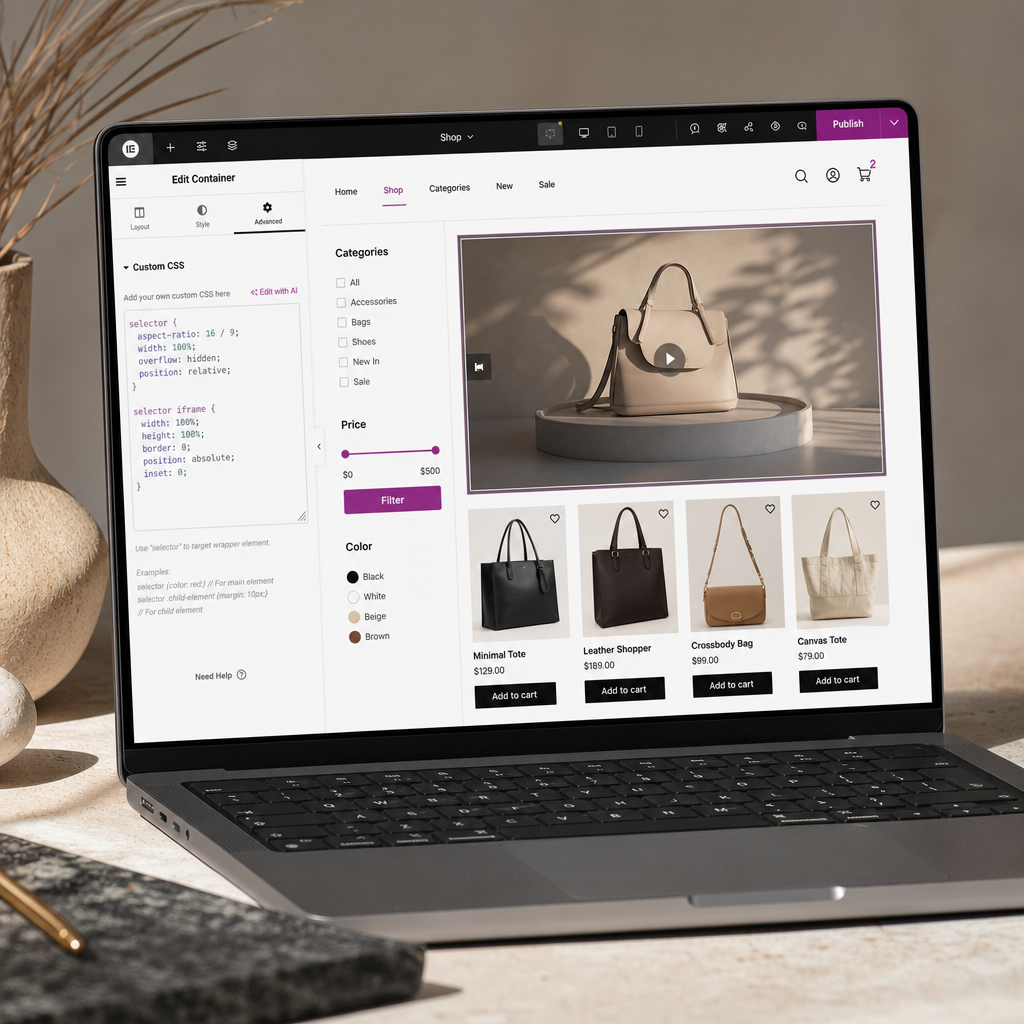
Embedded YouTube or Vimeo videos often cause problems on mobile devices. If an iframe has a fixed height, it may extend beyond its container, become distorted, or create horizontal scrolling.
A reliable way to solve this is to set the container’s proportions with the CSS aspect-ratio property and stretch the iframe across the available space. This allows the wrapper to reserve the correct height for the video at any screen width.
Why Video in Elementor Breaks the Mobile Layout
YouTube and Vimeo videos are usually embedded as iframes. The iframe may have its own dimensions or receive them from a widget, theme, or third-party code. This may not be noticeable on a wide screen, but on a smartphone a fixed width or height can exceed the container.
Another common issue is the lack of reserved space before the content finishes loading. The page initially renders without the video, and then the iframe adds its height. As a result, headings, buttons, and other blocks shift downward.
The aspect-ratio property defines the relationship between an element’s width and height. For example, 16 / 9 means that the block will preserve the proportions of a standard horizontal video regardless of the column width.
- the iframe stays within the parent container;
- the video does not become distorted when the screen width changes;
- the correct height is reserved for the video in advance;
- the risk of horizontal scrolling is reduced.
How to Prepare a Video Container in Elementor
Create a separate container around the video. It should be the parent element of the iframe or of the widget that outputs the iframe. Using a separate wrapper makes it easier to avoid changing the styles of other videos on the site.
In the container’s Advanced settings, you can add the video-frame class. This is not required if the CSS is inserted directly into the container’s Custom CSS, but the class is useful for global styles or for reusing the same styling.
Make sure the container does not have a fixed height. If height, min-height, or rigid spacing is set at the same time, these properties may conflict with aspect-ratio.
- add a container with the required width;
- place the video or YouTube/Vimeo code inside it;
- add the video-frame class if needed;
- check that the parent container does not clip the video because of unexpected styles.
CSS for Responsive YouTube or Vimeo Video
If Custom CSS is available in your version of Elementor, insert the code below directly into the wrapper’s settings. The selector automatically refers to the current element where this CSS is saved.
selector {
  aspect-ratio: 16 / 9;
  width: 100%;
  overflow: hidden;
  position: relative;
}

selector iframe {
  width: 100%;
  height: 100%;
  border: 0;
  position: absolute;
  inset: 0;
}
How This Code Works
aspect-ratio: 16 / 9 sets the proportions of the wrapper. width: 100% makes it occupy the available width of the parent container, while position: relative creates the positioning context for the iframe.
The iframe itself uses position: absolute and inset: 0. This places it against all four edges of the wrapper. The width: 100% and height: 100% properties stretch the video across the entire reserved space.
overflow: hidden hides any parts of the content that might accidentally extend beyond the frame. However, this property does not replace proper width configuration; it only protects the container from overflow.
Global CSS Option
If Custom CSS is not available, you can add the same rules to the site’s global styles or the theme’s CSS. In this case, replace selector with the class assigned to the container.
.video-frame {
  aspect-ratio: 16 / 9;
  width: 100%;
  overflow: hidden;
  position: relative;
}

.video-frame iframe {
  width: 100%;
  height: 100%;
  border: 0;
  position: absolute;
  inset: 0;
}
How to Choose the Correct Aspect Ratio
For most horizontal YouTube and Vimeo videos, 16 / 9 is suitable. This does not change the proportions of the video itself; it only defines the shape of the area in which it is displayed.
For vertical videos recorded on a phone, Stories, or Reels, use 9 / 16. If the video is square, set 1 / 1. For an unusual format, specify a custom ratio, such as 4 / 3.
- horizontal video: aspect-ratio: 16 / 9;
- vertical video: aspect-ratio: 9 / 16;
- square video: aspect-ratio: 1 / 1;
- older 4:3 recordings: aspect-ratio: 4 / 3.
Checking the Result on Different Screens
After adding the styles, check the page not only on desktop but also in tablet and mobile modes. Gradually reduce the viewport width: the video should remain inside the column, and its height should change proportionally.
Also open the page in a regular browser view rather than checking it only in the Elementor editor. The editor may add its own utility styles that differ from those on the published page.
- make sure no horizontal scroll appears to the right of the video;
- check for empty space above or below the iframe;
- change the smartphone orientation and repeat the test;
- check whether the content shifts after the video loads;
- test the page in a browser without cache or after clearing the plugin cache.
Common Mistakes and Limitations
The problem most often occurs when aspect-ratio is applied to the iframe instead of the wrapper, or when the video widget contains an additional inner element with its own height. In this situation, inspect the HTML structure using the browser’s developer tools.
If the iframe is not a direct child of the container, the selector iframe rule will usually still find it at a deeper level. However, Elementor or plugin styles may have higher specificity. Check which rule is actually being applied and refine the selector if necessary.
Do not combine the old padding-bottom hack with aspect-ratio unless necessary. Both approaches reserve height, so using them together may create excessive spacing.
CSS controls the size and position of the iframe, but it does not solve problems with the video itself. Third-party cookie blocking, access restrictions, slow loading, or a cookie consent banner require separate configuration.
- do not assign a fixed height in pixels to the iframe;
- do not use a width greater than the container width;
- check whether the theme adds its own min-height;
- clear the site, CDN, and browser caches after making changes;
- for private or protected videos, verify access permissions separately.
Frequently asked questions
Does aspect-ratio work with YouTube and Vimeo?
Yes. The property is applied to the container, not to a specific video service. It works with iframes output by YouTube, Vimeo, and other platforms.
Why does the video still have the wrong height after adding the CSS?
Check whether the code was applied to the outer container rather than another element. Also review the height, min-height, and padding rules of the widget, container, or theme.
Is it required to add the video-frame class?
No, not if the CSS is inserted into the container’s Custom CSS and uses selector. The class is needed for global styles or when the same styling must be applied to multiple videos.
Which aspect-ratio should be used for vertical video?
Use 9 / 16 for a standard vertical video. If the actual video format is different, it is better to specify its real proportions to avoid unnecessary empty space.
Does this method eliminate all layout shifts?
It reserves space for the iframe and significantly reduces shifts caused by changes in the video block’s height. However, other page elements, consent banners, ads, or scripts may change the layout independently of this CSS.
Conclusion
A responsive wrapper with aspect-ratio is a simple way to stabilize video in Elementor without a fixed height or unnecessary media queries. For a standard video, use 16 / 9, stretch the iframe across the wrapper, and test the page at real mobile widths.
If horizontal scrolling or unwanted spacing remains, look for a conflict in the styles of the parent container, widget, or theme. The same principle applies to YouTube, Vimeo, and most other iframe-based videos.