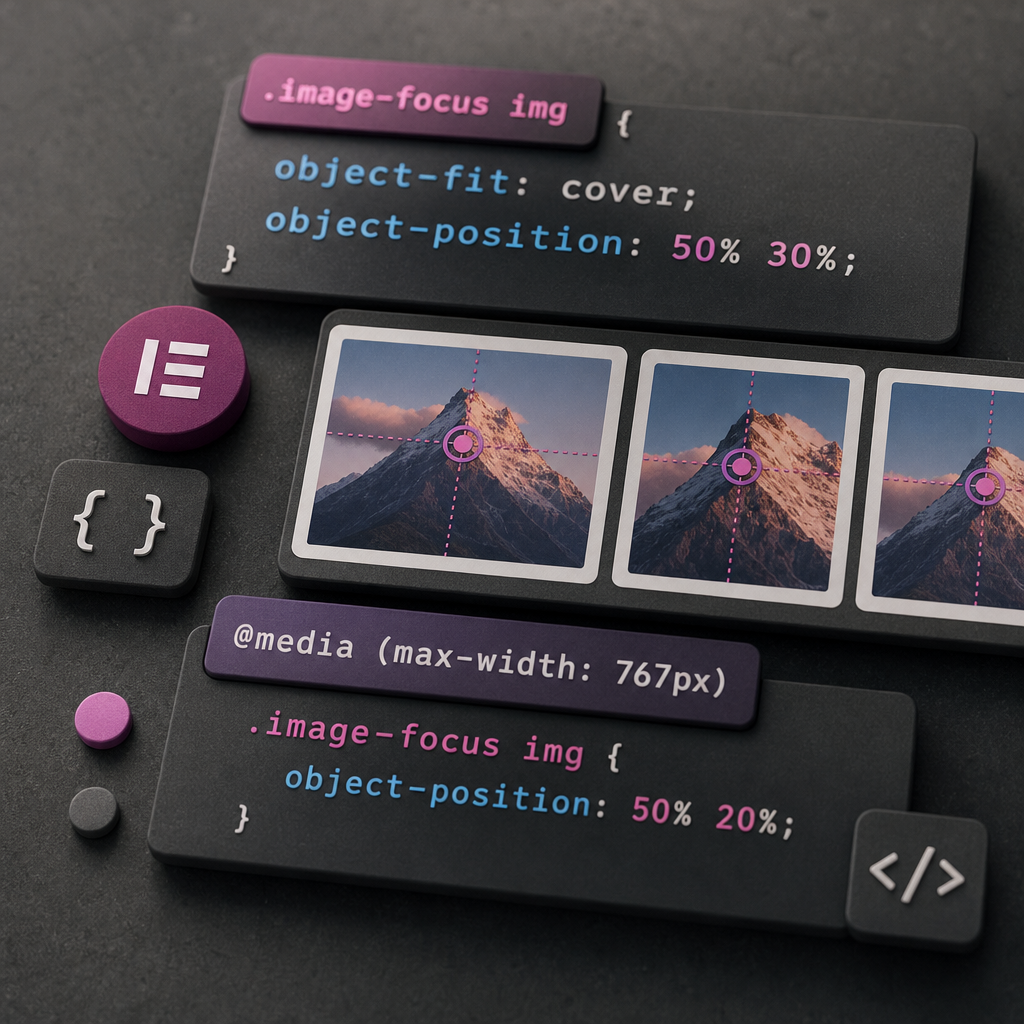
Images in banners, cards, and hero sections often have different proportions, while the block itself must remain neat and consistent. When object-fit: cover is used, the browser scales the image so it completely fills the defined area. As a result, part of the frame is cropped.
By default, cropping usually occurs from the center. This can remove a face, product, logo, or another key subject from the frame. The CSS object-position property lets you change the focus point without editing the original image file.
What object-fit and object-position do
The object-fit: cover property controls how an image fits inside a container. It preserves the file’s proportions but may crop the edges when the aspect ratios of the image and block differ.
The object-position property determines which part of the image remains visible after that cropping. It accepts two values: the first controls the horizontal position, and the second controls the vertical position.
- 50% 50% — focus in the center, which is the default option.
- 50% 0% — alignment closer to the top edge.
- 50% 100% — alignment closer to the bottom edge.
- 0% 50% — focus on the left.
- 100% 50% — focus on the right.
- 70% 40% — shifts the focus right and upward from the center.
How to add a class to an image in Elementor
First, identify the element to which the style will be applied. If you are using the Image widget, add the image-focus class in the CSS Classes field. Enter the class name without a leading period.
If the image is nested inside a container or another block, you can add the class to the parent element. In this case, the .image-focus img selector will find the image inside that block. Make sure the class is added to the element that contains the required image, rather than to an unrelated section of the page.
- Open the required page in the Elementor editor.
- Select the Image widget or the container that contains it.
- Open the element’s advanced settings.
- Enter image-focus in the CSS Classes field.
- Add the CSS in Elementor Pro Custom CSS or in the site-wide styles.
Basic CSS for shifting the image focus
For a typical image that needs to fill a block with a fixed or minimum height, you can use the following style. The value 50% 30% keeps the horizontal focus centered but shifts it closer to the upper part of the frame. This is often useful when a face is positioned above the center.
- Replace 30% with 20% or 10% if the main subject is positioned even higher.
- Use 70% 40% if the subject is on the right and slightly above the middle.
- After changing the style, check both the editor and the published page.
.image-focus img {
  object-fit: cover;
  object-position: 50% 30%;
}
Why object-position sometimes produces no visible result
object-position only has a noticeable effect when the image is actually being cropped inside an area with defined dimensions. If the image height automatically adapts to its proportions, there may be no excess area to crop, so shifting the focus will not be visible.
The style may also fail if the class was not added to the parent element, if the selector does not match the actual HTML structure, or if another rule has higher priority. In the event of a conflict, inspect the styles using your browser’s developer tools.
- Make sure the image has a height set through the widget, container, or a minimum-height value.
- Check that object-fit: cover is being applied in the browser.
- Make sure the image-focus class is spelled correctly.
- Do not add !important immediately; first identify the cause of the style conflict.
- If the image is a section background, the img selector will not work—background-image requires different CSS properties.
.image-focus {
  min-height: 320px;
  overflow: hidden;
}

.image-focus img {
  width: 100%;
  height: 100%;
  object-fit: cover;
  object-position: 50% 30%;
}
Separate positioning for the mobile version
The block’s aspect ratio changes on a narrow screen, so the same focus may look good on desktop but crop a face or product on a smartphone. For the mobile version, you can set a different object-position value with a media query.
A breakpoint of 767px is a common example for mobile devices, but it should match the actual breakpoints used in your layout. You do not have to use the same positioning on every screen size.
- On desktop, check the wide banner and the subject’s horizontal placement.
- On smartphones, check the portrait composition and the block’s height.
- If the subject is positioned differently in different formats, choose a separate position for each breakpoint.
@media (max-width: 767px) {
  .image-focus img {
    object-position: 50% 20%;
  }
}
Practical examples for different types of blocks
For a portrait where the face is in the upper part of the frame, start with 50% 20% or 50% 25%. If the person is standing on the right, try 70% 30% or 80% 35%.
For a product card, the right value depends on the composition of the photograph. If the object is shifted to the left, 30% 50% may work well. For an image of a car or interior, you often need to leave more space on the side toward which the movement or gaze is directed.
Choose the values visually and make small adjustments. For example, change the vertical value from 30% to 25% or 35% instead of moving it straight to 0%. This makes it easier to preserve a natural composition.
- Do not rely only on how the image looks in the Elementor editor.
- Check the page in desktop, tablet, and mobile modes.
- Make sure important text, a logo, or part of the product is not covered.
- Maintain enough contrast when a heading or button is placed over the image.
Common mistakes and important limitations
object-position does not change the image itself or remove cropping. It only determines which part of the already scaled image remains visible. If you need a different composition for the mobile version, it may sometimes be better to prepare a separate image or use a responsive image.
Do not set an excessively large container height just to achieve a particular effect. This can create unnecessary scrolling or disrupt the page composition. Also make sure important information is not available only in the image: for accessibility, add meaningful alternative text when the image has a content-related purpose.
- For decorative images, alt can be empty when that matches their role.
- Do not excessively reduce image quality after uploading.
- Do not use one focus position for every card if the subjects in the photos are positioned differently.
- After clearing the cache, check the CSS in a private browser window.
Frequently asked questions
Does object-position work without object-fit: cover?
The property can be set, but the most noticeable result usually appears together with object-fit: cover or contain. If the image is not cropped and is simply displayed in its natural proportions, changing its position often has no practical purpose.
Where should CSS be added in Elementor?
You can add CSS in Elementor Pro Custom CSS for a specific element or in the site-wide styles, if this option is available in your theme or style management system. Make sure the image-focus class is added to the Image widget itself or to its container.
Why does the .image-focus img selector not work for a background image?
A background image is not an HTML img element, so this selector cannot find it. For background-image, you need to change background-position and, if necessary, background-size: cover.
Can I set a different focus for tablets and smartphones?
Yes. Use separate media queries with the required width ranges. Before publishing, check every variation because intermediate widths may produce a different composition.
Conclusion
object-position helps quickly fix poorly cropped images in Elementor without changing the original file. Add a class to the widget or container, make sure the image uses the cover mode and has a defined display area, then adjust the horizontal and vertical values.
For a high-quality responsive result, check the focus on different screen sizes and set a separate position for the mobile version when needed. This keeps faces, products, and other important subjects in the frame without unnecessary image editing.