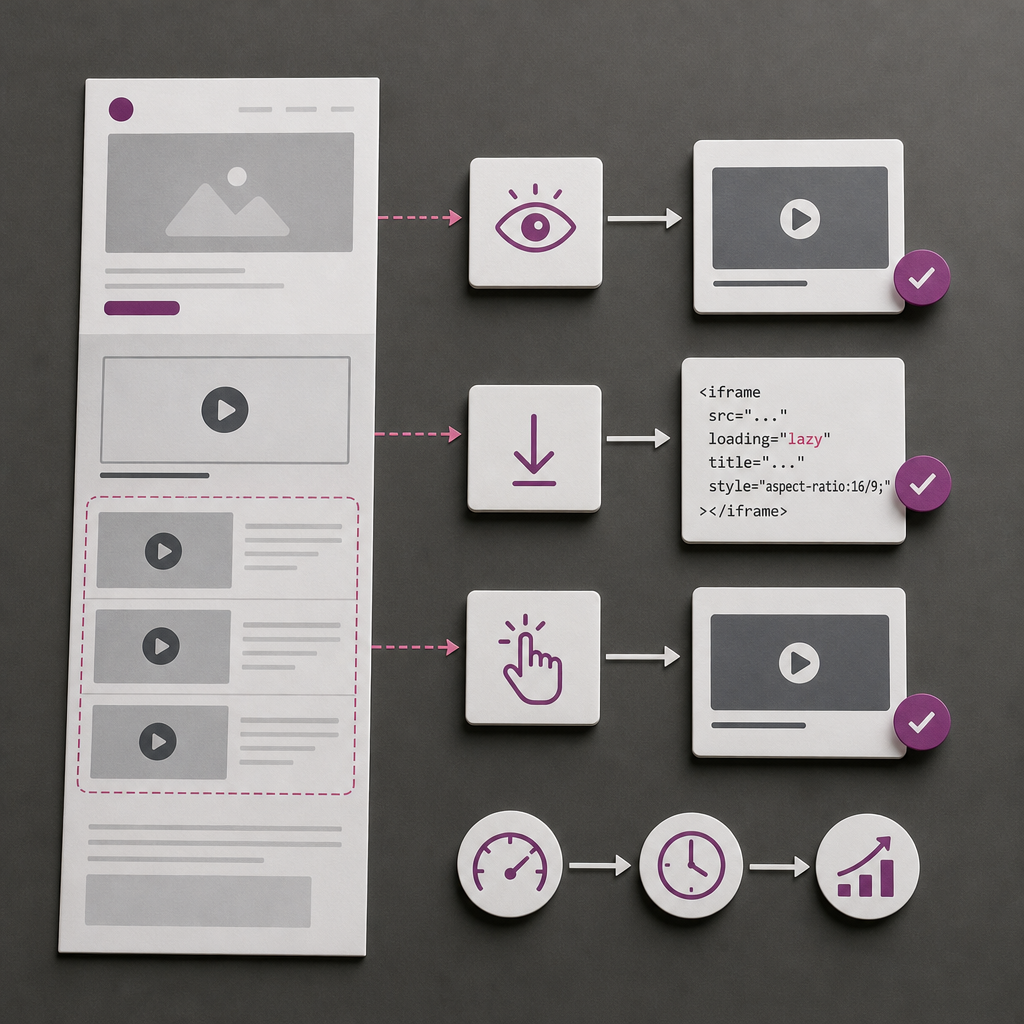
YouTube videos, Google Maps, forms, chats, and other external elements load as separate resources. If a page contains several iframes, they can generate additional network requests, delay content rendering, and increase the browser's workload.
In these cases, iframes should load not when the page first opens, but only when they approach the visible area. In Elementor, you can do this with the HTML widget and the native loading="lazy" attribute. For especially heavy videos, a preview that loads the iframe after a click is often more effective.
What Is Lazy Loading for Iframes?
Lazy loading defers a resource's loading until it is needed by the user. For an iframe, this means the page initially displays the main content, while the browser loads a video, map, or embedded form later.
In HTML, this is done with the loading="lazy" attribute. Modern browsers support it without additional scripts, so a separate plugin is not required for most typical use cases.
It is important to understand that the attribute does not make the iframe smaller. It only postpones its loading. If the resource is located near the top of the page and is visible immediately after it opens, deferring it is generally not advisable.
- Suitable for videos, maps, and widgets located below the first screen.
- Reduces the number of third-party requests during the initial page load.
- Does not require JavaScript in a simple implementation.
- Does not replace optimization of the video, images, or external service itself.
How to Add loading="lazy" in Elementor
The simplest approach is to insert the iframe through Elementor's HTML widget. Copy the embed code from the required service, add loading="lazy", and check that the element dimensions are set correctly.
Video example:
- Add an HTML widget to the required location on the page.
- Paste the iframe code into the widget field.
- Add the loading="lazy" attribute to the opening iframe tag.
- Save the page and check it in the regular viewing mode, not only in the editor.
- Make sure the video or map is actually located below the first screen.
<iframe src="https://www.youtube.com/embed/VIDEO_ID" loading="lazy" title="Video title" style="width:100%; aspect-ratio:16/9; border:0;" allowfullscreen></iframe>Why Use the HTML Widget?
The HTML widget gives you direct control over iframe attributes such as loading and title, as well as its styles, accessibility, and behavior. With the standard video widget, some parameters may depend on Elementor's settings or on the service itself.
If an iframe is already generated by another widget or plugin, first inspect the rendered HTML in the browser. Do not add a second iframe over the first one merely to enable lazy loading.
How to Prevent Layout Shifts
When the browser does not know an iframe's height before it loads, the surrounding content may shift after the video or map appears. This reduces usability and can negatively affect layout stability metrics.
Set the aspect ratio with the CSS aspect-ratio property. Standard YouTube video usually uses 16/9, but a different ratio may be appropriate for vertical video, maps, or other content.
If necessary, you can also add width="100%" and height="auto", but the primary goal is to reserve space for the iframe before it loads.
- For horizontal video: aspect-ratio: 16/9.
- For a square block: aspect-ratio: 1/1.
- For maps, define a comfortable height in advance so the map is not too small on mobile devices.
- Check how the iframe looks on a smartphone, tablet, and wide screen.
.embed {
  width: 100%;
  aspect-ratio: 16 / 9;
}

.embed iframe {
  display: block;
  width: 100%;
  height: 100%;
  border: 0;
}
When to Load an Iframe After a Click
For several videos on one page, the loading="lazy" attribute may not be enough. Even deferred iframes remain heavy third-party elements, and each one may include its own scripts, styles, and requests.
In this case, show a lightweight preview first: a thumbnail image, title, and Play button. After the user clicks, JavaScript places the video URL in the src attribute, and the browser loads the iframe only then.
This approach is especially useful for pages with multiple videos, long landing pages, and content where visitors are unlikely to watch every video.
- The preview should be understandable even before the video starts.
- The button must be keyboard accessible and have a clear label.
- Do not use autoplay with sound after the click if it could disrupt the user.
- After assigning src, keep loading="lazy" as an additional safeguard for other scenarios.
<div class="video-placeholder" data-video="https://www.youtube.com/embed/VIDEO_ID?autoplay=1" role="button" tabindex="0" aria-label="Play video">
  <img src="PREVIEW_URL" alt="Video thumbnail">
  <span>Play video</span>
</div>

<script>
document.querySelectorAll('.video-placeholder').forEach(function (placeholder) {
  function loadVideo() {
    if (placeholder.querySelector('iframe')) return;

    var iframe = document.createElement('iframe');
    iframe.src = placeholder.dataset.video;
    iframe.loading = 'lazy';
    iframe.title = 'Video';
    iframe.allowFullscreen = true;
    iframe.style.cssText = 'width:100%; height:100%; border:0;';

    placeholder.replaceChildren(iframe);
  }

  placeholder.addEventListener('click', loadVideo);
  placeholder.addEventListener('keydown', function (event) {
    if (event.key === 'Enter' || event.key === ' ') {
      event.preventDefault();
      loadVideo();
    }
  });
});
</script>
Required Attributes and Accessibility
Every iframe should have a meaningful title attribute. It helps screen reader users understand what the embedded block contains. The title should describe the specific content rather than consisting only of the word “iframe” or “video.”
For videos, also check that captions and controls work correctly. For maps, provide a text description or address nearby so users do not depend exclusively on the interactive map.
Do not hide important information exclusively inside an iframe. If a map shows an address, contact details, or a route, repeat the key information as regular text on the page.
- title="Service presentation: a brief overview" is a good example of a description.
- Do not leave title empty on a meaningful iframe.
- Check keyboard controls and visible focus.
- Provide a text alternative for important data from a map or widget.
Common Mistakes and How to Check the Result
The most common mistake is adding lazy loading to a video that users see immediately after opening the page. In this situation, deferred loading may create an empty block or delay interaction. For a key video near the top of the page, test regular loading, an optimized preview, or another presentation format instead.
You should also avoid copying embed code from an external service without checking it. Make sure the iframe has a valid src, does not extend beyond its container, and is not covered by other Elementor elements.
After publication, open the page in an incognito window or after clearing the cache. Check it on a mobile device, scroll to the iframe, and confirm that it loads at the intended moment.
- Check the browser console for errors and blocked content.
- Inspect the Network tab and make sure third-party resources are not all loading at once.
- Check whether the block's height changes after the iframe appears.
- Test the page separately with caching enabled and after clearing the cache.
- Do not evaluate the result only in the Elementor editor: editing mode may behave differently from the published page.
Frequently asked questions
Do I need to add loading="lazy" to every iframe?
Not always. It is generally appropriate for iframes below the first screen. For videos or forms visible immediately, first test regular loading so you do not introduce unnecessary interaction delays.
Does loading="lazy" work in all browsers?
Modern browsers support native lazy loading for iframes. Older browsers may ignore the attribute, so critical elements should not depend on this feature alone.
Is lazy loading enough for several YouTube videos?
Not always. If a page contains many videos, it is better to show lightweight previews and create the iframe after a click. This defers not only rendering but also loading of the embedded resource itself.
Why does the page shift after I add loading="lazy"?
Usually, the browser has no reserved height for the iframe. Add aspect-ratio or another method of defining the container dimensions in advance, then check responsiveness across different screen sizes.
Conclusion
For iframes in Elementor, start with the simple solution: insert the element through an HTML widget, add loading="lazy", a meaningful title, and a stable aspect ratio. This allows the browser to load the page's main content first.
If the page contains many videos or maps, use previews that load the iframe after a click. In all cases, check not only whether the attribute appears in the code, but also how the page actually behaves on mobile devices and after the cache has been completely cleared.