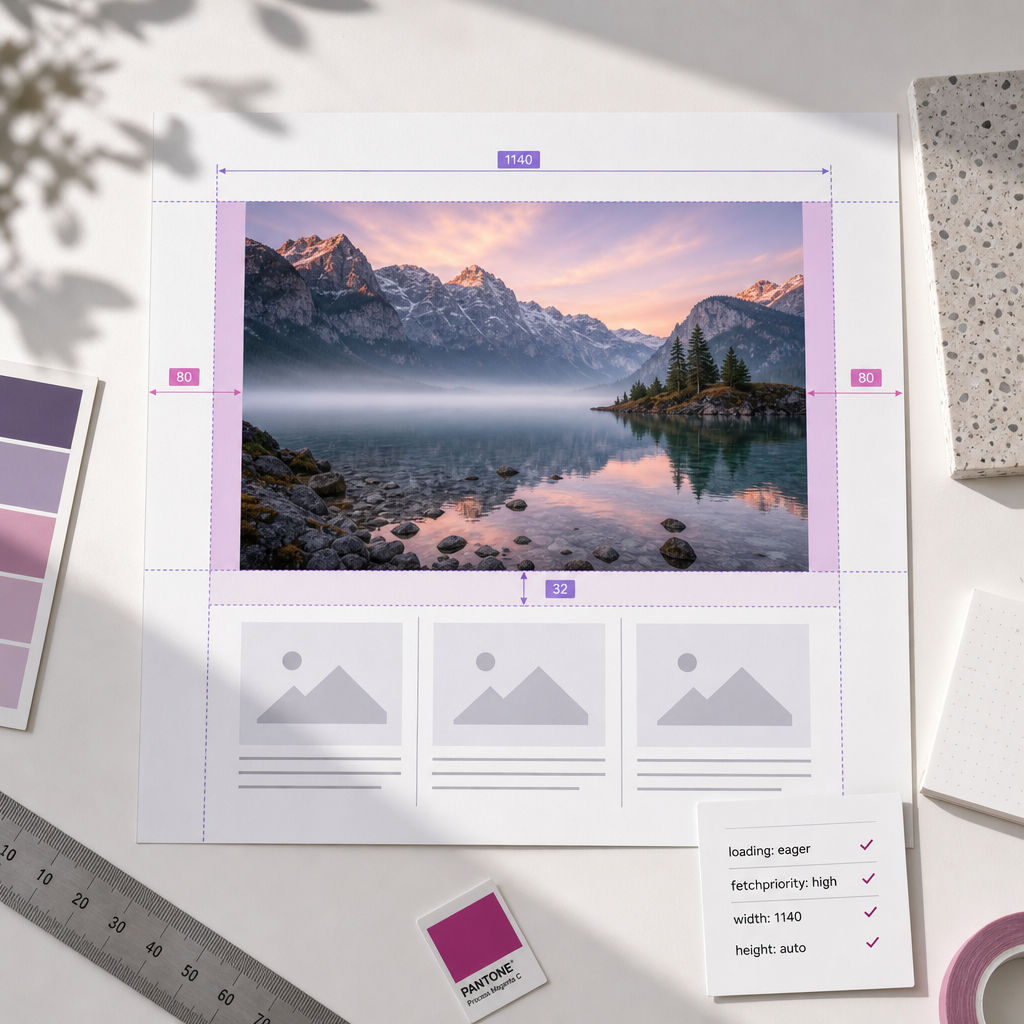
A hero image is a large image at the top of a page that users see immediately after opening it. It often becomes the largest visible element and determines the Largest Contentful Paint, or LCP, metric.
If the browser starts loading the hero image too late, receives an unnecessarily large file, or has to wait for CSS to load a background image, the page may feel slow even with good hosting. Below is a practical process for optimizing LCP on pages created with Elementor.
What Is LCP and Why Is the Hero Image Important?
LCP shows how long the browser takes to render the largest visible element in the initial viewport. This may be a heading, text block, video, or image. On pages with a large banner, the hero image is most often that element.
LCP speed depends on more than file size. The browser must find the resource in the HTML or CSS, establish a connection to the server, download the file, decode it, and render it on the screen. That is why you need to optimize the image, the way it is embedded, and its loading order at the same time.
You can check the result in PageSpeed Insights, Lighthouse, or Chrome DevTools. Do not look only at the overall score; also review the LCP diagnostics: which element was identified as LCP, when its loading started, and whether time is being spent waiting for the server or blocked CSS.
- If the hero image is the LCP element, focus your optimization work on it.
- If the LCP element is a heading or text, the issue may be related to web fonts, CSS, or the server response rather than the image.
- Test the page on a mobile device or with mobile emulation, where large files have a stronger effect on the result.
Use an Image Instead of a Background Image
When the design allows it, add the main image with Elementor's Image widget instead of using it as a background for a section or container. Images in HTML are easier for the browser to discover while building the page, and the browser can apply the standard srcset and sizes attributes for responsive loading.
Background images are usually loaded through CSS. The browser must first download and process the stylesheet before it can discover the resource. This can delay the start of the hero file download, especially when CSS is large, combined, or partially generated by optimization plugins.
Replacing a background image with an Image widget is not always possible. For example, a background may be necessary for text overlays, decorative cropping, or a complex composition. In that case, use an optimized CSS background, but separately check whether it is the LCP element and whether the block could be built with a regular image using object-fit.
- For an image added with the Image widget, preserve the correct aspect ratio and control its display with styles.
- Do not create duplicates: if the hero is already displayed as an Image widget, do not load the same image as a background as well.
- After changing the structure, clear the Elementor cache, page cache, and CDN cache if applicable.
Prepare the Right File for the Initial Viewport
Do not upload a multi-megabyte original photo if it is displayed at a much smaller size on the screen. First determine the largest actual width of the hero block on desktop and prepare a file with a small amount of extra capacity. For the mobile version, it is preferable to have a separate crop, or at least a responsive variant, when the composition changes on a narrow screen.
WebP is suitable for most photographs and graphics. AVIF often produces an even smaller file, but it should be tested in your specific browser and server environment. WordPress and Elementor may generate or use responsive variants, but after uploading, make sure the page actually serves the required format instead of a large original file.
Compression should not damage the visual impact of the main image. Details, texture, and the clarity of objects are important for a hero image, so check not only the file size but also the quality on a real screen.
- Crop out areas that are not visible in the layout.
- Export the photo as WebP or AVIF if the format is correctly supported by your system.
- Make sure the HTML uses srcset and sizes rather than a single large URL.
- Specify width and height, or use correct dimension attributes, to reduce the risk of layout shifts.
Set the Loading Priority for the Hero Image
For an image that is immediately visible and is the LCP element, it is generally appropriate not to defer its loading. In Elementor, you can do this through the advanced attributes of the Image widget. In the Custom Attributes field, add separate attribute pairs in the format used by your Elementor version: loading|eager and fetchpriority|high.
loading="eager" tells the browser not to apply lazy loading to this image. fetchpriority="high" indicates that the resource is important and should preferably be loaded with a higher priority. These attributes do not replace file optimization: a large JPEG will remain slow even with high priority.
After saving, inspect the page's rendered HTML in the browser. The required attributes should appear on the intended image. If Elementor, the theme, or a caching plugin modifies the markup, rely on the actual HTML rather than only on the values shown in the editor.
- Use eager and high only for the main image that is genuinely visible in the initial viewport.
- Do not add these attributes to every image: the browser will receive too many high-priority resources and lose the benefit of the correct loading order.
- Do not use loading="lazy" for the hero image if it is the LCP element.
- If the hero is below the initial viewport, it does not need high priority merely because it is a large image.
<img src="hero.webp" alt="Опис зображення" width="1600" height="900" loading="eager" fetchpriority="high">Keep Lazy Loading for Images Below the Initial Viewport
Images in sections below the initial viewport should not compete with the hero for bandwidth and browser resources. For them, lazy loading is usually the right choice: the file starts loading closer to the moment when the user scrolls to the relevant block.
In WordPress, lazy loading is often added automatically, while Elementor or optimization plugins may further modify its behavior. Make sure that automatic optimization has not applied lazy loading to the main image while also disabling it for all other images.
The top section may contain several images: a logo, icons, decorative elements, and the hero. Not all of them need high priority. Identify one primary resource and leave smaller decorative files at a lower priority.
- Use eager/high for the hero only when it is immediately visible.
- Use lazy loading for images in galleries, testimonials, and lower sections.
- Do not add lazy loading to a small logo or icon without a reason, but do not raise their priority instead of the hero's either.
- After optimization, review network requests in DevTools: critical resources for the initial viewport should load first.
How to Find the Cause of Slow LCP
If LCP remains slow after optimizing the image, break the issue down into stages. In Lighthouse or PageSpeed Insights, review the LCP breakdown: server response time, resource load delay, load time, and render delay. This helps you understand whether you need to work on the server, HTML, CSS, or the file itself.
Check the Network tab in Chrome DevTools. Find the hero image URL, its actual format, size, request start time, and cache status. If the request starts only after a large CSS file has loaded, this indicates a problem with background-image loading or render-blocking styles. If the file starts loading early but takes a long time to transfer, further compression or a faster server is needed.
Test the page after clearing the cache and in conditions that approximate those of a real user. The result in the Elementor editor may differ from the published page because the editor loads additional scripts and styles.
- Check the mobile and desktop versions separately.
- Compare the result with and without caching.
- Make sure the CDN serves the optimized format rather than a fallback original.
- After each change, modify only one factor so you can understand its impact.
Common Hero Optimization Mistakes
The most common mistake is adding fetchpriority="high" to every image on the page. This does not speed up every image; it creates competition for network resources. Another common issue is using eager for a large banner while leaving the file in its original format and dimensions.
Do not add preload for the hero without testing. Preloading can be useful in complex cases, but an incorrect URL, wrong format, or duplicate request creates unnecessary load. First configure the HTML image, its size, and its priority, then assess whether additional browser hints are needed.
Also, do not confuse LCP with CLS. The width and height attributes do not make the file load faster, but they reserve space for it and help reduce content shifts while it loads.
- Do not use an original multi-megabyte photo without responsive variants.
- Do not leave lazy loading enabled for the hero if it determines LCP.
- Do not optimize only the Lighthouse score; check the actual markup and network requests.
- Do not remove alt: it is important for accessibility, even though it does not directly improve LCP.
Frequently asked questions
Should loading="eager" always be used for the first image?
No. Eager is appropriate for an image visible in the initial viewport and often identified as the LCP element. For a banner below the initial viewport, it is better to keep the default behavior or use lazy loading.
Will fetchpriority="high" make a large image load faster?
The attribute may help the browser select an important resource earlier, but it does not reduce the file size. Compression, the correct format, responsive width, and a fast server response are still necessary.
Which is better for LCP in Elementor: an Image widget or a background?
In most cases, the Image widget is more suitable for the main content image because the browser can discover the resource earlier in the HTML and use srcset. A background can be retained when the design requires it, but it should be tested separately.
Why did LCP not improve after switching to WebP?
The page may still be serving the old format, loading an unnecessarily large file, applying lazy loading, or discovering the background image too late. Check the actual URL, format, size, and request start time in DevTools.
Conclusion
For fast LCP in Elementor, start with the right structure: use the Image widget for the hero, prepare a file of the appropriate size in WebP or AVIF, and make sure responsive variants are available.
You can add loading|eager and fetchpriority|high to the main image, but only when it is genuinely visible in the initial viewport. Keep all images below it on lazy loading. Evaluate the final result using the actual LCP element, HTML, and network requests—not just Elementor settings.