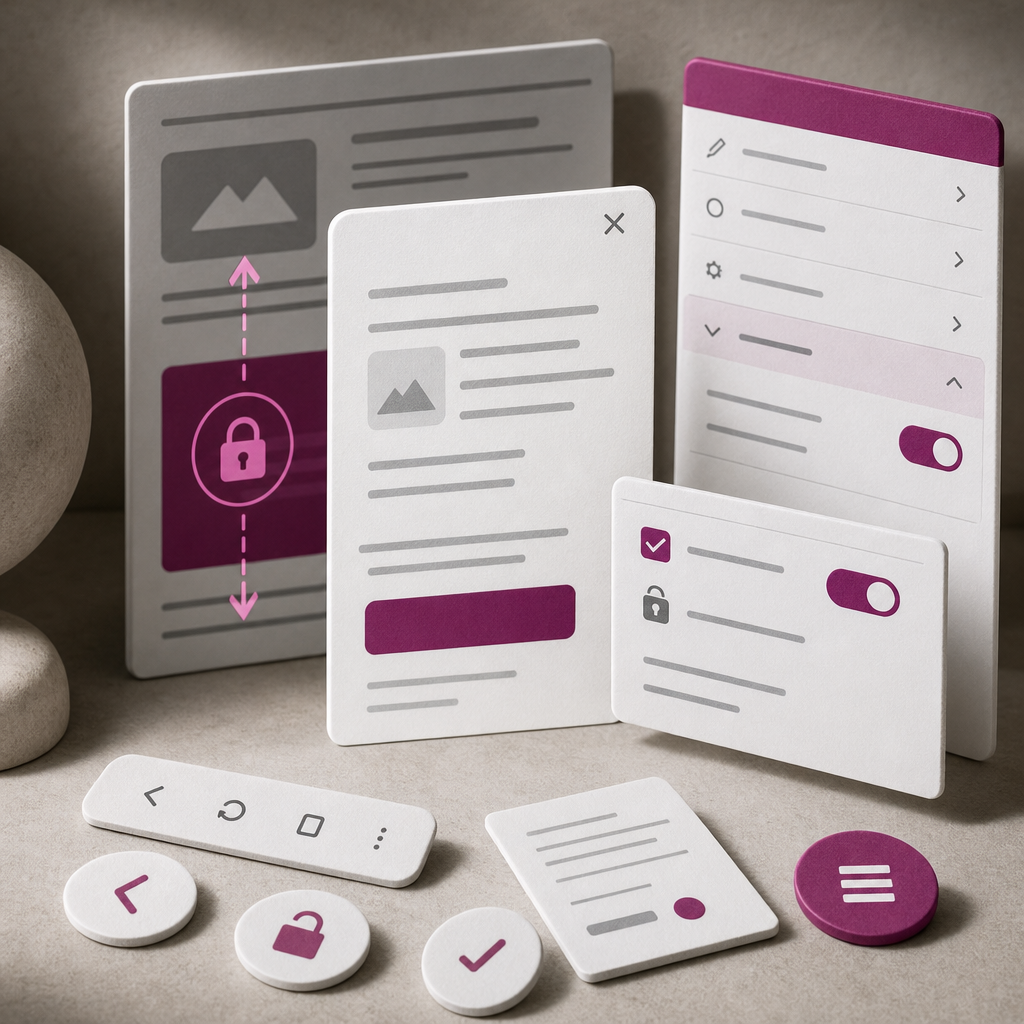
When a Popup opens on a smartphone, users may sometimes scroll the page behind it instead of the modal window itself. As a result, the background moves, the page position changes, and interacting with the Popup becomes confusing.
In Elementor, this is usually resolved by enabling Prevent Scrolling. This option locks the main document while the Popup is open, while still allowing users to work with its own content if internal scrolling is configured correctly.
Why You Should Lock the Background Under a Popup
A Popup should be perceived as a separate active layer over the page. If the background moves during a swipe, users may accidentally navigate to another section, lose the place where they opened the form, or be unsure whether the Popup itself is scrolling.
The issue is especially noticeable on mobile devices, where scrolling is performed with gestures and the browser may pass the gesture to the page if the modal does not have a properly configured scrolling container.
Locking the background is appropriate for contact forms, menus, notifications, galleries, carts, and other Popups that should remain the focus until they are closed.
- reduces the risk of accidentally scrolling the page;
- makes the boundaries of the active window clearer to users;
- preserves the page context while users work with a form or menu;
- makes mobile interaction more predictable.
How to Enable Prevent Scrolling in Elementor
You need to change this setting in the Popup template itself, not in the separate button that opens it. The names of the options may differ slightly depending on the Elementor version or interface language, so look for the Prevent Scrolling setting.
Open the required Popup template in the Elementor editor and go to its settings. Then open the Advanced section and enable Prevent Scrolling. Save your changes and publish or update the template.
After this, Elementor should prevent the main page from scrolling while the Popup is open. Do not check the result only in the builder: test it on the live page or in preview mode with the display conditions taken into account.
- open the Popup template;
- go to the Popup settings;
- find the Advanced section;
- enable Prevent Scrolling;
- save the changes and test the Popup on a mobile device.
How to Configure Scrolling Inside a Popup
Locking the background does not automatically make a long Popup convenient to scroll. If its height exceeds the screen height, the content may be cut off or extend beyond the visible area.
For long forms, menus, and information windows, create an internal container that occupies the available height and scrolls separately from the body. In most cases, this requires a height restriction and vertical overflow.
It is better to apply CSS to a specific Popup container using a custom class rather than applying it to the entire body. For example, add the popup-scroll class to the container and use the following styles:
- internal scrolling should be visible and accessible by swiping;
- the close button should preferably remain visible or be placed in a predictable area;
- do not restrict the height of every internal element unnecessarily, as this can create several independent scrollbars.
.popup-scroll {
  max-height: 100vh;
  overflow-y: auto;
  overflow-x: hidden;
  -webkit-overflow-scrolling: touch;
}
What to Check After Configuration
After enabling Prevent Scrolling, test the Popup on a narrow screen and on a device with touch controls. Browser emulation is useful, but it does not always reproduce the behavior of mobile Safari or an Android browser.
Open the Popup from different positions on the page, scroll through its content, close it, and open it again. This will help you identify issues with styling, focus, and restoring the document position.
- The background does not move when swiping over an empty area of the Popup.
- Long content inside the Popup can be scrolled to the end.
- No horizontal scrollbar appears.
- After closing, the page returns to the expected position.
- The Popup does not extend beyond the screen in portrait or landscape orientation.
- Buttons, form fields, and the close icon remain accessible.
- On Android, the Back button works correctly if it is used to close the modal window.
Common Problems and Their Causes
If the background continues to scroll, check that the changes were applied to the correct Popup and are not being overridden by theme styles, caching, or another plugin. Clear the cache after saving and check the page in a private window.
Horizontal scrolling is usually caused by an element whose width exceeds the viewport. Possible causes include negative margins, a fixed width, a transformation, or an image without a maximum-width limit.
If the page does not return to the correct position after the Popup is closed, do not immediately add global overflow: hidden to the body. Scripts that manually lock the body can change its width, position, or the way scrolling is restored.
Several nested containers with overflow-y: auto can also harm the user experience: swiping becomes unpredictable, and users cannot tell which area is being scrolled.
- do not add overflow: hidden to the body without a clear reason;
- do not lock the body, html, and several parent containers at the same time;
- check whether an invisible element is covering the swipe area;
- after making changes, clear Elementor CSS cache, plugin cache, and browser cache if they are in use.
iOS and Android Considerations
Mobile browsers handle viewport height, inertial scrolling, and gestures differently. In some situations, the 100vh value may include the area occupied by the address bar or system panels, so the Popup may appear slightly taller than the available screen.
On an iPhone, also check that the bottom system area does not cover form buttons. Important elements may require additional internal padding, and the Popup height should preferably be evaluated on a real device.
On Android, test the Back button. Depending on the Popup logic, it may close the modal window or take the user to the previous page. Make sure that an open Popup does not create unexpected navigation.
- check both portrait and landscape orientations;
- test several screen sizes;
- evaluate how the keyboard works after focusing a form field;
- make sure that bottom buttons are not hidden behind the system panel.
When It Is Better Not to Lock Page Scrolling
Prevent Scrolling is not required for every popup element. If the Popup functions as a small tooltip, cookie notice, or compact information banner, locking the background may be unnecessary and even inconvenient.
For large mobile menus or multi-step forms, locking is usually justified. For short messages, the decision depends on how long the interaction lasts and whether users need to continue reading the page at the same time.
Base the decision on the user scenario: if users must complete an action in the modal window, it is better to lock the background. If the Popup only supplements the page and does not require focus, locking it may make navigation worse.
- lock the background for forms, menus, and important confirmations;
- do not create internal scrolling for very short content;
- do not hide page scrolling if the Popup does not have a clear way to close it.
Quick Troubleshooting Process
If the problem persists, check it step by step. First, make sure that Prevent Scrolling is enabled in the correct template. Then temporarily disable third-party styles and scripts to determine whether the theme or another plugin conflicts with Elementor.
Next, check the Popup structure: one main content container, a predictable maximum height, and only one required vertical scrolling area. After each change, test opening, scrolling, and closing the Popup.
If the issue occurs only on one device or browser, compare it with a clean test Popup. This will help you distinguish a background-locking issue from a problem caused by a specific widget, form, or script.
- check the settings of the active Popup itself;
- clear the cache and regenerate or update the styles;
- find the element that creates horizontal overflow;
- keep one primary internal scrolling area;
- test Popup closing and restoration of the page position.
Frequently asked questions
Is enabling Prevent Scrolling enough?
For a short Popup, it often is. If the content is long, also configure an internal container with max-height and overflow-y: auto; otherwise, some of the content may be inaccessible.
Why does horizontal scrolling appear after locking the background?
It is most often caused by an element wider than the viewport: a container with a fixed width, a negative margin, a transformation, or an image. Check the Popup in responsive view and find the element extending beyond the screen.
Do I need to add overflow: hidden to the body manually?
Usually not if Elementor already has Prevent Scrolling. Manually locking the body can conflict with the Popup logic, change the page width, and interfere with restoring the previous scroll position.
How can I create internal scrolling in a Popup on mobile?
Assign a separate class to the Popup container, limit its height, for example with max-height: 100vh, and add overflow-y: auto. Check that parent elements do not clip the container because of incorrect overflow settings.
What should I do if the Android Back button works incorrectly?
Check how the Popup is opened and closed, along with third-party scripts and plugins that modify browser history. The Popup should close before navigating back or behave according to your site's intended logic.
Conclusion
For a Popup to work correctly in Elementor, you need to lock background scrolling without disabling scrolling for all of the Popup's content. Enable Prevent Scrolling in the Popup settings, and for long content create a separate area with max-height and overflow-y: auto.
After that, be sure to test the Popup on real mobile devices: check horizontal scrolling, restoration of the page position, the Back button, and the accessibility of all form elements. This will help prevent conflicts and make the modal window predictable for users.