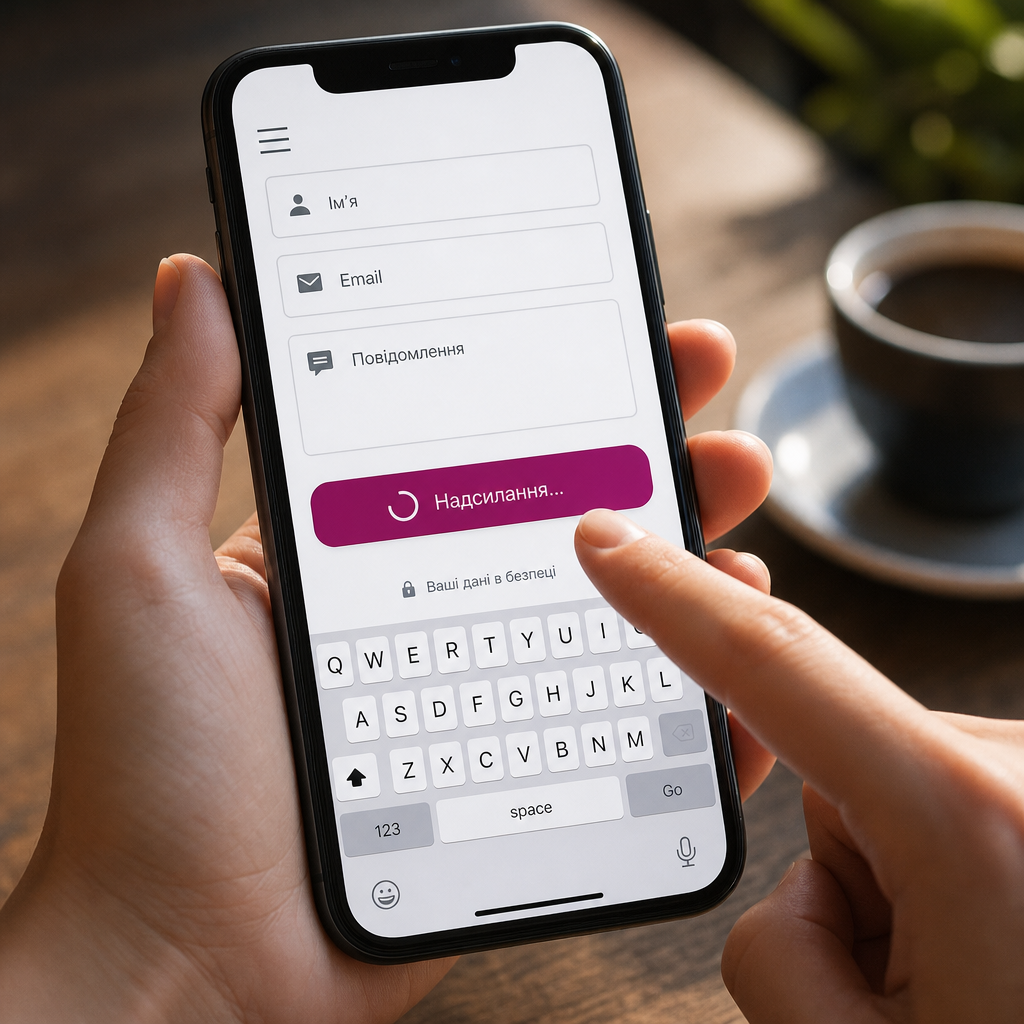
An Elementor form may be submitted twice when a user clicks the button again before the request is complete. This is especially common on smartphones, with slow internet connections, or when there is no immediate visual feedback after the first click.
As a result, your CRM, email system, or order-processing system may receive two identical submissions. One simple way to reduce this risk is to disable the button after the first valid click and display a “Sending…” status. Below is an approach for Elementor Pro, along with important validation and error-handling checks.
Why a Form Is Submitted Twice
The form button is not always disabled automatically. If the server response is delayed, a user may click it several times. Each click can create a separate request to the form handler.
The issue may involve more than two emails being sent. Duplicates can enter your CRM, create duplicate orders, trigger automated workflows multiple times, or result in repeated charges if the form is connected to a payment system.
- slow loading or an unstable mobile connection;
- no change in the button state after clicking;
- double-clicking because of a delayed response;
- resubmitting after refreshing the page or returning to it with the browser’s Back button.
How to Prepare the Form Button in Elementor
First, open the page containing the required form in the Elementor Pro editor. In the Form widget, find the submit button settings and add the following CSS class without a dot at the beginning:
- prevent-double-submit
Where to Add the Class
Add the class to the CSS Classes field in the button’s Advanced settings. Do not paste JavaScript into this field or add the “.” character—the dot is used only in CSS selectors and code.
If the page contains several forms, you can add the class only to the buttons that require protection. This lets you leave the behavior of other forms unchanged.
JavaScript to Prevent Duplicate Submissions
Add the code to Custom Code or to a JavaScript file in your child theme. If you use Custom Code, place the script in the footer or another location where it will load after the main page content.
The script targets the Elementor form and the button with the prevent-double-submit class. After the first submission, it records the button state, disables the button, and changes its label. If Elementor reports a successful submission or an AJAX error, the button is restored to its initial state.
document.addEventListener('submit', function (event) {
  const form = event.target.closest('.elementor-form');
  if (!form) return;

  const button = form.querySelector(
    '.prevent-double-submit[type="submit"]'
  );
  if (!button) return;

  if (button.dataset.submitted === 'true') {
    event.preventDefault();
    return;
  }

  button.dataset.submitted = 'true';
  button.dataset.originalLabel = button.tagName === 'INPUT'
    ? button.value
    : button.textContent;

  button.disabled = true;

  if (button.tagName === 'INPUT') {
    button.value = 'Надсилання…';
  } else {
    button.textContent = 'Надсилання…';
  }
}, true);

function resetSubmitButton(form) {
  if (!form || !form.matches('.elementor-form')) return;

  const button = form.querySelector(
    '.prevent-double-submit[type="submit"]'
  );
  if (!button) return;

  button.disabled = false;
  button.dataset.submitted = 'false';

  if (button.dataset.originalLabel) {
    if (button.tagName === 'INPUT') {
      button.value = button.dataset.originalLabel;
    } else {
      button.textContent = button.dataset.originalLabel;
    }
  }
}

if (window.jQuery) {
  jQuery(document).on('submit_success submit_error', function (event) {
    const form = event.target.closest
      ? event.target.closest('.elementor-form')
      : null;

    resetSubmitButton(form);
  });
}
What This Code Does
The data-submitted property works as an internal flag. After the first submission, it is set to true, so the next attempt is blocked by event.preventDefault(). The disabled property also prevents the button from being clicked with a mouse or finger.
The original label is saved before it is changed. This is important because after an error, the user should see the regular button text instead of being left with the “Sending…” status.
What Happens When Validation Fails
If a field is empty or does not meet the browser’s validation rules, the submit event usually does not fire. In this case, the button is not disabled, allowing the user to correct the data and try again.
A different situation occurs when Elementor or the server returns an error after the AJAX request has already started. That is why the code handles the submit_success and submit_error events. After an error, the button is enabled again and its original text is restored.
After installing the script, be sure to test not only a successful submission but also empty required fields, an invalid email address, and a server-side error. If the site uses an additional validation plugin, it may have its own event for resetting the button state.
- click the button on an empty form;
- enter an invalid email address;
- correct the error and submit the form again;
- make sure the button can be clicked again after a failed AJAX submission.
How to Test the Protection on a Live Site
Test the form not only in the Elementor editor but also on the published page. Ideally, perform the test in an incognito window and on a mobile device, where the delay between clicking and receiving the server response is more noticeable.
After clicking the button, quickly click it several more times. Only one record should appear in the mailbox, CRM, or other system that receives submissions. If the form is integrated with a webhook, also check the log of received requests.
Clear the cache after adding the script. A caching plugin, CDN, or JavaScript optimizer may serve an outdated version of the page or change the order in which scripts execute.
- test the page on both a phone and a computer;
- make sure the button text changes immediately;
- check for a single record in the email system, CRM, or database;
- check the browser console for JavaScript errors;
- repeat the test after clearing the cache.
Common Mistakes and Important Limitations
Do not add the class to the form itself if the script expects it on the button. Also, do not use a selector that targets all Elementor buttons on the page: this could accidentally disable menu buttons, popup buttons, or buttons in other widgets.
Button protection reduces the number of accidental duplicates, but it is not full operation idempotency. A user may refresh the page, repeat the request after a network failure, or submit the same data from another device.
For orders, payments, and submissions with financial consequences, you should also implement server-side protection: validate a unique submission ID, detect repeated webhook requests, or filter identical records in the CRM. Client-side JavaScript cannot replace server-side validation.
- do not insert the script multiple times on the same page;
- do not remove submit_error handling if the form uses AJAX;
- do not treat a disabled button as protection against duplicate payments;
- check compatibility with caching and JavaScript optimization plugins.
Frequently asked questions
Does this method work with the free version of Elementor?
The code is designed for the Form widget in Elementor Pro because it uses the elementor-form class and the corresponding submission logic. Selectors and events may differ for third-party form solutions.
Can the button be disabled without JavaScript?
Reliable disabling after the first click generally cannot be implemented without JavaScript. CSS can change the button’s appearance, but it does not stop the form from being submitted again.
What should I do if the button remains disabled after an error?
Check whether the form actually triggers the submit_error event, whether there is an error in the browser console, and whether jQuery is loading in a conflicting mode. Also verify that the class was added specifically to a button with type="submit".
Does the script prevent resubmission after the page is refreshed?
No. The button state is stored only during the current page load. Critical operations require additional server-side validation of the uniqueness of the submission or transaction.
Conclusion
For most Elementor forms, it is enough to add the prevent-double-submit class to the button and connect JavaScript that disables it after the first submission. It is important not to leave the button disabled after an error, so test the script together with validation and AJAX responses.
If the form creates an order, payment, or CRM record, combine client-side protection with server-side duplicate detection. This addresses not only double-clicks but also other ways in which a submission can be created more than once.