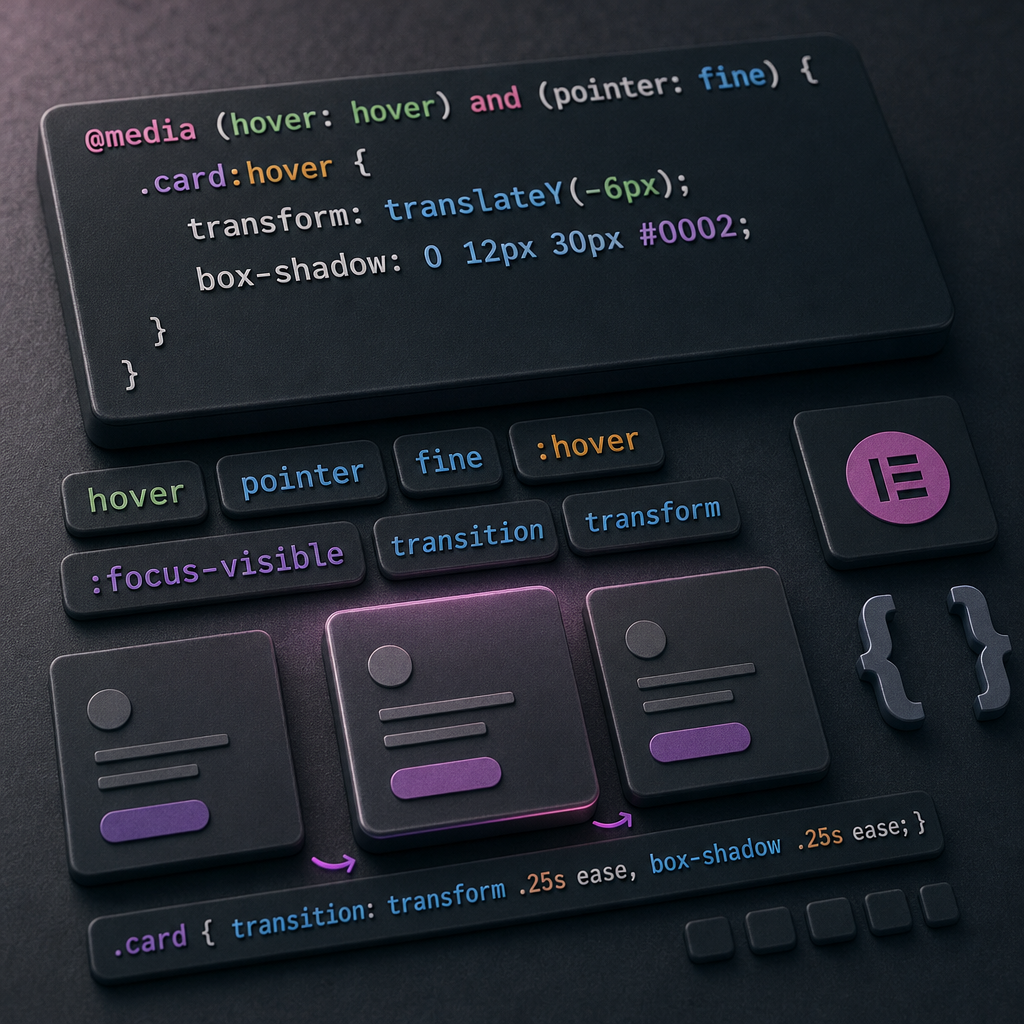
The :hover effect is useful on the desktop version of a website: a card lifts when the cursor moves over it, a button changes color, and a block reveals additional information. The problem occurs on touch devices, where there is no permanent cursor. After a tap, the browser may temporarily or persistently preserve the hover state.
As a result, a mobile card may remain raised, a button may look pressed, and hidden content may not return to its initial state. In Elementor, you can fix this behavior with a CSS media query that checks whether the device supports hover and has a fine pointer.
Why Hover Can Stick on a Smartphone
On a computer, the cursor constantly moves across the page, so the browser clearly understands when an element is in the :hover state and when the cursor has left it. On a phone or tablet, a touch is not a complete equivalent of hovering with a cursor. For compatibility with mouse-oriented websites, the browser may emulate hover.
If :hover controls transform, box-shadow, color changes, opacity, or the display of additional content, a user may see an unwanted state after tapping. This is especially noticeable on cards, menus, buttons, and blocks with overlaid text.
Hover itself is not an error. The problem is that the effect is applied to devices that do not support conventional cursor hovering. It is therefore better to limit it with conditions that describe the device's capabilities.
- hover: hover — the device supports hovering that can be used like a conventional hover state.
- pointer: fine — the primary pointer is sufficiently precise, as with a mouse or stylus.
How to Add a Hover Condition in Elementor Custom CSS
Open the settings for the required element in Elementor and add CSS to the Custom CSS field, if this option is available in your configuration. Within Elementor, the service selector selector is used for the current element. It is automatically replaced with the specific class or ID of the block.
The default state should be described separately, while hover styles should be placed inside the media query. As a result, the element keeps its regular, untransformed state on mobile devices, while the effect works on a desktop with a mouse.
- Select the exact container, widget, or button to which the effect should apply.
- Keep transform: none and the initial shadow in the default state.
- Add transition to the base selector so the animation runs smoothly.
- Place selector:hover only inside @media (hover: hover) and (pointer: fine).
selector {
  transform: none;
  box-shadow: none;
  transition: transform 0.25s ease, box-shadow 0.25s ease;
}

@media (hover: hover) and (pointer: fine) {
  selector:hover {
    transform: translateY(-6px);
    box-shadow: 0 12px 30px rgba(0, 0, 0, 0.13);
  }
}
How to Add an Accessible Keyboard State
Limiting hover for touch devices does not mean you should forget keyboard users. A person may navigate through the page with the Tab key, so interactive elements must have a noticeable focus state.
Use :focus-visible for this purpose. Unlike simple :focus, this pseudo-class lets you display a visual indicator specifically in situations where it is needed during keyboard navigation. For buttons and links, an outline or another clearly visible highlight is usually sufficient.
If a card is a link or a button, its focus state can be styled separately from hover. Do not rely only on a change in shadow or color: the indicator must have sufficient contrast and remain clearly visible against the background.
- Apply :focus-visible to links, buttons, and other elements that can be activated.
- Do not remove the default outline without providing a complete replacement.
- A focus state is not needed for a regular decorative container if it is not involved in interaction.
selector:focus-visible {
  outline: 3px solid #1d70f7;
  outline-offset: 3px;
}
Option for a Card with an Interactive Link
If the entire card is a link, check which Elementor element receives the CSS. When styles are assigned to the container while the link is inside it, hover may not work as expected. In this case, attach the effect to the actual interactive element or to the container that truly receives the link.
Do not hide important information using hover alone. On a smartphone, this state may be unavailable or inconvenient. The main heading, description, price, and button should remain visible, while hover should be used as an additional visual effect.
- The card should have clear link text or an understandable action name.
- All important actions must be available without hovering.
- Check that transform does not overlap neighboring cards or the button.
- If the card grows, leave enough space between elements.
selector {
  transform: none;
  transition: transform 0.25s ease, box-shadow 0.25s ease;
}

@media (hover: hover) and (pointer: fine) {
  selector:hover,
  selector:focus-visible {
    transform: translateY(-6px);
    box-shadow: 0 12px 30px rgba(0, 0, 0, 0.13);
  }
}

selector:focus-visible {
  outline: 3px solid #1d70f7;
  outline-offset: 3px;
}
Common Configuration Mistakes
The problem most often occurs because the CSS is placed incorrectly or the condition is too broad. For example, selector:hover added without a media query will also be available on touch devices. Checking only pointer: fine does not guarantee that the device actually supports hover in the required form.
Another mistake is adding transition only inside the media query. This does not always create a visible problem on mobile, but the default state becomes less predictable, and the return to the initial properties may happen abruptly.
Do not use :active as a replacement for hover without checking the interaction scenario. :active describes the moment of pressing or activating an element, not hovering. It may be appropriate for mobile buttons in some cases, but it does not replace the behavior of a persistent hover state.
- Do not insert selector into the global CSS of the theme or plugin: it is Elementor-specific syntax.
- If the CSS is added to the theme file, replace selector with a real class, such as .card.
- Do not make important content available only after hovering.
- Do not apply complex hover animations to every element on the page without a clear need.
- After making changes, clear the site, CDN, and browser caches if the old styles continue to appear.
How to Check the Result on Different Devices
Testing only in the Elementor editor or in a browser's emulation mode is not always enough. Emulation changes the viewport size, but it does not always fully reproduce touch-input behavior. Therefore, after configuring the effect, it is best to test the page on a real smartphone or tablet.
Move the cursor over the element on a computer, move it away, and make sure the state returns to its initial appearance. Then open the page on a smartphone, tap the card or button, and check that it does not remain raised or highlighted.
Also navigate through the page with the Tab key. The focus must be visible, the navigation order logical, and all links and buttons accessible without a mouse.
- Desktop: hover, move the cursor away, and hover again.
- Smartphone: first tap, second tap, and page scrolling.
- Tablet or hybrid device: test both touch input and mouse input.
- Keyboard: Tab navigation, activation with Enter or Space, and a visible focus-visible state.
- Different browsers: check whether state behavior changes after refreshing the page.
Frequently asked questions
Do hover effects need to be completely disabled on mobile devices?
Not necessarily. You should disable or limit effects that depend on persistent hovering, such as lifting a card, complex transformations, or revealing hidden content. Colors, shadows, and other styles can remain in the default state or be implemented through a separate interaction.
Does selector work in regular WordPress CSS?
selector is Elementor-specific syntax for the Custom CSS field. In global WordPress or theme CSS, replace it with a real class, such as .product-card, or another precise selector.
Why does hover still stick after adding the media query?
Check that all :hover rules are inside the media query, that there are no duplicate styles in the theme or another widget, and clear the cache. Also make sure you are testing the current CSS version rather than a saved copy of the page.
Does :focus-visible need to be added to every card?
Only if the card or part of it is interactive—for example, a link, button, or element with keyboard interaction. Decorative containers that cannot be activated do not need a focus state.
Conclusion
For stable mobile behavior, do not apply hover effects without restrictions. Place them inside @media (hover: hover) and (pointer: fine), and describe the element's default state separately.
This allows cards and buttons to retain their hover effect on devices with a precise cursor without remaining accidentally active after a tap. By adding :focus-visible and testing the page with a mouse, touch input, and keyboard, you can provide more predictable and accessible interaction in Elementor.