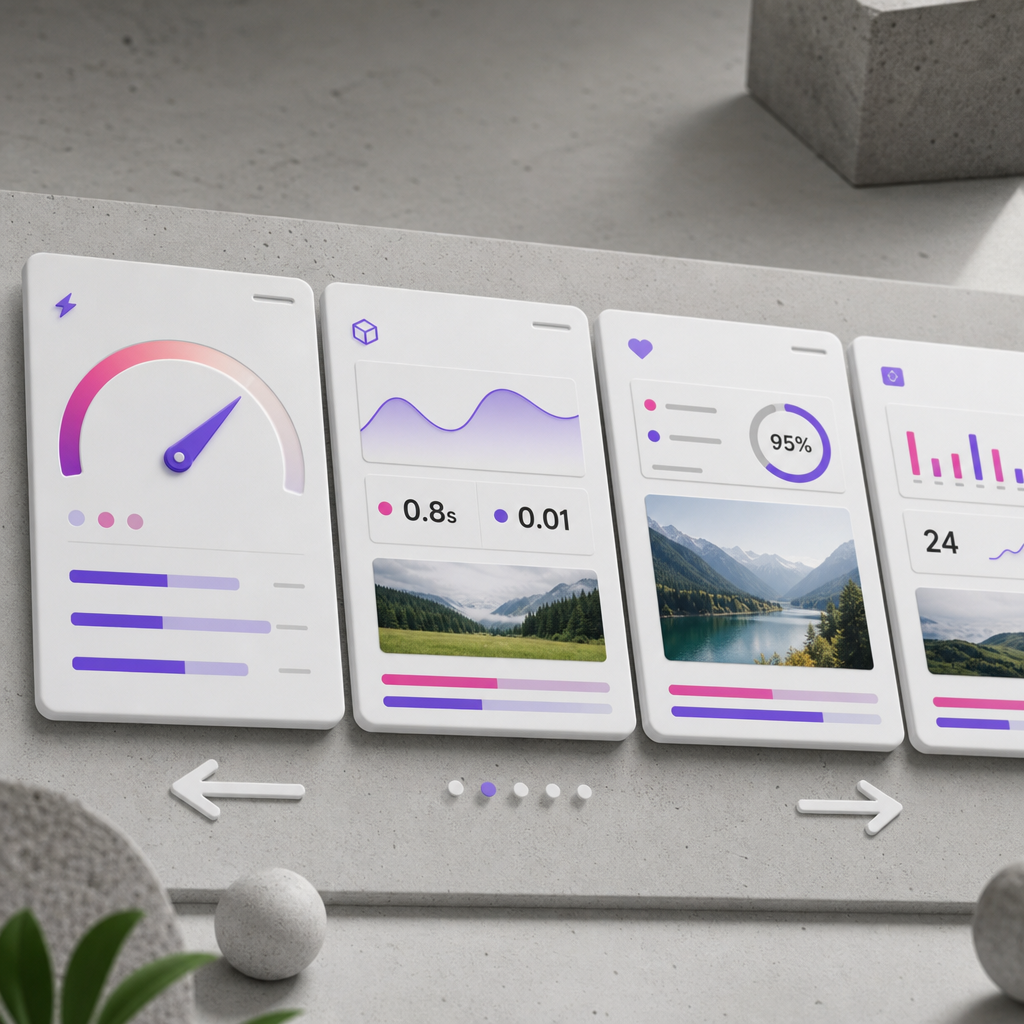
On a mobile screen, a long row of cards does not always need to become an endless vertical column. For testimonials, pricing plans, product categories, benefits, or case studies, it is often more convenient to keep the cards in a single horizontal row and let users browse them with a swipe.
With this approach, the first card is shown fully or almost fully, while part of the next card remains visible as a hint that more content is available to the right. To implement it, you only need to assign the correct classes to the container and cards and add CSS that applies only on mobile devices.
When Horizontal Scrolling Is Better Than a Column
Horizontal scrolling works well for groups of similar blocks that users review sequentially. Examples include customer testimonials, pricing plans, category cards, short benefits, portfolios, or product recommendations.
On a narrow screen, placing four or six cards in one column can significantly increase page length. Compressing them into multiple columns, however, can make the text and buttons too small. A wide card with swipe navigation preserves readability and allows you to display more information without overwhelming the first screen.
This pattern should not be used for critical items that users must see. Some content may otherwise go unnoticed. For primary services, important terms, or key CTAs, a standard vertical list is usually a better choice.
- The cards should be similar and approximately equal in importance.
- It should be clear to users that the block can be swiped horizontally.
- Part of the next card or another visual indicator should be visible on the screen.
- Each card should remain easy to read and interact with.
Prepare the Container Structure in Elementor
Create or select the parent container that contains all the cards. Add cards-scroll to its CSS classes. Assign the class cards-scroll__item to every card that is a direct child of this container.
It is important that the cards-scroll class is placed on the shared container rather than on an individual card. The cards-scroll__item class must be added to every card; otherwise, some elements may retain their default width or shrink according to Flexbox rules.
If a card consists of an inner container, you should usually assign the class to the outer container of that particular card. This element should sit directly inside cards-scroll. This helps the CSS determine the width of each slide correctly.
- Parent container: cards-scroll.
- Each card: cards-scroll__item.
- Check that the classes contain no spaces or extra characters.
- Do not add the card class only to the first element—it is required for every slide.
Add CSS for Horizontal Scrolling
The CSS below enables a horizontal Flex container, prevents the cards from wrapping onto a new line, and adds scroll snapping to the beginning of each card. A width of 82% is only a starting value; you can change it depending on the design and the amount of information in each card.
The code is wrapped in a media query, so Elementor retains the standard grid or layout configured in the editor on desktop. You can change the 767 px breakpoint if your site's mobile layout switches to a different structure earlier or later.
- scroll-snap-type: x mandatory helps the scroll stop at the beginning of each card.
- flex: 0 0 82% prevents the card from shrinking and sets its width within the scroll area.
- scrollbar-width and the WebKit pseudo-element hide the scrollbar without disabling scrolling.
- gap controls the spacing between cards.
@media (max-width: 767px) {
  .cards-scroll {
    display: flex;
    flex-wrap: nowrap;
    overflow-x: auto;
    gap: 16px;
    scroll-snap-type: x mandatory;
    scrollbar-width: none;
    -webkit-overflow-scrolling: touch;
    padding-bottom: 8px;
  }

  .cards-scroll::-webkit-scrollbar {
    display: none;
  }

  .cards-scroll > .cards-scroll__item {
    flex: 0 0 82%;
    min-width: 0;
    scroll-snap-align: start;
    box-sizing: border-box;
  }
}
Where to Place the Code
If your Elementor setup includes a Custom CSS field for the container, you can add the code there. Otherwise, use the site's Additional CSS or the child theme's styles. In Elementor Custom CSS, you generally only need to write the class selectors exactly as shown in the example.
After saving, clear the site cache, plugin cache, and CDN cache if they are in use. Otherwise, the browser may continue displaying an older version of the styles.
How to Keep the Standard Desktop Grid
Do not apply horizontal scrolling without a media query if the cards are meant to appear in a row or grid on larger screens. Otherwise, the desktop version may unexpectedly turn into a long horizontal strip.
The simplest approach is usually to keep the Elementor container settings for tablet and desktop and add the mobile rules only inside @media. If fixed widths were previously assigned to the cards, check whether they conflict with flex-basis. The flex: 0 0 82% rule should determine the card width in the mobile scroller, but third-party styles with !important may prevent it from working.
You do not have to use the same percentage for tablets. On a wider screen, you can display two cards in a row, restore standard wrapping, or set a different slide width. The right choice depends on the amount of text and the actual card width.
- Check the appearance on at least mobile, tablet, and desktop screens.
- Do not duplicate identical rules in multiple places without a reason.
- If scrolling should work only on phones, limit the media query to the appropriate range.
- Do not use a fixed card height if the text may change.
Make the Scrolling Clear and Convenient
A hidden scrollbar should not be the only indication that horizontal content is available. Showing part of the next card is the simplest hint for users. You can also add a short label such as "Swipe horizontally" or a visual arrow, but it should not cover the cards or buttons.
Check whether the block can be scrolled with one finger without moving the page instead. Horizontal overflow works naturally on touch devices, but excessive inner padding or nested areas with their own scrolling can make the interaction more difficult.
Do not rely only on color or animation as a hint. Cards, buttons, and text inside them should have sufficient contrast and a clear keyboard focus order. On desktop, users should be able to scroll the block with a trackpad, Shift plus the mouse wheel, or another accessible method.
- Keep part of the next card visible.
- Do not hide important information only in the last card without providing an additional hint.
- Check keyboard focus on links and buttons inside the cards.
- Do not make the cards so wide that users need to perform many swipes to view each one.
Common Errors and How to Check the Result
If the cards still shrink, the class was most likely added to the wrong element or Elementor settings are affecting a child container. Make sure cards-scroll__item is assigned to the outer card container and that the .cards-scroll > .cards-scroll__item selector matches the actual structure.
If horizontal scrolling does not appear, check whether the combined width of all cards is actually greater than the width of the parent container. Also check whether the parent or one of its outer containers has overflow: hidden, which may be clipping the scroll area.
If the page moves unevenly after a swipe, try reducing the number of nested scroll areas, checking large images, and replacing mandatory with proximity. The latter allows the browser not to forcefully snap to every position, which can sometimes feel more natural.
After configuring the block, open the page in a real mobile browser, not only in an emulator. Check the first, middle, and last cards, button interactions, fully loaded fonts, and behavior after rotating the screen.
- Cards wrap onto a new line—check flex-wrap: nowrap.
- Cards are too narrow—check flex: 0 0 82% and any external width or max-width rules.
- Part of the next card is not visible—reduce the card container's width or horizontal padding.
- Scrolling is clipped—check for overflow: hidden on outer containers.
- The desktop layout is broken—make sure all rules are placed inside the media query.
Frequently asked questions
Do you need Elementor Pro for horizontal card scrolling?
No. The CSS itself does not depend on Pro. If your version does not include a Custom CSS field for the container, you can add the same rules through the site's Additional CSS or a child theme.
Why are the cards not scrolling horizontally?
Check overflow-x: auto, flex-wrap: nowrap, and whether the combined card width exceeds the container width. Also make sure the cards-scroll class is assigned to the parent container.
What card width should you use on mobile?
82% is a convenient starting value that usually leaves part of the next card visible. For short cards, you can use a smaller width; for longer text, a larger width may work better. Base the decision on the actual appearance and reading comfort.
Should you hide the horizontal scrollbar?
Not necessarily. You can leave it visible as a clear indicator, especially if users may not realize that the block scrolls. If you hide it, make sure to provide another hint, such as part of the next card, text, or an arrow.
How can you disable horizontal scrolling on tablets?
Change the media query range or add separate rules for the required width. For example, you can limit the mobile styles to screens up to 767 px and restore the standard Elementor grid on tablets.
Conclusion
Horizontal scrolling helps preserve a comfortable card size on mobile without turning the page into a long list. To implement it, assign the cards-scroll class to the parent container, cards-scroll__item to the cards, and add mobile Flexbox and scroll snap rules.
Before publishing, check not only the swipe interaction but also the clarity of the hint, button functionality, the last card, keyboard navigation, and the layout at different widths. This ensures that the horizontal strip is not merely a decorative effect but a genuinely convenient way to browse content.