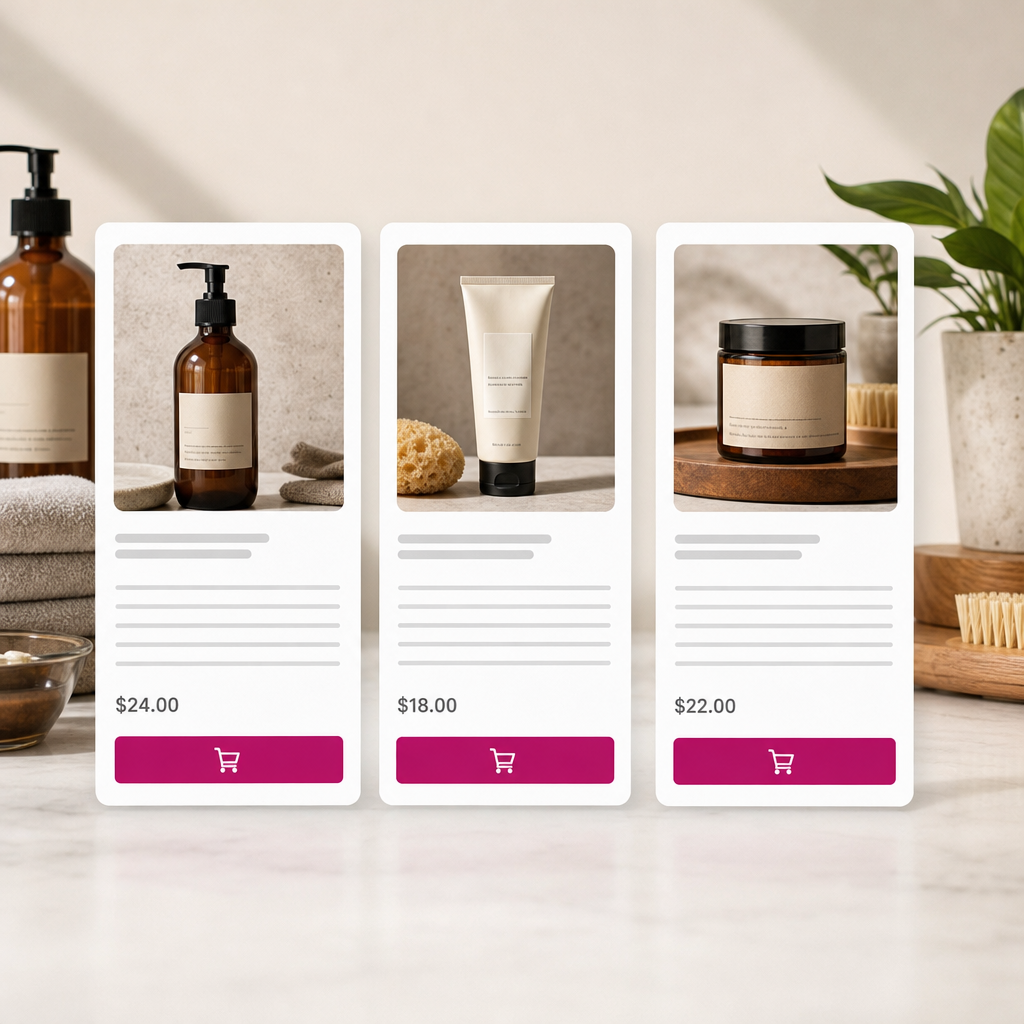
In a Loop Grid, product, post, or service cards may have different heights. The most common causes are titles with different lengths, varying numbers of description lines, or inconsistent spacing. As a result, buttons appear at different levels and the grid looks untidy.
To solve this problem, avoid assigning a fixed height to text blocks. This approach can cut off long titles or descriptions. A safer option is to combine min-height with a Flex container and margin-top: auto for the button. Short blocks receive a minimum height, while longer text can expand the card.
Why Loop Grid Cards Have Different Heights
Elementor renders each Loop Grid item based on its content. If one title takes up one line and another takes up three, the height of the corresponding text block will differ. The same applies to descriptions, metadata, and other dynamic fields.
The problem becomes especially noticeable when the button is placed directly after the text. Its position changes according to the number of lines, so buttons in neighboring cards may appear at different levels.
Using height with a fixed value formally equalizes the blocks, but creates another risk: text may extend beyond the container, overlap other elements, or be hidden because of overflow. For content that changes dynamically, it is better to limit neither the maximum height nor the content itself, but to define a minimum height.
- long titles increase the height of individual cards;
- descriptions may contain different numbers of lines;
- buttons without a Flex structure are not pushed to the bottom edge;
- a fixed height can cause content to be cut off.
How min-height Works for Text Blocks
The min-height property sets the minimum height of an element but does not prevent it from becoming taller. If the text fits within the specified value, the block occupies the minimum amount of space. If the text is longer, its height increases automatically.
For a title, you can start with a value of 3.6em, and for a description, 4.8em. The em unit depends on the font size of the element itself, making these values more convenient than fixed pixels for responsive design. However, the number of lines is not determined by the em value alone: font-size, line-height, card width, and word length also affect it.
The values should be tested with real content. If titles usually take up to two lines, the minimum height should leave room for approximately two lines. Do not choose a value based on one short title; test the longest variations as well.
- min-height aligns shorter blocks without cutting off longer ones;
- em is tied to the text size, so changing typography affects the actual height;
- use separate classes and separate values for titles and descriptions;
- an excessively large value creates unnecessary empty space in cards.
.product-card-title {
  min-height: 3.6em;
}

.product-card-description {
  min-height: 4.8em;
}
Step-by-Step: Setting Up Classes in Elementor
First, open the Loop Item template or the card template used by your Loop Grid. Find the title widget and add the CSS class product-card-title. Assign the class to the title itself, not to the entire card.
For the description, create a separate class, such as product-card-description. This lets you adjust the minimum height of the title and description independently. If the card uses a dynamic field, the class should still be added to the container or widget that outputs the text.
You can add the CSS in Custom CSS if this option is available in your Elementor configuration, or in the site's global styles. Before publishing, make sure the CSS class field does not contain a period: the period is used in the CSS selector itself.
- assign the product-card-title class to the title;
- assign the product-card-description class to the description;
- add min-height rules for each class;
- test the card with both short and long text;
- save the changes and clear the cache if the old styles continue to appear.
.product-card-title {
  min-height: 3.6em;
}

.product-card-description {
  min-height: 4.8em;
}
How to Push the Button to the Bottom of the Card
min-height alone aligns text blocks, but achieving consistent button positions requires the correct card structure. The parent card container should work as a Flex container with a vertical column direction.
Add margin-top: auto to the button or its wrapper. The available space between the description and the button will be distributed before the button, moving it toward the bottom of the card. This technique works correctly only when the button is a child element of the same Flex container as the text blocks.
In Elementor, configure this through the container settings: select the Column direction for the parent container, then set an automatic top margin for the button or its wrapper. If needed, you can apply the same rules using CSS classes.
- the parent card container must be Flex;
- the element direction must be column;
- the button must be located inside this container;
- use margin-top: auto for the button;
- make sure the inner card container stretches to the height available in the Loop Grid item.
.product-card {
  display: flex;
  flex-direction: column;
}

.product-card-button {
  margin-top: auto;
}
Adapting min-height for Tablets and Mobile Devices
On a narrow screen, the card becomes less wide, so the same title may wrap from two lines to three or four. If you leave the desktop min-height unchanged without testing it, it may create too much empty space or still prove insufficient.
For the mobile version, reduce min-height, choose a different value, or remove it completely. The right choice depends on the card width, font size, and number of columns at the specific breakpoint. Do not rely only on the editor view; check the page on an actual phone or simulate different viewport widths.
If the mobile layout uses a single column, aligning buttons is often no longer critical. In that case, you can remove min-height from the text blocks so the cards occupy only the space they need.
- check titles at the narrowest target width;
- reduce min-height for tablets if the columns become narrower;
- use min-height: auto on mobile when necessary;
- do not hide overflowing text just to achieve equal heights;
- recheck the values after changing fonts or column widths.
@media (max-width: 767px) {
  .product-card-title {
    min-height: auto;
  }

  .product-card-description {
    min-height: auto;
  }
}
Checking the Result and Common Mistakes
After configuring the styles, review several cards with different title and description lengths. Check that no text disappears, the button does not overlap the description, and the buttons remain at the same level within a row.
If the rule does not work, first check the class name and the element to which it was assigned. A common mistake is adding the class to the outer container instead of the title, or using a different spelling for the class in the CSS.
Also check the CSS cascade. Another rule with greater specificity or an Elementor inline style may override your value. As a last resort, you can temporarily use !important for diagnosis, but it is better to fix the selector structure than to leave it in place unnecessarily.
- do not use height for a title or description when the text is dynamic;
- do not set overflow: hidden unless it is necessary;
- do not automatically assign the same min-height to the title and description;
- test cards with the longest real content;
- after changing the styles, clear the browser, caching plugin, or CDN cache if one is being used.
Frequently asked questions
Can I use height instead of min-height?
Technically, yes, but it is risky for dynamic titles and descriptions. A fixed height can cut off text or create overflow. min-height allows shorter blocks to have a consistent height while longer blocks can expand.
Why does margin-top: auto not align the buttons?
Most often, the button is not a child element of the card's Flex container, or the container does not use the column direction. Check the element structure and make sure the button is inside a container with display: flex and flex-direction: column.
What min-height value should I choose for a title?
Start with approximately 3.6em for the title and test it with real content. The value depends on the font, line-height, card width, and number of lines, so there is no universal value for every site.
Do I need to remove min-height on mobile?
Not always. If the cards still look clean, you can reduce it or leave it in place. If the narrower width causes titles to wrap onto additional lines and creates large empty areas, set min-height: auto or choose a separate value.
Conclusion
For stable card heights in Elementor, use min-height on the title and description instead of a fixed height. This aligns shorter blocks while preserving all of the text in longer ones.
To place buttons at the same level, make the card a Flex container with the column direction and add margin-top: auto to the button. Check the desktop and mobile versions separately, because card width directly affects the number of text lines.