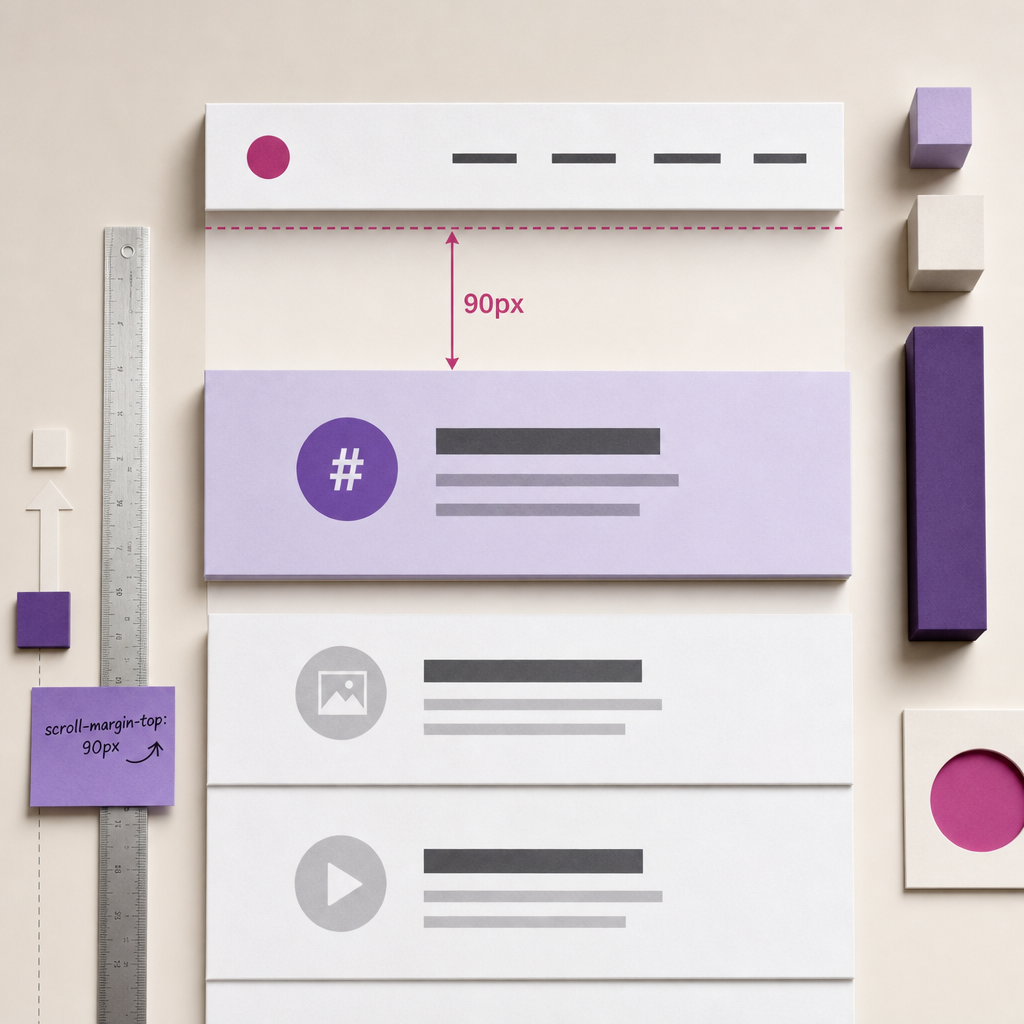
Anchor links in Elementor let users quickly jump to the required section of a page, such as pricing, a form, an FAQ, or contact details. The problem occurs when the header is fixed at the top of the screen using position: fixed or sticky.
After following an anchor link, the browser scrolls to the very beginning of the target element, but the fixed header covers its upper part. As a result, users may not see the heading or the first lines of content. You can fix this with the CSS property scroll-margin-top—without JavaScript and without changing the section's actual height.
Why Anchor Navigation Does Not Work Correctly
An anchor link contains a URL fragment, such as #pricing. The browser looks for an element on the page with the corresponding id attribute and scrolls it to the top edge of the browser window.
If there is a fixed header 80–100 pixels high above the content, it remains over the page and covers the target element. The anchor navigation mechanism itself is working correctly: the browser does not know that part of the upper area is occupied by the header.
It is important to distinguish between a CSS class and an HTML identifier. A link in the format #pricing looks specifically for id="pricing", not class="pricing". Therefore, for reliable operation in Elementor, you need to specify the CSS ID of the target container or section. You can also add a CSS class, but it does not replace the identifier.
- Link: #pricing
- Target element: id="pricing"
- Spacing below the header: scroll-margin-top
How to Configure the Target Section in Elementor
First, open the page in the Elementor editor and select the container or section to which the anchor should lead. This is the element that must receive the CSS ID.
In the settings for the selected element, find the CSS ID field and enter a name without the hash symbol. For example, to link to a pricing block, enter pricing. In the button or menu item link, use #pricing.
Do not add spaces, a hash symbol, or unnecessary special characters. It is best to use short Latin-character names such as services, contacts, faq, or pricing. The identifier must be unique on the page.
- Select the target container or section.
- Enter, for example, pricing in the CSS ID field.
- Enter #pricing in the button or menu link.
- Make sure there is no other element on the page with the same ID.
The CSS Solution with scroll-margin-top
The scroll-margin-top property creates invisible space above an element when the browser scrolls to it. It does not add empty space to the layout or change the section's actual height.
If the target element's CSS ID is pricing, you can apply the rule directly to it. Replace 90px with the approximate height of your header.
- For a header approximately 80px high, you can start with a value of 90px.
- If the header changes height while scrolling, use the largest value that may cover the content.
- For the mobile version, specify a separate offset if the header height changes.
#pricing {
  scroll-margin-top: 90px;
}

@media (max-width: 767px) {
  #pricing {
    scroll-margin-top: 70px;
  }
}
If You Need to Use a CSS Class
Sometimes it is more convenient to apply the same rule to several sections. In that case, add the anchor-target class to them and keep the CSS ID for specific anchor links. This lets you centrally manage the offset for all target blocks.
- Add anchor-target under CSS Classes.
- Use a unique value under CSS ID, such as pricing.
- Link to #pricing, not simply to the class name.
.anchor-target {
  scroll-margin-top: 90px;
}

@media (max-width: 767px) {
  .anchor-target {
    scroll-margin-top: 70px;
  }
}
Where to Add CSS in Elementor or WordPress
CSS can be added at the level of a specific element, page, or entire site, depending on the available features in your Elementor configuration and theme. If the editor includes a Custom CSS field, you can place the rule there. For site-wide application, it is more convenient to add it to the site's global styles or to WordPress Additional CSS.
If the rule is intended for one page, local CSS reduces the risk of affecting other templates. If anchor navigation is used across multiple pages, a global style for the anchor-target class may be more practical.
After adding the styles, clear the cache of your optimization plugin, server, or CDN, if used. Otherwise, the browser may display an older version of the CSS.
- A local rule is suitable for one or several blocks on a specific page.
- A global class rule is convenient for repeated sections.
- After making changes, check the page in an incognito window or after clearing the cache.
How to Choose the Correct Offset Value
The scroll-margin-top value should not be arbitrary; it must be sufficient to fully clear the heading and the beginning of the content from beneath the header. Measure the actual height of the top bar in its normal state and while scrolling.
If the header is 72px high, a value of 80–90px usually leaves a small buffer. If the header contains two rows or a promotional bar, or changes after scrolling, check the state in which the overlap is noticeable.
For mobile devices, do not automatically use the desktop value. On a narrow screen, the header may become taller because elements wrap, or more compact instead.
- An offset that is too small leaves the heading partially hidden beneath the header.
- An offset that is too large does not break the layout, but creates unnecessary empty space after navigation.
- Check desktop, tablet, and smartphone layouts separately.
Testing and Common Mistakes
After configuring the styles, open the page in normal view and click each anchor link. The target heading should be fully visible below the header, and the URL should contain the corresponding fragment, such as #pricing.
If scrolling does not work, first check that the CSS ID and link match. The values pricing and #pricing are related, but the ID must not contain duplicate characters or spaces.
Also make sure the CSS is applied to the target element itself, rather than to an inner heading or a parent container that is not the actual navigation target.
- Using a class instead of an ID as the only anchor point.
- Adding # to the Elementor CSS ID field.
- Using the same ID in multiple sections.
- Applying scroll-margin-top to the header instead of the target element.
- Testing only in the editor without checking the published page.
- Old CSS being served from the browser, plugin, or CDN cache.
Alternative: scroll-padding-top for the Entire Page
If you need to fix all anchor transitions on a site, you can set top padding for the scrolling area with scroll-padding-top. This is a global approach: it affects all fragment links, not just individual sections.
For a page with different headers or different navigation scenarios, it is safer to use scroll-margin-top on specific targets. A global rule is best used when the fixed header has a consistent height across the entire page.
- scroll-margin-top is a targeted solution for individual target blocks.
- scroll-padding-top is a global solution for all anchor transitions.
- If the header height differs between devices, use media queries.
html {
  scroll-padding-top: 90px;
}

@media (max-width: 767px) {
  html {
    scroll-padding-top: 70px;
  }
}
Frequently asked questions
Is adding the anchor-target class enough to make the #anchor-target link work?
No. A URL fragment generally looks for an HTML element with the corresponding id. In Elementor, enter anchor-target in the CSS ID field. You can also add the class to apply shared styles to multiple sections.
Does scroll-margin-top change the section's height?
No. The property creates scrollable space when navigating to the element, but it does not add actual spacing to the layout or change the section's height.
Why is the destination still covered by the header after adding the CSS?
Check whether the rule is applied to the element with the required ID, whether the link matches that ID, and whether a cached version of the CSS is being displayed. Also measure the header height in its post-scroll state.
Is JavaScript required to fix anchor links?
In most cases, no. scroll-margin-top or scroll-padding-top solves the problem with CSS. JavaScript may only be needed for complex logic, such as when the header height changes dynamically under multiple conditions.
Conclusion
To prevent Elementor anchor links from hiding headings beneath a fixed header, assign a unique CSS ID to the target container and add scroll-margin-top to it. For different screen sizes, use a media query with a separate value.
The most important point is not to confuse a CSS class with an ID: the #pricing link must lead to an element with id pricing. After configuring everything, test all links on the published page separately on desktop and mobile devices.