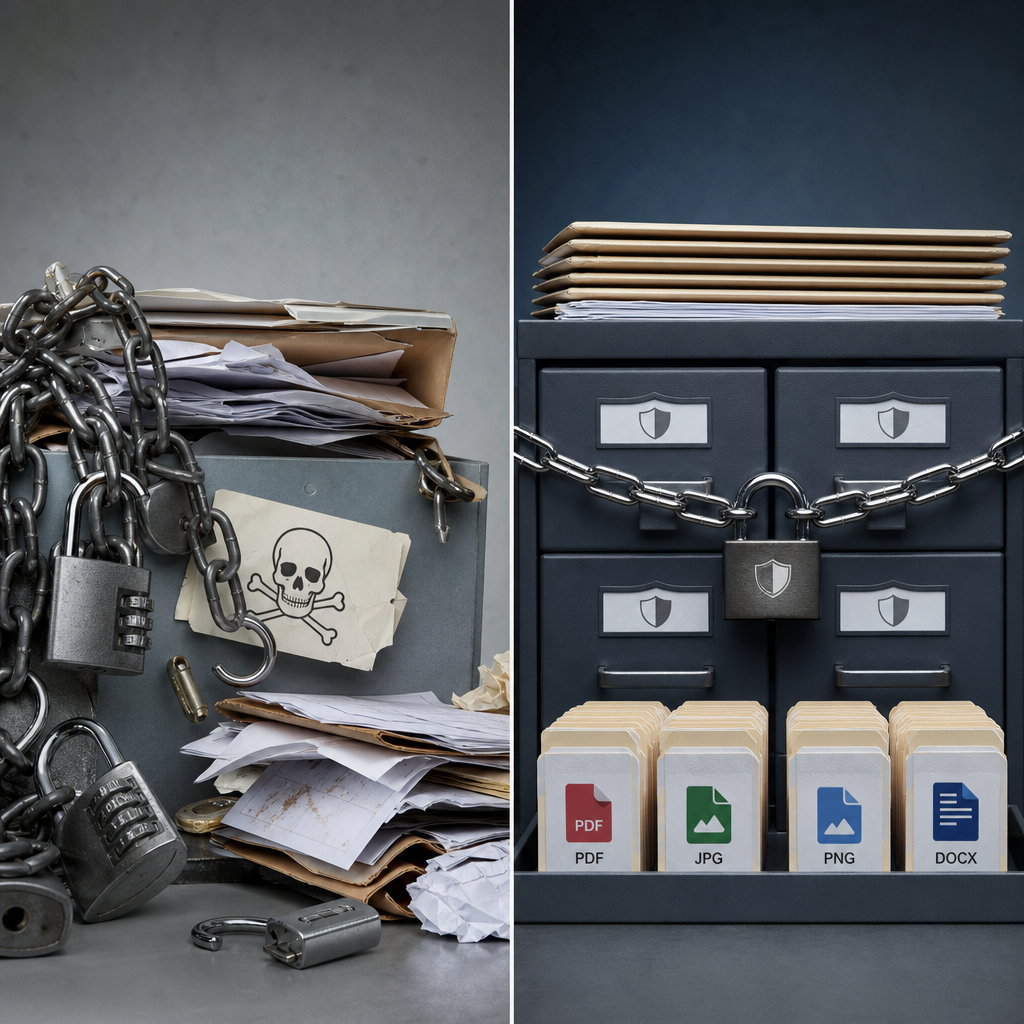
A file upload form in Elementor is useful for inquiries, resumes, technical documents, and customer requests. At the same time, it is one of the riskiest elements on a website: users send the server data that may contain malicious code.
Relying only on extensions such as .jpg or .pdf is unsafe. A filename can be changed, a MIME type can be forged, and some formats may contain active content. Reliable protection requires several layers: form settings, WordPress, the file system, and the web server.
What risks do file uploads create?
If an uploaded file is placed in a web-accessible directory and the server allows scripts to run there, an attacker may try to upload a PHP file and execute it through a browser. Possible consequences include installing a backdoor, stealing credentials, modifying pages, or sending spam.
Even a file without executable code can create problems. It may contain malicious macros, dangerous constructs, excessive data, or information that exposes private details. SVG requires particular attention: it is not merely an image, but an XML document that may contain scripts or external references.
The risk increases when a file is available at a predictable URL, is stored indefinitely, or has a filename generated without sanitization. Therefore, you must protect not only the upload itself, but also the subsequent storage and use of the file.
- double extensions: document.pdf.php or photo.jpg.phtml;
- a mismatch between the extension, MIME type, and actual content;
- oversized files that consume disk space or PHP resources;
- dangerous formats: PHP, CGI, JS, HTML, PHAR, and unverified SVG;
- access to private documents through a direct public URL.
Restrict formats and file size in the Elementor form
In the Elementor Forms upload field, allow only the formats that are genuinely required for the business process. For resumes, this may be PDF and DOCX; for photographs, JPG and PNG. Do not add universal or potentially dangerous formats just in case.
Form settings must not be the only barrier. The client-side interface can be bypassed with a direct HTTP request, so restrictions must also be enforced on the server and in WordPress processing logic. Exact field names and available options may vary depending on the Elementor version and site configuration.
Set the maximum permitted size according to the actual requirement. There is no reason to accept files hundreds of megabytes in size for a short inquiry. Make sure the form limit does not exceed PHP and web-server limits; otherwise, the user may receive an error before WordPress processes the request.
- allow only PDF, JPG, PNG, or DOCX if those are the formats actually needed;
- disable multiple uploads if they are not used;
- limit the number of files per submission;
- show users the permitted formats and maximum size;
- test empty files, corrupted files, and files with double extensions.
Validate the MIME type and the actual file content
The extension is only one part of the validation process. A more reliable approach compares three values: the extension, the MIME type, and the file signature or structure. The MIME type provided by the browser must not be considered trustworthy either, because it can be forged.
WordPress and PHP can check whether a file is actually an image. For PDF and DOCX files, validate the MIME type using server-side tools and restrict the permitted extensions. DOCX is effectively a ZIP container, so the presence of a ZIP signature alone does not prove that the document is safe.
If files come from unknown users and are relevant to security or legal processes, server-side antivirus scanning may be useful. It does not replace checks for type, size, and access permissions, but it adds a separate layer of control.
After validation, generate a new filename instead of keeping the original. The name should contain a random identifier, permitted characters, and the correct extension. This reduces the risk of bypasses involving special characters, encoding, or reserved names.
- do not trust the Content-Type header sent by the browser;
- check the actual type using server-side functions or libraries;
- do not allow files with PHP, PHTML, PHAR, CGI, JS, or HTML extensions;
- do not rename a dangerous file to a safe extension without checking its content;
- delete failed or suspicious uploads instead of leaving them in a temporary directory.
Disable script execution in the uploads directory
Even perfect validation at the form level cannot protect against a plugin error or an HTTP request bypass. It is critical to configure the web server so that files in the upload directory cannot be executed as programs.
In a typical WordPress installation, uploads are often stored in wp-content/uploads. The exact path may differ, so check the site configuration before making changes. Apply the rule specifically to the upload directory and test it on a copy or during a safe maintenance window: a configuration error can affect site operation.
- for Apache, disable execution of PHP-like extensions in the uploads directory;
- for Nginx, add a separate rule that returns 403 when a script in uploads is requested;
- do not rely only on blocking access to .php files—also account for phtml, phar, and other executable extensions;
- after configuration, verify that ordinary JPG and PDF files open correctly and that a test PHP file is not executed.
<FilesMatch "\.(php|phtml|php[0-9]?|phar)$">
    Require all denied
</FilesMatch>

# For older Apache configurations, the following may be used:
# Deny from all
Example Nginx rule
In Nginx, add the rule to the configuration of the relevant virtual host. Adjust the path in the regular expression to match the site's actual URL structure. If the server operates behind a proxy or CDN, testing should be performed directly on the origin server.
- after making the change, test the configuration using the command available in your environment;
- reload Nginx only after the configuration check succeeds;
- do not copy the rule without adapting it if uploads are stored in a different directory.
location ~* /wp-content/uploads/.*\.(php|phtml|php[0-9]?|phar)$ {
    return 403;
}
Protect file storage and privacy
Files submitted through Elementor may be processed by WordPress itself, a plugin, or an integration. You therefore need to determine exactly where they are stored and whether they are available through direct links. Do not assume that a file is private simply because the user cannot see it in the Media Library.
If a document contains resumes, contracts, passport details, or other personal information, it is better not to leave it in a public directory. A safer approach is to store the file outside the public web root and provide it only after access rights have been checked through a controlled endpoint. For temporary submissions, use automatic deletion after the retention period has ended.
Directory and file permissions should be limited to what is strictly necessary. The web process should be able to create and read the required files, but it should not have unnecessary permissions across the entire file system. Configure backups carefully so that they do not make private files accessible to a broader group of users.
- define the file retention period in the site's policy;
- delete unused attachments and temporary copies;
- do not expose the original filename in a public URL;
- restrict access to private documents by checking authorization;
- ensure that backups and logs do not contain publicly accessible links to personal data.
Regularly inspect uploads and logs
Upload security is not a one-time configuration task. After WordPress, Elementor, plugin, or server configuration updates, rules may change. Regular audits help identify problems before they are exploited.
Review media directories for unfamiliar files, unexpected extensions, randomly named files, and recent changes that no administrator made. Pay particular attention to .php, .phtml, .phar, .cgi, .js, .html, and hidden files.
Analyze web-server and WordPress logs. Attempts to open scripts in uploads, numerous upload errors, requests to unusual URLs, and repeated requests from one address may indicate automated scanning or an attack.
- perform a review after every incident or suspicious activity;
- keep a backup before cleanup if further investigation may be required;
- delete unknown files after checking their origin rather than mechanically deleting everything;
- restrict access to the administration area and use unique passwords and 2FA;
- keep WordPress, Elementor, the theme, and plugins updated from trusted sources.
Common configuration mistakes
The problem most often arises not from one missing setting, but from the mistaken assumption that a single protection layer is sufficient. For example, allowing only the .jpg extension in a form does not protect against a file with a double extension, while blocking PHP does not solve the privacy problem for PDFs.
After making changes, test uploads using different scenarios: an allowed file, a prohibited format, an oversized file, a modified MIME type, a double extension, a corrupted document, and an attempt to open the file through a direct address. Test as a regular user as well, not only as an administrator.
- allowing every format to avoid creating errors for users;
- changing only Elementor settings without checking the server;
- treating the MIME type from the browser as proof of safety;
- keeping uploaded files indefinitely;
- blocking the entire uploads directory and accidentally breaking image delivery;
- overlooking DOCX, SVG, and other formats that may contain active or complex content.
Frequently asked questions
Is allowing only PDF and JPG in Elementor enough?
No. This reduces risk, but it does not replace validation of the actual content, size, MIME type, and filename, or the server-side prohibition of script execution in uploads.
Can SVG uploads be allowed?
Only in a controlled scenario. SVG must be sanitized, the group of users must be restricted, and unverified files must not be opened as ordinary content. For a public form without additional processing, it is better to prohibit SVG.
Is a file safe if its extension has been changed to .jpg?
No. Renaming does not change the content. The server must verify the actual file type and, for images, their structure and ability to be processed correctly.
Where is the best place to store documents containing personal data?
If possible, store them outside the public web root and provide access through a verified endpoint. If a file is stored in uploads, direct access must be restricted and the retention period must be defined and enforced.
How can I verify that PHP is not executed in uploads?
In a test environment, create a harmless test file with a PHP extension and try to open its URL. The server should return a denial or serve the file as plain text, but it must not execute the code. Perform such tests carefully and delete the file immediately.
Conclusion
Secure uploads in WordPress and Elementor are not controlled by a single form setting. You must allow a minimal set of formats, limit file size, validate the MIME type and actual content, generate safe filenames, and prevent scripts from running in the uploads directory.
For private documents, add access controls, automatic deletion, and regular audits of the file system and logs. Combining Elementor, WordPress, and web-server controls significantly reduces the attack surface and helps detect suspicious activity in time.