The WordPress login page, usually wp-login.php, is often the first target of automated attacks. Bots try large numbers of passwords by sending hundreds or thousands of requests, increasing server load and the risk of account takeover.
A strong password is important, but it does not solve the problem on its own. Practical protection combines rate limiting, temporary blocking, two-factor authentication, XML-RPC controls, log monitoring, and correct proxy or CDN configuration.
What Is Rate Limiting and How Does It Stop Brute-Force Attacks?
Rate limiting restricts the number of requests to a specific resource within a defined period. For wp-login.php, the limit is most often calculated by IP address. Once the limit is exceeded, the server returns a 429 Too Many Requests response or temporarily blocks further requests.
For example, you could allow 5–10 failed attempts within 15 minutes for a single IP address. The exact value depends on the number of administrators, whether users share a corporate network, and how the team works.
The goal of rate limiting is not to make login impossible, but to dramatically reduce the speed of automated password guessing. At the same time, it is not a substitute for unique passwords, 2FA, and timely WordPress, theme, and plugin updates.
- Return status code 429 when the limit is exceeded instead of serving a standard error page.
- Apply separate rules to wp-login.php rather than to the entire website.
- Before blocking, account for the fact that multiple users may access the internet through one public IP address.
- Do not rely only on IP-based limits: distributed attacks may use many different addresses.
How to Configure Rate Limiting at the Nginx Level
If the website runs on Nginx, rate limiting is best applied before the request is passed to PHP-FPM and WordPress. This reduces the load on PHP processes and the database. The example below is a basic configuration that must be adapted to the specific server setup.
The limit_req_zone directive is usually placed in the http context, while limit_req is placed in a server or location block. The value rate=10r/m means approximately ten requests per minute for one IP address. The burst parameter permits a short spike in requests but does not remove the overall limit.
- Run nginx -t to validate the configuration before reloading the server.
- Do not apply the rule to the entire domain without testing it: it may block regular pages, AJAX requests, and Elementor functionality.
- If a CDN, load balancer, or reverse proxy runs in front of Nginx, first configure the correct detection of the client’s real IP address.
- Do not trust the X-Forwarded-For header without configuring a list of trusted proxies; otherwise, an attacker may spoof the IP address.
http {
    limit_req_zone $binary_remote_addr zone=wp_login:10m rate=10r/m;

    server {
        location = /wp-login.php {
            limit_req zone=wp_login burst=5 nodelay;
            limit_req_status 429;

            include fastcgi_params;
            fastcgi_pass unix:/run/php/php-fpm.sock;
        }
    }
}
What to Check After Changing the Configuration
Make sure wp-login.php still opens, the login form submits without errors, and the server actually returns 429 after the threshold is exceeded. Check the access log and error log, but do not record passwords, cookies, or the full contents of POST requests.
The actual PHP-FPM path, socket name, and configuration structure vary between servers. Do not copy the example without checking it: an incorrect fastcgi_pass value can make the login page unavailable.
Apache, WAF, and CDN: Where Should Attacks Be Blocked?
On Apache, the same task can be implemented using modules, reverse-proxy rules, or an external WAF. The exact syntax depends on the hosting environment, so on shared hosting it is often easier to configure a rule in the WAF control panel or contact the server administrator.
A WAF or CDN can filter suspicious traffic before it reaches the web server. This is especially useful during a large-scale attack, when requests to WordPress can create a significant load by themselves. At this level, rate limiting can be combined with CAPTCHA, IP reputation checks, and rules for specific countries or networks.
Do not blindly block all traffic to wp-login.php. Administrators may use VPNs, mobile networks, or corporate NAT, and automated WAF rules may sometimes mistake normal behavior for malicious activity.
- At the WAF level, limit the frequency of POST requests to wp-login.php if this can be done without blocking ordinary GET requests.
- Use temporary blocking rather than an indefinite ban unless there are signs of a serious compromise.
- It is more appropriate to show a CAPTCHA after suspicious activity than to require it from every visitor.
- Make sure health checks, monitoring systems, and allowlisted IP addresses are not caught by the rule.
Additional WordPress and Elementor Protection
Rate limiting protects a specific entry point, but it does not eliminate other causes of compromise. Enable two-factor authentication for all administrative accounts, use unique long passwords, and grant users only the minimum roles they need.
Do not use the login name admin or obvious names such as the company name. Check whether usernames are exposed through error messages, the REST API, author URLs, or other public mechanisms. A failed-login message should not reveal whether a particular user exists.
WordPress, Elementor, Elementor add-ons, themes, and all plugins must be updated promptly. A vulnerable plugin can provide an attack path even when wp-login.php is well protected.
Assess XML-RPC separately. If it is not required for a mobile application, external integration, or another business process, it can be restricted at the server or WAF level. Do not disable it mechanically if the website genuinely depends on this functionality.
- Enable 2FA at least for administrators and editors.
- Prohibit the reuse of passwords.
- Remove unnecessary plugins and themes instead of merely deactivating them.
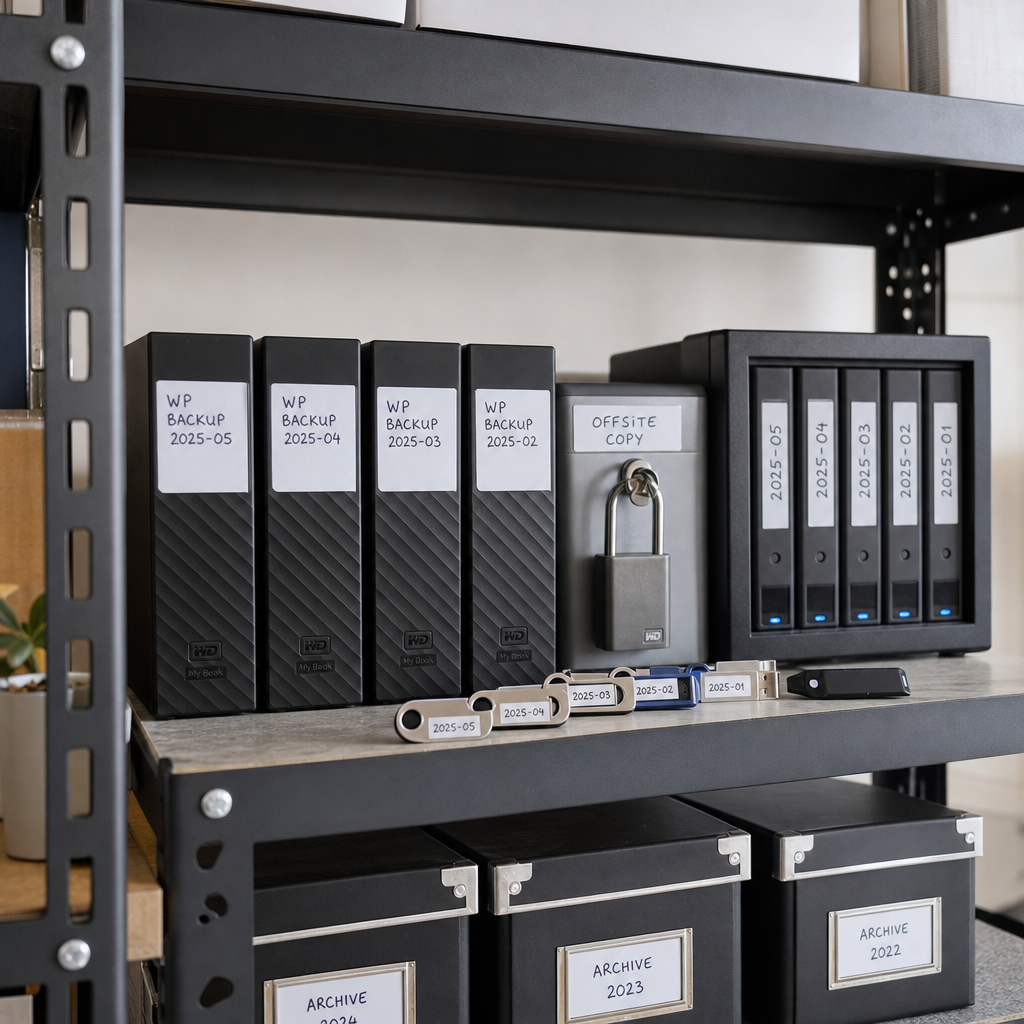
- Check backups and the ability to restore the site before making security changes.
- Do not change the login URL as the only measure: bots may discover the new address through links, server responses, or scanning.
How to Track Failed Logins and Respond to an Attack
Web server logs help reveal request frequency, IP addresses, user agents, response codes, and the timing of an attack. However, the access log alone does not always show whether an authentication attempt failed. A complete picture requires WordPress logs or an audit tool configured without storing sensitive data.
Look for repeated requests to wp-login.php, a sharp increase in 401, 403, or 429 responses, requests from a large number of addresses, and login attempts using nonexistent usernames. The important factor is not only an individual IP address but also recurring patterns, such as identical user agents, time intervals, and networks.
After detecting an attack, check whether there were successful logins, user changes, installations of unknown plugins, or file modifications. If there are signs of compromise, change passwords, revoke active sessions, review administrator accounts, and restore the site from a verified backup if necessary.
- Retain logs long enough for analysis, while controlling their size and access.
- Configure alerts for repeated failed logins and the creation of a new administrator account.
- Regularly review blocked IP addresses and false positives.
- Do not expose logs publicly: they may contain technical information about the website.
Common Rate-Limiting Configuration Mistakes
A limit that is too strict may block legitimate administrators, especially when the entire team works from one IP address. A limit that is too lenient will have little effect on brute-force attacks. Start with a moderate rule, monitor the logs, and adjust it based on real-world behavior.
Another common mistake is configuring the restriction only in a plugin. A plugin may reduce the number of authentication attempts, but each request has already been processed by the web server and often reaches PHP. To protect resources, combine server- or WAF-level controls with WordPress-level protection.
Do not test blocking only from the same IP address without a recovery plan. Before making changes, prepare console or hosting access to the server, a list of trusted addresses, and a way to temporarily disable the rule.
- Do not block an IP address permanently without checking it: addresses may be dynamic or shared.
- Do not treat a 429 response as a server problem—it is the expected response when the limit is exceeded.
- Do not forget IPv6: rules must correctly handle both IPv4 and IPv6.
- Do not test the protection with real high-volume traffic on a production website.
Frequently asked questions
What login-attempt limit should be set for wp-login.php?
As a starting point, consider allowing 5–10 failed attempts within 15 minutes for one IP address. Test the value with your actual audience, however: shared networks or large teams may require a more permissive rule.
Is installing a login-limiting plugin enough?
A plugin is useful as an additional layer, but it does not always protect the server from the request volume itself. Rate limiting on Nginx, Apache, a WAF, or a CDN can filter traffic earlier, so combining these layers is the preferred approach.
Should wp-login.php be blocked completely?
Usually not. Complete blocking makes administration more difficult and may cause problems for integrations. It is better to limit request frequency, require 2FA, apply WAF rules, and, where possible, allow access only from trusted networks.
Why does the website still receive many requests after rate limiting is enabled?
The limit may apply to only one IP address while the bot uses a distributed network. The rule may also be configured at the WordPress level and therefore fail to reduce the load on PHP. Large-scale attacks require a WAF, CDN, pattern analysis, and additional blocking rules.
Does XML-RPC need the same protection as wp-login.php?
Yes, if XML-RPC is used for authentication attempts or creates unnecessary load. If the feature is not needed, it can be restricted. Before disabling it, check the dependencies of the website, mobile applications, and integrations.
Conclusion
Reliable wp-login.php protection combines server- or WAF-level rate limiting, 2FA, unique passwords, updates, and log monitoring. A limit of 5–10 attempts within 15 minutes can be a starting point, but it should be adapted to the team structure and network environment.
Configure rules gradually, test the 429 response, verify the real IP address behind a reverse proxy, and maintain emergency access to the server. This reduces the risk of brute-force attacks without turning security controls into a reason to lock out legitimate users.