After moving WordPress to a new domain, the old site address may remain not only in the main settings but also in content, metadata, widgets, theme and plugin options. As a result, some images, internal links, or API requests may continue to use the old domain.
The safest way to perform a bulk replacement is through WP-CLI. The <code>wp search-replace</code> command accounts for serialized WordPress data and correctly recalculates string lengths. This is much more reliable than directly replacing text with SQL.
What to Prepare Before Changing the Domain
Run commands from the WordPress root directory—the one containing the <code>wp-config.php</code> file. The user running WP-CLI must have access to the site files and database.
Before starting, identify the exact old and new addresses. For example, <code>https://old.example</code> and <code>https://new.example</code>. Do not combine different protocol variants, <code>www</code> variants, or subdirectory paths in a single operation.
- Verify that the new domain already points to the required server or environment.
- Make sure an SSL certificate has been issued for the new domain if HTTPS is used.
- Prepare a database backup and confirm that it can be restored.
- Temporarily restrict access to the site for editors and visitors.
- Check the DNS, web server, CDN, mail, and external integration settings in advance.
wp db export backup-before-domain-change-$(date +%F-%H%M).sql
wp maintenance-mode activate
Why You Should Not Perform a Bulk Replacement with Plain SQL
WordPress stores serialized PHP structures in the database. These structures store the string length together with each value. If you replace the domain with a standard <code>REPLACE()</code> function, the length may become incorrect, preventing WordPress or a plugin from parsing the data.
The problem often does not appear immediately: the site may open normally, while widgets, theme settings, page builders, or individual plugins stop working. WP-CLI recognizes serialized values and updates them correctly.
- Do not run a global SQL query without a complete backup.
- Do not replace the domain by using simple find-and-replace in a database dump with a text editor.
- Do not manually edit serialized values in database tables.
- Remember that WP-CLI changes the database but does not fix hard-coded URLs in PHP, JavaScript, CSS, or web server configurations.
Run a Test with WP-CLI
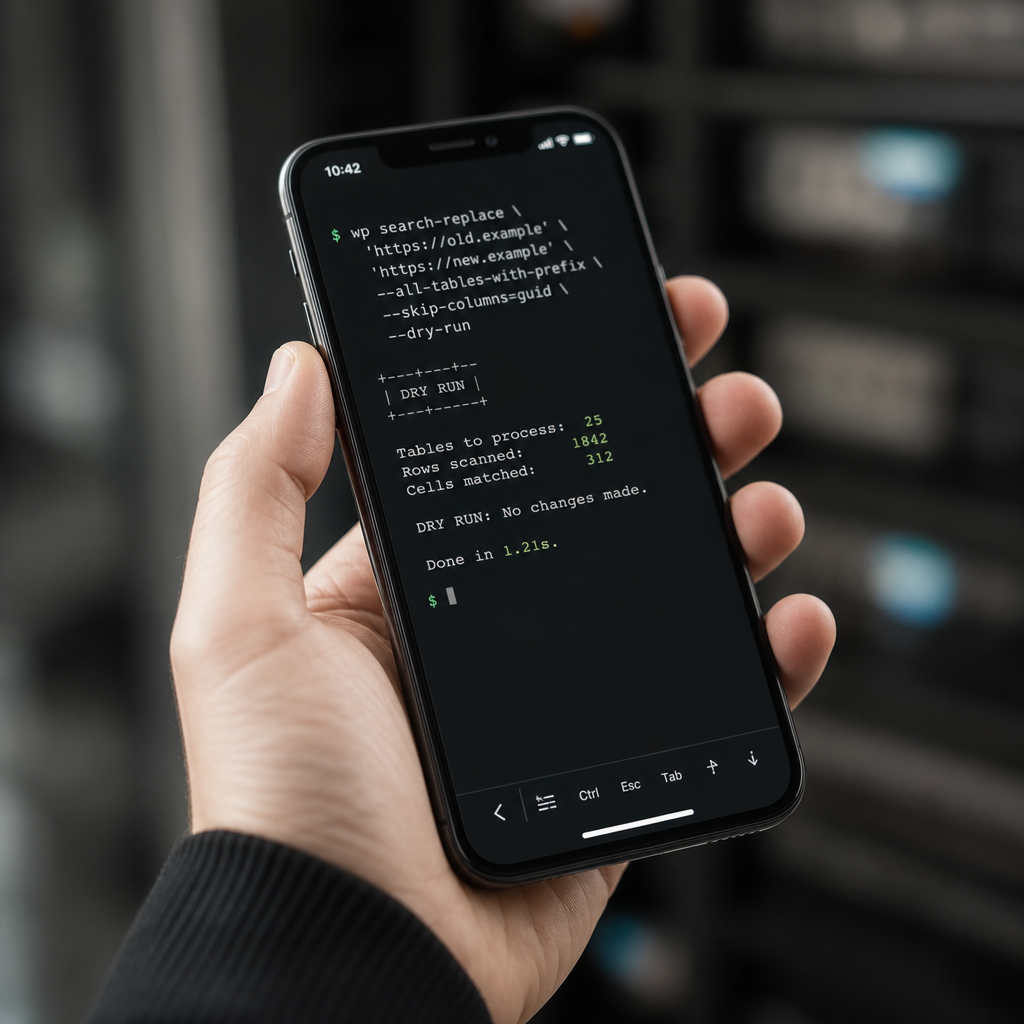
First, run the command with the <code>--dry-run</code> parameter. It does not modify the database and only shows how many matches will be found. The <code>--all-tables-with-prefix</code> parameter includes all tables with the WordPress prefix, including plugin tables if they use the same prefix.
- Replace the domains in the command below with the actual site addresses.
- Do not add a trailing slash to one domain if the other does not have one.
- Run the command with permissions that provide access to the database and WordPress files.
wp search-replace \
'https://old.example' 'https://new.example' \
--all-tables-with-prefix \
--skip-columns=guid \
--dry-run
How to Assess the Dry Run Result
Check the number of tables, columns, and rows with matches. The result should be reasonable for the specific site: on a small project, an unusually high number of matches may indicate an incorrect address or an overly broad search pattern.
If the command finds nothing, check the protocol, subdomain, <code>www</code>, subdirectory path, and whether WP-CLI is connected to the correct database. For troubleshooting, you can inspect the main URL values with separate commands.
- Compare the old address with the actual value stored in the WordPress settings.
- Do not run the replacement merely because the new site opens in a browser.
- If the site uses multiple variants of the old address, such as HTTP and HTTPS, plan separate, controlled operations.
wp option get home
wp option get siteurl
Perform the Domain Replacement
If the test result is as expected, run the command again without <code>--dry-run</code>. The <code>--skip-columns=guid</code> parameter is usually left intentionally: the <code>guid</code> field is a stable post identifier, not an ordinary URL used for navigation or SEO redirects.
Changing GUIDs can create unnecessary side effects for RSS and systems that use this field to identify posts. However, the correct approach depends on the migration scenario, so non-standard integrations should be reviewed with a developer.
wp search-replace \
'https://old.example' 'https://new.example' \
--all-tables-with-prefix \
--skip-columns=guid
If the Site Uses a Subdirectory or Multisite
For WordPress installed in a subdirectory, include the full old and new addresses with the path if that is the exact string stored in the database. A multisite replacement requires additional checks: the database may contain network settings, individual site tables, blog domains, and web server rules.
Do not rely on checking only the home page. After the operation, check every site in the network, the administration area, and the URLs generated for individual blogs.
- Create a separate backup before changing the network domain.
- Check the domain and path values in the network settings.
- Make sure DNS and redirect rules cover all relevant subdomains or paths.
Clear the Cache and Update Dependent Settings
After the replacement, the database will contain the new domain, but visitors may still receive old pages from cache. Clear the WordPress cache, page cache, object cache, CDN cache, and web server cache if one is being used.
WP-CLI can clear the standard object cache, but a specific plugin cache or CDN cache often requires a separate command or an action in the relevant service's control panel.
- Clear the object cache: <code>wp cache flush</code>.
- Regenerate or clear the page cache using the method provided by the site.
- Check the redirect rules from the old domain to the new one.
- Update URLs in CDN, SMTP, payment system, webhook, OAuth, and external API configurations.
- Review environment variables, configuration files, and theme code where the domain may have been hard-coded.
wp cache flush
wp maintenance-mode deactivate
Check the Site After Migration
Perform checks not only in a browser but also through HTTP requests and WP-CLI. Make sure the new address is used in canonical URLs, the sitemap, the REST API, media files, and internal links.
- Open the home page, several posts, pages, categories, and the search page.
- Check that images, files, and fonts load from the new domain without mixed content.
- Check canonical, hreflang, Open Graph, and structured data if they are generated by the theme or SEO plugin.
- Send a request to the REST API, for example <code>/wp-json/</code>, and check that the responses contain no authorization errors or unexpected redirects.
- Check the XML sitemap, robots.txt, internal links, and redirects from old URLs.
- Review the PHP and web server error logs after opening the site.
- Make sure the editor, media uploads, forms, caching, and key integrations work in the administration area.
wp option get home
wp option get siteurl
curl -I https://new.example/
curl -I https://new.example/wp-json/
Common Mistakes When Changing a Domain
Most problems are caused not by the command itself but by an incomplete migration plan. A database replacement does not change DNS, SSL, redirect rules, or files containing hard-coded addresses.
- A backup was skipped, or the ability to restore it was not verified.
- The command was run against the wrong database or from the wrong WordPress directory.
- The search used HTTP instead of HTTPS, an old subdomain, or an incorrect path.
- A cache containing responses and HTML from the old domain remained after the operation.
- The old domain was disabled immediately, even though it should continue returning permanent redirects to the corresponding new URLs for an extended period.
- Some URLs remained in theme files, JavaScript, CSS, configuration files, or external service settings.
- GUIDs were changed unnecessarily, or a dangerous SQL replacement was performed on serialized data.
Frequently asked questions
Do I need to change the WordPress guid field?
Usually, no. GUID is intended to provide a stable identifier for a post, including in RSS, rather than to serve as a user-facing navigation URL. For this reason, it is often excluded during a standard migration with --skip-columns=guid.
Can I run wp search-replace without a dry run?
You can, but it is safer to run a test first, check the number of matches, and then repeat the command without --dry-run. Always create a database backup before performing the actual replacement.
Will WP-CLI fix the domain in theme and plugin files?
No. wp search-replace works with the database. Hard-coded addresses in PHP, JavaScript, CSS, web server configurations, or environment variables must be checked separately.
What should I do if serialization errors appear after the replacement?
Do not run random SQL queries. Restore the database from the backup, check the WP-CLI version and the connection to the correct database, and then repeat the operation with wp search-replace. For complex sites, involve a developer.
Should I keep the old domain after the migration?
Yes. In most cases, you should keep the old domain and configure permanent redirects to the corresponding new URLs. This helps users and search engines move correctly from the old addresses to the new ones.
Conclusion
Safely changing a WordPress domain involves more than a single search-and-replace query. A reliable sequence is: create a backup, enable maintenance mode, run a dry run, perform the replacement through WP-CLI, clear the caches, and check all key URL types.
Do not use direct SQL for serialized data, and do not disable the old domain immediately after the migration. A controlled replacement and systematic verification will help prevent damaged settings and unnoticed content errors.