When migrating WordPress to a new domain or protocol, you need to replace the old site address in the database. At first glance, an SQL query or sed may seem sufficient. However, this approach can damage serialized data that WordPress and plugins store in settings, metadata, and other tables.
A safer option is the WP-CLI search-replace command. It finds and replaces values in WordPress tables while correctly updating string lengths in serialized data. Before making changes, use a dry run, verify the backup, and make sure the command is working with the intended installation.
Why Direct SQL or sed Can Damage WordPress
WordPress often stores settings in PHP serialization format. In this structure, the string length is stored together with the text. For example, a string may look like a:1:{s:3:"url";s:18:"https://old.example";}. If you replace the address with a longer or shorter value without recalculating its length, PHP will not be able to read the value correctly.
This type of data can be found in wp_options, wp_postmeta, wp_usermeta, plugin tables, and page builder fields. Possible consequences include missing settings, plugin errors, empty widgets, or messages indicating corrupted serialized data.
A regular SQL UPDATE or bulk replacement with sed does not understand the structure of serialized arrays. It changes characters but does not know which lengths must be updated. WP-CLI search-replace is designed specifically for this scenario.
- Do not edit a database dump with ordinary search and replace unless you verify all data formats.
- Do not replace values only in wp_options: addresses may also exist in content, metadata, and plugin tables.
- Account for the exact address variant: http or https, www or non-www, and whether a trailing slash is present.
Preparing to Replace the Domain
Before running the command, identify the document root of the intended WordPress installation. It usually contains wp-config.php. This is especially important on servers hosting multiple sites: an incorrect path may cause the command to work with a different database.
Create a database backup and make sure it can be restored. The backup must be available before the operation begins, not created after an unsuccessful search-replace. For a critical site, first test the migration on a staging copy.
Also verify that WP-CLI is available to the user who has access to the WordPress files and database. It is best to run the command from the site root rather than from an arbitrary directory.
- Prepare a database dump and, if necessary, a backup of the files.
- Verify that the old and new URLs are spelled correctly.
- Check whether the database contains plugin tables using the same prefix as the WordPress tables.
- Do not perform the operation on production without a verified backup.
- If multiple sites are available, explicitly specify the correct WordPress path.
cd /var/www/example.com
wp core is-installed
wp option get home
wp option get siteurl
Which URL Variants Need to Be Considered
A single migration does not always cover every address variant. For example, the database may still contain http://old.example, https://old.example, http://www.old.example, or URLs with a trailing slash. First determine which values are actually in use, then perform separate, controlled replacements.
Do not blindly replace only the domain name in every text value. The domain may appear in email addresses, webhook settings, API keys, or external integrations. Assess the context of the matches before performing the operation.
The Basic WP-CLI search-replace Command
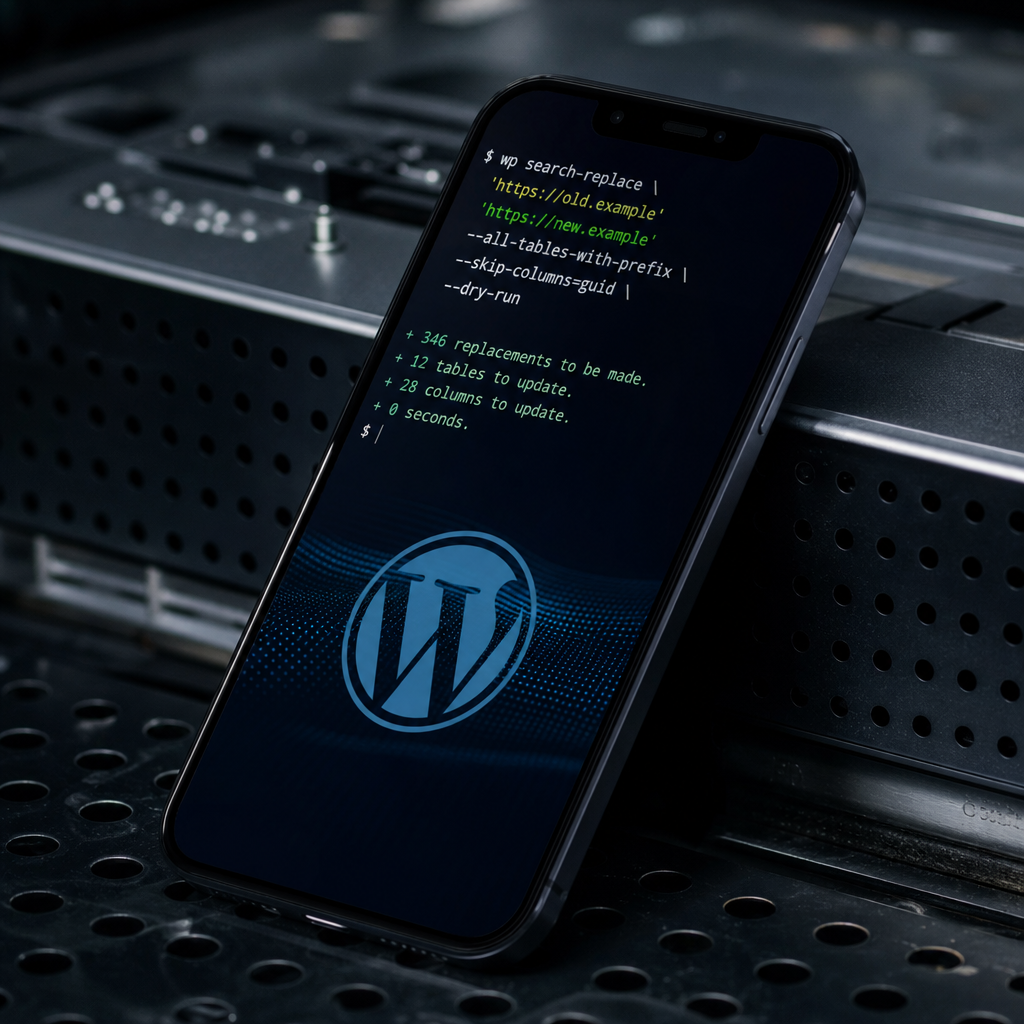
For a typical domain migration, start with a dry run and skip the guid field. The --all-tables-with-prefix parameter includes all tables whose names begin with the WordPress prefix, rather than only standard tables such as wp_posts or wp_options.
Pass the values in quotes exactly as intended. If a URL contains special characters, use single quotes in the shell or another safe escaping method.
- --dry-run displays the expected changes but does not write them to the database.
- --all-tables-with-prefix allows you to check many plugin tables that use the relevant prefix.
- --skip-columns=guid excludes the guid column from the replacement.
- After reviewing the dry-run results, run the same command without --dry-run.
wp search-replace \
'https://old.example' 'https://new.example' \
--all-tables-with-prefix \
--skip-columns=guid \
--dry-run
Running the Command After Verification
If the report matches your expectations, the backup has been created, and the site is using the correct database, run the command again without the --dry-run flag. Do not change the search string or parameters between the check and the actual run without performing a new verification.
wp search-replace \
'https://old.example' 'https://new.example' \
--all-tables-with-prefix \
--skip-columns=guid
How to Review a Dry-Run Result
The WP-CLI report shows the tables, columns, and number of matches found. Do not assess the result only by its total count: it is important to see exactly which tables and fields will be changed.
Zero matches do not always indicate a problem. The site may already be using the new domain, the search string may differ by protocol, or the command may have been run against the wrong installation. Conversely, a large number of matches in content may be normal during a migration, but it should be compared with the site's structure.
If plugin tables or non-standard columns appear in the report, check the plugin's documentation. Some products store data as JSON or in compressed or encrypted form. WP-CLI correctly handles standard serialized PHP structures, but it cannot safely unpack an arbitrary format it does not understand.
- Check the table and column names shown in the report.
- Compare the number of matches with the expected volume of content and settings.
- Find out why no values were found if the replacement returns zero matches.
- Do not rerun the operation unnecessarily: a repeated replacement may be redundant or may alter data if search strings overlap.
wp search-replace \
'https://old.example' 'https://new.example' \
--all-tables-with-prefix \
--skip-columns=guid \
--dry-run \
--report-changed-only
What to Do About GUIDs and Custom Tables
The guid column in wp_posts has a specific purpose. It is a global identifier for a post, not an ordinary field used to display the current page URL. For this reason, it is often skipped during a typical migration with --skip-columns=guid.
If there is a specific reason to change GUIDs, do so deliberately after assessing the consequences. Do not include this field simply because it still contains the old address. Changing GUIDs is not the standard way to fix canonical URLs, internal links, or the site address.
The --all-tables-with-prefix parameter covers tables using the prefix specified in wp-config.php. If a plugin created a table with a different prefix or without that prefix, it may not be included. Such tables must be checked separately and handled only according to the plugin's documentation or after analyzing their structure.
- By default, leave guid excluded unless there is a clear reason to change it.
- Check non-standard tables, especially when using complex plugins and import systems.
- Do not include every database table indiscriminately: third-party tables may contain logs, caches, or data in an incompatible format.
Checking the Site After search-replace
After performing the replacement, check the home and siteurl values, open the homepage, several posts, pages with media, and forms. Also test authentication, the administration area, search, the cart, and checkout if the site uses e-commerce.
Check whether links to the old domain remain in content, widgets, menus, or plugin settings. You can run search-replace again in dry-run mode using the old address. The expected result is no matches, or only understandable remnants in fields that were intentionally excluded.
After the migration, clear the WordPress cache, server cache, CDN cache, and plugin caches if they are used. Also check robots.txt, the XML sitemap, the SSL certificate, redirects from the old domain, and external integration settings.
- Check home and siteurl with WP-CLI.
- Run another dry run for the old URL.
- Review pages containing different content types and images.
- Test email delivery, APIs, webhooks, and payment integrations.
- Record PHP errors and HTTP 4xx/5xx responses after the migration.
wp option get home
wp option get siteurl
wp search-replace \
'https://old.example' 'https://new.example' \
--all-tables-with-prefix \
--skip-columns=guid \
--dry-run
Common Errors and a Safe Recovery Strategy
The most common mistake is running the command without a backup or using the wrong WordPress path. Other risks include confusing the protocol, replacing values only in standard tables, changing GUIDs unnecessarily, and attempting to process encrypted or non-standard compressed data with WP-CLI.
If settings disappear or the site begins returning errors after the operation, do not perform random replacement commands. Save the command report and error logs, temporarily limit changes to the site, and restore the database from a verified backup if the cause is not obvious.
After restoring the site, repeat the process on staging: first verify the exact URLs, then perform a dry run, review the tables, and only then execute the replacement. This approach is usually faster than manually repairing damaged serialized data.
- Do not manually edit damaged serialized strings unless you understand their structure.
- Keep a backup from before and after the migration.
- After a major migration, check not only the front end but also the administration area and background tasks.
- If plugin data is encrypted or uses a proprietary format, use that plugin's official tool.
Frequently asked questions
Is it safe to run WP-CLI search-replace on production?
The operation can be performed on production, but only after creating and verifying a backup and running a dry run. For critical sites, test the command on a staging copy first and schedule a short maintenance window.
Does WP-CLI replace serialized data without damaging it?
WP-CLI search-replace can correctly update standard PHP serialized values, including recalculating string lengths. This does not guarantee safe handling of arbitrary JSON, encrypted, compressed, or proprietary formats.
Why is --skip-columns=guid used in the command?
A GUID is a post identifier, not an ordinary current URL. During a migration, it is usually left unchanged unless there is a separate technical reason to update it.
Does --all-tables-with-prefix include tables from all plugins?
It includes tables whose names begin with the WordPress prefix. Tables using a different prefix or no standard prefix may be excluded and must be checked separately.
What should I do if old URLs remain after the replacement?
Run a dry run again using the old address, identify the tables and columns containing the remaining values, and check whether the URL differs by protocol, www, or trailing slash. If the values use a special format, use the relevant plugin's tool.
Conclusion
WP-CLI search-replace is a practical tool for WordPress migrations when you need to replace a domain without damaging serialized data. A safe process includes a backup, running the command from the root of the correct installation, a dry run, reviewing the tables, and testing the site after the changes.
The --all-tables-with-prefix and --skip-columns=guid parameters help include plugin data while avoiding an unnecessary change to GUIDs. At the same time, non-standard, encrypted, or separately prefixed tables require additional analysis.