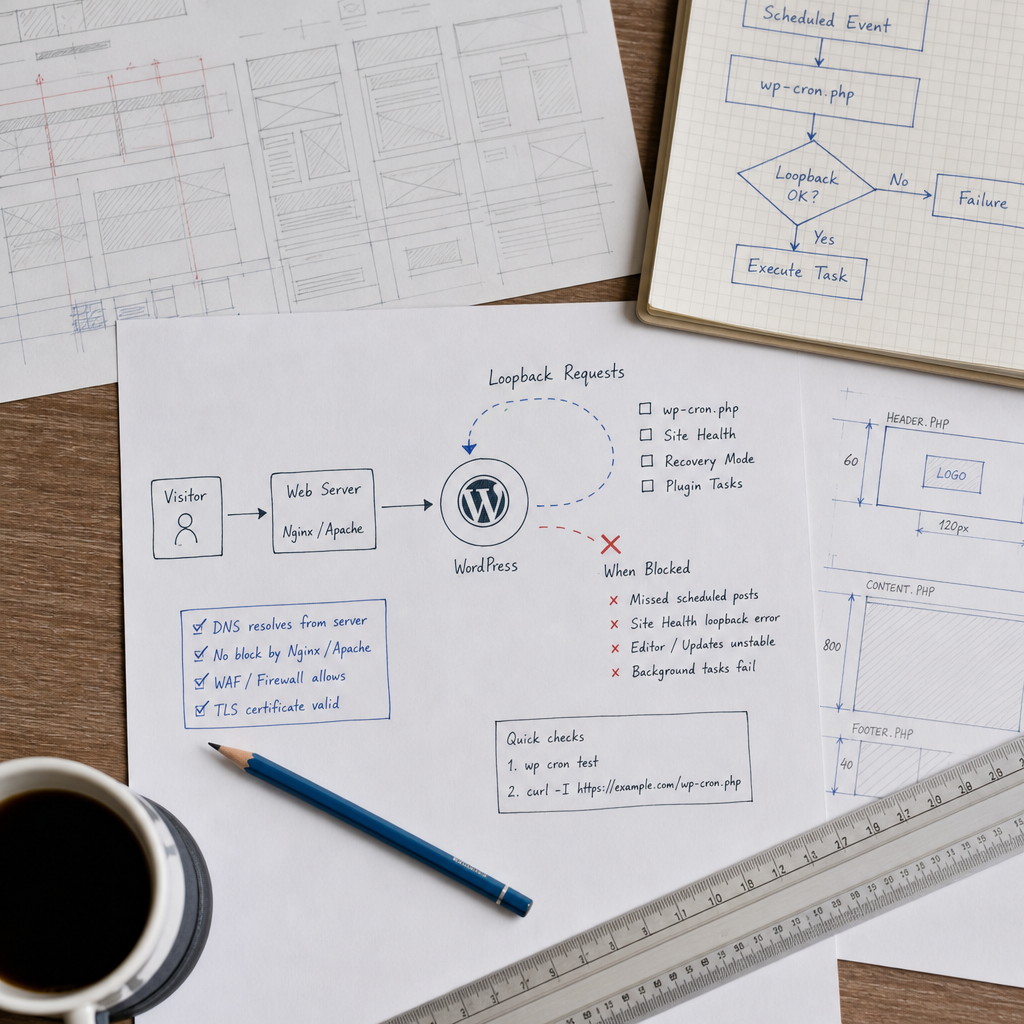
A loopback request is an HTTP request that WordPress sends to its own site. The CMS uses these requests for WP-Cron, Site Health checks, Recovery Mode, and background plugin tasks. A site may appear to work normally in a browser even though the server cannot connect to its own domain.
The problem can appear in different ways: scheduled posts do not run, Site Health reports a loopback error, updates hang, or the editor behaves inconsistently. Diagnose the issue systematically—from WP-CLI and DNS checks to TLS, web server, proxy, and WAF analysis.
What Is a Loopback Request and Why Does It Matter?
During a loopback request, the server running WordPress connects to the site's own URL—usually an HTTPS domain and a service endpoint such as wp-cron.php. The request passes through DNS, the network stack, a load balancer or CDN, the web server, security rules, and PHP just like a normal external request.
WP-Cron runs scheduled events not through a continuously running system process, but when the site receives requests. If the internal HTTP request is blocked or times out, the event queue can build up. A similar mechanism is used for certain WordPress checks and background plugin operations.
A loopback error does not necessarily mean that WordPress itself is malfunctioning. The cause is often found in DNS, the TLS certificate, Basic Auth, WAF rules, restrictions on outbound connections, or an incorrect proxy configuration.
- Typical symptoms include a loopback error in Site Health, missed scheduled events, and long delays during administrative operations.
- A request may return an error even when the same URL opens normally on an administrator's computer.
- The internal request must be tested from the server or container where WordPress is running.
Quick Checks with WP-CLI and curl
Start with WP-CLI. The wp cron test command checks whether WordPress can perform a test loopback request for Cron. Run it as the same user and in the same environment where the site operates: with Docker, Kubernetes, or a separate PHP container, this may not be the host system.
Also test the URL with curl. A HEAD request is convenient for a quick test, but some servers or WAFs handle HEAD and GET differently. If necessary, repeat the check with a regular GET request without downloading the response body.
- Record the HTTP status code, response time, and error text—not just whether the command succeeded or failed.
- A 2xx or 3xx status usually means that the network path is working, although a redirect or authentication can still interfere with the specific endpoint.
- 401 and 403 codes often indicate Basic Auth, a WAF, or an access rule; 404 usually points to an incorrect URL or site configuration; 5xx codes indicate a PHP or web server processing problem.
wp cron test
curl -I https://example.com/wp-cron.php
curl -sS -D - -o /dev/null -w '\nHTTP %{http_code}\nTime: %{time_total}s\n' https://example.com/wp-cron.php
Checking DNS and the Route from the Server
The server must resolve the site's domain in accordance with your infrastructure. If the domain points to an external CDN or load balancer, the loopback request may go out to the Internet and return through additional filtering layers. In some networks, access to the site's own public IP address is blocked.
Check DNS from the WordPress server itself. Compare the A and AAAA records returned with the actual deployment architecture. A common cause is a working IPv4 address paired with an unreachable IPv6 address: curl may select the AAAA record first and then time out.
- Make sure the hostname in the WordPress URL resolves from the PHP environment, not only from your workstation.
- Check that port 443 or 80 is reachable and that there is a route to the address returned by DNS.
- If split-horizon DNS is used, the internal server must receive the correct internal address.
- Do not replace the domain with a hosts-file entry without understanding the consequences: this can hide a DNS problem and create different behavior on different servers.
getent hosts example.com
nslookup example.com
curl -4 -I https://example.com/wp-cron.php
curl -6 -I https://example.com/wp-cron.php
TLS, Proxies, and the Web Server: Where Blocking Most Often Occurs
For HTTPS, a loopback request must successfully validate the certificate, domain name, and chain of trust. A self-signed or expired certificate, an incomplete chain, or an incorrect server date can cause an SSL error. Do not fix this by disabling certificate verification: that weakens security and only hides the underlying cause.
If Nginx, Apache, a CDN, a reverse proxy, or a load balancer is placed in front of WordPress, check how the Host and X-Forwarded-Proto headers are passed. Incorrect HTTPS detection can cause endless redirects between HTTP and HTTPS or lead to the generation of an incorrect URL.
Also check access rules separately. Basic Auth on a staging site, geoblocking, rate limiting, blocking requests from the server's IP address, and rules targeting wp-cron.php can all interrupt loopback requests.
- Check whether the response to a request from the server differs from the response received on your computer.
- Review the redirect configuration and make sure the final URL does not require authentication.
- For a WAF, create a narrowly scoped exception for internal requests to the required domain or endpoint instead of disabling the entire security layer.
- After changing the configuration, clear the proxy cache and repeat the test from the server.
curl -v https://example.com/wp-cron.phpLogs Help Identify the Actual Cause
Run the test while monitoring the Nginx or Apache access and error logs. If there is no record of the request, the problem most likely occurs before the web server: in DNS, the firewall, routing, or TLS. If a record exists, analyze the HTTP status code, execution time, upstream errors, and client IP address.
In the PHP logs, look for timeouts, connection errors, memory exhaustion, and fatal plugin errors. At the WordPress level, it is useful to temporarily enable error logging in a controlled manner without displaying technical messages to visitors.
- A 502 or 504 from a proxy often indicates a communication problem with PHP-FPM or the upstream service rather than a loopback problem itself.
- A delay without an HTTP response may point to the firewall, DNS, IPv6, or a PHP process that has stalled.
- Repeated 403 responses caused by the same WAF rule should be fixed at the rule level rather than hidden by masking the error.
- After troubleshooting, remove excessive debug logging or restrict access to the logs.
tail -f /var/log/nginx/access.log /var/log/nginx/error.log
# For Apache, log paths may differ:
tail -f /var/log/apache2/access.log /var/log/apache2/error.log
How to Fix the Problem Without Unsafe Workarounds
The correct fix depends on the cause identified: restore DNS resolution, correct IPv6 or routing, install a valid certificate, configure the reverse proxy, and allow the server to make outbound HTTPS connections to its own domain. If the request is blocked by the WAF, add the minimum necessary exception and verify it in the logs.
If the site is protected by Basic Auth, provide controlled access for service requests or use another testing method without leaving the site unprotected. In a production environment, it is better to coordinate this with the infrastructure administrator and document the configuration changes.
Do not disable loopback by setting DISABLE_WP_CRON or other parameters merely to remove a message from Site Health. DISABLE_WP_CRON prevents WP-Cron from running during page loads; it does not repair a network problem. If a more reliable scheduling model is required, WP-Cron can be replaced with a system scheduler, but events must still execute correctly in the WordPress environment.
- After fixing the issue, repeat wp cron test and curl from the same server or container.
- Check Site Health and verify that a test scheduled event actually runs.
- Make sure the changes did not expose administrative endpoints to external requests.
- If the problem appeared after migrating the site, compare DNS, proxy, certificate, and firewall rules with the previous environment.
Frequently asked questions
Does a loopback error mean that the site is unavailable to visitors?
No. Visitors may be able to open the site normally while the server cannot connect to its own domain because of DNS, a firewall, WAF, TLS, or proxy configuration.
Why does curl work while wp cron test fails?
The commands may run in different environments or with different parameters. WP-CLI uses WordPress HTTP mechanisms, while curl uses the system client. DNS, proxy settings, PHP configuration, headers, and timeouts may also differ.
Can I simply disable WP-Cron?
You can move Cron execution to a system scheduler, but this is not a universal fix for a loopback problem. First make sure that scheduled events and other background tasks are actually executed by another method.
Do I need to allow all internal requests in the WAF?
No. It is better to allow only the required domain, endpoint, source, and methods, if that matches your security design. Broadly disabling the WAF can create unnecessary risks.
Conclusion
Diagnosing WordPress loopback requests starts with running WP-CLI and curl from the server itself, then moves on to DNS, IPv4/IPv6, TLS, proxies, the web server, and the WAF. Logs collected during the test help quickly identify the level at which the request is failing.
A reliable solution is to restore normal internal HTTP access to the site's own domain rather than hiding the problem by disabling Cron or security mechanisms. After making changes, always repeat the test and verify that scheduled WordPress events actually run.