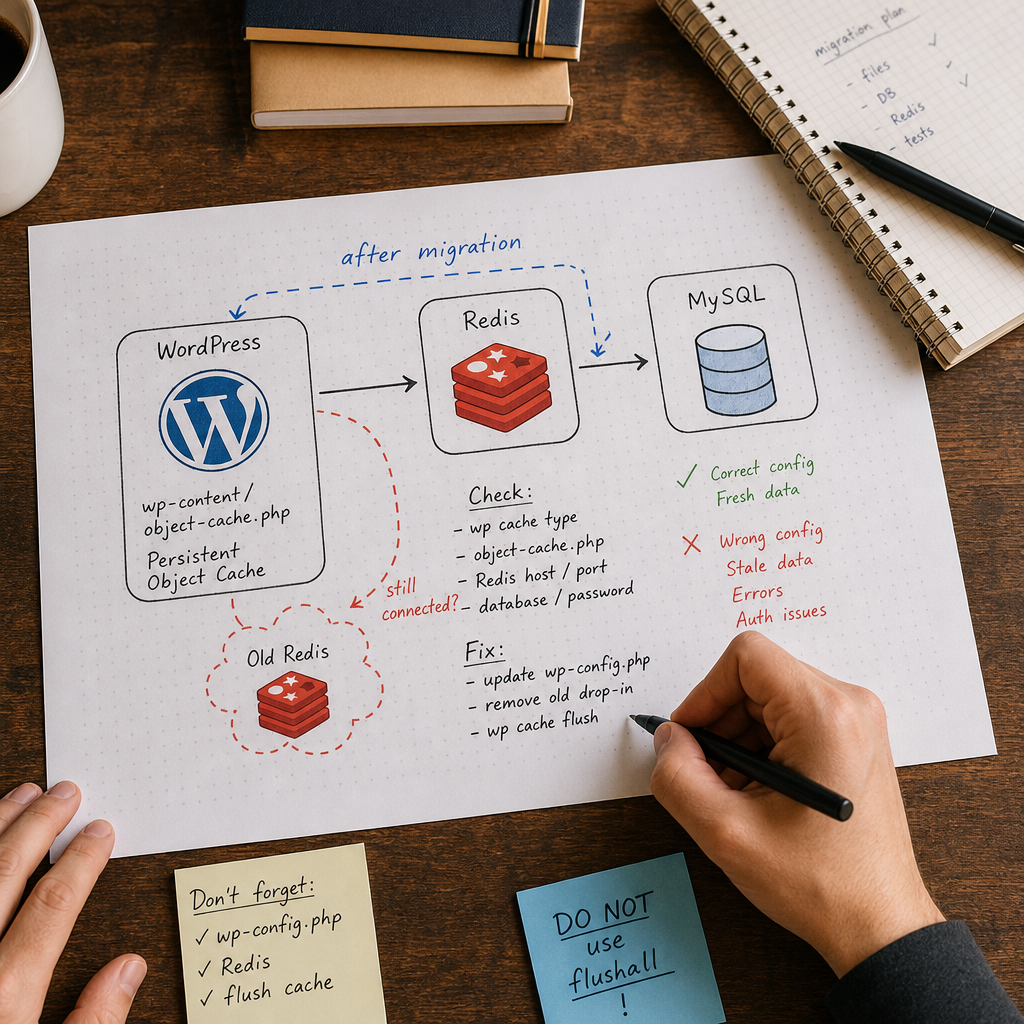
After moving WordPress to another server, the site may continue connecting to the old Redis instance instead of the new one. Another common cause is a leftover object-cache.php file that loads a cache plugin with outdated parameters or an incompatible drop-in.
The consequences do not always look like an obvious Redis error. The admin area may display outdated settings, authentication may work inconsistently, menus or widgets may not update, and database changes may appear with a delay. The step-by-step process below helps distinguish between a WordPress issue, a Redis problem, a configuration error, and an issue with the object-cache drop-in itself.
How to Tell Whether the Problem Is Related to Redis
Persistent object cache should be suspected if parts of the site continue displaying old data after a migration, even though the corresponding database records have already been changed. Typical examples include outdated settings in the admin area, an earlier plugin configuration, an incorrect menu, login errors, or different site behavior for different users.
However, not every caching problem involves Redis. Web-server HTML caching, a CDN, page caching in a plugin, and browser caching use different mechanisms. First determine whether WordPress is actually using persistent object cache.
- The problem appeared immediately after changing the server, domain, or hosting provider.
- After the cache is cleared, the data becomes correct temporarily but then becomes outdated again.
- Logs contain Redis connection errors such as authentication required, connection refused, or timeout.
- The new server uses a different host, port, password, Unix socket, or Redis database.
- An object-cache.php file copied from the old installation remains on the site.
Checking Persistent Object Cache in WordPress
Run the commands from the WordPress root directory and as the same system user under which the site or WP-CLI runs. This matters because the CLI may use a different environment, PHP version, or environment variables than PHP-FPM.
The wp cache type command displays the active object-cache type. If a persistent cache is being used, it will usually show the relevant driver or plugin. Also check whether a drop-in exists in the wp-content directory.
- The wp-content/object-cache.php file is a special WordPress drop-in and loads before many regular plugins.
- The filename alone does not prove that the file belongs to Redis: it may have been created by different caching plugins.
- Check the file owner, permissions, modification date, and actual contents.
- If the site runs in multisite mode, check the configuration for the entire network and account for commands executed for a specific site.
wp cache type
ls -l wp-content/object-cache.php
file wp-content/object-cache.php
head -n 40 wp-content/object-cache.php
What to Check in object-cache.php
Do not edit the drop-in blindly. First identify which plugin created it, then check whether it references Redis classes, constants, or variables for the host, port, database, and password. Some plugins store these parameters directly in their own configuration, while others read them from wp-config.php or environment variables.
If the drop-in was left over from the old server, it is safer to reinstall or reactivate a compatible caching plugin according to its documentation than to copy the file manually. The file may belong to a different plugin version, contain the old Redis address, or require a PHP extension that is not installed on the new server.
- Do not copy object-cache.php from a backup without verifying its source.
- Do not post the complete file in chats or support tickets if it contains a password or token.
- Check that the PHP, plugin, and Redis client versions meet the requirements of your configuration.
Checking Redis Connection Parameters
After a migration, compare the actual parameters used by the old and new environments. Redis may run on localhost, a separate private host, or a Unix socket. The port, logical database number, password, ACL user, TLS settings, and container service name may also matter.
Look for these values in wp-config.php, .env files, PHP-FPM configuration, the cache plugin settings, or container environment variables. Do not assume that localhost means the same thing in every environment: in Docker, localhost inside the WordPress container points to that same container, not to the Redis container.
- Host: the Redis address or service name.
- Port: the default port does not guarantee that it is the one used in your environment.
- Database: the Redis logical database number, if the client specifies one.
- Password or ACL: current credentials and user permissions.
- Socket or TLS: additional parameters that may differ after the migration.
grep -nE 'REDIS|WP_REDIS|CACHE' wp-config.php .env 2>/dev/null
redis-cli -h 127.0.0.1 -p 6379 ping
How to Safely Check Redis Access
A PONG response confirms that Redis is available at the specified address, but it does not prove that WordPress uses this particular server or the correct database. If Redis is protected by a password or ACL, use the authorization method accepted in your environment and do not expose secrets through the shell command history.
The errors connection refused and timeout usually indicate a network, port, firewall, or incorrect-host problem. The NOAUTH error indicates an authorization issue. If Redis is accessible but WordPress cannot connect, check the PHP extension or client library used by the specific drop-in.
- Check Redis from the server and as the user under which WordPress actually runs.
- Do not expose Redis to the public internet just for a quick test.
- If Redis is shared by several sites, make sure key and database isolation are clearly defined.
Clearing the Cache After Changing the Configuration
Once the connection parameters have been corrected, clear the object cache through WordPress and test the site again. This removes old objects that may remain in either the correct or an incorrect Redis database.
The wp cache flush command may depend on the active object-cache drop-in. If the drop-in is not working or WordPress cannot load it because of a PHP error, the command may fail. In that situation, first restore a compatible driver or temporarily disable the drop-in.
wp cache flush
wp cache type
Why You Should Not Run FLUSHALL Immediately
The FLUSHALL command deletes all keys from all Redis databases on the specific Redis server. If one instance is used by several sites, queues, or other services, this may cause problems far beyond the current migration.
Even FLUSHDB should be run only after confirming that the selected database belongs to the required site. Start with wp cache flush or the plugin's standard clearing mechanism. For shared Redis, coordinate the operation with the infrastructure administrator and verify the key-isolation policy.
- Do not use FLUSHALL in production without a clear understanding of the consequences.
- Do not clear Redis during peak traffic without a monitoring plan.
- After clearing the cache, check authentication, the admin area, menus, the cart, and critical forms.
Temporarily Disabling Redis to Isolate the Problem
If the site continues displaying old data or errors occur, temporarily disable the object-cache drop-in. Before doing so, back up the file and make sure you have server access. Renaming the file does not delete it and allows you to restore it quickly.
After disabling it, check the site in a private window or with a cleared session. Review the exact actions that previously caused the problem: logging in, saving settings, changing a menu, updating a post, or using a plugin.
cp wp-content/object-cache.php wp-content/object-cache.php.backup
mv wp-content/object-cache.php wp-content/object-cache.php.disabled
wp cache type
How to Interpret the Result
If the problem disappears without the drop-in, the cause is almost certainly related to the Redis configuration, an incompatible caching plugin, a client error, or a leftover object-cache.php file. This does not mean Redis must be disabled permanently: after diagnosing the issue, install a compatible configuration and test the site again.
If the problem remains, investigate page caching, the CDN, PHP code, the database, cookies, or another plugin. Restoring the drop-in without checking it will not help and may hide current changes again.
- Restore the file only after checking its source and parameters.
- After restoring it, clear the cache and repeat the functional tests.
- Do not leave backups containing passwords accessible from the web directory.
mv wp-content/object-cache.php.disabled wp-content/object-cache.phpLogs and Common Errors After a Migration
If the basic checks do not provide an answer, review the PHP-FPM, web-server, container, and cache-plugin logs. Look at when the error occurred and compare that time with the actions performed in the admin area. A single log message may relate to another process, so checking the context is important.
Pay particular attention to permissions. WP-CLI may run as one user while PHP-FPM runs as another. As a result, the CLI may see different environment variables or have access to the Redis socket while a web request does not.
- Connection refused: Redis is not listening on the specified address, or access is blocked by a firewall.
- Could not connect or timeout: a routing, DNS, network, or incorrect-host problem.
- NOAUTH or authentication required: an incorrect password or ACL user, or a missing authorization parameter.
- Class not found or extension missing: the required PHP extension or library is not installed on the new server.
- Old data without errors: WordPress may be connecting to a different but accessible Redis instance.
Final Post-Restoration Checklist
After fixing the issue, do not limit your checks to the home page. Persistent object cache can affect many parts of WordPress, including settings, users, menus, queries, and plugin data.
Perform a final check in the same environment used by real visitors and confirm that the configuration remains in place after another deployment or a PHP-FPM restart.
- wp cache type displays the expected cache type.
- object-cache.php belongs to the required plugin and contains no old addresses or secrets.
- WordPress and PHP-FPM use the same host, port, database, and authorization parameters.
- wp cache flush completes without errors.
- Login, logout, settings saves, menus, posts, and key site functions have been tested.
- No new Redis errors appear in the logs after several real requests.
- Redis was not cleared globally if other sites or services use the same instance.
Frequently asked questions
Can I simply delete wp-content/object-cache.php?
For diagnosis, it is better to rename the file first and keep a backup. If the problem disappears, check the drop-in's source and the Redis configuration instead of deleting it permanently.
Why does wp cache flush not remove the old data?
The command may be using the wrong Redis database, lack access to Redis, or rely on an invalid drop-in. The old data may also be coming from page cache, a CDN, or the browser rather than the object cache.
Is it safe to run redis-cli FLUSHALL after a migration?
No, not if Redis is shared or you have not confirmed its boundaries. FLUSHALL deletes the keys in every database on that instance. Use WordPress's standard clearing method first and verify Redis isolation.
How can I tell whether WordPress connected to the old Redis instance?
Compare the host, port, database, and authorization settings in the new environment, check the logs, and temporarily disable object-cache.php. If the data becomes current without the drop-in, the problem is related to the cache driver or its parameters.
Conclusion
After a migration, Redis should be checked as a separate infrastructure component, not merely as a WordPress setting. Start with wp cache type and object-cache.php, then compare the connection parameters, clear the cache using the standard method, and test the site without the drop-in if there are doubts.
This approach helps quickly identify the source of outdated data without damaging the caches of other sites. Be especially careful with shared Redis: global clearing commands can affect every service using that instance.