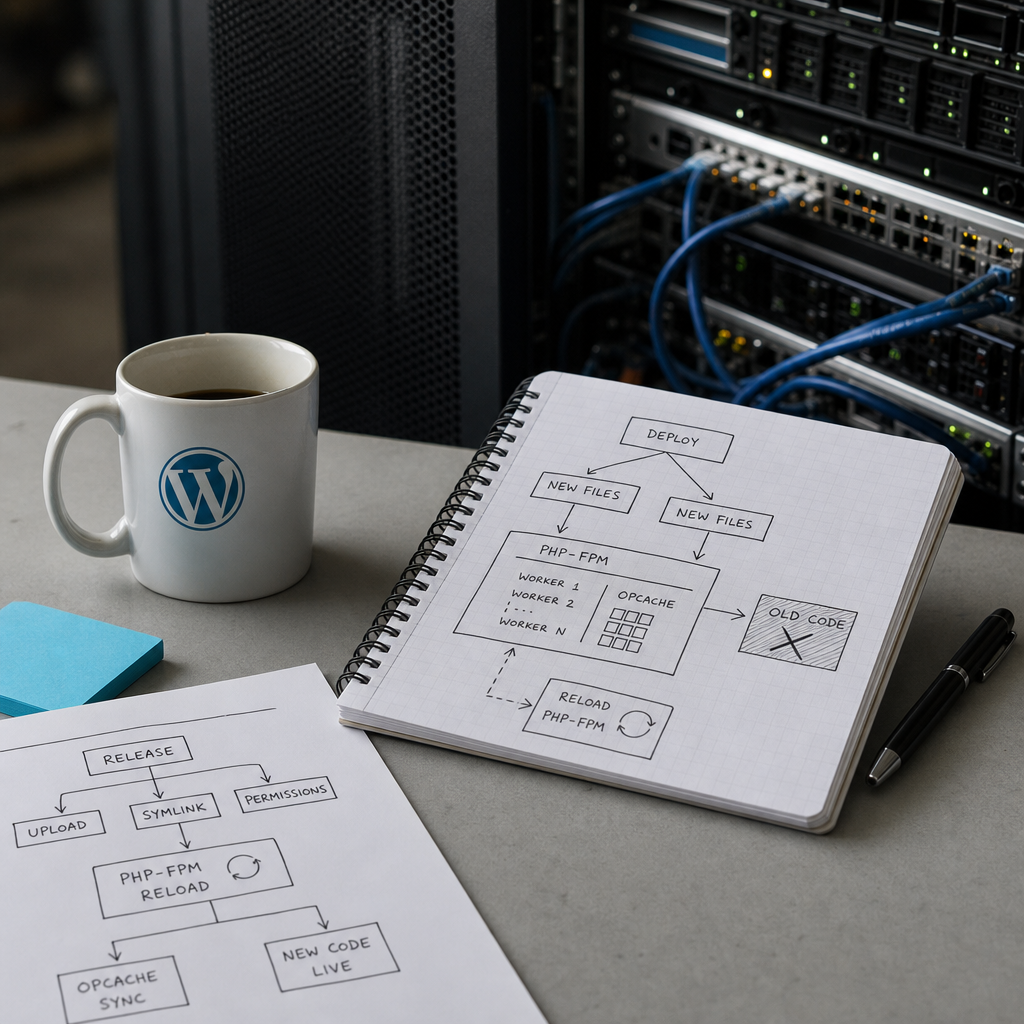
After updating a plugin, theme, or WordPress itself, a site may sometimes continue executing an earlier version of its PHP files. This can lead to errors such as “method not found,” references to an old release path, or a situation where changes are visible only to some users.
The cause may not be the WordPress cache, Redis, or a CDN, but OPcache—the cache of compiled PHP code. If PHP-FPM uses multiple workers, they may each have a different cache state. Below is a practical process for checking and synchronizing OPcache after a deployment.
What Happens to PHP Code After Deployment
When a PHP file is executed for the first time, OPcache stores its compiled version in memory. Subsequent requests may execute the prepared bytecode instead of reading and compiling the file again.
With the opcache.validate_timestamps setting, PHP periodically checks whether the file has changed on disk. If this check is disabled—as is often done in production for predictable performance—OPcache will not detect new file contents on its own. The updated file may only start being used after the cache is cleared or new PHP-FPM workers are started.
The situation becomes more complicated when PHP-FPM runs multiple processes. Some workers may have loaded the new code while others continue executing the old version. As a result, the error may occur intermittently—for example, only for certain requests or users.
- OPcache caches PHP code, not WordPress HTML pages.
- wp cache flush clears the object cache but does not guarantee that OPcache is cleared.
- CLI and PHP-FPM may use different PHP versions and different configuration files.
- After a code change, the most reliable approach is to synchronize worker states through a PHP-FPM reload or restart.
How to Identify an OPcache Problem
Before restarting services, check the web server, PHP-FPM, and application logs. A state mismatch often produces errors that do not match the code currently present on disk.
Messages about a missing method or class after a plugin update, an old file path in a stack trace, incompatibility between two parts of the same release, or errors that disappear after a repeated request are especially revealing. If the problem consistently disappears after a complete PHP-FPM restart, OPcache or the worker lifecycle is one of the main suspects.
- Compare the modification times of files on disk with the deployment time.
- Check that all files from the new release are available to the user under which PHP-FPM runs.
- Determine whether the error occurs on all web nodes if the site runs behind a load balancer.
- Do not draw conclusions based only on the output of php -i: it may show the CLI configuration rather than the FPM configuration.
Checking CLI and FPM Configuration
For the CLI, you can review the active OPcache parameters as follows:
php --ini
php -i | grep -E 'opcache.(enable|validate_timestamps|revalidate_freq|reset|interned_strings_buffer)'
Graceful PHP-FPM Reload After Deployment
The first step after a successful deployment is to perform a graceful PHP-FPM reload. This asks the master process to gradually terminate old workers and create new ones. The new workers will load the current code and build their own OPcache state.
The service name depends on the distribution and the installed PHP version. Before running the command, check the exact unit file name on your system.
- With systemd, the command is often similar to systemctl reload php8.2-fpm.
- On another system, the name may be php-fpm, php8.1-fpm, or something else.
- After the reload, check the service status and logs to confirm that the new workers have actually started.
sudo systemctl reload php8.2-fpm
sudo systemctl status php8.2-fpm --no-pager
sudo journalctl -u php8.2-fpm -n 100 --no-pager
When a Full Restart Is Necessary
If the old code is still being executed after a graceful reload, perform a full PHP-FPM restart. This stops all workers and starts them again, so the old OPcache state is lost along with the terminated processes.
Plan a restart according to the current load: during the brief restart, active PHP requests may be interrupted and new requests may temporarily enter a queue. In production, first test the procedure in staging or perform it during a low-traffic period.
- Collect logs first: a restart may hide the symptom without fixing the deployment problem.
- Make sure the PHP-FPM configuration is valid; otherwise, the service may fail to start after the restart.
- After the restart, check the health check, homepage, authentication, and critical WordPress workflows.
sudo systemctl restart php8.2-fpm
sudo systemctl status php8.2-fpm --no-pager
Atomic Deployments, Symlinks, and Permissions
During an atomic deployment, new code is usually extracted into a release directory, after which the current symlink is switched to that directory. This approach reduces the risk of an incomplete update, but it does not eliminate the requirements related to OPcache and PHP-FPM access.
Make sure PHP-FPM can traverse the entire directory path to the new release and read the PHP files. Correct permissions on the file itself will not help if one of the parent directories is inaccessible to the PHP-FPM user or group.
Pay special attention to old workers that may have retained code from the previous release. After switching the symlink, perform a reload; for production deployments with timestamp validation disabled, treat this as a required step.
- Check where current points after the deployment.
- Check the permissions on the release directories and confirm that the PHP-FPM user can read the files.
- Do not delete the old release immediately if active processes may still have open files.
- All web servers and PHP-FPM instances behind the load balancer must receive the same release and reload.
readlink -f /var/www/site/current
namei -l /var/www/site/current/wp-content/plugins/example/plugin.php
sudo -u www-data test -r /var/www/site/current/wp-load.php && echo OK
How to Build a Reliable Deployment Process
OPcache synchronization should be part of the deployment process rather than a manual fix after a user reports a problem. This is especially important when opcache.validate_timestamps is disabled.
You can adapt the typical sequence to your infrastructure: first prepare the new release, verify its files and configuration, switch the symlink, perform a graceful reload, and then run smoke tests. If the state has not synchronized, collect the logs and perform a restart.
- Do not combine a file deployment with untested database changes without a compatibility plan.
- Add checks for HTTP responses and key pages after the reload.
- For troubleshooting, record the release identifier in responses or logs so you can see which code handled a request.
- Use the same reload policy on all PHP-FPM nodes.
- Do not clear OPcache through arbitrary web scripts in production: this creates access risks and allows uncontrolled cache resets.
deploy_release
switch_current_symlink
sudo systemctl reload php8.2-fpm
run_smoke_tests
# if the old code persists:
sudo systemctl restart php8.2-fpm
Frequently asked questions
Will wp cache flush refresh PHP code?
No. wp cache flush works with the WordPress object cache, such as Redis or Memcached, but it does not control PHP-FPM's OPcache. Refreshing compiled PHP code requires a PHP-FPM reload or restart, depending on the situation.
Why does the CLI show one OPcache configuration while the site behaves differently?
CLI and PHP-FPM may use different PHP versions, php.ini files, and additional ini files. Check the parameters in the FPM context through logs, controlled diagnostics, or a secure internal health check rather than relying only on php -i.
Is a full restart required after every deployment?
Not necessarily. In many configurations, a graceful reload is sufficient because it creates new workers. A full restart is needed if the old code persists, the workers were not refreshed, or another issue prevented the reload from synchronizing the state.
Is it safe to disable opcache.validate_timestamps?
This is possible in production, but the deployment process must explicitly include a PHP-FPM reload or restart. Without one, PHP may continue executing old code after the files have changed.
Conclusion
If WordPress executes an old version of PHP files after a deployment, check not only the WordPress cache but also the OPcache state of every PHP-FPM worker. Start with the logs, check for differences between CLI and FPM, and verify permissions and the symlink for the current release.
The practical rule is simple: after switching the release, perform a graceful PHP-FPM reload, check the site and logs, and perform a full restart if the symptoms persist. This step should be automated in CI/CD, especially when OPcache timestamp validation is disabled.