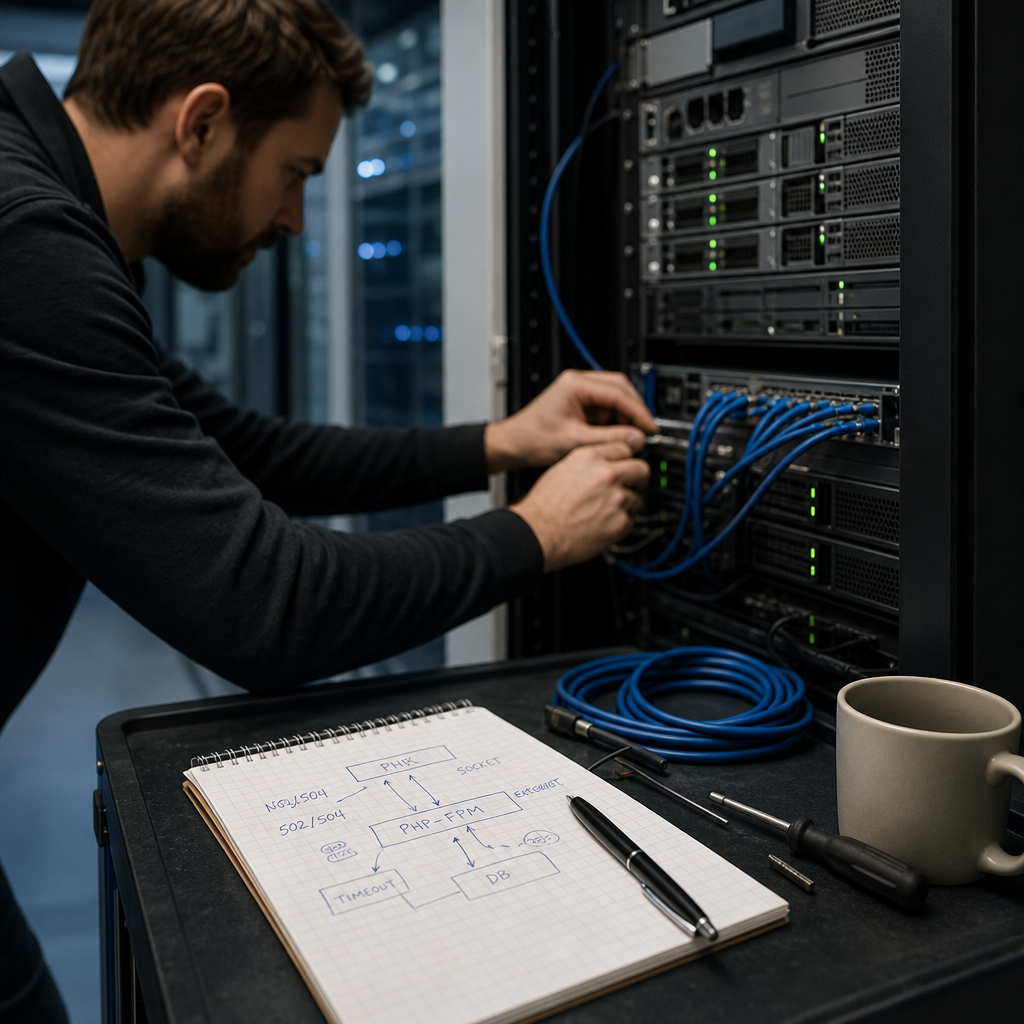
502 Bad Gateway and 504 Gateway Timeout errors in WordPress are usually not errors in the CMS itself. They mean that Nginx could not receive a valid response from PHP-FPM or did not receive one within the allowed time. The cause may be an incorrect PHP-FPM socket, an overloaded process pool, a slow SQL query, an import, a plugin, or an external HTTP request.
Diagnose the problem when it occurs: correlate the error time with the Nginx, PHP-FPM, PHP, and database logs. Increasing timeouts without finding the underlying cause often keeps processes busy for longer and makes the situation worse.
How 502 and 504 Errors Differ
A 502 status means that the proxy server, usually Nginx, received an invalid response from PHP-FPM or could not connect to the FastCGI service at all. The most common causes are an inactive PHP-FPM service, an incorrect Unix socket path, insufficient access permissions, or a process that terminated unexpectedly.
A 504 status means a timeout: Nginx connected to PHP-FPM and forwarded the request, but no response arrived within the permitted time. The PHP code may be waiting on an SQL query, an external API, a large import, or an overloaded disk or database.
The same site can return both status codes in different situations. Therefore, do not rely only on the error page. Check the exact log entry and the time when the problem occurred.
- 502: first check whether PHP-FPM is available and whether the socket matches the configuration.
- 504: look for a slow operation that keeps a PHP process busy longer than the configured timeout.
- If the error occurs only under load, check the PHP-FPM pool, CPU, RAM, disk, and database.
Start with the Logs at the Time of the Error
The first diagnostic step is to open the logs before reproducing the problem or to reproduce the error while watching them. File paths vary by distribution, PHP version, and server configuration, so adapt the commands below to the specific system.
For Nginx, monitor the error log, and check the PHP-FPM service status through systemd. If the service name is known, use it explicitly, such as php8.2-fpm.
- Look for entries mentioning connect() to php-fpm.sock, upstream timed out, recv() failed, connection reset, and upstream prematurely closed connection.
- Correlate the timestamp in the Nginx log with the PHP-FPM and PHP error logs.
- Check whether PHP-FPM restarted because of insufficient memory or a configuration error.
tail -f /var/log/nginx/error.log
journalctl -u php8.2-fpm -f
systemctl status php8.2-fpm

# Search for common messages in the Nginx log
grep -Ei "upstream|fastcgi|timed out|connect\(\)" /var/log/nginx/error.log | tail -n 50
How to Read Key Messages
A message such as connect() to unix:/run/php/php-fpm.sock failed indicates a problem connecting to the socket. Possible causes include an incorrect path, a missing socket file, a stopped service, or denied access. An upstream timed out message usually means that PHP-FPM did not finish processing the request in time.
The line server reached pm.max_children means that all child PHP processes in the pool are already busy. This does not necessarily mean that the limit should be increased immediately. First determine why the processes are not being released.
- Do not confuse a socket connection error with slow PHP execution.
- Check the log for the specific PHP-FPM service that handles the site.
- Keep several lines before and after the error; the surrounding context is often more useful than a single entry.
Checking PHP-FPM and the FastCGI Socket
Nginx forwards PHP requests to PHP-FPM through a Unix socket or a TCP address. In the Nginx configuration, fastcgi_pass must match the listen parameter in the PHP-FPM pool configuration. If one service listens on /run/php/php8.2-fpm.sock while Nginx connects to a different path, the site will return a 502 error.
In addition to the path, check the socket owner and permissions. The Nginx user, often www-data or nginx, must be able to connect to it. Do not change permissions to 777: this creates an unnecessary security risk and hides the real problem.
- Check the PHP-FPM status: systemctl status php*-fpm.
- Find the actual socket: ls -l /run/php/ or ss -lx | grep php.
- Compare listen in the pool configuration with fastcgi_pass in the Nginx virtual host.
- After changing the configuration, test its syntax before reloading or restarting the service.
grep -R "^listen" /etc/php/*/fpm/pool.d/
grep -R "fastcgi_pass" /etc/nginx/
nginx -t
php-fpm8.2 -t
systemctl reload nginx
systemctl restart php8.2-fpm
When PHP-FPM Runs Out of Processes
PHP-FPM operates as a pool of child processes. If all of them are busy, new requests wait in a queue, and Nginx may eventually return a 504 error. The logs often show this as server reached pm.max_children. Potential sources include WooCommerce requests, heavy searches, backups, product imports, WP-Cron, or a plugin that performs a long-running operation.
Do not increase pm.max_children without considering the available RAM. Each PHP process consumes memory, and insufficient memory can cause swapping, OOM-killer process termination, and additional 502/504 errors. The appropriate value depends on the workload, PHP version, code, and amount of RAM.
- Check RAM, CPU, swap, and load average during the error.
- See how many PHP-FPM processes are actually running and whether a queue is building up.
- Enable the PHP-FPM slow log and set request_slowlog_timeout to identify slow PHP calls.
- Check max_execution_time, memory_limit, and pool limits, but change them gradually.
- Find the cause of the long execution time before increasing pm.max_children.
free -h
uptime
ps -eo pid,ppid,%mem,%cpu,etime,cmd | grep '[p]hp-fpm'

# Parameters to check in the pool configuration
pm = dynamic
pm.max_children
pm.max_requests
request_slowlog_timeout
slowlog
How to Distinguish Slow PHP Code from a MySQL Problem
A 504 error does not always mean that the PHP code itself is complex. The script may be waiting for MySQL, a table lock, a slow disk, or an external service. If the error occurs on a catalog page, during checkout, or while importing data, check the database and the queries run by that specific process.
To find the problem, reproduce the request temporarily during a controlled period, check active database processes, and review the slow query log. In WordPress, it is also useful to isolate plugins: if the problem disappears after disabling a specific extension on a staging copy or in a safe mode, the direction of the investigation becomes clearer.
- Check whether the error coincides with an import, backup, or WP-Cron execution.
- For WooCommerce, check the cart, checkout, admin reports, and background tasks separately.
- Review the MySQL/MariaDB slow query log and active queries while the request is stalled.
- Do not disable plugins on a production site without a recovery plan; use staging or a backup.
- Check external HTTP requests to payment systems, APIs, email services, and analytics services.
mysqladmin processlist
# Or in the MySQL/MariaDB client:
SHOW FULL PROCESSLIST;
Timeouts, Caching, and Safe Fixes
Parameters such as fastcgi_read_timeout and max_execution_time determine how long the system waits for a response. They can be adjusted for legitimately long operations, such as a controlled import, but this does not fix a stalled request. A longer timeout means that the PHP-FPM process remains occupied for longer.
First optimize the query, plugin, or import process. For large operations, use batch processing, queues, or CLI execution if the specific tool supports it. Page caching reduces the number of PHP requests for public pages, but it does not replace optimization of checkout, the administration area, or personalized requests.
After changing the configuration, test its syntax, perform a controlled request, and review the logs again. Change one parameter at a time so that you can understand exactly what affected the result.
- Do not increase all timeouts at once or copy values from another server.
- Consider the limits of any load balancer, CDN, or reverse proxy in front of Nginx.
- For long-running tasks, split the operation into smaller parts instead of keeping one HTTP request open for minutes.
- After the fix, test more than the home page, including forms, authentication, search, and critical WooCommerce workflows.
Common Diagnostic Mistakes
The most common mistake is changing wp-config.php or increasing PHP memory_limit when the actual problem is an unavailable socket, MySQL, or an exhausted process pool. WordPress settings matter, but they do not replace checks of system services.
Another mistake is restarting Nginx and PHP-FPM without saving the logs. A restart may temporarily clear the queue, but it can also remove evidence of the root cause. If the site is critical, first record the time, log messages, and current system load.
You should also avoid increasing pm.max_children without analysis: this can quickly exhaust RAM. First determine whether the processes are needed because of high traffic or are being held by a slow plugin or a blocked query.
- Do not edit production configurations without a backup and a syntax check.
- Do not use 777 permissions for the socket or directories as a universal fix.
- Do not assume that every 504 is a WordPress problem; check the network, database, and external services.
- Do not limit the investigation to a single log.
Frequently asked questions
Does a 502 error mean that WordPress is broken?
No. A 502 most often occurs at the communication layer between Nginx and PHP-FPM because of an incorrect socket, access permissions, an inactive service, or an unexpectedly terminated PHP process.
Why does WordPress return a 504 only during an import or checkout?
These operations may run long SQL queries, call external APIs, or consume many PHP processes. Check the PHP-FPM slow log, the database, plugin logs, and the state of the process pool.
Should I simply increase fastcgi_read_timeout?
Only if the operation is legitimately long and you understand why. For stalled code or a slow database, increasing the timeout only keeps PHP-FPM busy for longer and may increase the overload.
How can I tell whether the problem is pm.max_children?
The PHP-FPM log shows a message that pm.max_children has been reached, and all pool processes are busy during the error. You must then determine why requests are taking so long and only afterward consider changing the limit based on available RAM.
Conclusion
Diagnosing 502/504 errors in WordPress starts with logs captured at the time of the failure, not with random timeout changes. For a 502, check PHP-FPM status, the Unix socket path, and its permissions. For a 504, investigate PHP operation duration, the process pool, MySQL, external requests, and system resources.
After resolving the root cause, document the changes and test the site's critical workflows. This approach does more than temporarily restore page loading: it helps prevent PHP-FPM exhaustion and exposes hidden performance problems.