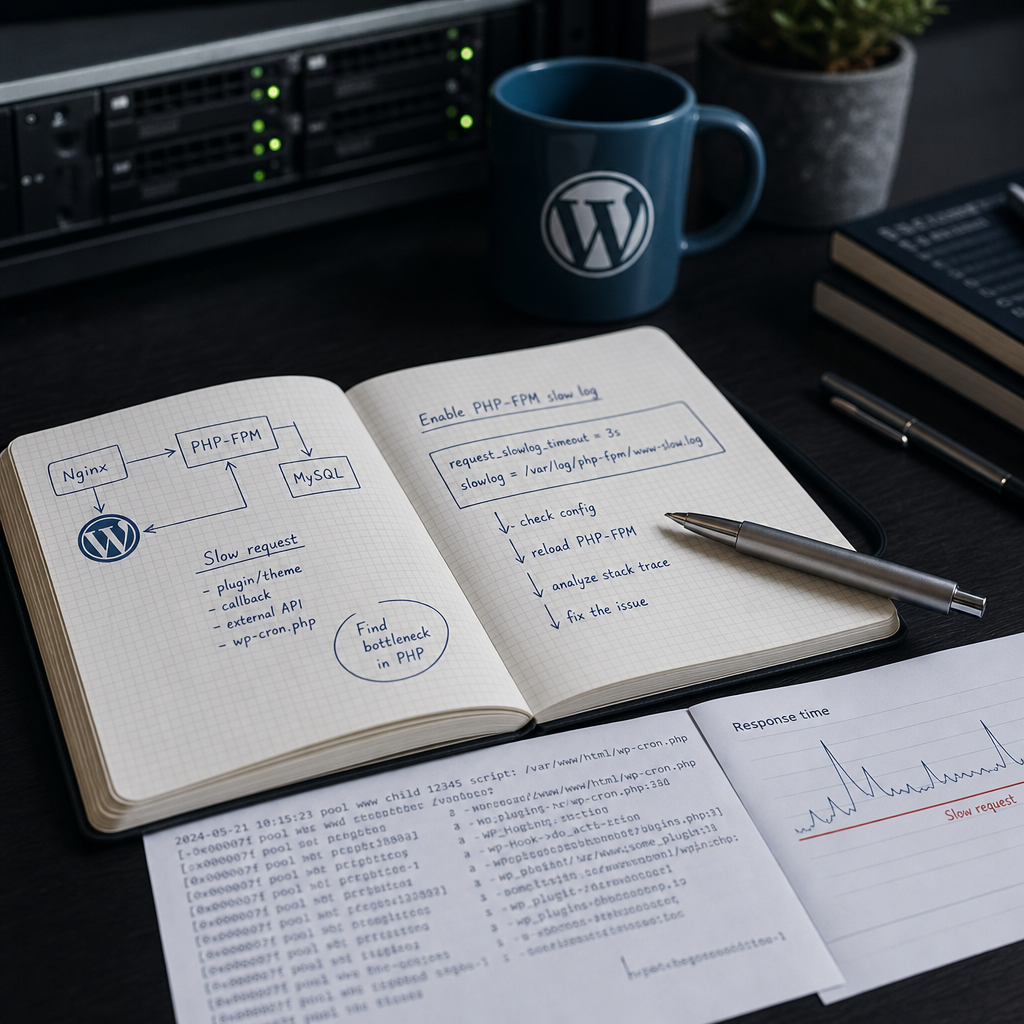
A slow WordPress page is not always caused by MySQL, caching, or insufficient server resources. Sometimes a single PHP request remains stuck in theme code, a plugin, a REST handler, or a background task for an extended period.
In this situation, the access log usually shows only that the response was slow and its total duration. PHP-FPM slowlog provides more detail: it records the process stack trace, showing the files, functions, and call sequence at the moment the configured time threshold is exceeded.
When PHP-FPM Slowlog Helps Identify the Cause
Use slowlog when slowness can be reproduced at the PHP-request level, but its source is not visible in the access log or standard WordPress logs. It is especially useful when a page loads normally at times but occasionally hangs for several seconds.
The call stack can show whether processing stopped in functions.php, a specific plugin file, theme code, the REST API, an AJAX handler, or while wp-cron.php was running. The log will not always identify the exact operation immediately, but it can narrow the investigation to a specific part of the codebase.
It is important to understand the tool’s limitations. Slowlog shows the state of the PHP process rather than a complete execution profile. If PHP is waiting for a response from a database, external API, or file system, the stack will show where the process is waiting, but not necessarily the exact SQL statement or the underlying network cause.
- pages have a high TTFB without obvious frontend load;
- the slowness appeared after installing or updating a plugin;
- the problem occurs only for REST, AJAX, or cron requests;
- individual PHP-FPM workers remain busy for a long time and exhaust the pool.
How to Enable Slowlog in a PHP-FPM Pool
Configure these settings in the configuration of the specific PHP-FPM pool, not in WordPress code. The pool file is often named www.conf, but the exact path depends on the distribution, the way PHP was installed, and the PHP version. Before making changes, confirm that you are editing the pool serving the site.
Add or verify the following directives:
- request_slowlog_timeout defines how long a request must run before a stack trace is recorded;
- slowlog specifies the path to the slow log file;
- 3s is an example for troubleshooting, not a universal production value.
[www]
request_slowlog_timeout = 3s
slowlog = /var/log/php-fpm/www-slow.log
Prepare the File and Permissions
PHP-FPM must be able to create or append to the log file. If the directory does not exist or the process user lacks the required permissions, no slowlog will appear even when the directives are configured correctly.
On production systems, it is better to store the log in a dedicated PHP-FPM directory and verify its owner and permissions rather than allowing all users to write to it. The appropriate user and group names depend on the system.
- create the directory and file if they are not created automatically;
- check the permissions of the user under which PHP-FPM runs;
- do not place the log in a publicly accessible WordPress directory;
- make sure there is enough free disk space.
Check the Configuration and Apply the Changes
After editing the configuration, do not restart the service blindly. First, run a PHP-FPM syntax check. The command and its path may vary, so use the name of the installed service and your system’s documentation as a guide.
If the configuration is valid, reload or restart PHP-FPM. With a normal reload, active requests are generally not interrupted, while new workers receive the updated parameters. The exact behavior depends on the init system and server configuration.
- check the configuration with a command such as php-fpm -t or the equivalent command for your PHP version;
- reload the PHP-FPM service, for example through systemctl, using the actual service name;
- check the service status after applying the changes;
- make a test request and confirm that the slowlog is actually being updated.
php-fpm -t
systemctl reload php-fpm
How to Read a Stack Trace in the Slow Log
The slow log usually contains a process entry and the call stack captured by PHP-FPM after request_slowlog_timeout has been exceeded. Do not analyze only the last line; review the entire chain. It shows which callback was called, which file it came from, and through which functions it executed.
If the stack repeatedly contains paths such as wp-content/plugins/plugin-name, that is a strong signal to investigate that plugin. If you see functions.php or a theme file, compare the issue with the active theme and recent changes. For a REST request, also correlate the timing with the endpoint and request parameters.
A single stack trace does not always prove that the displayed file is the root cause. The code may be triggering a slow database query, an external HTTP service, or a lock in another component. Repeat the test several times and look for the same section of the stack.
- record when the problem occurred and the request URL;
- compare several traces instead of drawing a conclusion from one occurrence;
- look for recurring plugins, callbacks, and functions;
- do not edit plugin files without a backup and a rollback plan.
Correlate the Slowlog with the Access Log and WordPress Logs
For accurate diagnosis, you need to link the stack trace to a specific HTTP request. Compare the timestamps in the slowlog and access log. Useful access-log fields include the URL, HTTP method, status, response duration, and, if configured, upstream response time.
For example, a slow POST entry for wp-json may correspond to a REST endpoint, while a long-running GET request for a page may be caused by a template or a plugin that adds queries during rendering. Check wp-cron.php separately: a background task may create load without an obviously slow page load for the user.
If WordPress or a plugin records its own messages, compare their timestamps with the slowlog. This can help determine whether the trace corresponds to an import, synchronization, image generation, HTTP request, or another process.
- Nginx or Apache may close the connection before PHP-FPM produces the complete result;
- timestamps in different logs must be synchronized, preferably using the same time zone;
- a single slow cron job does not necessarily explain frontend slowness if requests are handled by different pools or at different times.
What to Do After Finding a Suspicious Code Path
Slowlog answers the question “where was the process?” The next step is to validate the hypothesis with a controlled test. If the problem is related to a plugin, test the site in a staging environment by temporarily disabling it or changing its configuration. On production, do not deactivate a component responsible for orders, authentication, or other critical functions without a plan.
For custom code, check loops, repeated database queries, external API calls, large result sets, and file operations. If the trace points to the database, WordPress slowlog does not replace SQL profiling. Separate tools and query logs are required, and they should be enabled carefully.
After applying a fix, repeat the same scenario and confirm that the request duration has decreased and that new slowlog entries are no longer appearing. If the slowness remains, review other traces and the impact of concurrent requests.
- compare the result with the component disabled or updated;
- check external APIs, DNS, TLS, and timeouts if the code makes network requests;
- do not increase the timeout merely to hide the problem;
- if necessary, involve the plugin developer or use staging for detailed profiling.
Security, Log Volume, and Disabling Slowlog After Troubleshooting
Do not leave a detailed slowlog enabled without a specific reason. On a busy site, it can grow quickly, create additional write operations, and make it harder to find current events. Logs may also contain file paths, call parameters, or other technical data that must not be accessible to visitors.
After troubleshooting, increase request_slowlog_timeout to a value that records only genuinely suspicious requests, or disable slowlog if continuous monitoring is unnecessary. Configure logrotate or another rotation mechanism so that the file cannot fill the disk.
Before disabling it, save the entries you need and document which changes produced the result. This will make it easier to investigate the issue again after a future WordPress, theme, or plugin update.
- restrict access to the slowlog at the file-system level;
- configure rotation, compression, and a retention period;
- monitor the available disk space on the server;
- after troubleshooting, reload PHP-FPM and verify the new behavior.
Frequently asked questions
Will PHP-FPM slowlog show the exact cause of a slow SQL query?
Not always. Slowlog shows the PHP function or code location where the process was waiting for a response. Separate database profiling tools are needed to see the SQL statement and analyze its execution plan.
What value should I set for request_slowlog_timeout?
For short-term troubleshooting, you can start with 3 seconds, but this is only a guideline. Set the value according to the site’s normal performance, request types, and workload. A threshold that is too low will create excessive log noise.
Why is the slowlog empty after changing the configuration?
Check that you edited the correct PHP-FPM pool, that the configuration test passed, that a reload or restart was applied, and that the process has permission to write to the specified file. The test request must also exceed the configured timeout.
Can PHP-FPM slowlog remain enabled in production?
It can be used temporarily or with a cautious threshold, log rotation, and access controls. Keeping detailed traces permanently without a specific need is not recommended because of log volume, technical data exposure, and additional write operations.
Conclusion
PHP-FPM slowlog is a practical way to move from the assumption that “WordPress is slow” to identifying the specific file, callback, or workflow delaying execution. It is especially useful when combined with the access log, WordPress logs, and an accurate reproduction time.
Enable slowlog for the duration of the investigation, verify permissions and configuration, compare multiple stack traces, confirm the cause with a controlled test, and remember to configure rotation or disable detailed logging when the work is complete.