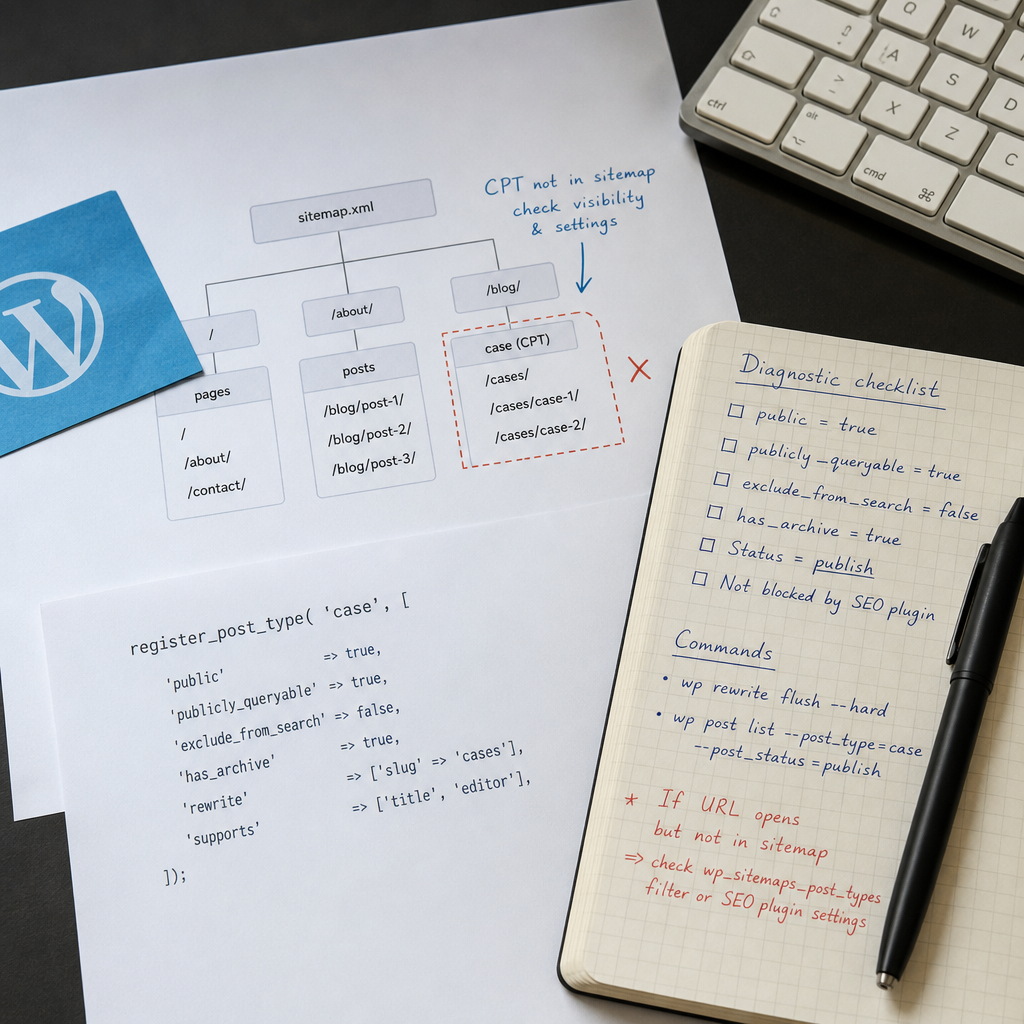
A Custom Post Type can appear correctly in the WordPress admin area and open at its own URL while still being absent from the XML sitemap. This does not necessarily indicate a sitemap error: WordPress or an SEO plugin may consider the post type non-public, exclude it with a filter, or find no published entries to include.
Troubleshoot the issue systematically: check CPT registration, post status and visibility, the sitemap source, theme and plugin filters, and then cache and rewrite rules after making changes. Add URLs manually to the sitemap only after resolving the underlying cause, not instead of resolving it.
First, Identify Which Sitemap Is Being Used
WordPress sitemaps can be generated by the built-in WordPress mechanism or by an SEO plugin. In a standard configuration, the main file is usually available at an address such as /wp-sitemap.xml, while separate post types are distributed across child sitemaps. SEO plugins may use a different endpoint and their own indexing rules.
Open the sitemap index and check whether a sitemap for the required post type is present. If the CPT sitemap exists but an individual entry is missing, the issue most likely relates to the post status, publication date, canonical URL, or filtering of specific URLs. If the CPT sitemap itself is missing, check the post type registration and the sitemap generator settings.
- Make sure you are checking the current sitemap rather than an old cached file.
- Do not use the built-in WordPress sitemap and an SEO plugin sitemap simultaneously without understanding which one is submitted to search engines.
- Check the sitemap in a browser and through command-line tools or an external HTTP request to rule out a local cache issue.
Check the Custom Post Type Registration
The most common cause is the configuration passed to register_post_type(). To be included in the site's public structure, the post type must actually be public and available for queries. Also verify that the registration code runs on every request, rather than only in the admin area.
A basic registration might look like this:
- public => true means that the post type is intended for public use.
- publicly_queryable => true allows public queries and single CPT pages to be opened.
- exclude_from_search => false does not exclude entries from the WordPress search. This argument does not always control the sitemap directly, but it should be checked because SEO plugins may use it in their own logic.
- has_archive => true is required for the post type archive, but it does not by itself guarantee that individual entries will be included in the sitemap.
- rewrite controls the URL structure, not the decision to include an entry in the sitemap.
register_post_type('case', [
    'public'              => true,
    'publicly_queryable'  => true,
    'exclude_from_search' => false,
    'has_archive'         => true,
    'rewrite'             => ['slug' => 'cases'],
    'supports'            => ['title', 'editor'],
]);
What to Check in an Existing Project
If the CPT is registered by a plugin or theme, do not change arguments randomly in the admin area. Find the actual register_post_type() call and check whether later filters modify the post type object.
It is useful to retrieve the CPT parameters through WP-CLI or temporary diagnostic code. Pay particular attention to public, publicly_queryable, exclude_from_search, and capability_type. A slug error usually affects the URL, but it does not explain why the entire sitemap is missing.
- Check that the post type slug is not being changed by multiple plugins.
- Make sure registration occurs before queries and sitemap generation take place.
- Do not use a CPT name that conflicts with an already registered post type or taxonomy.
Make Sure the Entries Can Actually Be Added to the Sitemap
Even a correctly registered CPT will have no URLs in the sitemap if it contains no published entries. Drafts, pending entries, private content, and scheduled posts should not be treated as available to ordinary visitors.
Check more than the post status: verify that the entry is actually accessible without authentication. If the URL returns a 404, redirects to another page, requires login, or has restricted visibility, the sitemap generator may omit it.
- The post status must be publish.
- The entry must not be private or password-protected.
- The publication date must not be in the future.
- The entry must have a valid permalink and a matching canonical URL.
- The page must not be excluded with a noindex meta tag if the SEO plugin generates the sitemap according to indexing rules.
wp post list --post_type=case --post_status=publishCheck WordPress and SEO Plugin Filters
If the CPT URL opens but does not appear in the sitemap, the next step is to look for filters. For the built-in WordPress sitemap, wp_sitemaps_post_types is the key filter. A theme or plugin can use it to remove a post type from the sitemap list or change its settings.
SEO plugins have their own filters and settings for excluding post types, archives, or individual entries. The names and locations of these settings depend on the specific plugin and its version, so check the documentation and the project's actual configuration code.
- Search the codebase for wp_sitemaps_post_types and references to the CPT name.
- Check mu-plugins, functions.php, the child theme, and custom plugins.
- See whether the entire post type is excluded in the SEO plugin settings.
- Check filters for noindex, canonical URLs, sitemap entries, and post type exclusions.
- Temporarily disable a suspicious rule in a staging environment rather than on a production site without a backup.
add_filter('wp_sitemaps_post_types', function ($post_types) {
    unset($post_types['case']); // example of excluding a CPT
    return $post_types;
});
Why You Should Not Add URLs Manually Right Away
Manually adding a URL to the sitemap hides the underlying problem: WordPress will still consider the post type or entry non-public. After a plugin update, theme change, or sitemap regeneration, the URL may disappear again while the indexing rules remain inconsistent.
First, fix the conditions that determine whether the CPT is public and accessible. Custom URL-inclusion logic only makes sense for a non-standard content generator when the standard WordPress model genuinely does not apply.
Update Rewrite Rules and Clear the Cache
After changing register_post_type() arguments or the rewrite structure, update the permalink rules. This does not add entries to the sitemap directly, but it resolves situations in which a new slug or route is not yet handled correctly by WordPress.
Also clear the page cache, object cache, CDN cache, and SEO plugin cache if one is used. Sitemaps are often cached as XML responses, so the code may already be working while the browser or proxy still displays an older version.
- Run a rewrite flush on a staging or production server only after reviewing the changes.
- Check the sitemap HTTP headers, including cache-control, age, etag, and last-modified.
- Do not run wp rewrite flush --hard unnecessarily on a site whose .htaccess or web server rules are maintained manually; first make sure you have a backup and access to the configuration.
wp rewrite flush --hardA Systematic Diagnostic Checklist
To avoid missing the cause, follow the checks in this order. After each fix, check the sitemap again because one problem can hide another.
- Identify which sitemap is generated and whether it contains a sitemap index.
- Check that the CPT is registered with the correct name and public parameters.
- Make sure at least one entry has the publish status.
- Open the entry permalink without authentication and check the response code.
- Check noindex, canonical URLs, privacy settings, and possible redirects.
- Find wp_sitemaps_post_types filters and the SEO plugin's rules.
- Update rewrite rules, clear every cache layer, and check the sitemap again.
- Make sure the sitemap contains the actual canonical URL rather than a utility or duplicate route.
wp post list --post_type=case --post_status=publish --fields=ID,post_title,post_status,post_dateCommon Mistakes When Fixing the Problem
The issue is often made worse by changes that do not address the cause. For example, adding the CPT to a menu, creating an archive, or saving the permalink settings again will not make a non-public post type available to the sitemap.
Do not rely only on the fact that the page opens in an administrator's browser. An authenticated user may be able to see a draft or private entry that is unavailable to search engine crawlers.
- Assuming that has_archive => true is enough to include a CPT.
- Treating exclude_from_search as a direct sitemap exclusion in every configuration.
- Checking only the main sitemap and not opening the child sitemaps.
- Forgetting about filters in mu-plugins and the child theme.
- Clearing only the browser cache when the XML is cached by the CDN or server.
- Submitting the sitemap to a search engine before it begins returning the current URL list.
Frequently asked questions
Do I need an SEO plugin for a CPT to appear in the sitemap?
No. Modern WordPress includes a built-in sitemap mechanism. An SEO plugin can change the sitemap rules and contents, but it is not required for basic sitemap generation.
Why does the CPT URL open but not appear in the sitemap?
Check the post status, noindex directive, canonical URL, privacy settings, wp_sitemaps_post_types filters, and SEO plugin settings. URL accessibility alone does not guarantee inclusion in the sitemap.
Do I need to run wp rewrite flush after every CPT change?
It is appropriate after changing a rewrite structure or slug when new URLs return 404 or are handled incorrectly. A flush is not always needed for sitemap-only parameter changes, but after broader changes it can help rule out outdated rewrite rules.
Does exclude_from_search affect the sitemap?
Not always directly. This parameter controls participation in the standard WordPress search, but some SEO solutions may use it as a signal for their own sitemap or indexing logic. Check it together with the other arguments.
What should I do if the sitemap still shows old data?
Clear the page cache, object cache, CDN cache, and SEO plugin cache, then check the XML in a private browser window or through an HTTP request. Also make sure you are opening the correct sitemap endpoint.
Conclusion
A missing Custom Post Type in the sitemap is usually not an XML problem but a problem with the public visibility model: the CPT is registered as non-public, has no published entries, or is excluded by a filter.
Start by checking the registration and the actual post statuses, then investigate WordPress and SEO plugin filters, update the rewrite rules, and clear the cache. This approach fixes the root cause and keeps the sitemap aligned with the site's real structure.