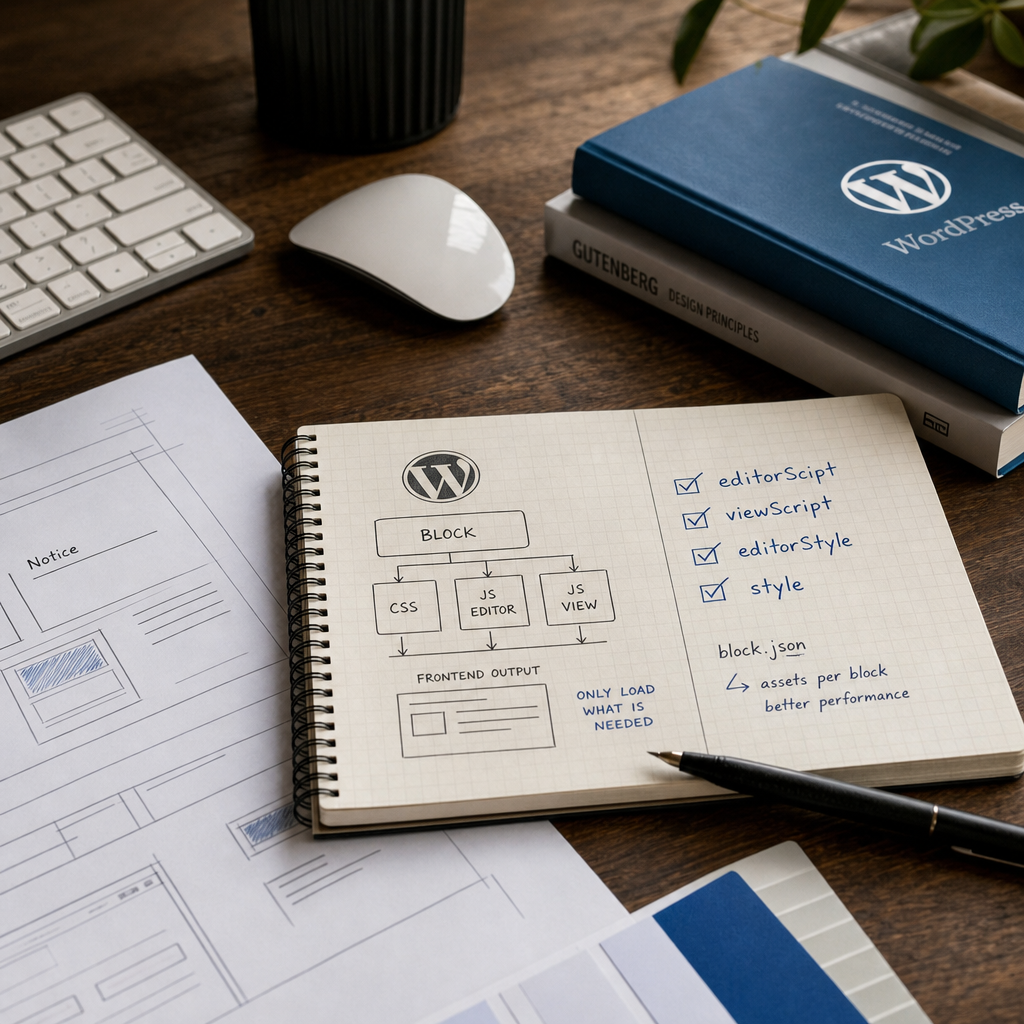
Many WordPress plugins load their CSS and JavaScript files globally: on every site page, regardless of whether a specific Gutenberg block is used there. This approach increases the number of HTTP requests, the amount of JavaScript and CSS, the DOM size, and the likelihood of conflicts with other plugins.
For custom blocks, it is better to describe assets in block.json. WordPress can register the block's dependencies and load the required resources in the appropriate context—either in the editor or on the frontend. This does not replace code optimization, but it removes unnecessary global overhead.
Why Global Asset Loading Creates Problems
The traditional approach often looks like this: a plugin adds wp_enqueue_script() or wp_enqueue_style() to the wp_enqueue_scripts hook, causing its files to load on every public page. If a block is needed only on a page containing a form, gallery, or special notice, those resources still appear on the homepage, post pages, and utility templates.
Unnecessary assets do not always cause a noticeable slowdown on their own, but their effect accumulates on larger sites. The browser downloads, parses, and executes code that is not used. In addition, global styles can change the appearance of third-party components, while JavaScript can conflict with other scripts or the editor.
The local loading model means that a block has its own files and a description of their purpose. You do not need to add styles and scripts manually to every page through a global hook when WordPress can obtain this information from block.json.
- less unnecessary CSS and JavaScript on pages;
- a lower risk of conflicts between plugins;
- a clear relationship between the block and its assets;
- simpler maintenance and updates for the custom block.
Which block.json Fields Control Assets
In block.json, you can specify separate files for the editor, the frontend, and shared styles. Local files use the file:./filename format. Paths are specified relative to block.json itself or to the directory processed by the build.
- editorScript — JavaScript required for the block to work in the Gutenberg editor;
- viewScript — JavaScript for the block's behavior on the public page;
- style — styles intended for the frontend; depending on the configuration, WordPress may also make them available in the editor;
- editorStyle — styles used only in the editor, such as styles for easier editing or for visually matching the frontend.
{
  "apiVersion": 3,
  "name": "acme/notice",
  "title": "Notice",
  "category": "design",
  "editorScript": "file:./index.js",
  "style": "file:./style.css",
  "editorStyle": "file:./editor.css",
  "viewScript": "file:./view.js"
}
How to Register a Block with PHP
After preparing block.json, you need to register the block on the server. If the file is located in the built build directory, pass that directory's path to register_block_type(). WordPress will read the metadata and register the block together with its declared assets.
- make sure the build directory actually contains block.json;
- use an absolute path through __DIR__ so the code does not depend on the current URL;
- register the block on init, when WordPress is ready to work with block types.
<?php
add_action('init', function () {
    register_block_type(__DIR__ . '/build');
});
Example File Structure
A simple project might use the following source structure:
- src/block.json — the source block description;
- src/index.js — editor code;
- src/view.js — frontend behavior;
- src/style.css — shared block styles;
- src/editor.css — editor styles;
- build/block.json and the built assets — the files WordPress uses on the site.
plugin-folder/
├── plugin.php
├── src/
│   ├── block.json
│   ├── index.js
│   ├── view.js
│   ├── style.css
│   └── editor.css
└── build/
    ├── block.json
    ├── index.js
    ├── view.js
    ├── style.css
    └── editor.css
How WordPress Determines Dependencies and Versions
When JavaScript is built for WordPress, the process usually creates more than the main file. It may also create a metadata file containing dependencies and a version, such as index.asset.php. When assets are described with file: in block.json, WordPress can use this information while registering the block.
This is important for scripts that use WordPress libraries such as wp-element, wp-components, or wp-i18n. Dependencies help load the required scripts in the correct order, while the version helps control caching.
You should not manually duplicate this logic with wp_enqueue_script() if the block has been correctly built and registered through metadata. Manual loading can result in duplicate downloads or differences between the editor and the frontend.
- check that the asset file is created in the location expected by block.json after the build;
- do not rename generated files without updating the metadata;
- after deployment, clear the cache if the browser or CDN continues to serve an old version of the assets.
The Difference Between editorScript, viewScript, and Styles
Editor code and public-interface code have different purposes. editorScript registers the block in Gutenberg, defines its edit and save logic, and adds controls and interactions in the editor. This code should not be required by visitors viewing a published page unless the block uses its functionality on the frontend.
viewScript is needed for the behavior of an already published block, such as opening an accordion, running a slider, handling clicks, or initializing an interactive widget. If a block is static and has no JavaScript logic for visitors, it is better not to add viewScript.
editorStyle is intended for the editor. You can use it when the block needs to look different in Gutenberg or requires additional spacing, borders, or utility classes. Do not use editorStyle for styles that are essential to the block's frontend operation.
- do not load viewScript if the block only outputs text or markup;
- do not mix editor controls with code that needs to run for visitors;
- place shared styles in style and Gutenberg-specific styles in editorStyle;
- check that JavaScript does not access DOM elements that are absent in a particular context.
How to Check That Assets Load Correctly
After registration, do not limit your testing to confirming that the block is displayed. Check the editor, a page containing the block, and a page without it separately. This helps reveal whether JavaScript or CSS is still being loaded globally by other plugin code.
Open your browser's developer tools and review the Network and Sources tabs. Find the block files by name and check their type, response status, and loading time. The console should also be free of errors caused by missing dependencies or incorrect paths.
- in the editor, the block should load editorScript and editorStyle;
- on a frontend page containing the block, the required style and viewScript should be available;
- on a page without the block, unnecessary viewScript should not be present if WordPress and the theme use standard block-aware registration;
- the source HTML should not contain multiple copies of the same asset;
- with caching disabled during testing, check the actual requests rather than only the visual result.
Common Mistakes When Loading Assets Locally
The most common mistake is that block.json describes one file while a different file is actually present in build. In that case, the block may register only partially or fail to load the required script. After changing file names, run the build again and check its output.
Another problem is using metadata alongside global enqueue hooks. For example, block.json loads view.js while the plugin also adds the same file with wp_enqueue_script(). This can create duplicates, duplicate event handlers, and errors that are difficult to diagnose.
You should also not assume that block.json will automatically eliminate all global overhead. If the theme or other code manually loads the plugin's styles, they will continue to load globally. You need to find and remove the duplicate loading method.
- block.json is missing from the directory passed to register_block_type();
- the build does not create or copy asset files to build;
- the file:./ path points to the wrong file;
- the same CSS or JavaScript is loaded both through metadata and manually;
- viewScript contains code that is mistakenly executed in the editor;
- the version was not updated after changing assets, or an old cache remains.
Frequently asked questions
Do I need to use block.json for every Gutenberg block?
For modern custom blocks, this is the recommended approach because metadata describes not only the name and editor, but also the block's assets, dependencies, and other properties. Manual registration is still possible for older or highly customized solutions, but it must be controlled carefully.
Does viewScript load on every site page?
With standard block metadata registration, WordPress can load the block's frontend resources in the context where the block is used. The exact behavior also depends on the WordPress version, how content is rendered, the theme, and third-party optimization tools, so you should verify it in the Network panel.
Can I stop using wp_enqueue_script() completely?
No, not in every situation. For assets belonging to a specific Gutenberg block, block.json is more convenient. Other plugin resources that do not belong to a single block can still be registered and loaded with standard WordPress functions.
What should I do if JavaScript is needed both in the editor and on the frontend?
You can specify editorScript and viewScript separately, even if they use shared modules. Do not automatically load one large file in both contexts. Instead, separate the code and leave only the required functionality in each build.
Is local loading enough to optimize performance?
It is an important step, but not a complete optimization strategy. You should also reduce bundle sizes, remove unused dependencies, optimize images, control third-party scripts, and verify caching.
Conclusion
For Gutenberg blocks, it is better to think not in terms of “loading all plugin assets everywhere,” but in terms of “each block being responsible for its own resources.” Together, block.json and register_block_type() give WordPress a structured description of this relationship.
Start by auditing global wp_enqueue_script() and wp_enqueue_style() calls, move assets for specific blocks into block.json, separate editor and frontend code, and check the result in Network on pages with and without the block. This gives the site less unnecessary JavaScript and CSS without complex custom mechanisms.