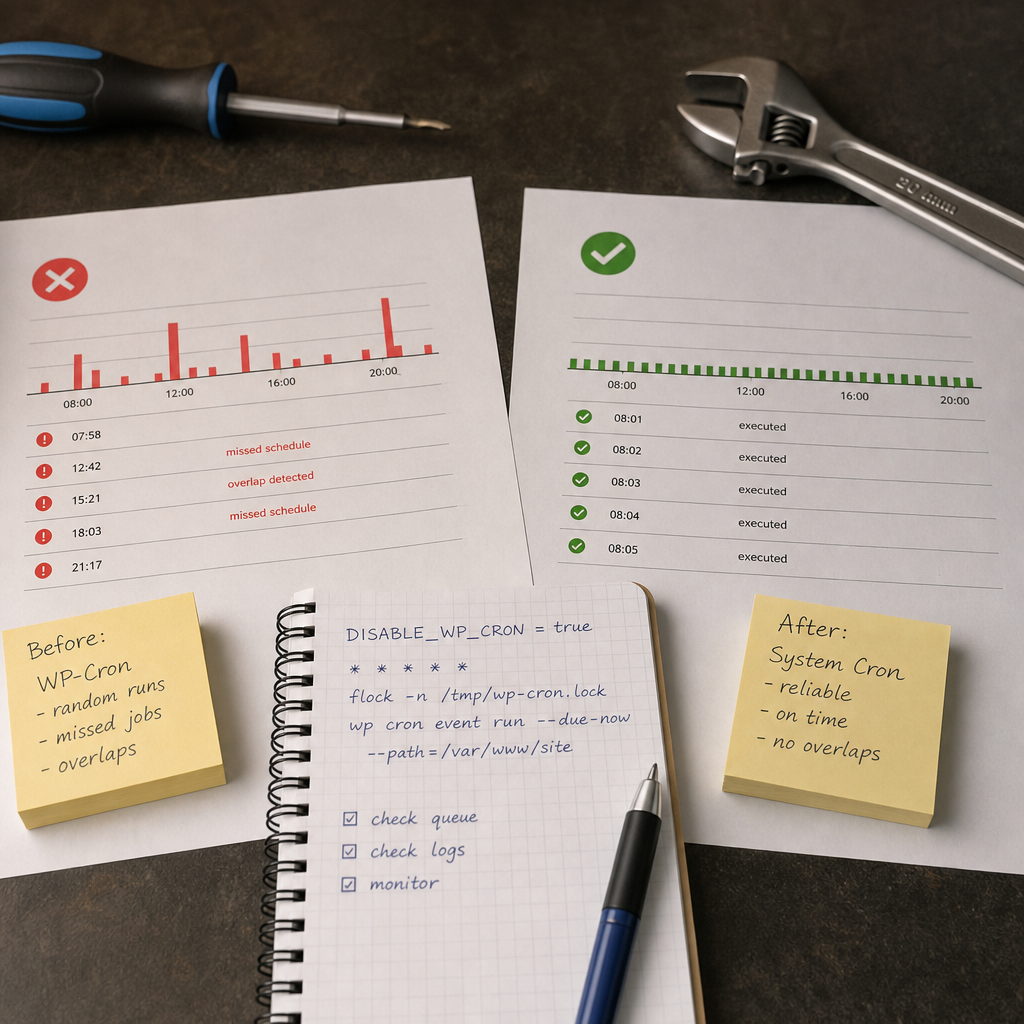
WP-Cron in WordPress does not work in the same way as the server's system cron. By default, scheduled events are checked when pages are loaded, so the actual execution time depends on site traffic.
On a low-traffic site, emails, backup operations, or cache cleanup may run with a delay. On a busy site, several HTTP requests may instead initiate the same or resource-intensive tasks almost simultaneously. A more reliable setup is to disable automatic WP-Cron execution during visits and run the queue through system cron using WP-CLI.
Why Standard WP-Cron Can Miss or Delay Tasks
WordPress stores scheduled events and checks them when someone opens a page. If a site has no visitors for several hours, an event may not run at its scheduled time. It will be processed during the next suitable launch.
This mechanism also creates additional HTTP requests to WordPress. If many pages are opened at the same time, several processes may try to start the scheduler. WordPress has protection against some duplicate launches, but it should not be the only safeguard for resource-intensive or critical tasks.
System cron works independently of traffic. It runs WP-CLI on schedule, and the command checks and executes events whose scheduled time has arrived. This provides a predictable execution time and makes it easier to investigate errors in logs.
- low traffic does not delay scheduled events;
- the number of background launches through regular HTTP requests is reduced;
- command results can be checked centrally;
- system cron can be combined with protection against parallel processes.
What to Prepare Before Configuration
This setup requires SSH access to the server or another way to manage system cron. PHP and WP-CLI must also be installed and available to the user under whom the command will run.
The command should run as the web server user or the owner of the WordPress files. Do not use root unless necessary: this can create files with the wrong owner and increase the consequences of a command error.
Determine the exact path to the site in advance, for example `/var/www/site`, and check where the WP-CLI executable is located. Use absolute paths in cron whenever possible because the system cron environment usually has a limited PATH.
- the correct path to the directory containing `wp-config.php`;
- a working `wp` command or its absolute path, such as `/usr/local/bin/wp`;
- user permissions for WordPress files and database access;
- the `flock` utility, if parallel runs need to be prevented.
cd /var/www/site
wp --info
wp core is-installed
Disable WP-Cron Execution During Page Loads
Open `wp-config.php` and add the constant before the file loads `wp-settings.php`. It is usually placed near the other WordPress settings, before the line that tells users not to modify the file further.
This constant does not delete scheduled events or clear the queue. It only prevents WordPress from initiating the standard scheduler during HTTP requests. After that, you must configure an external launch; otherwise, the events will stop running.
- back up `wp-config.php` before editing it;
- make sure the constant is not declared again with a different value;
- after the change, verify that the site and WP-CLI can connect to the database correctly.
define('DISABLE_WP_CRON', true);Add System Cron via WP-CLI
Open the crontab for the required user with `crontab -e`. Running the command once per minute is suitable for most sites that require regular event processing. If your project does not require that frequency, you can increase the interval.
The `--due-now` parameter instructs WP-CLI to run events whose scheduled time has already arrived. The `--path` parameter specifies the directory of the particular WordPress site, so the command does not depend on the current working directory.
The `flock -n` wrapper creates a non-blocking lock file. If the previous run is still in progress, the new process exits immediately instead of processing the queue in parallel.
- use a separate lock file for each site;
- check that the cron user can create and modify this file;
- if necessary, specify the absolute path to `wp` rather than only `wp`.
* * * * * flock -n /tmp/site-wp-cron.lock /usr/local/bin/wp cron event run --due-now --path=/var/www/siteVersion with an Execution Log
For troubleshooting, it is useful to temporarily or permanently write the command's standard output to a file that the cron user can access. Do not specify a system log path if this user does not have permission to write there.
The `2>&1` redirection adds error messages to the same file. The log should be limited or cleaned periodically so that it does not fill the available disk space.
- store the log in a directory accessible to the site user;
- do not write confidential environment variables or passwords to the log;
- after troubleshooting is complete, retain only the required level of logging.
* * * * * flock -n /tmp/site-wp-cron.lock /usr/local/bin/wp cron event run --due-now --path=/var/www/site >> /home/site/logs/wp-cron.log 2>&1Check the Event Queue and the First Run
After adding the rule, do not simply wait and hope. First, run the same command manually as the user under whom cron will run. This lets you immediately see access errors, an incorrect site path, PHP problems, or database connection issues.
To view registered events, use the WP-CLI list command. It helps you see the hook name, the next execution time, recurrence, and current queue status.
- check whether there are events whose scheduled time has already arrived;
- after the manual run, repeat the list command and make sure the next execution time has changed;
- check the PHP error log and web server log if the handler exits with an error;
- make sure the system cron has actually loaded the new rule.
wp cron event list --path=/var/www/site
wp cron event run --due-now --path=/var/www/site
crontab -l
Common Configuration Errors
The most common mistake is to add `DISABLE_WP_CRON` without configuring a replacement. In that case, the queue accumulates and background tasks stop running entirely.
Another problem is running cron as root while the web server uses a different user. WP-CLI or plugins may create new files owned by root, after which WordPress will no longer be able to modify them.
Relative paths to `wp`, the site, or the log file are also frequently used. This may fail in cron because it runs in a different environment. Use absolute paths and test the command specifically in the context of the required user.
- do not run the old HTTP mechanism and system cron at the same time without understanding the consequences;
- do not delete the lock file while a process is active without checking first, as this may allow a parallel run;
- do not use one lock file for multiple independent sites;
- do not ignore WP-CLI errors even if cron technically exits successfully;
- for multisite, specify the correct site with the `--url` parameter when necessary.
When System Cron Does Not Fully Solve the Problem
Switching to system cron controls when a task starts, but it does not fix errors in the handlers themselves. If a plugin fails because of a memory limit, a locked table, an unavailable external API, or incorrect retry logic, the problem will remain.
For resource-intensive tasks, check the execution time, PHP CLI limits, and behavior after partial completion. Some plugins have their own queues or use Action Scheduler, so WP-Cron events may only start the next processing stage.
After configuration, establish a simple recurring check: review the log, the number of overdue events, and available disk space. If the server was rebooted or cron was disabled, the queue may temporarily accumulate.
- check the PHP error log after updating WordPress and plugins;
- monitor whether the number of overdue events is increasing;
- check permissions for the lock file and log directory;
- for critical processes, configure error notifications at the server or monitoring level.
Frequently asked questions
Should WP-Cron remain enabled after configuring system cron?
No. If system cron regularly runs `wp cron event run --due-now`, leave `define('DISABLE_WP_CRON', true);` in `wp-config.php` so WordPress does not create additional launches during visits.
Why are events still running with a delay?
Check whether cron is running, whether the site path and user are correct, and whether a previous process is taking a long time. The event may also have been registered with its own interval or be blocked by a handler error.
Is it mandatory to run WP-Cron every minute?
No. The frequency depends on the site's tasks. Running it every minute reduces delays, but projects without critical events may be adequately served by an interval of several minutes.
What should I do if the `flock` command is unavailable?
Check whether the utility is installed on your operating system, or use another mutual-exclusion mechanism available on the server. Do not remove protection against parallel runs for resource-intensive tasks without assessing the risks.
Conclusion
System cron combined with WP-CLI makes WP-Cron execution predictable: it does not depend on traffic, runs under a specified user, and can be protected against parallel processes with `flock`.
After configuration, it is important to test the command manually, review the queue with `wp cron event list`, and monitor PHP logs. This allows you not only to run events on time but also to quickly identify the causes of errors.