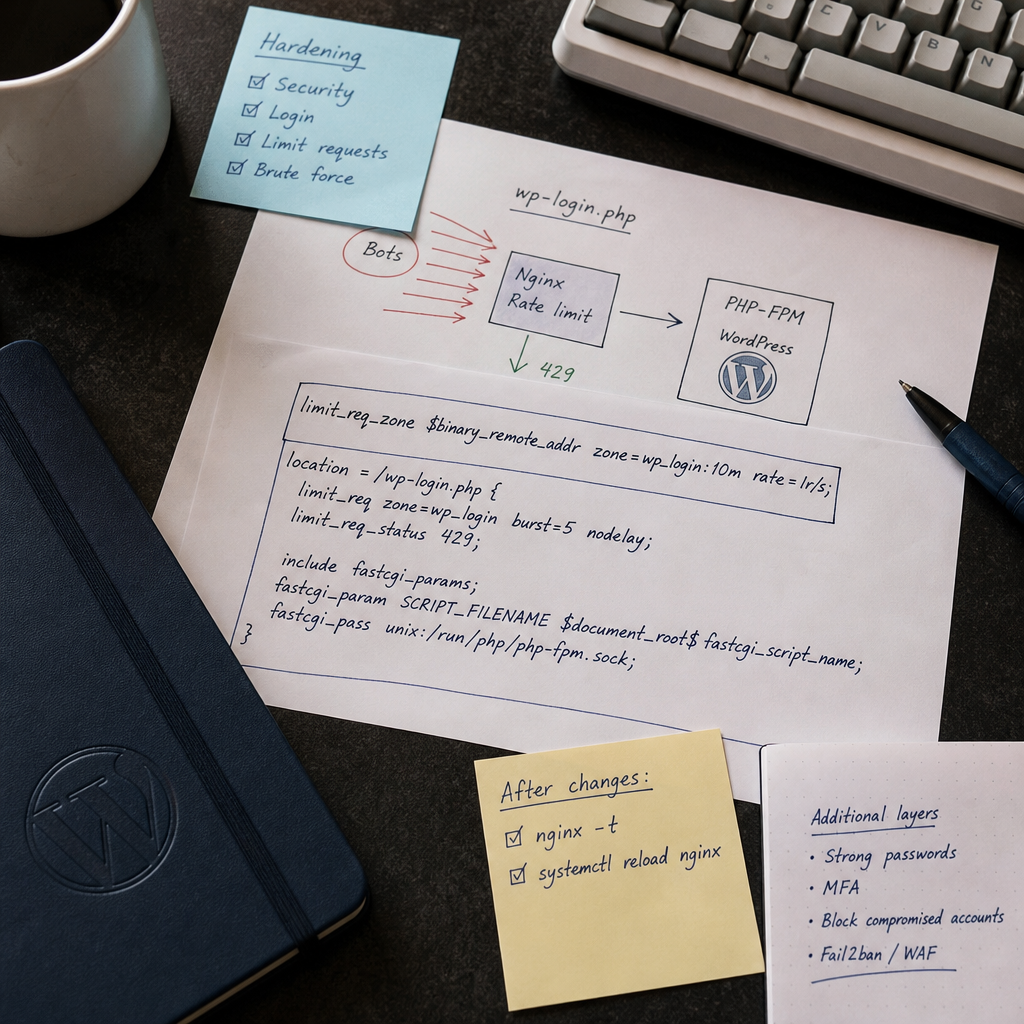
Even a strong password does not stop bots from making大量 automated WordPress login attempts. Automated networks can send hundreds or thousands of POST requests to /wp-login.php, unnecessarily increasing the load on PHP-FPM, the database, and the server.
Rate limiting at the Nginx level restricts the frequency of these requests before they are passed to PHP. It is not a replacement for MFA, strong passwords, or account monitoring, but it provides an effective additional barrier against automated brute-force attacks.
How Request Limiting Works in Nginx
Nginx can maintain a request counter for each IP address and reject requests that arrive more frequently than the configured limit. For wp-login.php, allowing approximately one request per second with a small burst is usually sufficient to accommodate brief spikes.
The limit_req_zone directive creates a shared counter storage zone. The rate=1r/s parameter means an average rate of one request per second for each IP address. burst=5 allows a short queue or spike of five additional requests. The nodelay parameter does not place these requests on hold; instead, it passes them through immediately within the burst limit. Subsequent requests receive an error.
- 429 Too Many Requests tells the client that the limit has been exceeded.
- The counter must be tied to the client's real IP address.
- It is better to apply the restriction specifically to wp-login.php rather than to all PHP files on the site.
Basic Configuration for wp-login.php
Place the limit_req_zone directive in the http context and apply the restriction in a location block for wp-login.php. File locations vary by distribution and Nginx configuration structure, so edit the active server block that handles your domain.
The example below includes a separate FastCGI handler for wp-login.php. Adapt the PHP-FPM socket path, document root, and set of FastCGI parameters to match your server.
- Make sure the limit_req_zone directive is not placed inside a server or location block.
- Check which PHP-FPM socket your site actually uses.
- If you already have a separate PHP location, do not copy it mechanically: transfer the required parameters to the exact location for wp-login.php.
http {
    limit_req_zone $binary_remote_addr zone=wp_login:10m rate=1r/s;

    server {
        server_name example.com;
        root /var/www/example.com/public;

        location = /wp-login.php {
            limit_req zone=wp_login burst=5 nodelay;
            limit_req_status 429;

            include fastcgi_params;
            fastcgi_param SCRIPT_FILENAME $document_root$fastcgi_script_name;
            fastcgi_pass unix:/run/php/php-fpm.sock;
        }
    }
}
Integrating the Rule with an Existing PHP-FPM Location
A production configuration often already includes a location ~ \.php$ block that passes PHP files to PHP-FPM. The exact location = /wp-login.php has higher priority for this path, so it can handle the request before the general PHP block.
For this reason, the exact location must retain all required FastCGI parameters and fastcgi_pass. If you add only limit_req without passing the request to PHP-FPM, the login page will stop working.
The safest approach is to copy the FastCGI portion from the PHP location that is already working and add the rate limit to it. Do not change the PHP version, root, caching rules, or other parameters at the same time unless necessary.
- Check whether fastcgi_params includes the SCRIPT_FILENAME parameter on your system; define it explicitly if necessary.
- Do not use an invented socket path: it may have a name such as php8.2-fpm.sock or use a TCP connection.
- After making changes, test not only the home page but also the login form and the actual login to the administration panel.
Testing, Applying, and Monitoring the Rule
Test the Nginx configuration syntax before reloading the service. If the command returns an error, do not restart or reload the service until the issue has been fixed.
After a successful test, apply the configuration without interrupting active connections. Then check the access and error logs: exceeded limits should be visible through 429 status codes or limit_req messages.
- Test the configuration: nginx -t
- Apply the changes: systemctl reload nginx
- Check the response: curl -I https://example.com/wp-login.php
- Test POST requests carefully to avoid creating unnecessary login attempts.
sudo nginx -t && sudo systemctl reload nginxThe Real IP Address Behind a Reverse Proxy or CDN
If the site operates behind Cloudflare, a load balancer, a reverse proxy, or another intermediary server, Nginx may see the proxy's IP address instead of the visitor's address. In that case, all users share one common limit, and legitimate login attempts may start receiving 429 responses.
First, configure the realip module: specify the trusted proxy addresses and the correct header they provide. Do not blindly trust an arbitrary X-Forwarded-For header, or a client could spoof its IP address and bypass the restriction.
After configuring realip, check the access log: it should show the client's real address rather than only the CDN or load balancer address. The list of trusted networks must match your proxy's documentation and be updated regularly.
- Do not use a visitor-supplied header as the IP source without validating the trusted proxy.
- Make sure $binary_remote_addr is calculated after realip processing.
- Test the limits from different networks, including a home connection, a mobile network, and a corporate proxy.
Common Errors and Limit Tuning
A limit that is too strict can interfere with legitimate users, especially when several people log in from the same office IP address or a mobile carrier uses shared NAT. Start with a moderate value and monitor the logs.
A restriction applied to all requests to wp-login.php also affects the GET request that displays the login form. This is acceptable for most sites, but custom integrations or automation systems may require separate testing.
Rate limiting should not be treated as a complete security system. If an account has already been compromised, Nginx will not detect the problem on its own.
- A 404 error after making changes often indicates an incorrect root or an incomplete FastCGI location.
- A 502 error usually indicates an incorrect PHP-FPM socket or an unavailable PHP-FPM service.
- Large numbers of 429 responses for all users are often caused by an incorrect real IP configuration behind a reverse proxy.
- For additional protection, use MFA, unique passwords, WordPress updates, and measures to block compromised accounts.
Frequently asked questions
Is rate limiting enough to protect WordPress from brute-force attacks?
No. It slows automated attempts and reduces the load on PHP-FPM, but it does not replace MFA, strong passwords, core and plugin updates, or account monitoring.
Why do all users receive 429 responses after the configuration change?
Most often, Nginx is seeing the shared IP address of a reverse proxy or CDN. Configure realip for trusted proxies and check which address is recorded in the access log.
Where should limit_req_zone be placed?
The limit_req_zone directive must be placed in the http context. The limit_req directive, which enables the zone for a specific path, belongs in a server or location block.
What should I do if wp-login.php stops working after the change?
Run nginx -t, check the error log, and verify the PHP-FPM socket, root, and FastCGI parameters. The exact location for wp-login.php must contain a valid fastcgi_pass and all required parameters.
Conclusion
Rate limiting for wp-login.php at the Nginx level reduces automated login attempts before WordPress and PHP are invoked. Start with a limit of one request per second and a small burst, verify the client's real IP address, and test the configuration carefully.
After implementation, monitor 429 status codes and server logs. If the site runs behind a proxy or CDN, correct real IP handling is critical; otherwise, the protection may block legitimate visitors instead of bots.