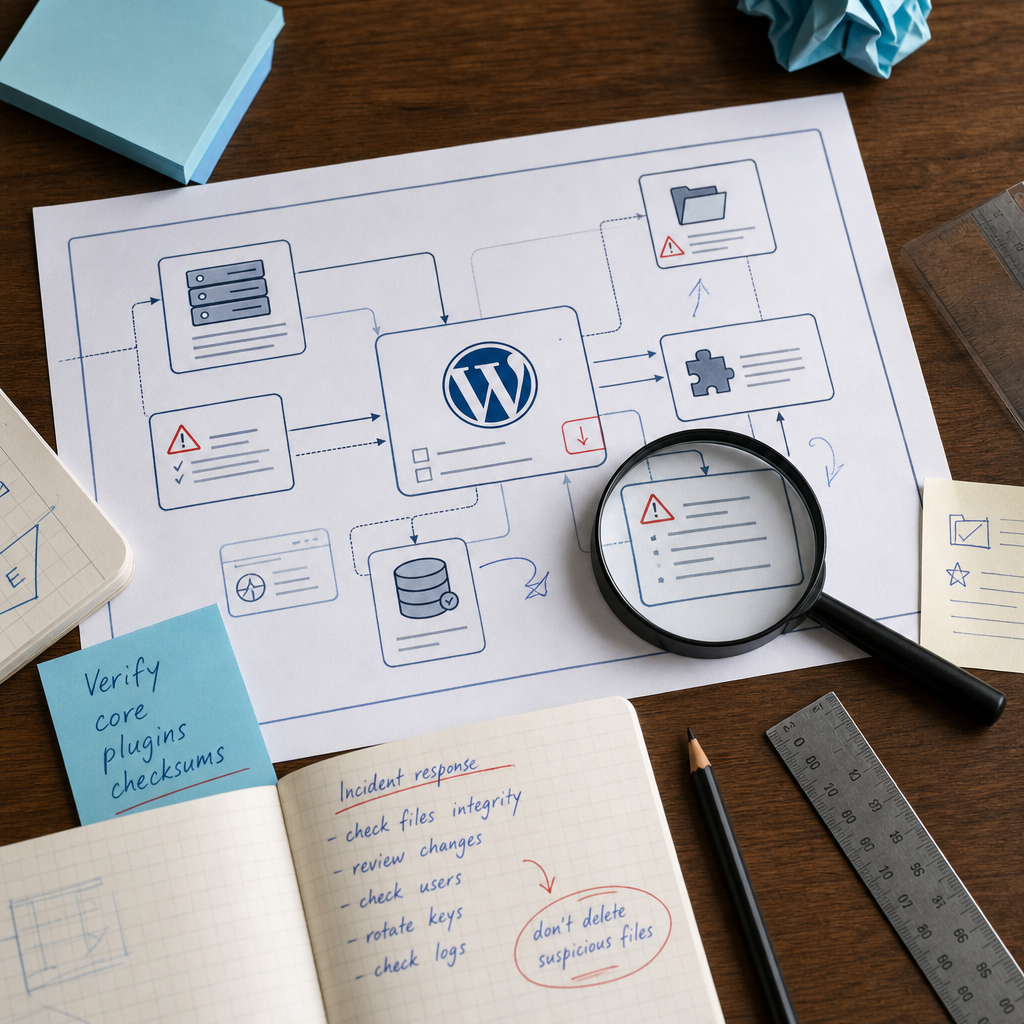
Unknown administrators, redirects to third-party sites, spam sent from your mailbox, or sudden changes in WordPress behavior may indicate a compromise or a failed update. In such cases, it is important to quickly determine whether core, plugin, or theme files have been modified.
WP-CLI can compare WordPress files with official checksums. This is not a complete security audit, but it is a quick way to detect unauthorized changes in files that can be verified against official sources.
What WP-CLI Actually Checks
During verification, WP-CLI compares local files with reference checksums. For WordPress core, the reference is generated for a specific version and locale. For plugins and themes, verification is generally available when the package is distributed through the official WordPress.org directory and corresponding checksums exist.
The command can show that a file has been modified, is missing, or is present in addition to the expected set of files. This result alone does not prove that malicious code is present: the file may have been changed by a legitimate patch, the hosting environment, a caching system, or an administrator.
The check covers the file system but does not analyze the entire site. It does not automatically detect malicious database entries, infected files in uploads, unsafe code in mu-plugins, or compromised accounts.
- WordPress core;
- plugins from the official directory for which checksums are available;
- individual themes from the official directory;
- differences between the expected and actual file states.
Preparing for the Check
Run the commands from the directory where WordPress is installed, or provide WP-CLI with the site path. Before deleting or replacing any files, create backups of both the files and the database. If you are dealing with a security incident, it is useful to preserve a copy before cleanup: it may be needed for analysis.
Record the time of the check, the symptoms you observed, and the commands you ran. Do not immediately overwrite suspicious files—save copies of them first if this is permitted by your incident-response procedures.
WP-CLI should preferably be run as the system user that owns the site files. Using root without a specific need increases the risk of accidentally changing permissions or files outside the required directory.
- Back up the database and files.
- Make sure you are working with the correct site.
- Record the WordPress version, active locale, and check time.
- Do not start cleanup before preserving evidence and logs.
pwd
wp core version
wp option get siteurl
wp option get home
Checking WordPress Core
The main command checks the core files of the current WordPress installation. It should not modify files; it only compares them with their checksums.
Run it from the site directory:
wp core verify-checksumsHow to Read the Result
A successful verification message means that the files included in the reference set for this version match. This is a positive signal, but it does not prove that the entire site is secure.
If WP-CLI reports a modified file, first determine whether the change is expected. Manual core modifications, remnants of a failed update, or a file-system error can all cause a mismatch. If a file is extra, investigate its origin and modification time.
- Do not delete a modified file immediately.
- A missing file may explain update errors or unstable operation.
- An extra PHP file in the core directory requires separate analysis.
Checking a Different Version or Locale
If the site cannot correctly determine its version or locale, WP-CLI may be unable to obtain the appropriate reference set. In that case, first check the installation status and WordPress version. Parameters for a specific version or locale should be used only when you know exactly which edition is installed.
Checking Plugins and Themes
After checking the core, verify the plugins, especially if the suspicious activity began after an extension was installed or updated. The --all parameter covers all installed plugins for which the command can obtain reference checksums.
wp plugin verify-checksums --allWhat to Do with Plugin Results
If a plugin contains modified files, compare them with the version from a trusted source and check their modification dates. Do not replace an extension with a copy from a random website: this could introduce another malicious component.
Official checksums may not be available for licensed or privately distributed plugins. In this case, the inability to verify the plugin does not mean it is infected. Compare it with the original archive obtained from the developer or with a known-clean backup.
- Premium plugins may not support verification through WordPress.org.
- Custom extensions do not have a universal reference set.
- Changes to configuration or generated files should be assessed in accordance with the plugin documentation.
wp theme verify-checksums --allWhat Checksums Do Not Verify
Even successful verification of the core, plugins, and themes does not rule out a compromise. An attacker may avoid modifying files included in the official reference set or may store malicious code elsewhere.
Check wp-content/mu-plugins separately because must-use plugins are loaded automatically by WordPress and are often overlooked during a standard review. Also pay attention to uploads: PHP files in the uploads directory may be a normal part of some solutions, but they often require particular scrutiny.
Do not ignore the database. Malicious scripts may be inserted into posts, widgets, settings, user fields, or options. Check for unknown administrators, suspicious cron jobs, active sessions, API keys, and settings that may have caused redirects.
- the database and tables containing settings;
- the uploads directory and other non-reference files;
- mu-plugins and custom code;
- wp-config.php, web server files, and cron jobs;
- user accounts, tokens, passwords, and access keys.
find wp-content/mu-plugins -type f -maxdepth 2 2>/dev/null
find wp-content/uploads -type f -name '*.php' 2>/dev/null
wp user list --role=administrator
What to Do After Finding Modified Files
First, preserve copies of suspicious files and collect web server, PHP, and administration-panel access logs. Compare file modification times with administrator logins, updates, and the time when symptoms appeared. This can help distinguish an accidental technical issue from a targeted attack.
If a core file or repository-based plugin has been modified without a clear reason, the safer option is generally to reinstall a clean version from an official source after preserving the evidence. Do not copy old configuration or executable files over a compromised installation without checking them.
After locating the problem, change the passwords for WordPress, hosting, SSH, FTP, the database, and email. Revoke API keys, check two-factor authentication, and remove unknown administrators. If there are signs of active access, temporarily restrict the administration area and contact an incident-response specialist.
Restoring from a backup can be useful, but only after checking its date and integrity. Simply restoring a backup without changing stolen passwords or fixing the vulnerability often results in reinfection.
- Preserve copies and logs before cleanup.
- Determine the reason for every change.
- Restore files only from a verified source.
- Fix the vulnerability that may have enabled access.
- Repeat the check after cleanup and monitor the logs.
Frequently asked questions
Does a successful WP-CLI check mean that the site has not been hacked?
No. The command checks only files for which reference checksums are available. Malicious code may be located in the database, uploads, mu-plugins, custom files, or user accounts.
Why can’t WP-CLI verify a premium plugin?
Premium plugins are usually distributed through private channels and do not have checksums in the WordPress.org directory. Use the original archive from the developer or a verified clean backup.
Can I immediately delete a file marked as modified?
You should not. First create a copy, record the modification time, review the logs, and determine whether the file is part of a legitimate update or configuration. Then replace it with a clean version or delete it according to a justified plan.
Do themes need to be checked with a separate command?
Yes, if the theme comes from the official directory and checksums are available for it. Use wp theme verify-checksums --all, but keep in mind that custom and commercial themes may not support this type of verification.
Conclusion
WP-CLI provides a fast and convenient way to check the integrity of WordPress core, repository-based plugins, and some themes. The wp core verify-checksums and wp plugin verify-checksums --all commands can reveal changes that are difficult to spot during a manual review.
Treat checksums as the first stage of an investigation, not as a complete security assessment. After suspicious activity, check the database, uploads, mu-plugins, cron, administrators, keys, and logs, then fix the cause of the access rather than only the symptoms.