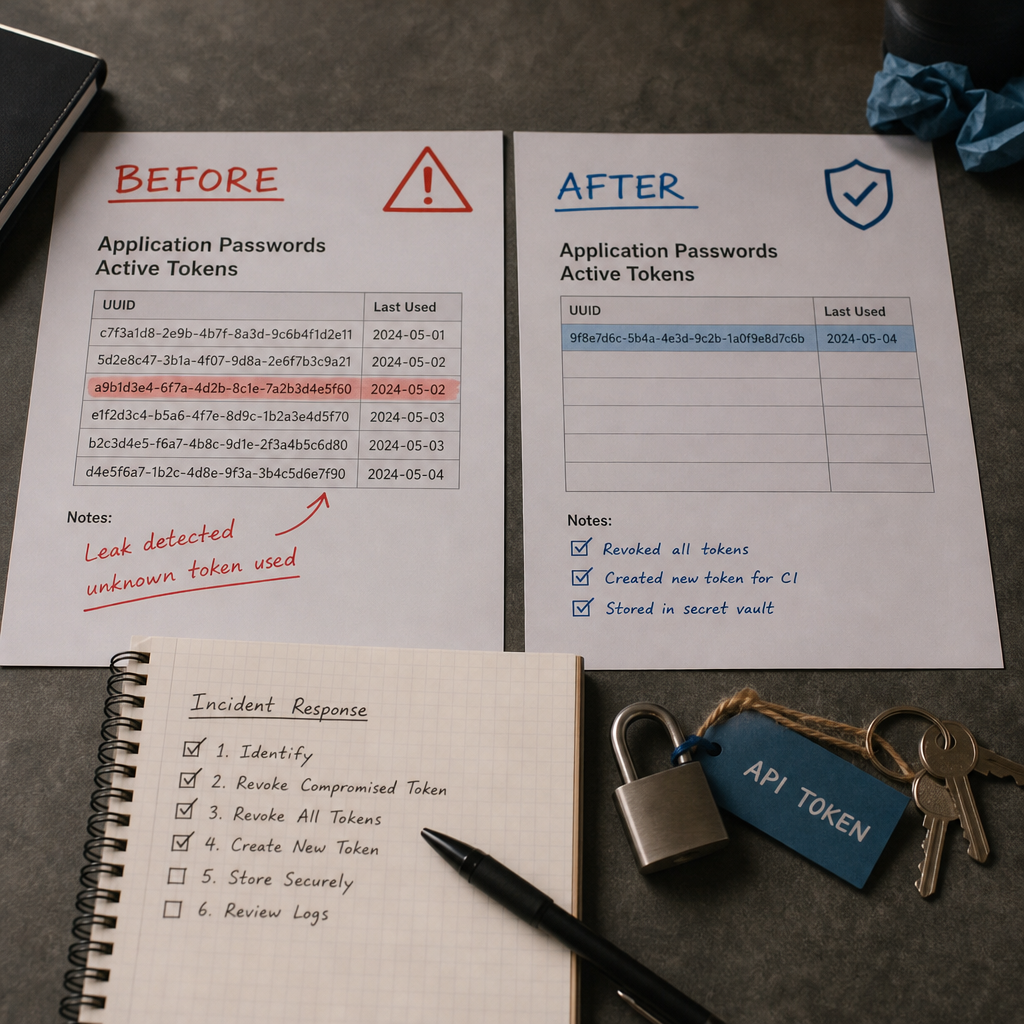
WordPress Application Passwords are used for the REST API, WP-CLI, mobile applications, CI/CD, and other integrations. They are not a user's regular password: each token is created separately, has its own name, and can be revoked independently.
If an Application Password appears in a repository, log, message, or third-party service, simply changing the account password is not enough. You must revoke the compromised token, review account activity, and only then create a new key for the specific integration.
Why Changing the User Password Does Not Solve the Problem
Application Passwords are designed to authenticate applications through the API. They are stored as separate credentials associated with a specific user, but they are not copies of that user's primary password.
As a result, changing the password used to sign in to the WordPress administration area usually does not revoke existing Application Passwords. A compromised token may continue to be used for REST API access until it is separately deleted or revoked.
During an incident, treat the token as fully compromised. Do not limit your response to changing the integration name, renaming the user, or setting a new primary password.
- The user's primary password and an Application Password are different credentials.
- One user can have multiple tokens for different services.
- Revoking one token does not affect the others.
- If you do not know which token was leaked, it is safer to revoke all tokens belonging to that user.
Prepare to Revoke the Token
Before running any commands, identify the account that owned the token and make sure you have WP-CLI access with sufficient permissions. The commands require a connection to the correct WordPress installation and access to its database.
If this is an active incident, first preserve available web server, proxy, WAF, hosting, and REST API logs. Prematurely clearing logs can make it harder to determine which requests were made using the compromised account.
Use the numeric user ID if it is known. This reduces the risk of revoking tokens belonging to the wrong account. You can review users with standard WP-CLI commands, but do not publish their usernames or other identifiers in public reports.
- Identify the site, environment, and user affected by the incident.
- Create a backup or snapshot of the environment according to your incident response procedure.
- Preserve logs before making changes, unless this conflicts with your security policy.
- Do not enter the token itself in a command line, ticket, or chat message.
Check the List of Active Application Passwords
Start by reviewing the tokens associated with the user. The command displays Application Password records, including their names, identifiers, and creation dates. The token secret itself is not shown again; this is normal behavior.
Compare the token names with the list of real integrations, such as a CRM, CI/CD system, backup service, mobile application, or local script. Look for unknown records, tokens created shortly before the incident, and keys that have not been used for a long time.
- An unfamiliar token name may indicate unauthorized creation.
- The creation date can help correlate a token with events in the logs.
- Do not delete records blindly if an integration is critical to site operations.
- After a leak, do not consider a token safe merely because its name looks familiar.
wp user application-passwords list USER_IDHow to Revoke One or All Tokens with WP-CLI
If you have identified the compromised record with certainty, revoke it by UUID. This is the least disruptive option because the user's other integrations will continue to work.
You can find the UUID in the output of the list command. Do not confuse it with the token name or the Application Password secret itself. After revocation, the integration that used this token will lose access and require a new key.
If the token cannot be identified, revoke all Application Passwords belonging to the user. This is the recommended option when the key was published publicly and the token creation or usage logs are incomplete.
- Revoking a specific token keeps the user's other integrations working.
- Revoking all tokens requires issuing new keys for every legitimate service.
- After running the revoke command, verify the result by running the list command again.
- In a production environment, notify integration owners that access may be interrupted.
wp user application-passwords revoke USER_ID UUID

# If you do not know which token was compromised:
wp user application-passwords revoke USER_ID --all

# Verify the list again:
wp user application-passwords list USER_ID
Create a New Token for a Specific Integration
After revoking the token, create a new Application Password only for the service that needs it. Do not use one token simultaneously for CI/CD, backups, and third-party automation: separate keys simplify auditing and future revocation.
Give tokens clear names, such as “staging-deploy,” “crm-sync,” or “backup-server.” The name is not a secret and helps identify the record's purpose during a later review.
You usually need to save the new secret immediately after creating it. Do not expect WordPress to display the full value again. Store it in a secrets manager or environment variable rather than in code or a configuration file that is committed to version control.
- Create a separate token for each integration.
- Store the secret in a secrets manager or protected environment variable.
- Limit the WordPress user's permissions to what the task requires.
- Do not share an Application Password in URLs, screenshots, issues, or ordinary chat messages.
- After replacing the token, test the integration and review its logs.
wp user application-passwords create USER_ID "integration-name"Check Whether an Attacker Used the Token
Revocation stops further use of the specific token, but it does not undo actions that have already been performed. After containing the incident, review web server, reverse proxy, WAF, hosting, and monitoring logs.
Look for requests to `/wp-json/`, unusual HTTP methods, large numbers of requests involving posts, users, or settings, as well as activity at unusual times or from unfamiliar IP addresses. A REST API request alone does not prove abuse, so correlate the URL, time, user, IP address, user agent, and response result.
Also review account activity, including the creation of users, role changes, plugin and theme edits, and modifications to content, settings, and scheduled tasks. If the token belonged to an administrator, the review should cover the entire installation rather than a single API endpoint.
- Review logs covering the period from the possible leak until revocation.
- Change secrets for other services if they may have been accessible through the compromised account.
- Check for new users, unfamiliar plugins or themes, and file changes.
- Document the event timeline and commands executed for future auditing.
- If there are signs of server compromise, involve an incident response specialist.
Common Mistakes When Working with Application Passwords
The most common mistake is changing only the user's primary password. This does not revoke separate Application Passwords, so the leaked credential remains valid.
Another problem is using one administrative token across multiple systems. If it is leaked, you cannot determine which integration was the source of the problem, and revoking the key stops all processes that depend on it.
Application Passwords are not intended for a person to sign in through a browser. For administrators, use standard WordPress authentication with multi-factor protection when it is available in your infrastructure.
Do not send tokens as URL parameters. They may be stored in browser history, proxy logs, analytics systems, and the Referer header. Also, do not store them in JavaScript that is accessible to site visitors.
- Do not rely only on changing the primary password.
- Do not store tokens in a public Git repository.
- Do not use a shared administrative token for every service.
- Do not place secrets directly in shell scripts where they may remain in command history.
- Do not consider revocation the end of the incident without reviewing the logs.
Frequently asked questions
Should I change the user's primary password after an Application Password leak?
Yes, if there is a risk that the primary password was also exposed or reused in other services. However, changing it does not revoke Application Passwords; you must revoke the tokens separately.
What should I do if I do not know which Application Password was leaked?
Revoke all tokens belonging to the user with `wp user application-passwords revoke USER_ID --all`, then create new keys separately for verified integrations.
Can I view the Application Password secret after it has been created?
You should not expect to view the full secret again. Store it securely when it is created. If the value is lost, revoke the old record and create a new one.
Will revoking a token undo actions already performed by an attacker?
No. Revocation stops future authentication with that token, but it does not undo changes that have already occurred. You must review logs, users, roles, files, content, and site settings.
Conclusion
After an Application Password leak, follow this sequence: identify the user, preserve available logs, review the token list, revoke the specific UUID or all keys, investigate activity, and create a new token only for the required integration.
Separating tokens by service, applying least-privilege permissions, and storing secrets outside the codebase make it much easier to respond to similar incidents. Application Passwords are convenient for automation, but they must be tracked and revoked as carefully as any other secret.