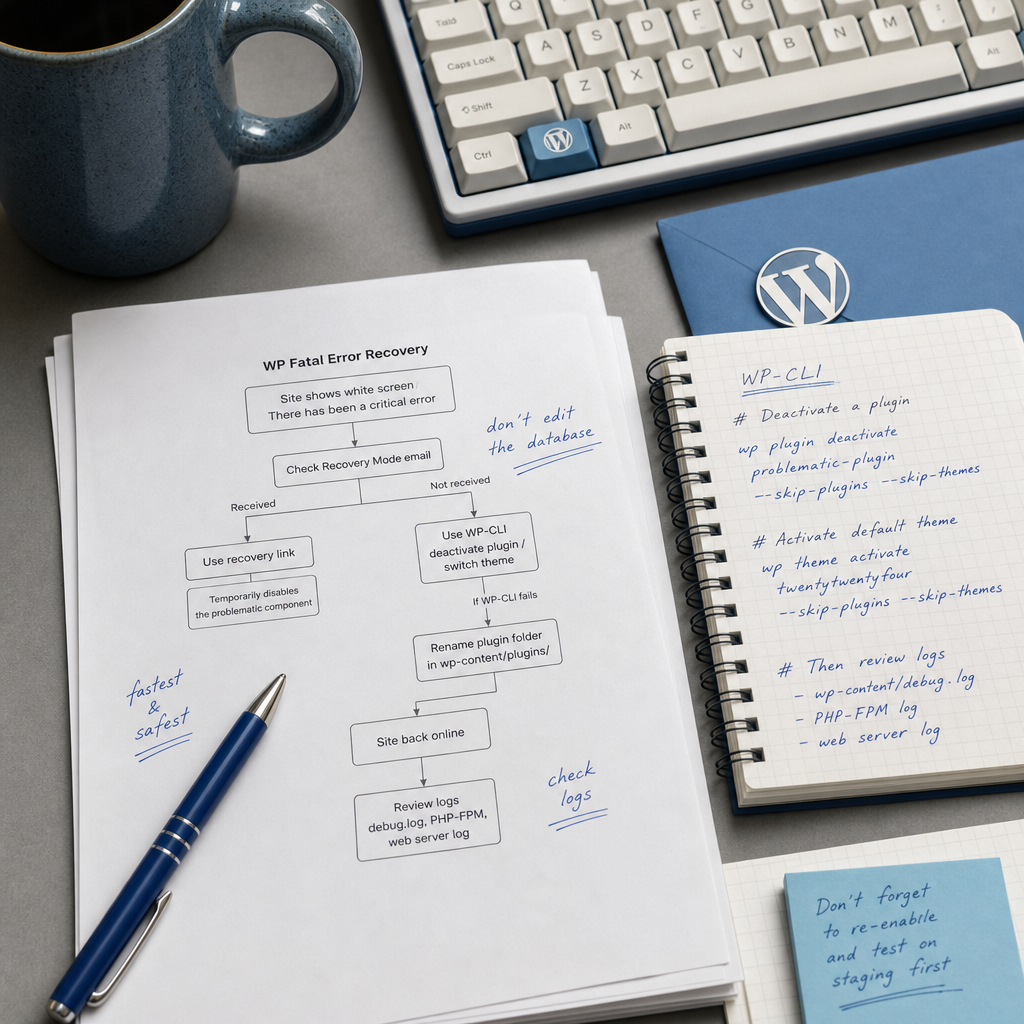
A fatal error in WordPress usually appears after updating a plugin, theme, core files, or the PHP version. You may see a blank page, the message “There has been a critical error on this website,” or a PHP error message. If the error makes the admin area unavailable, do not immediately modify the database: in most cases, you can identify and resolve the problem through Recovery Mode, WP-CLI, or file access.
Below is a step-by-step process for recovering your site. Start with the lowest-risk method, document every change, and after the site is working again, check the problematic component’s compatibility in a staging environment.
What a Fatal Error Means in WordPress
A fatal error is a critical PHP error that prevents WordPress from completing a request. It may be caused by an incompatible plugin, an error in a theme, a missing PHP class or function, a conflict between extensions, a damaged file, or an outdated PHP version.
First, determine the scope of the problem. If only the admin area is unavailable while the home page works, the cause may be a plugin or code used only in the administrative area. If both the site and /wp-admin are unavailable, you need to disable the suspected component at the server or file-system level.
Do not repeat updates at random or delete WordPress database tables. These actions may conceal the symptoms without addressing the cause and can make recovery more difficult.
- Record the exact error message, file name, and line number.
- Recall what changed immediately before the failure: a plugin, theme, WordPress, PHP, or server setting.
- Check whether the error occurs on every page or only when you try to access the admin area.
First Step: Check Recovery Mode
In many cases, WordPress sends the administrator an email about the critical error containing a special Recovery Mode link. This mode lets you access the admin area while temporarily suspending the problematic plugin or theme for your session. Other visitors may see a separate error message.
Open the mailbox configured as the site’s administrator address and look for an email from WordPress. Follow the link in the message, sign in, and check which component the system has identified as problematic.
After signing in, do not simply reactivate the component. First check its version, PHP and WordPress requirements, last update date, and any conflict notices. If the error appeared immediately after an update, it is safer to leave the component disabled temporarily and test the previous version on staging.
- The Recovery Mode link may be temporary, so use it soon after receiving the email.
- If the email is missing, check your spam folder and confirm that the administrator email address is correct.
- Recovery Mode does not fix the component’s code; it only helps you regain access and localize the problem.
Disable the Problematic Plugin with WP-CLI
If you have SSH access to the server and WP-CLI is installed, you can disable a plugin without signing in to the admin area. Go to the WordPress root directory, where wp-config.php is usually located, and run the command for the required plugin.
The --skip-plugins and --skip-themes parameters prevent WordPress from loading plugins and the theme while the command runs. This is especially important when the error occurs during the WordPress startup process.
- Check the plugin’s exact slug in the list of installed extensions.
- After deactivation, open the site in a private browser window and check the home page, several internal pages, and /wp-admin.
- If the command returns an error, save its text: it may point to a problem with PHP, file permissions, or WP-CLI itself.
wp plugin list --skip-plugins --skip-themes
wp plugin deactivate problematic-plugin --skip-plugins --skip-themes
If the Theme Is Causing the Problem
When the fatal error appears after changing or updating a theme, temporarily activate a default theme that is compatible with your WordPress version. The example uses twentytwentyfour, but the server must have the exact theme you specify installed.
If a default theme is not available, install it from a trusted source or restore the theme files first. Do not copy an arbitrary theme to a production site without checking it.
- Before activating it, make sure the required default theme is present in wp-content/themes/.
- Check the site after switching themes: some functionality and the custom theme’s layout may temporarily disappear.
- Do not delete the problematic theme until its files and settings have been backed up.
wp theme list --skip-plugins --skip-themes
wp theme activate twentytwentyfour --skip-plugins --skip-themes
What to Do If WP-CLI Also Fails
If WordPress crashes before the WP-CLI command can run, use file access through SSH, SFTP, or your hosting control panel’s file manager. Find the suspected plugin directory in wp-content/plugins/ and temporarily rename it, for example, from problematic-plugin to problematic-plugin.disabled.
WordPress will not find the plugin under its original name and will be unable to load it. In many cases, this is enough to make the site accessible again. After access is restored, do not immediately rename the directory back: first review the logs and check compatibility.
If you do not know which plugin caused the failure, you can temporarily rename the plugins directory, for example, to plugins.disabled. This disables all plugins. Then restore the directory name and enable the extensions one at a time, checking the site after each activation.
- Do not rename or delete wp-content without a backup.
- Rename the directory instead of deleting it so you can quickly restore the files.
- If disabling all plugins does not resolve the error, check the theme, PHP version, and core files.
cd /path/to/wordpress/wp-content/plugins/
mv problematic-plugin problematic-plugin.disabled
Diagnosis: Where to Look for the Cause
The fatal error text usually includes a file path and line number. If it mentions wp-content/plugins/, the likely culprit is a plugin. A path containing wp-content/themes/ points to a theme, while messages about memory, a class, or a function may indicate a component conflict or an incompatible PHP version.
Review the WordPress log if logging is enabled, as well as the PHP-FPM and web server logs. Their locations vary between hosting providers, so contact hosting support if necessary.
For temporary logging, you can use the following settings in wp-config.php. Do not enable error display for all visitors on a production site: diagnostic information may reveal file paths and configuration details.
- After troubleshooting, disable WP_DEBUG or keep logging enabled only in accordance with your environment’s security rules.
- Do not make debug.log publicly accessible, and check its file permissions.
- Clear or archive old logs after saving the required entries so they do not consume all available disk space.
define( 'WP_DEBUG', true );
define( 'WP_DEBUG_LOG', true );
define( 'WP_DEBUG_DISPLAY', false );
What to Check at the Server Level
If the logs do not show a clear cause, check the PHP version, available memory, file permissions, and required PHP extensions. Pay particular attention to changes made at the same time as the plugin update: switching PHP versions or changing the web server configuration can also cause a failure.
Do not change the PHP version blindly on a production site. If possible, create a copy or staging environment first and test the compatibility of the core, theme, and plugins.
- Compare the current PHP version with the requirements of the problematic plugin and theme.
- Check the memory_limit and max_execution_time limits if the error is related to insufficient resources.
- Make sure that after recovery the site does not return 500 errors or enter infinite redirects.
Recovery After the Site Starts Working Again
After disabling the problematic component, check more than the home page. Test forms, search, authentication, the shopping cart, and payment functionality if the site uses them. Review the error log for several minutes after recovery: a page may load while background requests or cron jobs continue to fail.
Do not simply reactivate the plugin or theme that caused the failure. Back up the files and database, check version compatibility, review the changelog, and test the component on staging. If the problem began after an update, consider temporarily reverting to the previous version, but treat this as a short-term measure.
After testing, update the problematic component to a fixed version or replace it with a supported solution. An outdated extension creates not only a risk of another fatal error but also a potential security threat.
- Create a full backup before reactivating the component.
- Test updates on staging if the site is critical to the business.
- Keep a change log: it will help you quickly identify the cause of the next failure.
- Do not leave debug.log or diagnostic messages publicly accessible.
Frequently asked questions
Can WordPress be recovered without access to hosting?
If Recovery Mode works and you have access to the administrator’s email, the special link may be all you need. If Recovery Mode is unavailable, you need at least one way to manage the site: WP-CLI, SSH, SFTP, a file manager, or assistance from your hosting provider.
Will renaming a plugin directory delete its settings?
Usually, renaming the directory only prevents WordPress from loading the plugin files. Its settings often remain in the database, but you should create a backup before taking any further action.
What should I do if the white screen remains after disabling the plugin?
Check the theme, other plugins, PHP-FPM, and web server logs. For testing, you can temporarily disable all plugins and activate a default theme. If that does not help, check the core files, PHP version, file permissions, and available memory.
Is it safe to leave WP_DEBUG enabled?
On a production site, you should not display errors to visitors. For troubleshooting, you can temporarily log errors with WP_DEBUG_LOG while keeping WP_DEBUG_DISPLAY disabled, then return the settings to a secure state when testing is complete.
Conclusion
The safest recovery sequence after a WordPress fatal error is to check Recovery Mode, then disable the problematic component through WP-CLI or by renaming its directory, and finally confirm the cause using the logs. Do not edit the database or delete files without a backup.
After the site is working again, test updates on staging, check PHP compatibility, and remove temporary diagnostic settings. This will not only restore the site but also reduce the risk of another critical failure.