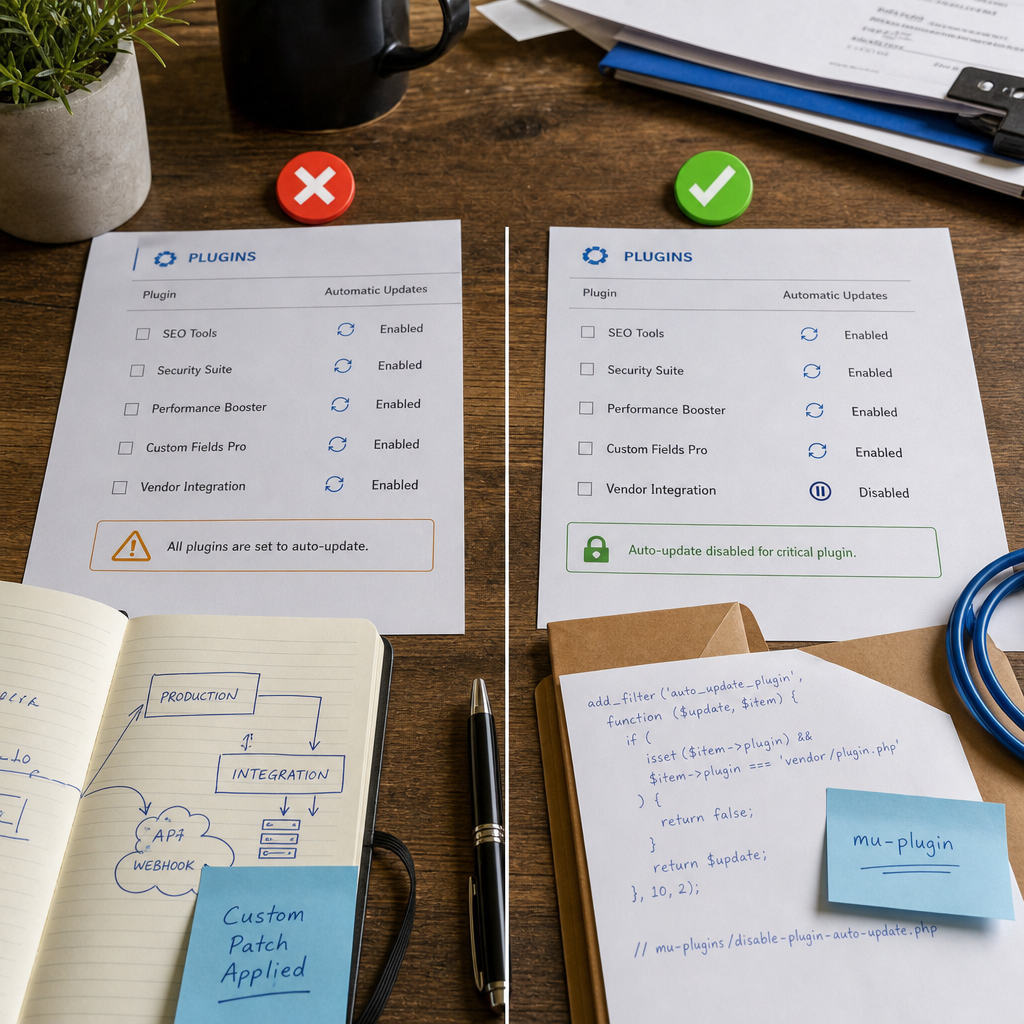
Automatic plugin updates help you receive security fixes promptly, but there are times when a specific extension needs to be temporarily held back. The reason may be a critical integration, a custom patch, a dependency on a particular PHP version, or a lack of compatibility testing on the staging site.
In this situation, you should not disable WordPress updates globally using DISALLOW_FILE_MODS or similar settings. A safer approach is to add the auto_update_plugin filter, which blocks automatic updates only for the specified plugin while leaving other extensions and WordPress core unchanged.
When to Delay Automatic Plugin Updates
Selective blocking should be a temporary exception, not a permanent site-maintenance strategy. It is appropriate when you need to verify compatibility with a payment gateway, CRM, theme, or custom code after an update.
Another case is a plugin with local modifications. If the support team has applied a patch directly to the extension's files, an automatic update may overwrite it. However, the better long-term solution is to move the changes into a separate plugin, a child integration, or a maintained fork.
Do not delay updates without oversight. After a new version is released, review its changelog, compatibility, and security fixes, then update the plugin manually after creating a backup or testing it in a staging environment.
- a critical integration has not yet been tested with the new version;
- the plugin contains local changes or a custom patch;
- the update is temporarily incompatible with the PHP version, theme, or another extension.
Why You Should Not Disable Updates for All of WordPress
Globally blocking file modifications disables more than automatic updates for one plugin. It may prevent updates to other plugins, themes, and core components, and can also make routine site maintenance more difficult.
As a result, the site may remain exposed to known vulnerabilities for longer, even though the issue concerns only one extension. The auto_update_plugin filter is more precise: it returns false for the required plugin while preserving WordPress's default decision for all others.
This mechanism affects automatic updates only. It does not prevent an administrator from updating the plugin manually through the WordPress dashboard or WP-CLI.
- do not use DISALLOW_FILE_MODS solely to block one plugin;
- do not disable all automatic updates without a process for regular manual reviews;
- record the reason for the exception and assign responsibility for reviewing it.
How to Identify the Required Plugin Identifier
The filter compares the value of $item->plugin with the plugin's internal identifier. This is not always the name shown in the administration panel. The value usually follows the directory/file.php format, such as vendor/plugin.php.
You can identify the first part from the directory name under wp-content/plugins and the second part from the plugin's main PHP file. For a reliable check, review the plugin header in that file or use WP-CLI.
If you enter only the plugin name, the directory slug, or an incorrect file, the condition will not work. Before adding the rule, it is best to record the actual path in the project documentation.
- an example of a correct value is vendor/plugin.php;
- a plugin without a separate nested directory may use a different format;
- the identifier must be taken from the actual structure of the installed plugin rather than guessed.
Step-by-Step Setup with a mu-Plugin
A mu-plugin, or must-use plugin, is loaded automatically by WordPress regardless of the active theme. This location is convenient for technical rules that should not disappear after a theme change or accidental deactivation of a regular plugin.
Create the wp-content/mu-plugins directory if it does not already exist. Then add a file such as disable-plugin-auto-update.php and insert the rule below. Replace vendor/plugin.php with the actual identifier of the required plugin.
- make sure the file has a .php extension rather than .php.txt;
- do not add extra spaces or text before the opening PHP tag;
- make the change through controlled file access or a deployment system.
<?php
add_filter('auto_update_plugin', function ($update, $item) {
    if (
        isset($item->plugin) &&
        $item->plugin === 'vendor/plugin.php'
    ) {
        return false;
    }

    return $update;
}, 10, 2);
How to Verify That the Rule Works
After creating the mu-plugin, check the site in a test environment or in the administration panel. The plugin list may still show a notification about a new version for the extension, which is normal. The rule does not hide the update; it only prevents it from being installed automatically.
For additional verification, review the update process logs or run a test check through WP-CLI. Manually updating the specific plugin with the wp plugin update command remains available and helps confirm that the block has not affected every update method.
If the automatic update still occurs, check three things: the actual path to the main file, the location of the mu-plugin, and the PHP syntax. Also make sure the file is loaded from wp-content/mu-plugins rather than the regular plugins directory.
- create a backup before performing a manual update;
- check key integrations after the update;
- after successful testing, remove or modify the exception to restore automatic updates.
Common Mistakes and Security Rules
The most common mistake is blocking the plugin by a name that does not match $item->plugin. Another issue is adding the code to the active theme's functions.php file. That code will disappear or stop working after a theme change, so a mu-plugin is preferable for a system-level rule.
Do not treat a delayed update as a completed solution. Maintain a list of exceptions with the creation date, reason, and planned review date. If the plugin receives a security release, assess the risk of delaying it further and update it after testing.
Access to the mu-plugin file should be restricted in the same way as access to other WordPress files. Ideally, store changes in version control or at least in a deployment log so the team understands why a particular plugin is not updated automatically.
- do not hide the update notification instead of reviewing the available update;
- do not leave an exception without an owner and review deadline;
- do not use this approach for a plugin that is no longer maintained without assessing the risks;
- before removing the block, verify the backup and rollback plan.
Frequently asked questions
Does this code disable manual plugin updates?
No. The filter blocks automatic updates only. The plugin can still be updated through the WordPress administration panel or WP-CLI.
Should the notification about the new version be hidden?
No. The notification is useful because it reminds you about the delayed update. Review it, assess the changes, and plan a manual update.
Where should this code be placed—in functions.php or a mu-plugin?
For a system-level rule, use a mu-plugin in wp-content/mu-plugins. It does not depend on the active theme and cannot be disabled through the regular plugin list toggle.
What should I do if the plugin has a critical security fix?
Do not leave it automatically blocked only because of an old rule. Check compatibility in a staging environment, create a backup, and install the fixed version as soon as possible or follow another safe migration plan.
Conclusion
For a temporary exception, the auto_update_plugin filter in a mu-plugin is sufficient: it stops automatic updates for one plugin without affecting manual maintenance or updates to other WordPress components.
Use this approach together with a staging environment, backups, and an exception log. Review the delayed plugin regularly and update it as soon as compatibility is confirmed, especially when the new release includes security fixes.