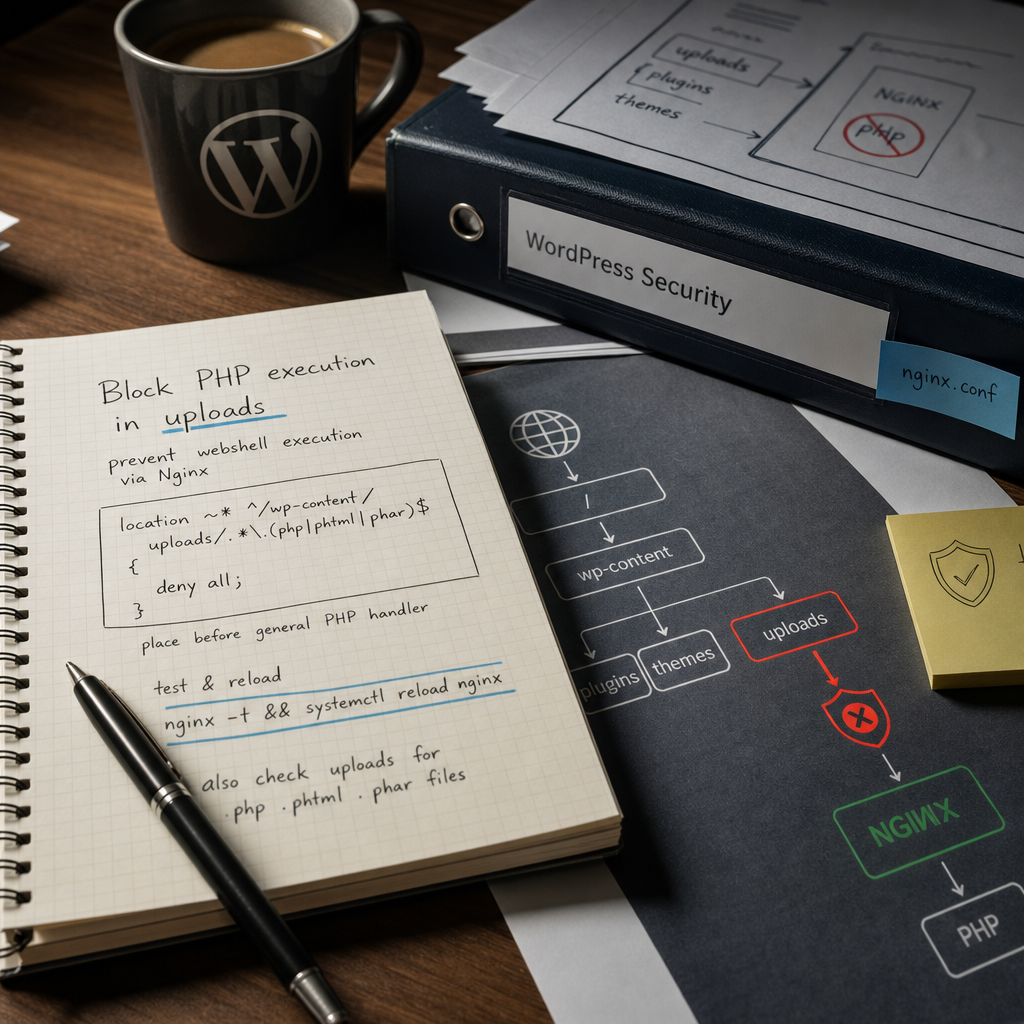
The <code>wp-content/uploads</code> directory in WordPress is intended for images, documents, videos, and other uploaded media files. It should not contain executable PHP code.
If an attacker exploits a vulnerable plugin, theme, or upload form and saves a file such as <code>shell.php</code> in uploads, Nginx's standard PHP handling rule may pass it to PHP-FPM. The file will then run on the server. A reliable baseline protection measure is to separately disable execution of PHP and related formats in the uploads directory.
Why PHP Should Not Execute in uploads
WordPress stores uploaded media primarily in <code>wp-content/uploads</code>, often organizing it by year and month. Regular users and editors should upload content there, not server-side scripts.
The mere presence of a PHP file in uploads does not mean that it will execute. The risk arises when the web server allows the file to be requested through a URL and passes the request to PHP-FPM. A webshell in this directory can be used to execute commands, steal data, or further infect the site.
A restriction at the Nginx level creates an additional security barrier even if another error allowed a file with a dangerous extension to be uploaded.
- The uploads directory should contain media files, not scripts.
- Checking the extension during upload does not replace web server rules.
- Disabling execution does not remove files that have already reached the server.
Nginx Rule for Blocking PHP Files
Open the Nginx configuration for the relevant virtual host. This is usually a file in the sites-available configuration or another <code>server</code> definition that serves the domain. Add the rule inside the <code>server</code> block, alongside the other <code>location</code> blocks.
Use a regular expression that covers PHP, PHTML, and PHAR regardless of letter case:
location ~* ^/wp-content/uploads/.*\.(php|phtml|phar)$ {
    deny all;
}
Why the Rule Must Come Before the General PHP location
A typical configuration contains a general handler such as <code>location ~ \.php$</code>, which passes PHP requests to PHP-FPM. If both blocks are regular-expression locations, the specialized uploads rule must be placed before it.
Nginx checks regular-expression locations in the order in which they appear and uses the first matching option. If the general PHP handler matches first, a request for a file in uploads may be passed to the interpreter.
- Add the rule in the <code>server</code> context, not inside another <code>location</code> block.
- Do not replace the general PHP handler with this rule: they serve different purposes.
- If the configuration contains multiple <code>server</code> blocks, edit the one that actually serves the domain.
How to Apply the Changes Safely
Do not reload Nginx immediately after editing. First, test the configuration syntax. The command below will not apply invalid changes if the test fails:
nginx -t && systemctl reload nginxWhat to Do If the Test Fails
Read the Nginx error message. It usually includes the file path and line number. The most common causes are a missing semicolon, an incorrect <code>location</code> context, or editing the wrong configuration file.
If your system does not provide access to <code>systemctl</code>, reloading may be performed in another way, such as through an init script or the server control panel. The key principle remains the same: test first, then perform a graceful reload.
How to Verify That Execution Is Actually Blocked
For a practical test, create a file with a <code>.php</code> extension in the uploads directory in a test environment or temporarily on the site. Do not put dangerous code in it; plain text or other safe test content is sufficient. Then request the file's URL.
The expected result is an HTTP 403 Forbidden response or another response confirming that access was denied. Make sure to test the URL containing the uploads directory, not just the file's existence on disk.
- Test both lowercase and uppercase extensions, for example, .php and .PHP.
- Make sure the request reaches the intended <code>server</code> block.
- Delete the test file after verification.
- If necessary, review the Nginx access and error logs to see how the request is being handled.
curl -I https://example.com/wp-content/uploads/2025/01/test.phpFinding Dangerous Files That Already Exist
The Nginx rule blocks access to files through the web server, but it does not scan for or delete them. If the site has already been compromised, uploads may still contain a webshell or other malicious code.
Check the directory for files with extensions that should not appear there:
find /path/to/wordpress/wp-content/uploads -type f \( -iname "*.php" -o -iname "*.phtml" -o -iname "*.phar" \) -printWhat to Do with Files You Find
Do not delete every file you find without checking it first: an administrator may intentionally keep service or test files there. At the same time, PHP files in a standard uploads directory are suspicious and require an explanation.
Create a backup or an isolated copy of suspicious files for analysis, record their paths and modification times, and then review the logs, administrator accounts, plugins, and theme. If there are signs of compromise, change passwords, update components, and check the entire site rather than only the uploads directory.
- Do not open a suspicious file in a browser.
- Do not run it through the PHP CLI during the investigation.
- Compare the code with a clean copy of WordPress or the relevant plugin, obtained only from a trusted source.
Nonstandard Upload Directories and Common Mistakes
Not every site uses the standard <code>/wp-content/uploads/</code> URL. The directory may be changed by WordPress settings, an optimization plugin, a CDN, or a custom project structure. In that case, replace the path in the regular expression with the actual URL prefix.
Remember that the path in an Nginx rule is a URL path, not a local filesystem path. For example, <code>/var/www/site/media</code> should not be inserted directly instead of <code>/wp-content/uploads/</code> if the directory is available through the browser as <code>/media/</code>.
- Do not add the rule only to an Apache configuration if requests are handled by Nginx.
- Do not block only files with an exact lowercase extension.
- Do not rely solely on a PHP restriction in the root .htaccess file if Nginx is running in front of the site.
- Make sure the rule does not block required static files because the regular expression is too broad.
Additional WordPress Security Measures
Blocking PHP execution in uploads is important, but it is not the only measure. It does not eliminate the vulnerability that allowed the file to be uploaded, nor does it protect against malicious JavaScript, altered images, or infected files of other types.
Keep WordPress, the theme, and plugins up to date, remove unused components, limit write permissions, and maintain backups. For upload forms, validate file types and sizes, but remember that MIME types and extensions can be forged. The final barrier should therefore remain at the web server level.
If the site is served through a CDN, WAF, or hosting control panel, check whether its configuration overrides your Nginx rules.
Frequently asked questions
Is blocking only .php files enough?
Not for basic protection. You should also block .phtml and .phar because the server configuration or additional handlers may treat them as executable formats.
Will the rule delete an already uploaded webshell?
No. The rule only denies HTTP access to the relevant files. Existing files must be found separately, isolated, checked, and deleted, or the site must be restored from a clean backup.
Why is the file still accessible after I add the rule?
Check whether the change was made in the active server block, whether <code>nginx -t</code> and a reload were performed, and whether another proxy or CDN is intercepting the request. Review the configuration with <code>nginx -T</code> and check the Nginx logs.
Should PHP execution be blocked in other directories?
Yes, if they contain uploads or files that should not be executable. The path and rules depend on the site's structure, so review them separately instead of copying configuration without analysis.
Conclusion
Disabling PHP, PHTML, and PHAR execution in <code>wp-content/uploads</code> is a simple, configurable measure that reduces the impact of dangerous file uploads in WordPress. Add a dedicated location before the general PHP handler, test the configuration with <code>nginx -t</code>, and perform a safe Nginx reload.
Afterward, be sure to scan uploads for suspicious files that may already exist. Protection is more complete when the web server rule is combined with updates, restricted access permissions, backups, and log review.