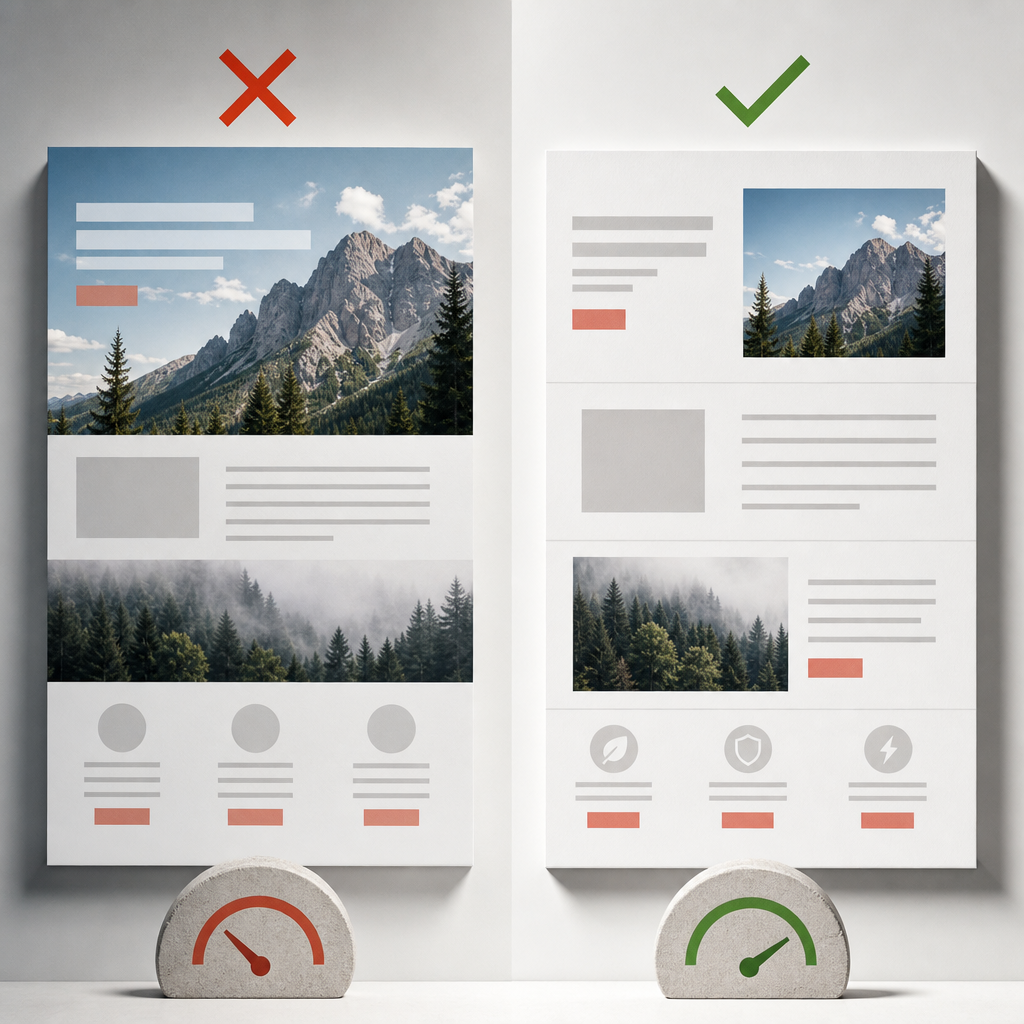
Background images are easy to add in Elementor through the section or container settings: choose a file, set its position and size, and add a color overlay. This is a practical approach for decorative design. Problems arise when backgrounds are used for photographs that are an important part of the content.
The browser does not load a CSS background image in the same way as a regular HTML image. It is more difficult to describe it for search engines, configure accessibility, provide responsive versions, and control it with standard lazy-loading and sizing attributes. Below, we will explain when to use Background and when an Image Widget is the better choice.
Why Background Images Can Slow Down a Page
An image defined through CSS is not a separate content element in the HTML. The browser first processes the page structure and styles, then determines which background resources need to be loaded. As a result, in some cases the image starts loading later than a regular img element.
This is especially important for the first viewport. If a large background is used as the main image in a hero section, it can affect how quickly the largest visible element appears. At the same time, a CSS background does not have the standard loading="lazy" attribute, and its loading priority is more difficult to control.
There is another potential issue: separate background images may be defined for desktop, tablet, and mobile within the same container. Depending on the stylesheet structure, the browser or an optimization plugin may load an unnecessary resource. Responsive behavior should therefore be checked not only in the Elementor editor but also in the browser's network requests.
- a large CSS background can delay the rendering of the first viewport;
- backgrounds do not offer the same straightforward lazy-loading control as HTML images;
- it is more difficult for search engines to understand that a background photo is part of the content;
- excessively large files increase page weight on mobile devices.
When to Use the Image Widget
The Image Widget or another standard HTML image element is suitable for photographs, illustrations, and diagrams that communicate something to the user. Such an image is part of the page structure, can have alternative text, can be assigned dimensions, and can be optimized separately from CSS.
For a content image, add clear alt text when it is needed to understand the material. If the photo only repeats information already provided in the text, the alternative description should be brief. Decorative images should not be given artificial descriptions merely to include keywords.
The Image Widget is also more convenient for images below the first viewport. Lazy loading can be used for these images when it is supported by the WordPress, Elementor, or optimization settings. Do not apply lazy loading indiscriminately to the main image that the user sees immediately.
- a photo of a product, team, interior, or completed project;
- an infographic, diagram, or screenshot that explains the material;
- an image that should be understandable to search engines;
- the main page image or a visual element in the first viewport;
- an image for which alt text, width, and height are important.
What Backgrounds Are Best Suited For
A background is appropriate when an image does not add new information but establishes the visual style of a block. In this case, the absence of alt text is not a disadvantage because the user does not need to read or understand the resource separately.
Background mode is also useful when an image should fill the entire container area, be cropped according to the aspect ratio, or work together with a color overlay. For example, an abstract texture can remain a background, while a product photo in the same block is better added as a regular image.
Do not use a background simply because it makes it easier to place text over a photo. Text can be positioned over an Image Widget using container structure, positioning, and appropriate contrast. The choice should depend on the image's role, not on the convenience of a single setting.
- textures and patterns;
- abstract shapes and decorative gradients;
- non-essential background photographs that do not convey meaning;
- images used only to decorate a section;
- decorative elements that may change or be hidden on different screen sizes.
How to Optimize Images in Elementor
Start with the right source file. Do not upload a photograph that is several thousand pixels wide if it will be displayed in a much smaller block on the site. The actual required width depends on the layout, screen density, and intended use, so base your decision on the size of the specific component rather than a universal value.
Compress the file before uploading it or use an image optimization tool in WordPress. WebP often produces a smaller file than JPEG or PNG, while AVIF may provide even more efficient compression. Make sure your server, CDN, and browsers handle the selected format correctly.
PNG is generally unnecessary for photographs unless transparency or specific graphic details are required. SVG can be suitable for icons and logos, but it should be used with consideration for security and the capabilities of the specific WordPress configuration.
Check the aspect ratio and reserve space for the image. If the block's height changes after the resource loads, CLS occurs—the layout shifts while the page is opening.
- crop images to match the actual block format;
- choose WebP or AVIF if the site's infrastructure supports them;
- do not use PNG for ordinary photographs without a specific reason;
- maintain sufficient quality without leaving excessive resolution;
- check that space is reserved for the image before it loads.
What to Check in the First Viewport
The main image in the first viewport requires special attention. If it is a key visual element, it should not automatically be lazy-loaded. Conversely, a decorative background that is not critical to understanding the page should not compete for resources with text and functional elements.
Open the page in mobile-device mode and check which files are loaded in the Network tab of the developer tools. See whether the desktop version is requested together with the mobile version, whether a background is loaded for a hidden element, and which resource is the largest.
You can use a Lighthouse report or another performance-testing tool for diagnostics. Do not focus only on the score; review the specific recommendations as well: excessive image size, late loading of the main element, render-blocking resources, or layout shifts.
- check the first viewport over a slow mobile connection;
- identify which image is the largest visible element;
- do not enable lazy loading for a critical image without checking the result;
- compare how the desktop and mobile versions load;
- clear the cache after making changes and run the test again.
Common Mistakes When Working with Backgrounds
One of the most common mistakes is adding all images as Backgrounds because it is easier to make them fill an entire section. As a result, photographs lose their semantic role, do not have appropriate alternative text, and are more difficult to control during loading.
Another issue is using one very large file for every screen size. A file that looks acceptable on a wide monitor may be excessive for a smartphone. If Elementor or an optimization system creates responsive versions, check whether the browser is actually receiving the appropriate resource.
Keywords should also not be added unnaturally to file names or alt text. Image SEO is primarily about accurate structure, useful context, fast loading, and accessibility—not repeating search queries.
After optimization, remember to check text contrast against the background, how the photo is cropped on narrow screens, focal points, and how the section behaves when the image has not loaded.
- a content photo is added as a decorative background;
- a large file is used without adapting it for mobile devices;
- a critical image is mistakenly lazy-loaded;
- an unnecessary alt text is created for a decorative background;
- CLS, contrast, and mobile cropping are not checked after optimization.
Frequently asked questions
Do all background images harm website speed?
No. The issue is not the use of a background itself but the file size, its role, and when it loads. A small decorative background usually does not create a significant load, while a large hero image can affect the speed of the first viewport.
Does Google index images defined through CSS?
CSS backgrounds do not have the same semantic role as images in HTML and are not the best option for important content photos. If an image has informational value, add it as an HTML image with appropriate alt text and clear context.
Should lazy loading be enabled for a background image?
CSS backgrounds do not have the standard loading="lazy" attribute. Background resources can be optimized in other ways, but the exact behavior depends on the theme, Elementor, caching plugins, and CDN. A critical first-viewport image should not be deferred without testing.
Which format is better for a background photograph—WebP or AVIF?
Both formats can reduce the photograph's size compared with JPEG, but the result depends on the file itself and the compression settings. Choose a format that is reliably supported by your infrastructure, and check image quality and correct rendering on the required devices.
How can I tell whether a background is loading twice?
Open the browser's developer tools, go to the Network tab, and reload the page without using the cache. Check the names and sizes of image requests, and test desktop and mobile modes separately. Repeated or unnecessary resources may result from styles, an optimization plugin, or incorrect responsive logic.
Conclusion
In Elementor, background images are best reserved for decorative design: textures, patterns, abstract elements, and non-essential visual effects. Photos and illustrations that convey meaning are safer to add as regular images with appropriate alt text, dimensions, and responsive optimization.
Before publishing, check file size, format, first-viewport behavior, mobile requests, and layout stability. This approach helps reduce unnecessary load, prevent layout shifts, and make the page structure clearer to users and search engines.