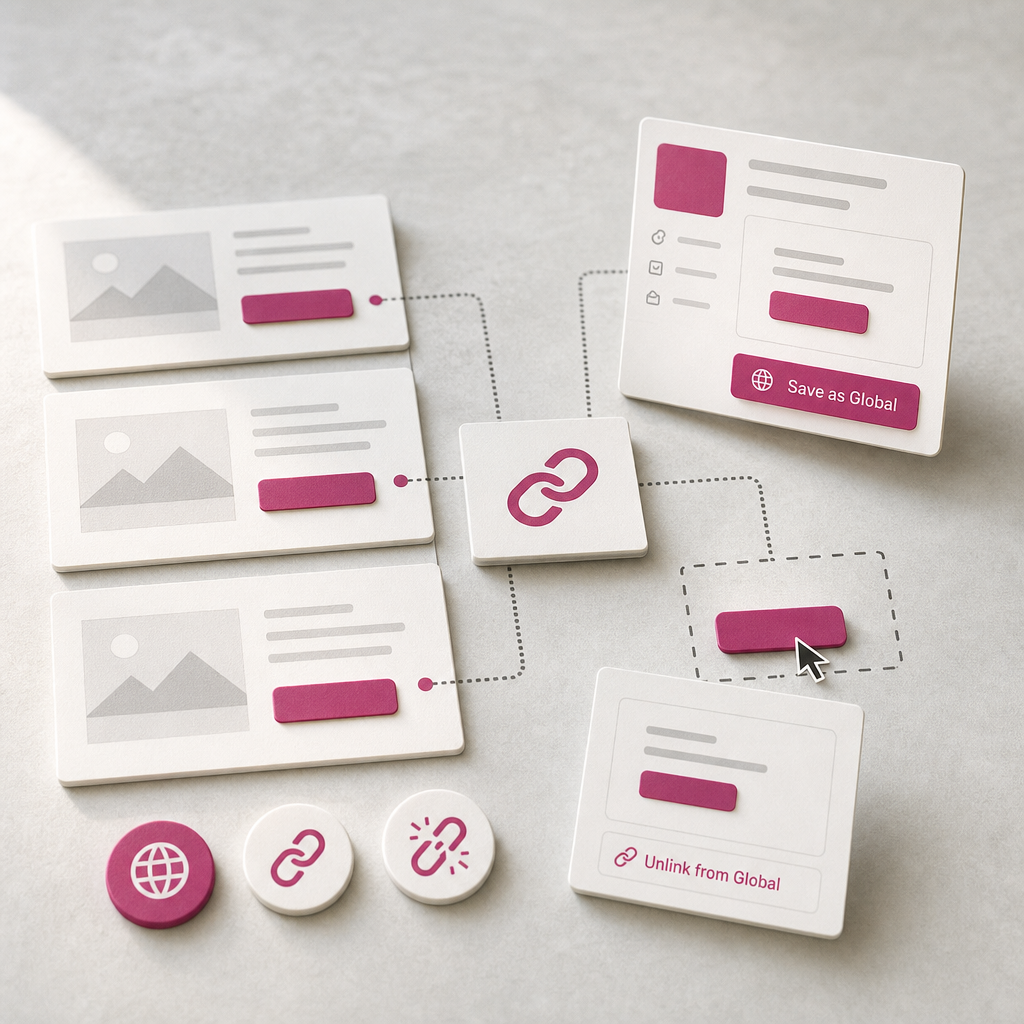
When the same CTA block, phone number, trust badge, or signature is used across multiple pages, editing every copy manually can quickly lead to mistakes. In Elementor, you can save a widget as a global element and manage its content from one place.
A Global Widget synchronizes all of its instances. You can change the design or text once, and the update will be applied to every page where the element has been inserted. At the same time, it is important to understand when this synchronization is useful and when it could unintentionally change important content across the entire site.
What Is a Global Widget in Elementor?
A Global Widget is a saved widget connected to its copies on different pages. Unlike a regular duplicate, a global element does not become an independent copy after it is inserted. Its instances remain connected to a single source.
For example, a website might use the same “Get a Consultation” block in service descriptions, the blog, and the contact page. If you change the button, heading, spacing, or color in the Global Widget, the changes will appear in all of its instances after the pages are updated.
Menu item names may vary slightly depending on the Elementor version and interface language. In the classic workflow, the Save as Global command is used to create the element, while Unlink from Global is used to break the connection.
- one element for reusable blocks across different pages;
- centralized editing of design and content;
- less manual work and a lower risk of overlooking one of the copies;
- the ability to unlink an individual instance when it needs a different appearance.
Which Blocks Are Best Suited to Global Widgets?
The global format is best used for elements that should be identical or nearly identical across the site. It is especially convenient for service information, branded components, and recurring calls to action.
Before saving a widget, ask yourself: if I change this block in a month, will I really want to see that change everywhere? If the answer is yes, a Global Widget is probably the right choice.
- a CTA block with a consistent offer or inquiry button;
- company contact details, business hours, or an address;
- trust badges, guarantees, certificates, and short benefit statements;
- a standardized signature, information notice, or disclaimer;
- a recurring promotional block with a unified design.
When It Is Better Not to Use a Global Widget
Do not save elements as global blocks when their content frequently depends on the specific page. For example, the heading “Services for Small Businesses” should not be synchronized with a page for corporate clients, even if the blocks have the same design.
For these cases, it is better to create a regular copy, save a template, or use a separate section template. This allows you to reuse the structure without forcing every page to respond to each change.
- unique headings and descriptions for different services;
- promotions with different validity periods;
- banners, images, or prices that depend on the page;
- content edited by different teams without an agreed-upon process.
How to Create an Elementor Global Widget
Before saving the widget, check it in regular editing mode: review the text, links, button, responsive settings, spacing, and appearance on mobile devices. It is best to create a global element only after its basic appearance has been agreed upon.
The sequence of steps may vary slightly between editor versions, but the overall logic remains the same.
- Open the required page in the Elementor editor and select the widget you want to reuse.
- Open the widget’s context menu and select Save as Global or the equivalent command for saving it as a global element.
- Enter a clear name if Elementor prompts you to do so. The name should describe the widget’s purpose, such as “CTA — Consultation” or “Contacts — Phone.”
- Save the page, then insert the global element wherever needed through the library or the list of available Global Widgets.
- Open several pages in preview mode and check that the block displays consistently on both computers and smartphones.
How to Edit a Global Widget Without Making Accidental Changes
The main rule is simple: edit the global element itself when you want to update all of its instances. After making a change, check not only the page you were working on but also several other pages where the block is used.
Before making a site-wide change, it is useful to record the current text and links or create a backup of the site. This is especially important for contact details, legal notices, prices, and promotions.
- check whether the widget actually has global status;
- change the text, styles, or settings in the single source;
- click Update or another button used to save changes;
- open pages containing different instances and check the result;
- clear the plugin, CDN, or browser cache if the update does not appear immediately.
What to Check After an Update
Make sure the new text does not extend beyond the container, the button leads to the correct address, and changes to the spacing have not damaged the mobile version. Also check whether the element’s visibility has changed because of responsive display conditions.
If the widget contains a form or integration, submit a test entry. A block may look correct visually while containing an incorrect field, recipient address, or link.
How to Create a Unique Version on One Page
Sometimes most instances should remain identical, but one page requires a different heading, color, or call to action. In this situation, do not edit the Global Widget directly.
Open the context menu for the specific instance and select Unlink from Global or the corresponding unlink command. The element will retain its current appearance but will become independent of the global source.
After unlinking, changes to the Global Widget will no longer apply to this copy. Therefore, make sure you have selected the correct instance rather than the main global element before performing this action.
- open the page containing the required copy;
- open the context menu for the Global Widget;
- select Unlink from Global;
- change the text or design of the independent element;
- check the page after saving.
Common Mistakes When Working with Global Widgets
Problems most often arise not because of Elementor itself but because of an incorrect usage model. A team treats a Global Widget like a regular copy and is then surprised when changes appear across dozens of pages.
To avoid this, agree on a clear naming system for global elements and do not create numerous nearly identical versions without a specific reason.
- Editing the Global Widget instead of a specific copy. This changes all linked instances.
- Using a global element for page-specific content that should be unique.
- Changing a link or phone number without checking every place where it is used.
- Unlinking a copy without understanding the consequences: it will no longer receive future updates.
- Checking only the desktop version without testing the mobile display.
- Assuming that no changes were made because of caching, even though Elementor has already saved the update.
A Practical Approach to Organizing Global Elements
On a small website, a few well-named Global Widgets are usually enough. Do not turn the library into a collection of dozens of similar elements: this makes them harder to find and increases the risk of editing the wrong block.
Before publishing changes, create a short list of the pages where an important global element is used. This list will be useful when updating contact details, rebranding the site, or changing an offer.
- use names that describe the purpose and block variant;
- do not duplicate Global Widgets without a clear reason;
- for major changes, first check the result on a copy or test page;
- after an update, check links, responsiveness, and forms;
- regularly review unused or outdated elements.
Frequently asked questions
Do all instances change after editing a Global Widget?
Yes, as long as they remain connected to the global element. Changes saved in the source are applied to its instances on other pages.
Can I change only one instance of a Global Widget?
Yes. Open the context menu for the required instance and select Unlink from Global. After unlinking, it becomes a regular independent widget.
What happens to the widget’s appearance after unlinking?
The element generally retains its current appearance and settings at the time it is unlinked, but it no longer receives updates from the global source.
How is a Global Widget different from copying a widget?
A copy is independent and does not respond to changes made to the original. A Global Widget preserves the connection between instances, allowing it to be updated centrally.
Conclusion
Elementor Global Widgets are best suited to reusable blocks with a shared design and common content, such as CTAs, contact details, trust badges, and service notices. They reduce the number of manual edits and help maintain a consistent site design.
To prevent accidental changes, separate genuinely global content from unique page-specific blocks. Before making a site-wide update, check all usage scenarios, and use Unlink from Global when one page requires an exception.