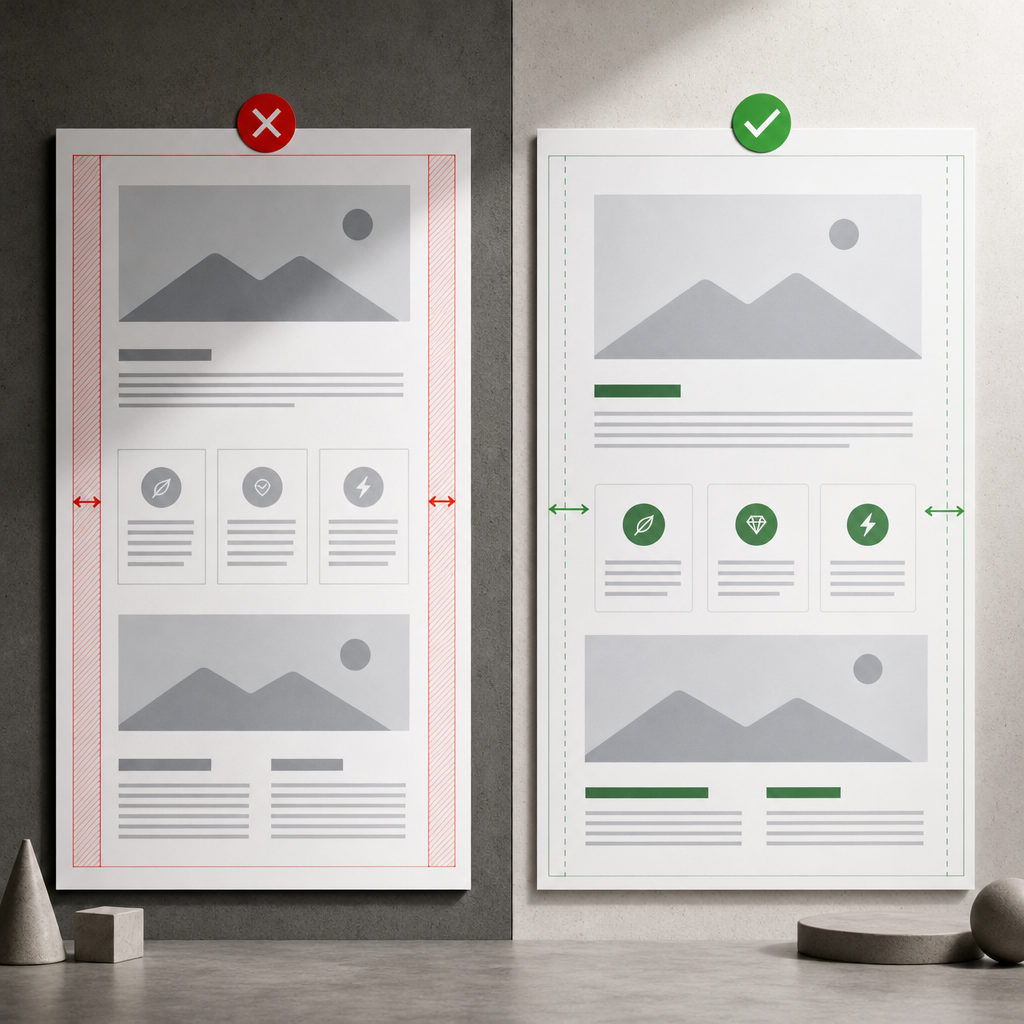
Responsive layouts in Elementor often break not because of complex CSS, but because inherited values are overlooked. If a custom value is not set for a tablet or mobile device, Elementor generally uses the setting from the wider viewport.
As a result, large padding, a font size, or a fixed width that looks fine on Desktop can make the layout difficult to use on Tablet or Mobile. Let’s look at how the responsive settings cascade works, what to check first, and how to avoid unnecessary overrides.
What Is the Cascade of Responsive Settings in Elementor?
Elementor’s responsive controls let you set separate values for different device types: Desktop, Tablet, and Mobile. The base value is usually set for the larger screen. If you do not enter a different value for a smaller screen, the element uses the inherited setting.
For example, a container may have 80 px of padding on Desktop. If you do not specify a new value for Tablet, the inner spacing may remain 80 px. On a narrow screen, this reduces the available content width, causing headings to wrap onto extra lines and cards to become too narrow.
It is important to distinguish inheritance from automatic scaling. Elementor does not necessarily reduce values proportionally to the screen width. The value 80 px will not automatically become 32 px—you need to set a new value manually if it should be different.
- Desktop is the base level from which styles for smaller screens are often inherited.
- Tablet is a separate level for intermediate widths when the layout requires changes.
- Mobile is the narrowest level, where custom padding, font sizes, and widths are most often needed.
- If a value is not overridden for a specific device, check which wider level it came from.
Which Settings Most Often Cause Problems?
Not all styles are equally important for responsive behavior. Most problems are caused by settings that directly affect available width, block height, and text wrapping.
Start by checking containers and sections. Large left and right padding can quietly consume a significant portion of the available screen width. Margins can sometimes create horizontal scrolling or move a block beyond the viewport.
- Padding and margin on containers, sections, and individual widgets.
- Font size, line-height, and letter-spacing for headings, text, and buttons.
- The width of columns, containers, images, buttons, and form fields.
- Gap and other spacing between cards in a grid or flex layout.
- Minimum height, fixed height, and vertical alignment.
- Positioning, offsets, and negative margins that work on Desktop but break the Mobile layout.
- Background and image settings, including background size, position, and repeat.
How to Change Values Correctly for Different Devices
Open the page in the Elementor editor and switch to Responsive Mode to view the layout at the required width. Then select the specific container or widget and open the setting you want to check.
Responsive-compatible fields usually include a device switcher or let you enter a value for the current mode. First, determine whether the setting really needs to be different. If the Desktop value works well on Tablet, do not create an unnecessary duplicate.
When a value does need to change, set it only at the problematic level. For example, you can leave the container’s Desktop padding at 80 px, set Tablet padding to 40 px, and Mobile padding to 20 px. This creates a clear system that is easier to maintain.
- Change values in the context of a specific device rather than making random changes to the base settings.
- After every change, check not only the selected mode but also nearby viewport widths.
- For symmetrical spacing, use linked fields when all sides should have the same value.
- If the top, right, bottom, and left values differ, check each side separately.
- Do not copy all Desktop values to Tablet and Mobile: this makes it harder to find the cause of future problems.
Practical Example: A Container with Excessive Padding
Imagine a hero block with a heading, description, and button. On Desktop, the container has 80 px of horizontal padding. This may look balanced on a monitor, but the same spacing leaves much less room for text on a tablet.
As a result, a heading may wrap from two lines to four, the button may lose its proper width, and the entire block may become too tall. On Mobile, the problem becomes more pronounced, especially if the block also contains an image or two columns.
- Keep 80 px on Desktop if that spacing matches the design.
- Set a smaller horizontal padding for Tablet, such as 40 px.
- Use a more compact value on Mobile, such as 20 px, if the content needs the maximum available width.
- Check whether an inner widget or parent container has additional padding.
- After making the change, review the heading, text, button, and background image together rather than checking the container alone.
How to Check Responsive Behavior Without Missing Values
Check the page sequentially: Desktop first, then Tablet, and finally Mobile. At each level, look not only for obvious breakages but also for values that may have been inherited unintentionally.
It is useful to test more than one approximate width within each mode. A block may look fine in the standard Mobile preview but break on a slightly wider or narrower smartphone because of a long heading, button, or row of cards.
- Make sure the page has no horizontal scrolling.
- Check that images, buttons, and fields do not extend beyond the parent container.
- Make sure headings do not become too large or too tall because of their line-height.
- Check that cards do not run together and that no unnecessary gaps appear between them.
- Make sure columns correctly rearrange into a single column.
- Check that absolutely positioned elements do not overlap other content.
- Make sure interactive elements have sufficient contrast and an appropriate size on mobile.
- Verify that the result in the browser matches what you see in the editor.
How to Find the Source of Excessive Spacing
If a block is unexpectedly narrow, temporarily check its parent containers and inner widgets. The cause may not be a single padding value but the combined effect of several spacing settings at different levels.
Also review global site styles, theme settings, custom CSS, and plugin styles. Elementor’s responsive values are not always the only source of the final style.
- Check the parent container.
- Check the widget or child container itself.
- Compare the Desktop, Tablet, and Mobile values.
- Look for custom CSS or theme styles.
- Clear the cache after making changes if the site uses CSS caching.
Common Mistakes When Working with Responsive Styles
The most common mistake is changing a value in one mode without checking how it affects the others. Another is trying to fix a local problem with a global style, which can break other blocks.
Another issue is excessive duplication of values. When the same numbers are entered manually for every parameter on every device, the page becomes harder to edit. Later, a designer may change the base value, but some elements will not respond because they still have old local overrides.
- Do not confuse the parent container’s margin with the child element’s padding.
- Do not use negative margins as the first solution to a width problem.
- Do not set a fixed width where percentages, max-width, or flex/grid logic would work better.
- Do not reduce only the font size if the real cause is excessive inner spacing.
- Do not rely only on the editor preview: check the published page.
- Do not remove responsive values at random if they are required for a specific component.
How to Keep a Responsive Page in Good Condition
A practical approach is to first create a logical base version for Desktop and then add only the overrides required for Tablet and Mobile. Custom values should be introduced for a specific reason: a different text wrap, a change in the number of columns, smaller spacing, or a different button size.
Use a consistent spacing and typography system for repeated blocks. If every card has its own arbitrary values, responsive behavior will be difficult to control. Before publishing, it is useful to run through a short checklist on several real devices or browser widths.
- Maintain a clear hierarchy: the base value belongs on Desktop, while exceptions belong on smaller screens.
- Group identical components and avoid unique styles without a clear reason.
- Document spacing logic in the design system or the project’s internal guidelines.
- After major changes, recheck the header, hero block, cards, forms, and footer.
- If the same problem appears in multiple places, look for a shared container or global rule instead of fixing every widget separately.
Frequently asked questions
Does Mobile inherit values directly from Desktop?
If there are no custom overrides for the intermediate or mobile levels, the base value may also be applied on smaller screens. If a separate value is set for Tablet, Mobile may use that value until a Mobile-specific value is assigned. The exact result also depends on the particular CSS control and other styles.
Do I need to set responsive values for every parameter?
No. Set a separate value only when the parameter needs to change at a particular width. If the Desktop value works well on Tablet and Mobile, leave it without duplicating it.
Why did nothing change on the page after I changed the padding in Elementor?
Check that you are editing the correct container, that the value is not being overridden by another responsive level, and that there is no padding on a child element, theme styling, or custom CSS. If caching is enabled, clear the CSS and browser caches.
How can I tell which exact spacing value is breaking Mobile?
Check elements from the outer container inward: parent margins and padding, layout gaps, child element widths, and fixed dimensions. Temporarily disabling suspicious values can help isolate the source of the problem.
Conclusion
Elementor’s responsive settings work as a system of base values and targeted overrides. Responsive behavior should therefore not be redesigned separately for every device. Instead, control the cascade: understand which value is inherited and change only what truly needs to differ.
Start with padding, margin, typography, widths, and spacing between elements. Check parent containers, test several viewport widths, and avoid unnecessary duplication of styles. This will keep the page predictable and easier to maintain.