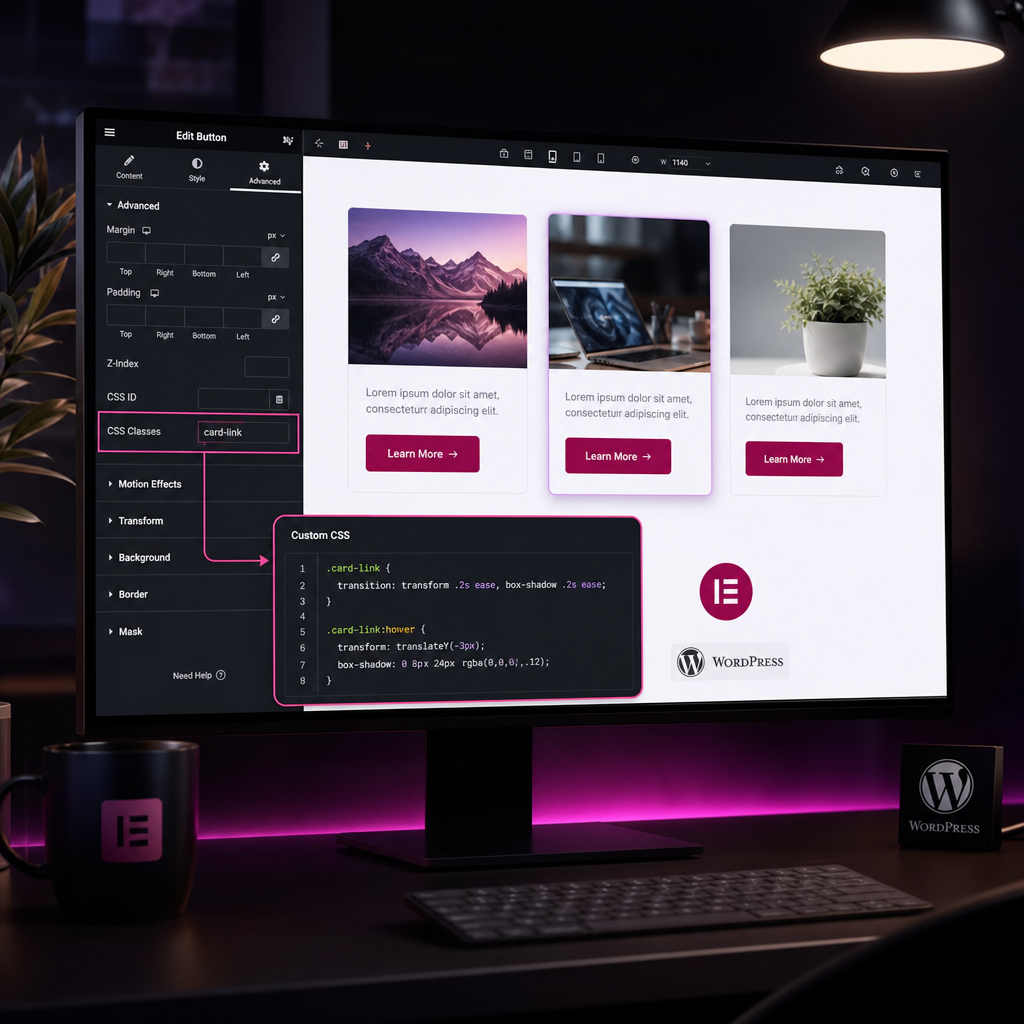
When a page contains several identical buttons, cards, or information blocks, manually configuring each widget quickly becomes routine work. Changing spacing, shadows, or hover effects means repeating the same actions in dozens of places.
A CSS class lets you group elements under one rule. You assign them the same name and define the styles in one place. As a result, the design remains consistent, while future changes are faster and less likely to miss an individual element.
What Is a CSS Class and Why Is It Needed in Elementor?
A CSS class is a name that the browser uses to identify page elements and apply predefined styles to them. For example, you can assign the card-link class to all cards that share the same behavior: a slight lift on hover, a shadow, and a smooth animation.
Unlike manually formatting every widget, a shared class creates one rule for the entire group. If you need to change the shadow intensity or transition speed, you only have to edit the CSS once.
A class does not change the page structure and is not visible to visitors. It works as a marker that connects an Elementor element with CSS rules.
- less style duplication and manual work;
- a consistent appearance for all elements in the group;
- faster changes in the future;
- more convenient responsive behavior settings;
- easier page maintenance by other developers or content managers.
How to Add a CSS Class to an Elementor Widget
First, open the page in the Elementor editor and select the required widget, container, or section. Then open the Advanced tab and find the CSS Classes field. The names of individual options may differ slightly depending on the Elementor version and the type of element selected.
Enter the class name without a period. For example, the correct format is card-link. The .card-link format is used in a CSS selector, not in the Elementor field.
If an element needs several classes, you can enter them separated by spaces: card-link featured. This allows you to combine a base style with an additional modifier.
After adding the class, save the changes and repeat the process for all elements that should share the same design. On large pages, it is useful to define logical groups first: product cards, call-to-action buttons, navigation links, or sections with the same structure.
- Widget or container → Advanced → CSS Classes.
- Enter the class name without a period or special characters.
- Use clear names such as card-link, pricing-card, and button-primary.
- Do not use the same name for elements that require fundamentally different styles.
Where to Place CSS Rules
The class only identifies an element. For it to affect the page appearance, you must add CSS rules. The best location depends on the site configuration and the Elementor features available to you.
If Custom CSS is available in your Elementor version and plan, you can add rules at the level of a specific widget, page, or template. For global styles, it is more convenient to use Additional CSS in the theme settings or the WordPress editor. The name and location of this option may vary depending on the theme and WordPress version.
Global classes are best kept in one centralized location. Avoid distributing identical rules across dozens of widgets: over time, it will become difficult to determine which rule has priority.
- For a repeated style across the entire site, use a global stylesheet or Additional CSS.
- For a style used on one page, use that page's CSS, if the option is available.
- For one specific element, use local CSS, but only when the style is genuinely not repeated.
- After publishing, clear the site, optimization plugin, or CDN cache if the changes are not visible.
Example of a Basic Style for Cards or Links
Below is a simple example of the card-link class. It adds a smooth transition, a slight lift on hover, and a shadow. The period before the class name is required in CSS.
.card-link {
  transition: transform 0.2s ease, box-shadow 0.2s ease;
}

.card-link:hover {
  transform: translateY(-3px);
  box-shadow: 0 8px 24px rgba(0, 0, 0, 0.12);
}
How to Make a Style Mobile-Friendly
An effect that works well with a mouse is not always appropriate on a smartphone. Touchscreens do not have the same hover state as desktop devices, and excessive card movement may make the interface feel unstable.
You can add responsive rules to the same class through a media query. For example, on narrow screens, reduce the shadow, remove the movement, or change the spacing. This is better than editing every card separately in Elementor.
If an effect is needed only on devices with a cursor, you can limit it using hover and pointer conditions. This approach reduces unwanted effects on touchscreens.
- Test the class on a real smartphone or in responsive preview mode.
- Do not rely on hover alone for important information or navigation.
- Maintain sufficient text-to-background contrast after adding shadows or transparency.
- Check that transform or excessive spacing does not create horizontal scrolling.
@media (max-width: 767px) {
  .card-link:hover {
    transform: none;
    box-shadow: 0 4px 14px rgba(0, 0, 0, 0.08);
  }
}

@media (prefers-reduced-motion: reduce) {
  .card-link {
    transition: none;
  }
}
How to Combine Base Classes and Modifiers
A single class does not have to describe every design variation. It is convenient to create a base class for shared properties and use additional classes for specific variants.
For example, all cards can use card-link for the same animation, while important cards can also have the featured class. In Elementor, enter these names separated by a space; in CSS, combine them as separate selectors.
This approach helps avoid copying an entire set of properties. If the base style changes, all cards are updated, while the special differences remain only in the modifier.
- card-link — shared behavior for all cards;
- featured — additional emphasis for selected cards;
- compact — a compact version with less spacing;
- dark — a version for a dark background.
.card-link {
  transition: transform 0.2s ease, box-shadow 0.2s ease;
}

.card-link:hover {
  transform: translateY(-3px);
}

.card-link.featured {
  border: 2px solid #2563eb;
}

.card-link.compact {
  padding: 16px;
}
Common Mistakes When Working with CSS Classes
The most common mistake is adding a period in Elementor's CSS Classes field. The period is needed only in the stylesheet. If you enter .card-link in the field, the selector will not work as intended.
Another problem occurs when the class is assigned to a parent container even though the styles should apply to an inner button or heading. In this case, check the HTML structure in the browser's developer tools and use a child selector if necessary.
CSS may also fail to apply because another rule has higher specificity, an inline style is present, or a cached version is being displayed. Do not start with !important immediately: first check which rule overrides your style.
Use general names such as box, item, or block with caution. They may conflict with classes from the theme, a plugin, or another part of the site. More specific names with a project or component prefix are safer.
- There is no period in the Elementor field, but there is one in the CSS selector.
- Class names are written without internal spaces; a space separates different classes.
- After changing CSS, check the browser, WordPress, and optimization plugin caches.
- Do not use !important unless necessary.
- Make sure the class is added at the exact level that needs to be styled.
Checking the Result Before Publishing
After adding the class, check not only the appearance but also the component's behavior in different states. Open the page in an incognito window or clear the cache to see the current version of the styles.
Hover over all elements in the group, test button clicks, keyboard focus, and the display on narrow screens. If the class is used for links or buttons, the effect should not hide their interactive state.
For troubleshooting, right-click the element and open the developer tools. In the styles panel, you can check whether the required class is present and which rule is actually being applied.
- The class is present in the markup of the intended element.
- The CSS file or style block loads without errors.
- The rule is not overridden by a style with higher specificity.
- The desktop, tablet, and mobile versions display correctly.
- Keyboard focus, contrast, and accessibility have not deteriorated.
Frequently asked questions
Do I need to put a period before the class name in Elementor?
No. In the CSS Classes field, enter the name without a period, for example card-link. The period is needed only in CSS: .card-link { ... }.
Can I add several CSS classes to one widget?
Yes. Enter the names separated by spaces, for example card-link featured. One class can contain the base styles, while another adds a specific design variation.
Why does the CSS class not work after I add it in Elementor?
Check the name, the period in the CSS selector, where the styles were added, the specificity of other rules, and the cache. Also make sure the class is assigned to the intended widget or container.
Where is the best place to store global CSS classes for a site?
For styles repeated across different pages, use a centralized location: Elementor Custom CSS, if available, or WordPress Additional CSS or the theme's global stylesheet.
Can CSS classes completely replace Elementor CSS settings?
Not always. Elementor's visual settings are convenient for unique elements and quick content editing. CSS classes work best for repeated rules, effects, and components with consistent logic.
Conclusion
CSS classes in Elementor let you turn a collection of identical manual settings into a clear system. Assign a shared class to the required elements and define its style once.
For consistent results, use logical names, keep global rules centralized, check specificity, and remember mobile devices. This approach simplifies page maintenance and helps preserve a consistent design throughout the site.