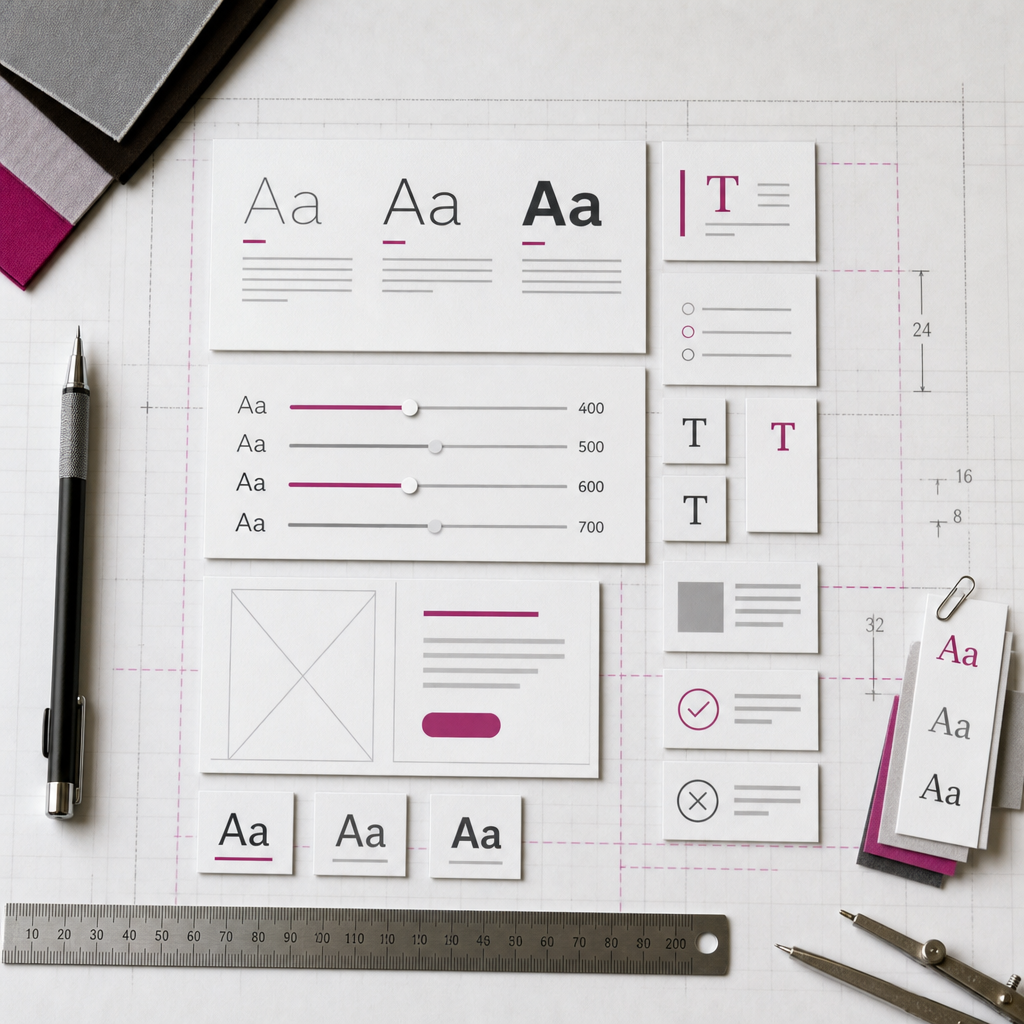
Fonts in Elementor affect more than a page’s appearance—they also affect its performance. Each font style, such as 400, 500, or 700, is usually loaded as a separate file. If you add several families, multiple weights, and different styles, the browser has to load more resources before the text is displayed correctly.
The result can be a slower initial display of text, layout shifts, and a change in the font’s appearance once the web font has loaded. Below is a practical way to review Elementor’s settings, keep only the files you need, and maintain your site’s readability.
Why Unnecessary Fonts Slow Down a Site
Each font family and style may be a separate resource. For example, body text may use Roboto 400, subheadings may use Roboto 600, while buttons may accidentally use another family at weight 700. As a result, the page generates unnecessary requests even when the visual difference between the fonts is barely noticeable.
Fonts have an especially strong impact on mobile devices, where connections are slower, network latency is higher, and browser resources are more limited. If the required font is delayed, the text may initially be displayed in a system font and then change width. This can shift the content and make the user see the text jump.
It is important to assess not only file size but also the number of variants the page actually requests. One carefully selected font with two styles is often more practical than three similar families with several weights each.
- body text most often needs weight 400 or 400–500;
- headings usually need only 600 or 700;
- italic, 300, 500, and other variants should be kept only when they are genuinely needed;
- check fonts used separately by buttons, menus, forms, and popups.
Audit Fonts in Elementor
Start with the global settings. In the Elementor editor, open the Site Settings and the Global Fonts section. The names of these options may vary slightly depending on the Elementor version or active theme, but the underlying logic is the same: this is where the main styles for headings, body text, accents, and additional elements are defined.
Check which families and weights are assigned to each role. If body text uses one family and headings use another, that may be justified by the design. However, three or four similar fonts without a clear purpose usually only increase the number of resources and make the site harder to maintain.
Then review individual widgets. Local widget settings can override global styles. This is where accidental values often remain, such as a different family, weight 800, or a separate size for the mobile version.
- compare global fonts with the settings of headings and text widgets;
- check buttons, menus, forms, tabs, popups, and Theme Builder templates;
- find widgets with a manually selected family or weight;
- remove local overrides if they are no longer needed;
- make sure mobile settings change the size rather than adding an unnecessary family or style.
How to Reduce the Number of Font Styles
Create a simple typography system before making changes. For example: one font for all text, 400 for paragraphs, 600 for headings, and, if needed, 700 for individual accents. This structure is not mandatory, but it helps prevent a situation where every widget has its own weight.
Do not replace all values mechanically. If the brand uses a light font or italics in important elements, first review the design on real pages. Excessive simplification can weaken heading hierarchy, contrast, and readability.
After changing global fonts, review pages with long headings, tables, cards, and buttons. A different style can change text width and line wrapping, so it is important to check more than just the homepage.
- keep only the weights used in the design;
- do not use 400, 500, 600, and 700 just in case;
- do not load a separate font for buttons unless it provides a clear design benefit;
- after cleaning up the settings, check every state: default, hover, active, and mobile.
Configure Custom Fonts Without Unnecessary Files
If the site uses custom fonts, upload only the files that are actually needed. In most modern cases, WOFF2 is sufficient: it compresses well and is supported by current browsers. Older formats may be required only for specific compatibility needs.
For each family, check which files have been added under Custom Fonts: normal, italic, different weights, and language subsets. A 300 file is unnecessary if weight 300 is not used anywhere in Elementor. Likewise, there is no need to upload italic if it is not used in the text or design.
Be careful with subsets and Cyrillic support. If a font is prepared only for Latin characters, Ukrainian characters may be displayed in a system font or rendered incorrectly. Before removing language subsets, check the Ukrainian, English, and other characters used on the site.
Also make sure that the same typeface is not loaded from multiple sources at the same time—for example, as a local Custom Font and through an external service or theme settings. Loading it twice increases the number of resources and may cause conflicts.
- use WOFF2 unless there is a specific need for other formats;
- upload only the required weights and styles;
- check that local files include Cyrillic characters;
- do not load the same family simultaneously through Elementor, the theme, and a third-party plugin;
- use clear file names so that styles are not confused during configuration.
How to Check Which Fonts Are Actually Loading
After making changes, open the page in an incognito window or clear the cache if the site uses a caching plugin or CDN. Then use the browser’s developer tools. In the Network tab, filter requests by the Font type to see which files are loading, where they come from, and how large they are.
The check should not be limited to the homepage. Some fonts may appear only in a blog template, cart, form, popup, or mobile menu. Open several typical pages and compare the list of requests.
In Lighthouse or another audit tool, pay attention to issues related to web font rendering and layout shifts. Test results depend on the cache, server, and network, so evaluate a consistent pattern across several pages rather than relying on a single number.
- check the names and number of requests in the Font category;
- find out whether a font is loading from two different sources;
- view the page on a mobile device or in mobile emulation;
- compare the appearance of the text before and after the font loads;
- clear the Elementor, caching-plugin, and CDN caches after major changes.
Common Font Optimization Mistakes
The first mistake is removing a style without checking all templates. As a result, some text may switch to another font or lose the intended visual hierarchy. Changes are best made after an audit rather than at random.
The second mistake is optimizing only the homepage. In WordPress, different post types and Elementor templates may have their own styles. Check service pages, the blog, archives, forms, and system screens.
The third mistake is adding a system fallback without checking the difference in character width. If the fallback font differs significantly, the text may shift after the primary font loads. It is safer to choose a similar fallback and test it with real content.
The fourth mistake is using universal performance settings without reviewing the design. Disabling external fonts or applying aggressive optimization may speed up an individual test but damage the brand style, Cyrillic support, or the rendering of certain characters.
- do not delete files without checking pages and templates;
- do not confuse Elementor global styles with actual local overrides;
- do not assess optimization only on the desktop version;
- remember to check the cache after making changes;
- do not sacrifice readability for the sake of minimizing the number of files.
Frequently asked questions
How many fonts should be used on an Elementor site?
There is no universal number, but one primary family and, if needed, one accent family are sufficient for most sites. The number of families is less important than the number of styles and the pages where they are actually used.
Do I need to upload every font weight from 100 to 900?
No. Upload only the weights used in the design and Elementor styles. If the site needs 400 and 600, files for 300, 500, 700, and 800 without a specific use only increase the number of resources.
Is configuring fonts in the global styles enough?
Global styles are an important foundation, but they do not replace an audit of individual widgets and templates. Local settings can override global styles, and fonts may also be loaded by the theme or plugins.
Which file format is best for Custom Fonts?
For modern sites, WOFF2 is usually sufficient. However, check support for the browsers you need and confirm that Cyrillic characters are included. Do not upload multiple formats without a practical reason.
Conclusion
Elementor font optimization starts not with installing another plugin, but with taking inventory: which families, weights, and styles does the site actually need? Remove unnecessary variants from global and local settings, check Custom Fonts, and make sure the same typeface is not loaded twice.
After making changes, test pages on a mobile device, check Font requests, and make sure the text does not shift after loading. This approach helps preserve brand typography and readability while also making WordPress pages appear faster.