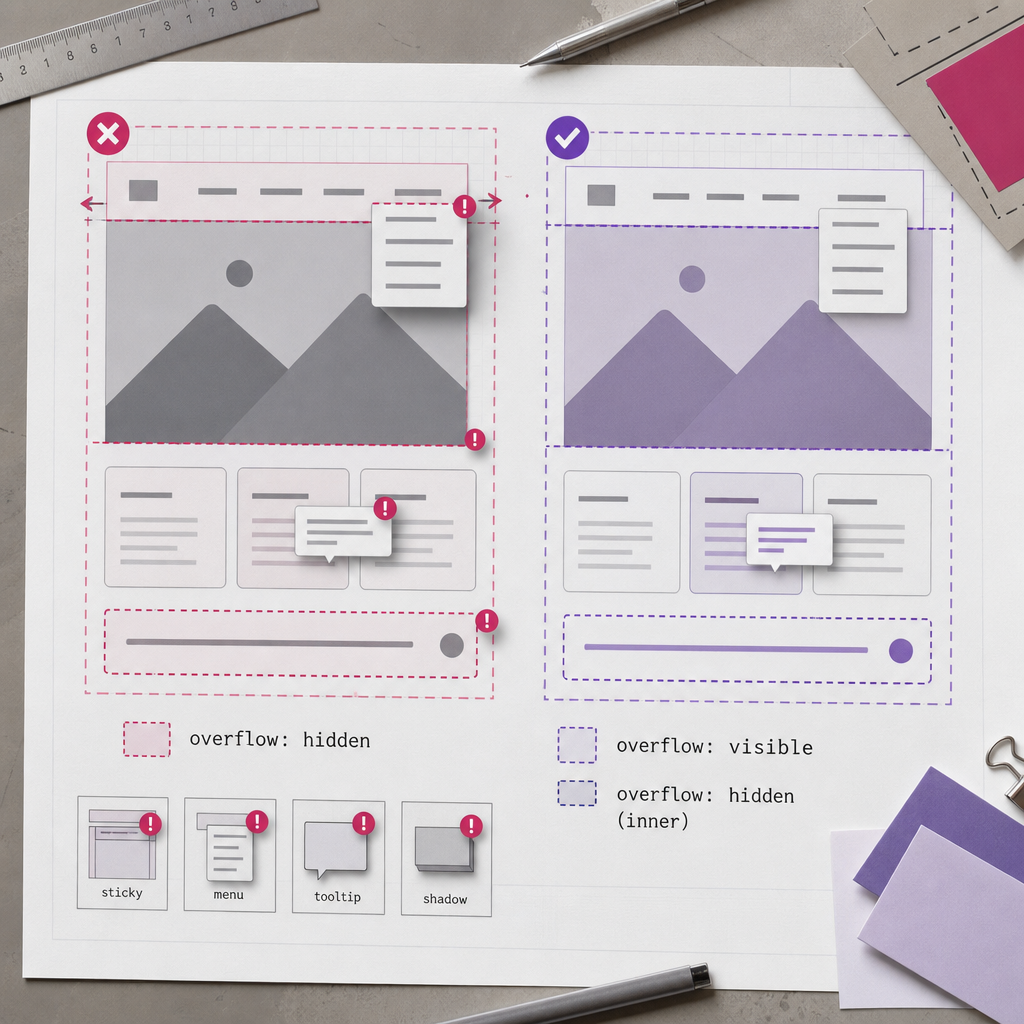
The overflow: hidden property is often added in Elementor to crop a background image, decorative circles, or unwanted horizontal scrolling. At first glance, this seems like a simple and safe solution, but on a parent container it changes how all child elements behave.
As a result, sticky blocks may stop working, menus may be clipped, and tooltips, badges, shadows, and modal elements may be partially hidden. Below, we explain why this happens and how to limit overflow only where it is genuinely needed.
What overflow: hidden does in a container
The overflow property determines how the browser should handle content that extends beyond an element’s boundaries. The hidden value conceals anything that does not fit inside the container’s padding box. This content does not simply become less visible—it is actually clipped and cannot be displayed over the parent element’s edges.
This applies to more than decorative graphics. If a child element uses position: absolute, a large box-shadow, transform, or a negative margin, it may also be clipped. Increasing z-index will not help: an element with a higher z-index still cannot extend beyond an ancestor that creates clipping.
- decorative circles, lines, and pseudo-elements may be clipped;
- card shadows may no longer be visible around the edges;
- a dropdown menu may appear only within the section’s boundaries;
- a tooltip, badge, or hint may disappear partially;
- a sticky element may stop sticking while the page is being scrolled.
Why overflow: hidden breaks sticky positioning
position: sticky works relative to the nearest ancestor that creates a scrolling area or imposes an overflow constraint. When overflow: hidden is applied to one of the parent containers, the browser may start treating it as a scrolling area, even if the user is not actually scrolling that container.
As a result, a sticky header or sticky column may respond not to the browser window’s scrolling, but to the height and boundaries of the problematic ancestor. If the container is short or its content has already ended, the sticky element will not behave as expected: it may fail to stick, stop too soon, or disappear beyond the parent block’s boundaries.
For this reason, avoid applying overflow: hidden to a general-purpose container that contains a header, navigation, sticky blocks, or other elements that need to extend beyond the section.
- Check overflow not only on the sticky element itself, but also on all of its parent containers.
- Look for overflow: hidden or auto on the section, inner container, and wrapper elements.
- Make sure sticky has the required offset, such as top, and that the parent block is tall enough.
- Test the result on the live page, not only in the Elementor editor.
Which elements are most often clipped
The problem usually does not appear immediately after overflow is added. It often becomes visible during interaction with the page. A block may look correct in its normal state, but part of the interface can disappear when the user hovers over it or opens a menu.
Pay particular attention to elements that are intentionally designed to extend beyond their container or are positioned above other blocks.
- dropdown and mega menus when their lists open downward or sideways;
- tooltips and hints that appear above a button;
- discount badges, labels, and decorative icons positioned beyond a card’s edge;
- box-shadow on cards, buttons, and form fields;
- sliders, carousels, and horizontal lists;
- popups and other interactive elements positioned relative to an ancestor.
A safer structure: clip the inner container
The most reliable solution is to separate the roles of your containers. Leave the outer container with overflow: visible so that sticky elements, menus, shadows, and interactive components can extend beyond its boundaries. Use a separate inner wrapper only for the background graphic, image, or decorative layer that needs to be clipped.
For example, a section may contain an inner block with a background image. Apply overflow: hidden to that block only, while placing the navigation, heading, or cards outside the clipping area. In Elementor, this often means adding an additional inner container instead of applying the property to the section’s main container.
If a decorative element is created with ::before or ::after, check exactly which element it is attached to. The pseudo-element should be clipped together with the decorative wrapper, not with the container that holds the block’s entire functionality.
- Outer container: overflow: visible.
- Inner wrapper for the image or background: overflow: hidden.
- Sticky header and menu: outside the container that clips content.
- Use z-index to control stacking order, not as a way to cancel clipping.
.section-wrapper {
  overflow: visible;
  position: relative;
}

.section-wrapper__media {
  overflow: hidden;
  border-radius: 24px;
}

.section-wrapper__menu {
  position: relative;
  z-index: 10;
}
When overflow-x: clip is appropriate
If your only goal is to hide horizontal overflow, consider overflow-x: clip. Unlike hidden, clip is intended specifically to crop content without creating a separate scrolling area. In many situations, this has less impact on sticky behavior.
However, clip is not a universal fix. It still clips elements horizontally, so a menu, tooltip, or shadow that needs to extend beyond the right or left edge may disappear. You should also consider support in the browsers you need to target and test the page on the devices used by your audience.
- Use clip only where horizontal overflow genuinely needs to be clipped.
- Do not use it on a container through which a dropdown menu needs to open.
- After making the change, test sticky elements, horizontal lists, sliders, and mobile navigation.
selector {
  overflow-x: clip;
}
Why overflow-x: hidden is not always equivalent
A common mistake is replacing overflow: hidden with overflow-x: hidden and assuming the problem has been solved. In CSS, values for the other axis may be computed unexpectedly: in some cases, combining hidden horizontally with visible vertically effectively creates a constraint on the vertical axis as well. If you only need to remove horizontal scrolling, clip usually describes that intention more accurately, but compatibility and actual behavior still need to be tested.
How to find the problematic container in Elementor
If a sticky element, menu, or shadow stops working after a style change, do not delete CSS at random. First identify which ancestor is clipping the element. Open your browser’s developer tools, select the problematic block, and check its parent elements one by one.
In the styles panel, look for overflow, overflow-x, overflow-y, transform, position, and z-index. Temporarily disable the properties one at a time. If the element reappears or sticky positioning starts working after overflow is disabled, you have found the cause.
- Check the outer section, main container, and all inner wrapper blocks.
- See whether the element is clipped on only one side.
- Check the :hover, :focus, and open-menu states.
- Review the page at a mobile width and while scrolling.
- After making changes, clear the cache if the site uses CSS caching or style optimization.
Common mistakes and the final check
The most common mistake is adding overflow: hidden to an entire section because of a single decorative element. This solves a local problem but creates side effects for all of the section’s content. Another mistake is trying to fix a clipped dropdown with z-index. If the menu has already been clipped by an ancestor, z-index cannot make it extend outside that ancestor.
Before publishing, check more than the appearance in the editor. The responsive version, sticky behavior, and menu interactions often behave differently from the static preview.
- Does the header stick while the page is being scrolled?
- Does the dropdown menu open fully near both the top and bottom of the screen?
- Are tooltips, badges, shadows, and icons fully visible?
- Has horizontal scrolling appeared on mobile?
- Do buttons, sliders, and keyboard focus work correctly?
- Is overflow applied only to the wrapper that actually needs it?
Frequently asked questions
Can I simply add z-index if the menu is clipped?
No. z-index changes the stacking order, but it does not cancel clipping created by overflow: hidden or another constraint on an ancestor. First remove overflow from the parent container or move the menu into a separate wrapper.
Where is the best place to apply overflow: hidden for a background image?
Apply it to an inner container responsible only for the image or decorative layer. The main container containing the menu, sticky elements, and interactive content should preferably remain overflow: visible.
Does overflow-x: clip always fix sticky positioning?
No. It may reduce the impact of horizontal clipping on scrolling behavior, but it still hides content beyond the container’s boundaries. Test sticky elements, menus, and the browsers you need to support after applying it.
Why is the problem visible only on mobile?
On mobile, menus, badges, and decorative elements are more likely to extend beyond the narrow container boundaries. Block heights and scrolling behavior also change, so hidden overflow becomes more noticeable.
Can I keep overflow: hidden on a container with a sticky header?
It is better not to, unless there is a clear reason to do so. For a sticky header, it is safer to use a container with overflow: visible and move decorative clipping to a separate inner block.
Conclusion
overflow: hidden is a useful tool, but it should not be applied to an entire Elementor container by default. It clips not only decorative elements, but any content that extends beyond the boundaries, and it can affect sticky behavior.
The practical rule is simple: keep functional and interactive elements in a container with overflow: visible, and apply clipping locally to an inner wrapper containing the background or image. After every change, test the desktop and mobile versions, menus, and page scrolling.