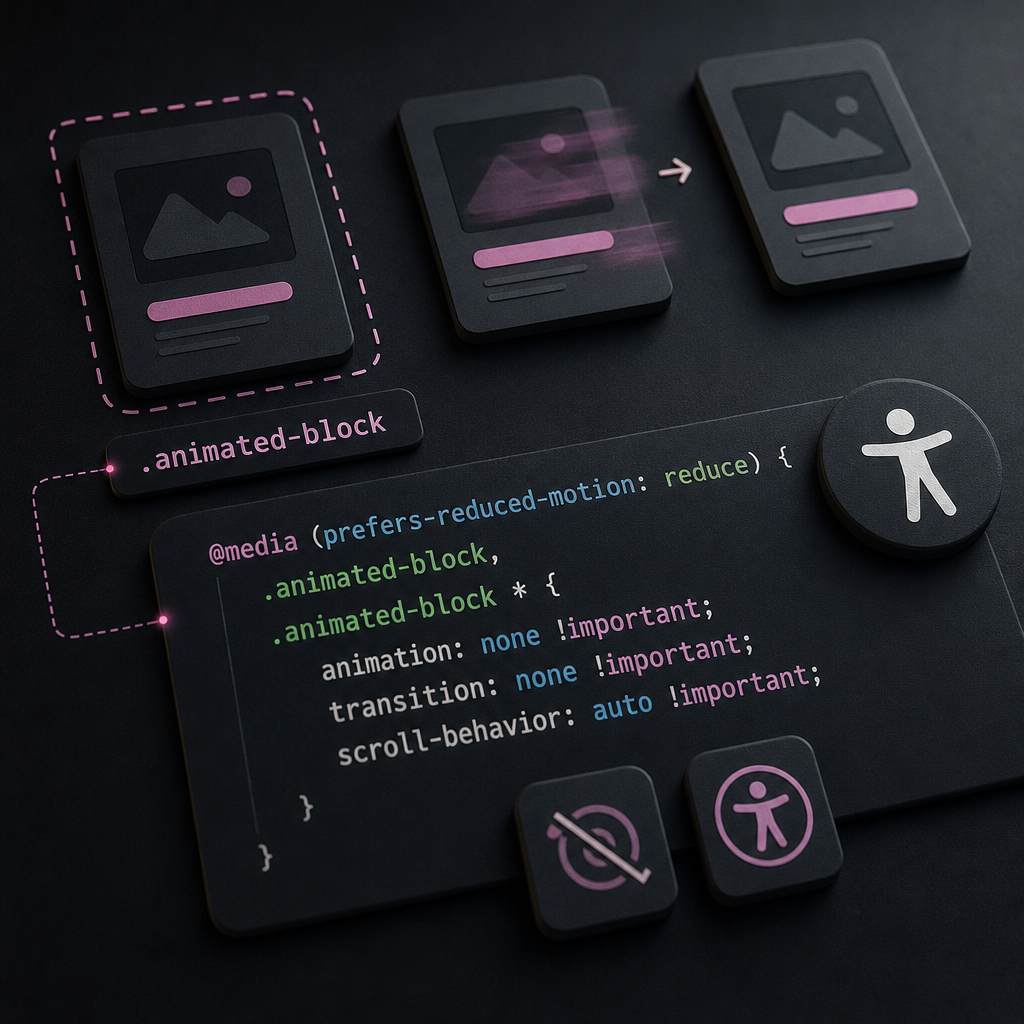
Animations help draw attention to important page elements, but not every user is comfortable with movement. People with increased sensitivity to animation, vestibular disorders, or migraines may enable a reduced-motion setting in their operating system.
The CSS prefers-reduced-motion media query allows a website to respond to this setting automatically, without JavaScript. In Elementor, you need to mark animated blocks correctly, add a CSS rule, and separately review Motion Effects, which may be controlled by more than standard transition and animation properties.
What Is prefers-reduced-motion and Why Should You Support It?
prefers-reduced-motion is a CSS media query that indicates that a user has requested less motion in their device settings. The browser passes this information to the website, which can then disable or simplify animations.
This does not mean that every visual change must be removed. Usually, it is enough to disable decorative movement such as parallax, floating effects, hover scaling, long transitions, autoplaying sliders, and entrance animations. Color changes, shadows, or a clear, immediate hover state are often still appropriate.
This approach improves accessibility and UX: users receive the same content and functionality without potentially uncomfortable movement.
- prefers-reduced-motion works at the operating system or browser settings level;
- the media query does not require JavaScript;
- the rule should be applied to every component that contains movement, not only one hero section;
- accessibility does not replace performance testing: excessive animations can slow down a site for users who do not enable reduced motion as well.
How to Prepare Blocks in Elementor
Start by making a list of elements that contain animation. Check hover effects on buttons and cards, color or shadow transitions, blocks that appear while scrolling, parallax backgrounds, floating effects, and other Motion Effects.
Add a shared CSS class, such as animated-block, to each container, section, or widget that contains movement. In Elementor, the class is usually assigned in the element's advanced settings, in the CSS Classes field. The names and availability of individual fields may vary depending on your Elementor and theme configuration.
Do not add this class to the entire site without a specific reason. If a rule disables transitions on a large container, it may also affect nested buttons, links, and other elements that need their standard hover state.
- add the animated-block class to cards, buttons, sections, and containers that contain movement;
- also check nested elements, pseudo-elements, and background effects;
- use clear class names so that all animated blocks are easy to find several months later;
- if the site contains many components, you can create separate classes for different scenarios: animated-block, parallax-block, and floating-element.
CSS for Disabling transition and animation
Add the CSS in Elementor Custom CSS, if this feature is available in your configuration, or in another centralized location for theme styles. The rule below disables CSS animations and transitions in the marked block and all of its child elements.
Using !important is justified here because it helps override styles from individual widgets and global Elementor rules. However, do not apply this approach to every page element without limiting it to a class, as that could change the interface unpredictably.
@media (prefers-reduced-motion: reduce) {
  .animated-block,
  .animated-block * {
    animation: none !important;
    transition: none !important;
  }

  html {
    scroll-behavior: auto !important;
  }
}
Why scroll-behavior Should Be Set on html
Smooth scrolling is usually set on the document through html rather than on a specific block. For this reason, scroll-behavior: auto is best placed in a separate rule for html. It disables the smooth transition when navigating to an anchor or scrolling programmatically.
This rule does not disable scrolling itself—it only removes the animated transition. Users can still move between sections and use anchor links.
What to Do If the Animation Changes transform or opacity
Disabling animation and transition does not always return an element to its original visual state. For example, if a block permanently has transform: translateY(...) or opacity: 0, it may remain shifted or invisible after the transition is disabled.
In that case, add final static values for reduced motion. The specific properties depend on your animation.
@media (prefers-reduced-motion: reduce) {
  .animated-block,
  .animated-block * {
    animation: none !important;
    transition: none !important;
    transform: none !important;
    opacity: 1 !important;
  }
}
What to Do with Elementor Motion Effects
Motion Effects can work more complexly than standard CSS hover effects. Parallax, scrolling effects, entrance animations, and floating effects may change transform while the user scrolls or may be triggered by Elementor's own logic. A rule for transition alone is sometimes insufficient.
For important content, the most reliable option is to prepare a simplified version without parallax, floating, or scrolling animations. It should contain the same text, images, and functionality but should not depend on movement.
If a page uses two versions of a block, take care with accessibility. Do not leave two identical headings, buttons, or links in the accessibility tree at the same time. Hide the inactive version in a way that prevents screen readers from reading the duplicate.
- the animated block has the animated-version class;
- the static alternative has the reduced-version class;
- the animated-version is displayed by default;
- in reduced-motion mode, the animated-version is hidden and the reduced-version is displayed;
- check that the hidden block is not still available to the keyboard or screen reader.
.reduced-version {
  display: none;
}

@media (prefers-reduced-motion: reduce) {
  .animated-version {
    display: none !important;
  }

  .reduced-version {
    display: block !important;
  }
}
When You Do Not Need a Separate Copy of the Block
If the effect is purely decorative and the content looks correct after the effect is disabled, it is better to keep a single block. This reduces HTML duplication and simplifies maintenance.
A separate static version is justified when the animation affects the composition, visibility, or presentation of information, and simply removing transform or transition does not produce a correct result.
How to Test the Site
After adding the CSS, test not only in the Elementor editor but also on the published page in both standard and reduced-motion modes. The editor may display effects differently from the frontend, and caching can hide style changes.
You can check the media query in the browser's DevTools: open the developer tools, find the prefers-reduced-motion emulation setting, and switch it to reduce. The name of this option varies by browser.
It is also useful to test the page on a real device with the system reduced-motion setting enabled. Pay particular attention to menus, modal windows, sliders, sticky elements, anchor navigation, and forms.
- in reduce mode, entrance, floating, parallax, and scroll animations do not run;
- content does not become invisible because of opacity or transform;
- buttons and links remain accessible by keyboard;
- there is no horizontal scrolling or layout jumping;
- anchor navigation works without a smooth animation;
- after reduced motion is disabled, the standard version of the site continues to work correctly.
Common Configuration Mistakes
The most common mistake is disabling only transition when the effect is implemented through keyframes or Motion Effects. For broader coverage, account for animation, transform, opacity, and scrolling as well.
Another problem is adding the CSS without clearing the cache. After making changes, check the cache for your optimization plugin, CDN, and browser. Also confirm that the styles are actually loaded on the frontend.
Do not hide important information only for users with reduced motion. The simplified version must preserve the content, navigation, and primary actions. The goal is to remove movement, not reduce functionality.
Do not rely only on visual testing. Confirm that the static block is not duplicated for screen readers and that hidden buttons do not remain available during Tab navigation.
- do not use prefers-reduced-motion as a reason to hide content;
- do not add !important to global selectors without limiting them to a class;
- do not assume that disabling CSS automatically stops every JavaScript effect;
- do not forget about mobile menus, sliders, and popups—they may also contain movement.
Frequently asked questions
Do all animations need to be completely disabled for prefers-reduced-motion?
No. You should remove or simplify movement that may cause discomfort, such as parallax, floating effects, long transitions, scaling, and entrance animations. Small color or shadow changes can often remain if they do not create a sense of movement.
Does prefers-reduced-motion work without JavaScript?
Yes. It is a standard CSS media query. For standard animations and transitions, the media query and correctly assigned classes are enough. However, complex Elementor or third-party plugin effects may require a separate static version of the block.
Why does an element remain invisible after the animation is disabled?
The initial state is probably set through opacity, transform, or another property rather than only through transition. In reduced-motion mode, you need to explicitly set a static state, such as opacity: 1 and transform: none, if that matches the structure of your block.
Where should I add the CSS if Elementor does not include Custom CSS?
Use a centralized additional-styles field in the theme or another CSS integration method available in your WordPress configuration. The important point is that the rule must load on the published page and must not be overridden by later styles.
Is testing only the homepage enough?
No. Animations may appear in menus, popups, forms, sliders, cards, post templates, and mobile layouts. Test all typical components, especially those that appear during scrolling or user interaction.
Conclusion
Supporting prefers-reduced-motion in Elementor starts with an animation audit: find blocks that use transition, animation, and Motion Effects, give them clear classes, and disable movement with a CSS media query.
For complex effects, prepare a static alternative and verify that it preserves all content and functionality. This approach requires no JavaScript, improves accessibility, and gives users greater control over the comfort of interacting with the site.