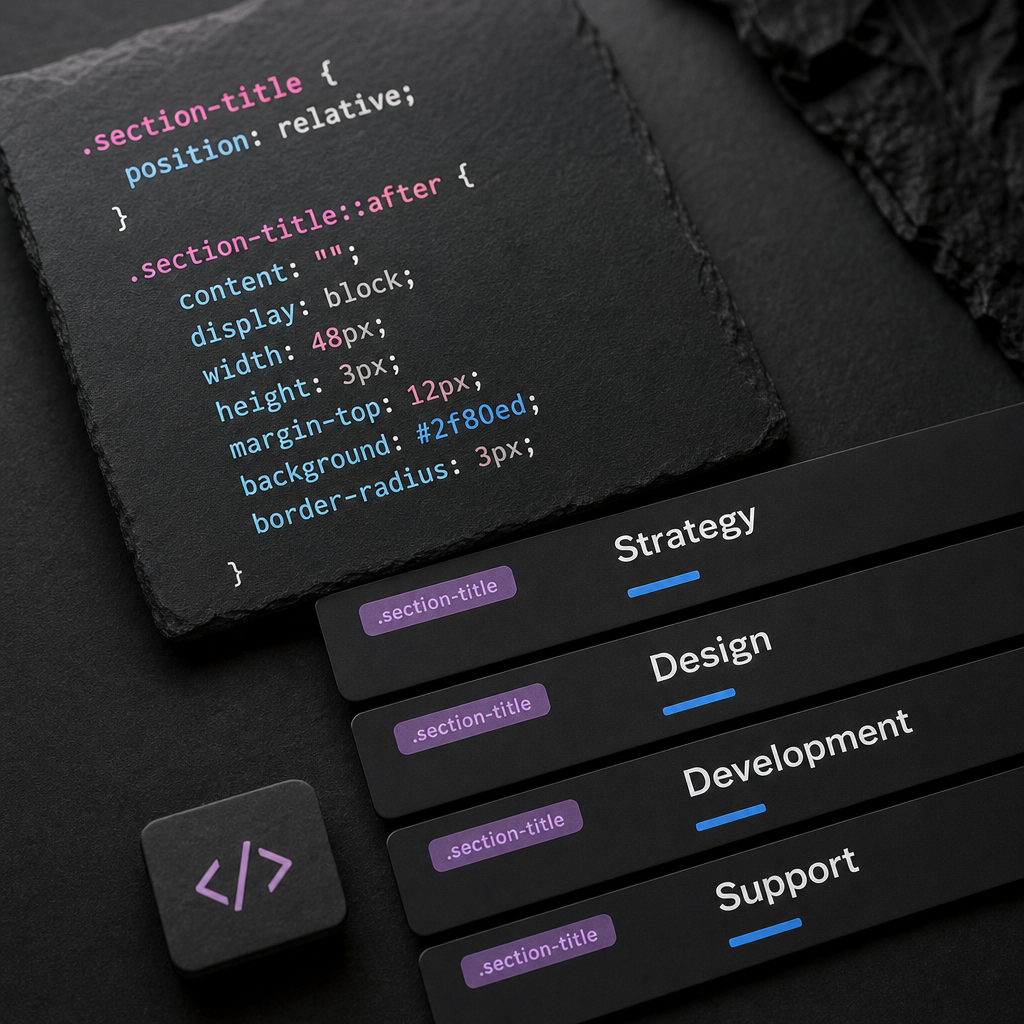
The ::before and ::after pseudo-elements let you add decorative objects without creating separate containers, dividers, or additional widgets. They can be used to create a line below a heading, a colored dot, a background layer, a decorative shape, or an overlay on an image.
This approach helps reduce the number of elements in the page structure and keeps the design easier to manage. Below, we will explain how to prepare a class in Elementor, where to add CSS, when to use ::before or ::after, and which common issues can prevent the expected result.
What Are ::before and ::after?
A pseudo-element is a virtual element that the browser creates through CSS. It is not added to the HTML as a separate widget, but it can have dimensions, a background, a border, a position, and other styles.
::before is usually placed before an element’s content, while ::after is placed after it. However, the actual position depends on the display and position properties. For a simple decorative line below a heading, ::after is convenient; for a background or accent placed behind text, ::before is often more suitable.
Pseudo-elements are best suited to visual details that do not convey separate meaning. A section title, important message, or other information that users need to read should not be hidden inside a pseudo-element.
- There is no need to create a separate container or widget;
- the decorative style can be changed in a single CSS rule;
- the section structure remains simpler;
- the visual element does not add unnecessary text to the page content.
How to Prepare an Element in Elementor
First, add a class to the widget or container that should receive the decorative element. In this example, we will use the class section-title. Enter the class name without a dot: the dot is needed only in the CSS selector.
In Elementor, a class is usually added in the element’s additional settings, in the CSS Classes field. You can then place the CSS in Elementor Pro Custom CSS, the theme styles, or another connected stylesheet.
If the rule is added directly to a specific widget through Elementor’s Custom CSS field, the special selector selector is often used instead of the class name. This lets you target the current element specifically.
- Add the section-title class to the widget.
- Make sure the class is written identically in the HTML and CSS.
- For a global rule, use .section-title.
- For CSS applied to a specific widget, use selector::before or selector::after if this is supported by the Custom CSS field.
- After saving, clear the site and browser caches if the changes do not appear.
.section-title {
  position: relative;
}

.section-title::after {
  content: "";
  display: block;
  width: 48px;
  height: 3px;
  margin-top: 12px;
  background: #2f80ed;
  border-radius: 3px;
}
Decorative Line Below a Heading
The simplest use case is adding a short line after a heading. In the example below, ::after behaves like a regular block element, so it moves to a new line. The margin-top value determines the distance from the heading text.
If the line should be centered, align it by setting margin-left and margin-right to auto. For a right-aligned heading, you can set margin-left: auto. It is best to use a color from the site’s global palette so that the same value does not have to be duplicated across different rules.
If the line’s height or width needs to change on mobile devices, you can adjust it with a media query. There is no need to create a separate copy of the heading just to use a different decorative-line length.
- Use display: block for a horizontal line.
- Set a fixed width for a short line.
- For a full-width line, you can use width: 100%.
- border-radius creates softly rounded ends.
- Check the spacing so that the line does not stick to the text or the next block.
.section-title::after {
  content: "";
  display: block;
  width: 48px;
  height: 3px;
  margin-top: 12px;
  background-color: #2f80ed;
  border-radius: 3px;
}

@media (max-width: 767px) {
  .section-title::after {
    width: 36px;
    height: 2px;
    margin-top: 8px;
  }
}
Positioning and Decorative Background Layers
Use position: absolute for overlapping elements. In this case, the parent element must have position: relative so that the pseudo-element is positioned relative to it rather than to another ancestor on the page.
A background layer is usually placed with ::before and given top, right, bottom, and left values. The text or image itself is then brought above it with position: relative and z-index. The z-index property works predictably only when the elements have the appropriate positioning context.
If the pseudo-element overlaps a clickable button or link, add pointer-events: none. This allows users to click the element beneath the decorative layer.
- position: relative on the parent element creates the reference point.
- position: absolute removes the decorative object from the normal document flow.
- z-index helps define the stacking order.
- overflow: hidden can crop decorative shapes that extend beyond the block.
- pointer-events: none is appropriate for a layer that should not respond to clicks.
.card {
  position: relative;
  overflow: hidden;
}

.card::before {
  content: "";
  position: absolute;
  top: 16px;
  right: 16px;
  width: 90px;
  height: 90px;
  background: rgba(47, 128, 237, 0.12);
  border-radius: 50%;
  pointer-events: none;
}

.card__content {
  position: relative;
  z-index: 1;
}
Important CSS Considerations
The content property is required for ::before and ::after. For a decorative element, use content: "". If it is omitted, the browser will generally not create the pseudo-element.
Do not put a heading, price, button label, or other important information in content. Such text may duplicate the page content, behave unpredictably with screen readers, and make the page harder to translate or edit.
Pseudo-elements are not always suitable for replacing HTML elements. For example, an image, a functionally meaningful icon, or a form element should remain accessible in the markup rather than being created only with CSS.
Also take Elementor and theme selector specificity into account. If a rule does not work, check whether it is being overridden by widget styles, global settings, or other CSS.
- Always add content: "" for decorative pseudo-elements.
- Do not use pseudo-elements for important content.
- Check the contrast of decorative details against the background.
- Do not overuse !important; first find the rule that is overriding your style.
- Do not apply the same class to different types of elements without checking the result.
Common Elementor Mistakes
If a decorative line does not appear, the most common causes are an incorrect class, a missing content property, or CSS added in the wrong field. Inspect the element with the browser’s developer tools: the Styles tab will show whether the rule has been applied.
Another common issue is using selector in a global CSS file. selector is a special placeholder that works in the context of Elementor CSS, but a general theme stylesheet requires the actual class, such as .section-title::after.
When using absolute positioning, it is easy to forget position: relative on the parent element. As a result, the shape may move relative to another container or appear in an unexpected location.
On mobile, the element may overlap text, extend beyond the screen, or have excessive spacing. After adding a pseudo-element, check the page at a narrow viewport rather than relying only on the large-screen editor view.
- Incorrect class syntax: section-title instead of .section-title in the class field, or the other way around.
- content is missing.
- selector is used outside the Custom CSS field of a specific widget.
- The pseudo-element has absolute positioning, but the parent block does not have relative positioning.
- The pseudo-element’s color matches the background.
- The cache is showing an older CSS version.
- The decorative layer is covering a button or link.
Where to Add CSS and How to Check the Result
Custom CSS in the Elementor editor is not available in every plan or configuration. If your version does not include this field, you can add the rule through the theme’s additional-styles tools, a child theme, or another safe method of loading custom CSS. The exact location of these options may vary depending on the theme and WordPress settings.
For a single element, a local rule is convenient. For a repeated component, such as all section headings, it is better to create a class and add global CSS. This makes the design easier to maintain.
After publishing, check more than just the appearance: test responsiveness, text accessibility, button interactions, container overflow, and display in popular browsers.
- Check both desktop and mobile versions.
- Make sure the decorative element does not unexpectedly affect height or spacing.
- Check the page without editor styles if the result in the builder differs from the published version.
- Clear the optimization plugin, CDN, and browser caches after changing CSS.
- Store repeated colors and dimensions in CSS variables or global settings if the site follows a unified design system.
:root {
  --accent-color: #2f80ed;
  --title-line-width: 48px;
}

.section-title::after {
  content: "";
  display: block;
  width: var(--title-line-width);
  height: 3px;
  margin-top: 12px;
  background: var(--accent-color);
  border-radius: 3px;
}
Frequently asked questions
Why is ::before or ::after not appearing?
Check that content: "" is present, that the CSS class is correct, and that the rule was added in the right place. Also make sure the style is not being overridden by other CSS and that the cache is not showing an older version of the page.
Can I add a pseudo-element without Elementor Pro?
Yes. You can add CSS through the theme’s capabilities, WordPress additional styles, a child theme, or another connected stylesheet. Custom CSS directly in Elementor may depend on the plan and configuration.
Do I have to use ::before specifically for an element before the text?
Not necessarily. The pseudo-element name describes its logical position in the content, but its final position is determined by display, position, and other CSS properties.
Can I add an icon with content?
Technically, yes—for example, by using a character or an icon-font code. However, important icons require accessibility checks, as well as verification of the font and rendering. Decorative icons should not be the only way information is conveyed.
When should I create a separate widget instead of using a pseudo-element?
Use a separate widget when the element has its own text, link, interactivity, complex responsive behavior, or needs to be edited by a content manager without changing CSS.
Conclusion
The ::before and ::after pseudo-elements are a practical way to add decorative details in Elementor without unnecessary widgets or containers. For reliable results, assign a class to the element, remember to add content: "", and choose the correct positioning context.
Use pseudo-elements only for visual styling, check the mobile version, and do not hide important information inside them. This allows CSS to simplify the page structure without reducing accessibility or maintainability.