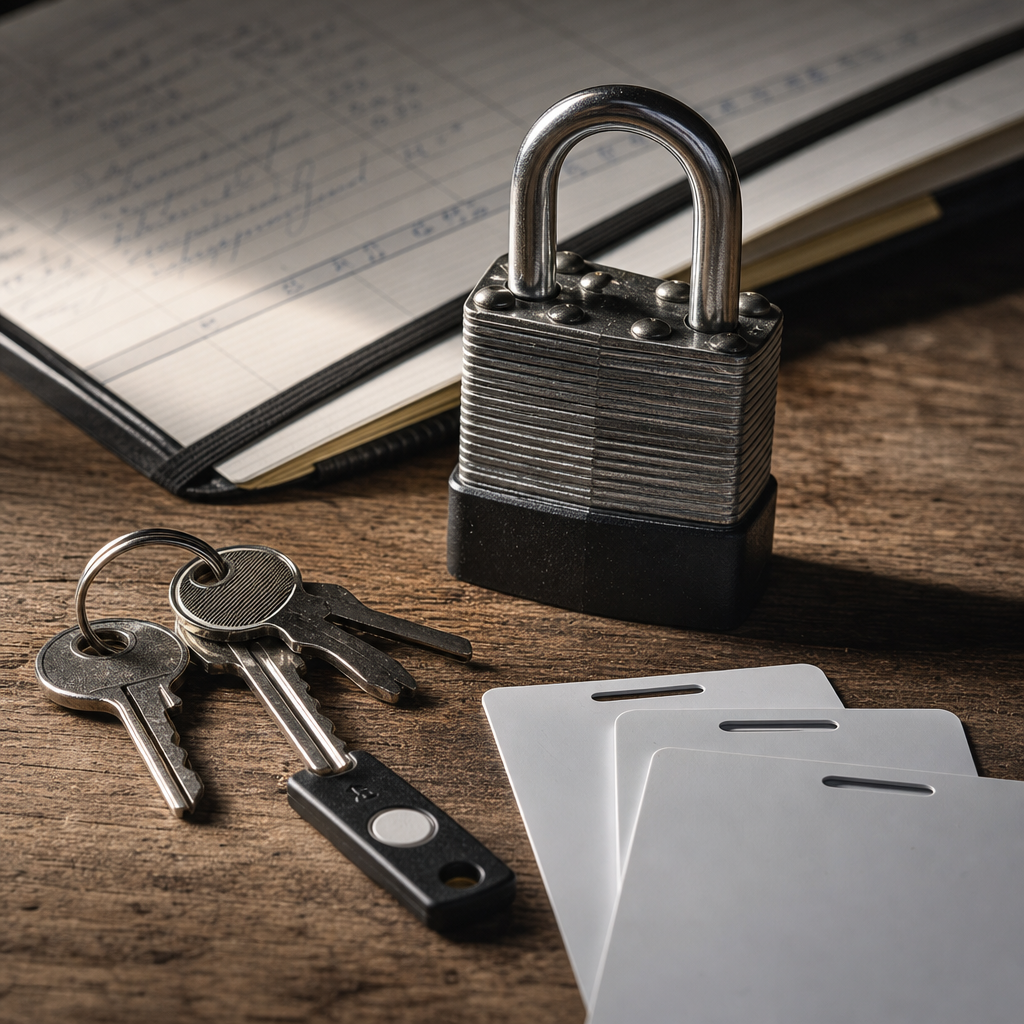
A password protects an account only until it is stolen, guessed, or reused after a breach at another service. Two-factor authentication, or 2FA, adds another verification layer: a one-time code from an app, a security key, or a passkey.
This is especially important for WordPress because compromising an administrator account allows an attacker to edit pages and templates, install extensions, create new users, and inject malicious code. On Elementor sites, an attacker may also modify global templates, widgets, headers, footers, or settings that affect the entire website.
What Is 2FA and What Does It Protect Against?
Two-factor authentication requires at least two different types of identity verification. The first is something the user knows, such as a password. The second is something the user has or possesses: a phone with an authenticator app, a security key, or a configured passkey.
Even if an attacker obtains the password, it will not be enough to sign in. 2FA does not replace WordPress updates, hosting security, backups, or access control, but it significantly reduces the risk of an admin account takeover.
Protection should extend beyond the WordPress login page. Also review accounts in the hosting control panel, SSH, SFTP, email, domain management system, and backup services. If an attacker gains access to any of these, they may be able to bypass the CMS’s own protection.
- 2FA protects against the use of stolen or reused passwords.
- It does not stop phishing if a user provides the code on a fake website.
- For privileged accounts, use phishing-resistant passkeys or security keys whenever possible.
- A TOTP authenticator app is generally safer than SMS because the code does not depend on the mobile carrier.
Which 2FA Method Should You Choose for WordPress?
The right method depends on the number of administrators, security requirements, and whether access can be managed centrally. For a small website, it is important not only to enable 2FA but also to ensure that every user understands the access recovery process.
TOTP uses one-time codes generated by a dedicated app. It works without mobile connectivity, but requires secure backup of the secret key or recovery codes. The phone running the app should be protected with a PIN or biometric authentication.
Passkeys use a cryptographic key pair and are usually confirmed with biometrics, a device PIN, or a security key. They provide better protection against phishing because they are tied to the legitimate domain.
Security keys are appropriate for business owners, lead administrators, and teams managing critical websites. Keep at least two keys: a primary key and a backup stored separately.
SMS should be treated only as a compromise option. Number hijacking, attacks against the mobile carrier, or SIM replacement may allow an attacker to intercept the code. If SMS is unavoidable, do not use it as the only protection for the most important account.
- For most teams: TOTP or passkeys.
- For critical accounts: a passkey or security key plus a backup recovery method.
- SMS: only as a temporary or fallback method when safer options are unavailable.
How to Implement 2FA in WordPress Without Locking Out Your Team
Start by listing every user with admin-area access and documenting their roles. Do not limit the review to administrator accounts: editors, authors with additional permissions, contractors, and technical accounts may also pose a risk.
Use a trusted 2FA solution that is compatible with your current WordPress version and login setup. Create a backup before making changes, and test the configuration on a copy of the site or during a period of low activity. Do not install multiple tools that modify the authentication process at the same time without checking their compatibility.
Roll out protection in stages. First configure 2FA for your own account and a backup administrator, then test sign-in and recovery before enrolling the rest of the team. After the testing period, make 2FA mandatory for all privileged users.
- Check that the solution supports the required methods: TOTP, passkeys, or security keys.
- Set up a separate backup account with only the permissions it actually needs.
- Do not share one TOTP secret among several employees.
- Do not create exceptions for site owners or other privileged accounts.
- Test sign-in in a private browser window and from another device.
- Record who has access and when their 2FA was last checked.
Backup Codes and Access Recovery
The most common mistake after enabling 2FA is having no plan for losing a phone or security key. Create backup codes during activation, print them, or store them in a secure password manager. Do not send them to a group chat, ordinary email account, or shared document.
Each code should be usable only once. After use, remove it from the list or mark it as invalid. If an employee loses a device, leaves the company, or is suspected of being compromised, immediately revoke their authentication factor and active sessions.
Test the recovery scenario before making 2FA mandatory. Confirm who is authorized to reset a factor, whether manual identity verification is required, whether a backup administrator role is available, and whether the contact address works. The process should not be reduced to a simple “forgot password” link if the user’s email account may also have been compromised.
- Store backup codes offline or in a secure secrets manager.
- Keep a backup security key in a physically separate location.
- Do not store the codes together with the phone running the authenticator.
- Periodically verify that recovery is possible without disabling protection for all users.
- When an employee or contractor changes, revoke their sessions, tokens, and 2FA factors.
Protecting WordPress and Elementor After Sign-In
2FA does not compensate for excessive permissions. An administrator account should be an exception, not the standard account for everyday work. Use a role with the minimum necessary capabilities for content editing, and perform administrative actions through a separate protected account.
On Elementor sites, pay particular attention to permissions for editing templates, global widgets, custom CSS, and HTML. A compromised user may quietly insert malicious JavaScript, redirects, fake login forms, or code that loads across many pages.
After enabling 2FA, review login and site-change logs. Look for new users, unknown IP addresses, role changes, extension installations, file edits, and unexpected template changes. For critical actions, additional approval or notifications to several responsible people can be useful.
- Remove old, duplicate, and unused accounts.
- Do not use one shared administrator login for the entire team.
- Disable file editing from the admin area unless it is required for the workflow.
- Update WordPress, the theme, Elementor, and extensions after checking compatibility.
- Review user permissions and active sessions regularly.
- Store backups separately from the server itself and test their restoration.
Hosting, Server, and Service Account Security
WordPress protection is incomplete if the hosting panel or SSH can be accessed with only a password. Enable 2FA for the server control panel, domain registrar, corporate email, and services that store backups.
For SSH, use keys instead of passwords whenever possible, prohibit direct root logins, and give access only to the employees who need it. SFTP accounts should be separate, limited to specific directories, and granted no unnecessary server permissions.
Inventory all integrations: SMTP, payment systems, CRM, analytics, CDN, and external APIs. Remove old keys, limit their permissions, and replace secrets if they have appeared in email, repositories, or logs.
Remember that 2FA does not protect against an already stolen active session. For this reason, use short session lifetimes for privileged users, automatically terminate unused sessions, and enable notifications about suspicious sign-ins.
- Enable 2FA in the hosting panel, email, and domain management service.
- Restrict admin-area access through a VPN, IP allowlist, or additional rules if this is compatible with the team’s workflow.
- Revoke keys and passwords when cooperation ends.
- Do not publish secrets in code, chats, or task management systems.
- Review server logs and sign-in notifications.
Common Mistakes When Setting Up 2FA
The most dangerous mistake is leaving one “untouchable” administrator without a second factor. That account often becomes the primary target of an attack. It is equally risky to enable 2FA only for the site owner while leaving editors and contractors with broad permissions unprotected.
Another problem is permanently disabling 2FA after the first inconvenience. It is better to configure backup codes, an additional security key, and a clear recovery procedure. Any temporary exception should be documented, time-limited, and approved by a responsible person.
Do not rely only on the visual appearance of the login page. Train the team to check the domain, avoid entering codes on pages with suspicious addresses, and reject unexpected passkey requests. 2FA strengthens security but does not eliminate the need for caution.
- Do not leave backup codes in a chat or an unencrypted file.
- Do not use one TOTP secret for multiple people.
- Do not create a permanent shared account “for emergencies.”
- Do not remove backup access until the new method has been tested.
- Do not treat 2FA as a replacement for updates, backups, and least-privilege access.
Frequently asked questions
Should 2FA be enabled for WordPress editors?
Yes, if an editor can modify content, templates, settings, or other important site elements. Their permissions should be limited, but the account itself should also be protected with a second factor.
What is better for WordPress: SMS or an authenticator app?
A TOTP app is generally more reliable because it does not depend on a phone number or mobile carrier. SMS should be used only as a compromise option, especially not for the primary administrator.
What should an administrator do after losing a phone with 2FA?
Use a backup code or a previously configured backup security key. If neither is available, another authorized administrator should restore access according to the internal procedure. After access is restored, reissue the factor and revoke old sessions.
Does 2FA protect an Elementor site from hacking?
2FA significantly reduces the risk of account takeover, but it does not eliminate all threats. Updates, least-privilege access, extension control, backups, hosting security, and log reviews are also necessary.
Conclusion
The minimum secure standard for a WordPress site is 2FA for all administrators, editors, and contractors with privileged access; no shared logins; offline backup codes; and tested access recovery.
For Elementor sites, add regular reviews of templates, global widgets, and users. Protect not only WordPress but also the hosting account, email, SSH, domain, and backups. This approach reduces the impact of stolen passwords and helps detect suspicious changes more quickly.