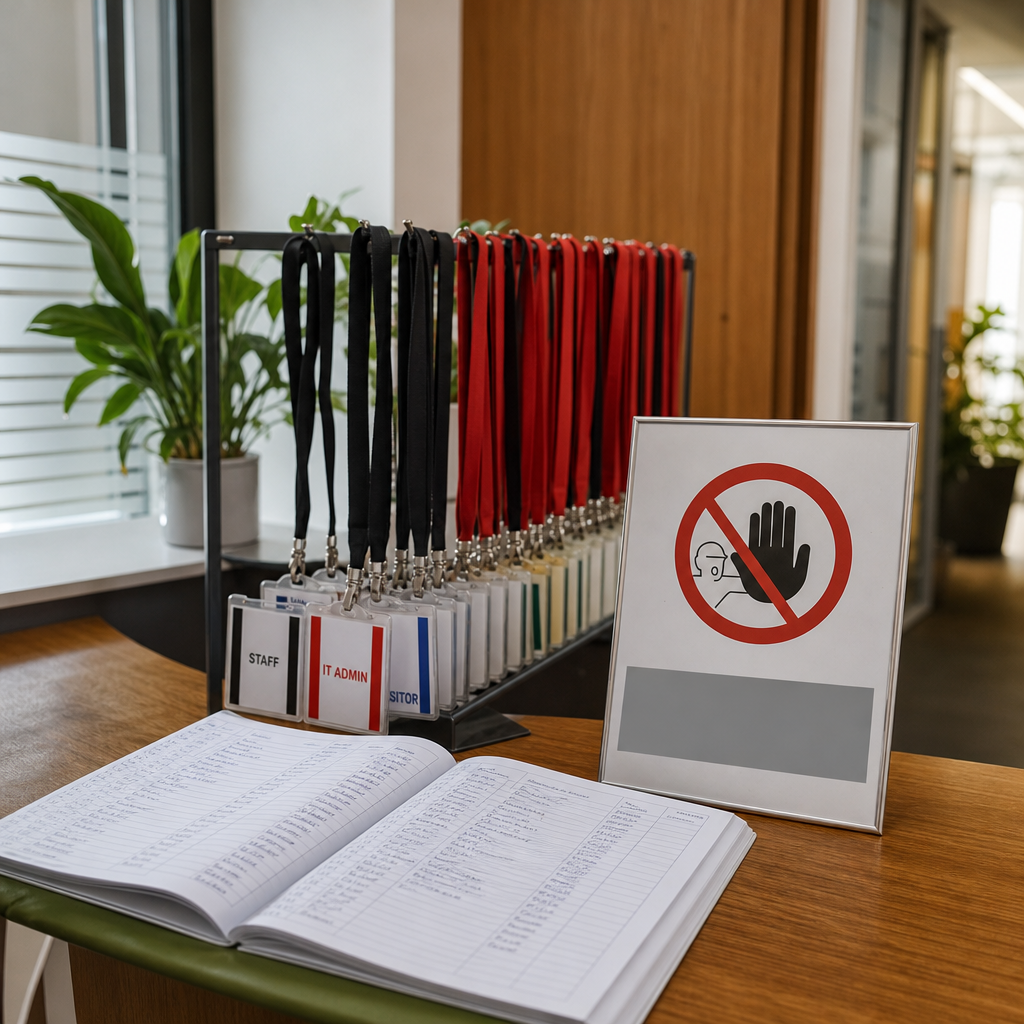
The WordPress admin area is often targeted by automated login attempts. Even a strong password does not stop bots: they can continuously send requests to wp-login.php, creating unnecessary load and increasing the risk of credential attacks.
A more reliable approach is to restrict access to wp-admin and wp-login.php at the web-server level. If the site is administered from a fixed office, you can allow only a specific IP address. For mobile teams or changing networks, a private VPN is more practical: allow access only from its addresses.
What access restrictions provide
When a rule is configured at the Apache or Nginx level, an external request is rejected before WordPress, PHP, or plugins are launched. The user receives a 403 Forbidden response, while WordPress does not spend resources processing the request.
Two routes are usually restricted: /wp-admin/ and /wp-login.php. The first leads to the administrative area, while the second handles login. Restricting URLs does not replace two-factor authentication, strong passwords, or timely updates, but it creates an additional network-level barrier.
For sites using Elementor, related requests must also be considered. The editor may use admin-ajax.php, the REST API, and other resources. If you blindly block all of /wp-admin/ without exceptions, the editor or individual site features may stop working.
- The number of automated WordPress login attempts is reduced.
- The admin area becomes inaccessible from unknown networks.
- Requests are rejected before PHP or WordPress processes them.
- The rule can be combined with a VPN, two-factor authentication, and session controls.
When to choose an IP allowlist and when to use a VPN
IP-based restrictions are suitable when an administrator works from an office or server with a stable public IP address. In this case, the web server allows access only from the specified address and blocks all other requests.
If administrators work from home, travel, or use mobile internet, a fixed IP list quickly becomes inconvenient. Mobile operators and home internet providers may change the address and sometimes use CGNAT, where there is no separately reachable IPv4 address.
A VPN solves this problem: the employee first connects to a private network and then opens the admin area. The server allows the VPN address or subnet. This approach is convenient for several administrators and avoids adding every new home network to the configuration.
The VPN should be a private, controlled solution with individual user accounts. Public VPN services are not a substitute for your own access channel: their addresses may be shared, change frequently, or be blocked.
- Fixed office IP: use an allowlist.
- Changing networks and mobile administrators: use a private VPN.
- Several employees: it is better to allocate a separate VPN subnet than to keep editing the address list.
- The public site and the admin area can use different network rules.
Preparation before blocking access
A mistake in an access rule can lock out even the site owner. Before making changes, open a separate SSH, hosting-panel, or console session so that you can restore the configuration. If the server is accessible only through the hosting control panel, check in advance where backups and configuration files can be restored.
Find out your actual public IPv4 address and check whether IPv6 is in use. If your provider or VPN supplies IPv6 but the rule allows only IPv4, access may work inconsistently or be blocked unexpectedly.
You also need to determine whether a CDN, reverse proxy, or load balancer is in front of the server. In this setup, the web server may see the proxy IP instead of the real visitor IP. An incorrectly configured real-IP header can either block everyone or make the restriction ineffective.
- Back up the web-server configuration.
- Test access from the permitted network and confirm that an emergency access method is available.
- Identify the office or VPN IPv4 and IPv6 addresses.
- Determine whether traffic passes through Cloudflare, a CDN, proxy, or load balancer.
- Make sure the rule applies to the required virtual host and domain.
Example: restricting access in Apache
In modern Apache 2.4, IP-based access is usually configured with the Require ip directive. The exact location depends on the server configuration: it may be a VirtualHost, the WordPress directory, or a separate rules file. Make changes only where the hosting environment permits Apache configuration.
For wp-admin, you can allow one address or a subnet. You can protect wp-login.php separately. Before reloading the server, check the configuration syntax with the validation command available in your environment.
- Do not specify an internal-network address such as 192.168.1.10 if the server sees your public IP.
- If IPv6 is used, add the required IPv6 address or subnet as a separate rule.
- Do not copy Apache syntax into an Nginx configuration: they are different servers.
<Directory "/var/www/example.com/public/wp-admin">
    Require ip 203.0.113.25
    Require ip 2001:db8:1234::/64
</Directory>

<Location "/wp-login.php">
    Require ip 203.0.113.25
    Require ip 2001:db8:1234::/64
</Location>
What to consider for .htaccess
On shared hosting, access to the VirtualHost configuration is often unavailable, but .htaccess rules may be permitted. In that case, the available options depend on the AllowOverride directives. If the hosting provider does not allow Require or does not permit access rules to be changed, do not insert configuration at random: contact support or use the hosting control panel settings.
After making a change, check not only the login page but /wp-admin/ itself. Log in from an allowed address, open the Elementor editor, and test saving a page.
Example: restricting access in Nginx
In Nginx, IP-based access is configured with the allow and deny directives. They can be placed in the required server or location block. Order matters: specify the permitted addresses first, followed by the rule that denies everyone else.
For wp-admin, a separate location is often protected, with a targeted rule added for wp-login.php. The exact configuration may vary depending on the hosting template, PHP-FPM, and whether a proxy is used.
- After editing, validate the Nginx configuration before reloading it.
- Allow the VPN server address or VPN subnet, not the device's local address.
- Do not block the entire site with deny all if the goal is to protect only administrative routes.
location ^~ /wp-admin/ {
    allow 203.0.113.25;
    allow 2001:db8:1234::/64;
    deny all;
}

location = /wp-login.php {
    allow 203.0.113.25;
    allow 2001:db8:1234::/64;
    deny all;
}
Proxies, CDNs, and the real IP address
If the domain operates through a reverse proxy or CDN, the web server may receive all requests from a single proxy address. In that case, a simple IP allow rule may either grant every proxy user access to the admin area or block all administrators.
For the restriction to work correctly, configure trusted proxies and the mechanism used to determine the real IP address at the web-server level. Never trust an X-Forwarded-For or similar header without verification: a client can forge it if the proxy does not overwrite the value.
After configuring this, check the access log. It should show the administrator's expected address rather than only the CDN IP. If you are unsure, ask a system administrator or hosting provider to verify the proxy chain.
- Identify the trusted proxy list.
- Configure real-IP processing only for those proxies.
- Check access logs from both an allowed and a blocked network.
- The presence of an X-Forwarded-For header does not prove that it is trustworthy.
Post-implementation testing and common mistakes
Test the rule from two different networks: one allowed and one blocked. From the allowed network, wp-login.php, wp-admin, and the required WordPress functions should work. From the blocked network, the server should return 403 Forbidden. Also test mobile internet, IPv6, and a VPN connection.
For Elementor, separately test loading the editor, saving changes, media files, and viewing the page. If the editor stops working, do not remove restrictions from all of wp-admin. First analyze the logs and identify the exact request being blocked.
After successful testing, record the allowed addresses, the date of the change, and the emergency recovery method. The office's public IP address may change, so review the rules periodically.
- You locked yourself out after the IP changed or you connected to another Wi-Fi network.
- You added only IPv4 even though the administrator connects through IPv6.
- You applied the rule to the entire site instead of wp-admin and wp-login.php.
- You blocked requests required by Elementor or admin-ajax.php.
- You configured an allowlist for proxy IPs without configuring real-IP detection.
- You relied only on changing the login URL: a hidden URL is not an access-control mechanism.
Additional admin-area protection
IP or VPN restrictions do not replace basic security measures. Administrator accounts should use unique, strong passwords and two-factor authentication. Do not use a shared account for the entire team: individual accounts simplify auditing and make it easier to revoke access for an employee who no longer works on the site.
Regularly update WordPress, the theme, Elementor, extensions, and server software. Remove unused plugins, limit the number of administrators, and monitor login logs.
For emergency situations, retain access to the server or hosting panel, but protect it with separate credentials and multi-factor authentication. Do not create a hidden permanent bypass around the rule without controlling it.
- Two-factor authentication for all administrators.
- Individual accounts instead of a shared login.
- Regular backups and recovery testing.
- Updates for WordPress, Elementor, plugins, and server components.
- Monitoring of failed logins and configuration changes.
Frequently asked questions
Can access to wp-admin be allowed from only one IP address?
Yes, if it is a stable public IP address belonging to an office or server. You must also account for IPv6 and possible provider address changes. For mobile administrators, a VPN is usually a better choice.
Is blocking only wp-login.php enough?
No. This protects the main login page but does not restrict other administrative routes. Usually, /wp-admin/ is controlled as well, while exceptions for service requests are determined after testing WordPress and Elementor.
Why did Elementor stop working after wp-admin was blocked?
The editor may use admin-ajax.php, the REST API, or other requests that were blocked by a broad rule. Check the server logs and browser console, then add only the necessary exceptions without opening the entire admin area.
Will IP restrictions work through Cloudflare or another CDN?
They will work only if real-IP handling and trusted proxies are configured correctly. Otherwise, the server will see the CDN address instead of the administrator's address. Check the access log and header-processing rules.
What should I do if I accidentally blocked my own access?
Connect through an allowed VPN, the hosting provider's emergency channel, or the server console and temporarily correct the rule. If none of these options is available, contact hosting support. This is why a configuration backup and a separate emergency access channel should be prepared before making changes.
Conclusion
Restricting access to wp-admin and wp-login.php by IP or through a private VPN moves a significant part of the protection to the web-server level. This reduces unwanted requests and prevents external users from even reaching the login form.
For a stable office connection, an IP allowlist is sufficient; for a mobile team, a VPN is safer and more convenient. Before enabling the rule, check IPv4, IPv6, proxies, Elementor, and emergency access. Afterward, test the site from both allowed and blocked networks.