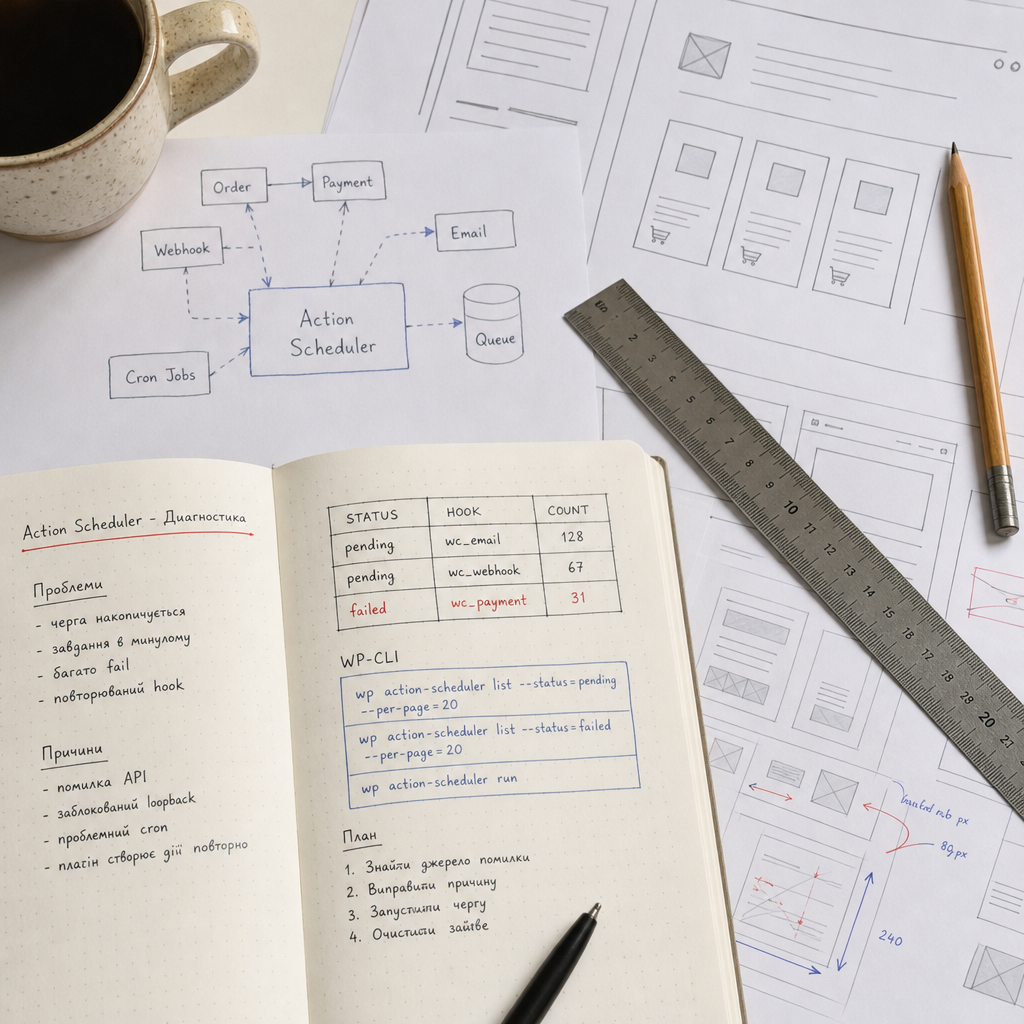
Action Scheduler is a queue system used by WooCommerce and its extensions for background operations such as payment processing, webhooks, email delivery, CRM and shipping integrations, order status updates, and recurring tasks.
When the queue stops processing, orders may remain pending for a long time, webhooks may fail to reach external services, and emails or synchronizations may be delayed. The following checks help identify the cause without risking the bulk deletion of important actions.
How to Tell Whether the Action Scheduler Queue Is Stuck
The problem does not always mean that every action with a past scheduled time is actually broken. Some actions may have been created with a delay or may be waiting for a previous operation. Therefore, first assess the queue status and whether the error is recurring.
In WordPress, the relevant area is usually WooCommerce → Status → Scheduled Actions. There you can review actions with pending, in-progress, complete, failed, and canceled statuses, and filter them by hook or group.
Warning signs include a steadily increasing number of pending actions, many failed actions with the same hook, actions scheduled for a time in the past, and the same task being recreated after every processing attempt.
- Check not only the total number of actions but also the most frequent hook values.
- Review the creation date, scheduled time, and latest error.
- Compare the queue status after several minutes. If the number of pending actions does not change, the handler may not be running.
- Do not confuse pending with failed: pending means the action is still waiting to run, while failed means it ended with an error.
Checking the Queue with WP-CLI
WP-CLI is useful for sites with a large number of tasks where the administration page loads slowly or does not display the entire queue. Run the commands from the WordPress directory, or provide the installation path if this is configured in your environment.
For an initial check, display a portion of the pending and failed actions:
- Find the hook that appears in a large number of records.
- Pay attention to the scheduled time: a past date on a pending action means it is overdue, but not necessarily corrupted.
- Check whether the problematic actions belong to the same plugin or integration.
- If the command is not recognized, verify that the Action Scheduler WP-CLI command is available and compatible with the current environment.
wp action-scheduler list --status=pending --per-page=20
wp action-scheduler list --status=failed --per-page=20
How to Find the Root Cause of Errors
The most valuable information is not the failed status itself but the error message and the context of the specific hook. For example, an HTTP error may indicate an unavailable API, an invalid key, or a request limit. A database error may point to table problems, locks, or insufficient resources.
Open the details of several failed actions with the same hook and compare their error messages. If the messages are identical, the cause is usually systemic rather than accidental.
Also check the WooCommerce logs and the server's PHP error log. They may contain a fatal error, timeout, authentication failure, or exception from a specific plugin. After enabling logging, do not leave excessive debug mode active unnecessarily on a production site.
- API: check the URL, tokens, key expiration dates, SSL certificate, rate limits, and service responses.
- Plugin: review its latest updates, compatibility, and whether it is creating the same action repeatedly.
- Server: check the PHP memory limit, maximum execution time, database availability, and system load.
- Integrations: make sure the endpoint accepts requests and is not blocking the server's IP address.
- Orders: do not manually repeat payment actions until you know whether the transaction has already been accepted by the payment provider.
Checking WP-Cron and Loopback Requests
Action Scheduler is often triggered through WP-Cron or an internal loopback request. If WP-Cron is disabled, its requests are blocked by the hosting environment, or the site does not receive enough visitors to trigger the pseudo-cron, the queue can build up even when there is no code error.
Check the hosting system cron, WordPress settings, and the results in Site Health. It is important to determine whether the server can run a PHP process at all and whether the site can make an HTTP request to itself.
Loopback requests can be blocked by Basic Auth on a staging site, a firewall, WAF, incorrect DNS, SSL issues, localhost restrictions, or a security plugin. Do not permanently disable security rules. First identify the specific request and add a safe exception if necessary.
- If WP-Cron was intentionally disabled, configure a system cron instead of relying on visitor-triggered runs.
- Check whether multiple independent cron processes are running at the same time.
- On staging and production, make sure cron uses the correct domain and database.
- After fixing the issue, verify that new actions are moving from pending to complete.
Running Queue Processing Through System Cron
For stable processing, it is better to run Action Scheduler from the server on a schedule rather than relying only on pages being opened in a browser. The appropriate interval depends on the order volume, server performance, and the plugins that create actions.
Example crontab entry:
- Replace /var/www/site with the actual WordPress path.
- Make sure the wp command is available to the user under which cron runs.
- Run the command manually first and review the result before adding it to the schedule.
- Do not configure overly frequent parallel runs. They can increase database load and create competition between processes.
*/5 * * * * cd /var/www/site && wp action-scheduler run --quietManual Processing Test
Before automating the process, run the handler manually at a controlled time. If it immediately returns an error, fix that error first instead of increasing the cron frequency.
- Create a database backup before processing a large queue on a problematic site.
- After the run, review failed and pending actions again.
- Make sure processing does not create duplicate emails, webhooks, or external operations.
wp action-scheduler runWhat to Do with Failed and Pending Actions
The safe order of operations is to preserve the error information, identify the source of the hook, fix the API, cron, plugin, or server issue, and then process the actions again. After the issue is resolved, some failed actions can be retried if your workflow supports it and there is no risk of duplicating the operation.
Pending actions should not be deleted simply because there are many of them. They may include order status updates, customer notifications, payment webhooks, or inventory synchronization. Bulk deletion can leave orders in an incorrect state.
Deletion or cleanup is appropriate only after confirming that the actions are outdated, duplicated, created by a removed plugin, or no longer have business value. For critical operations, first record the identifiers and verify the result in the external system.
- Do not delete the entire queue in one click without a backup and analysis.
- Do not repeat payment or webhook actions until their actual status has been verified in the external service.
- After disabling the problematic plugin, make sure its old tasks are not still the sole source of the errors.
- For a large queue, process actions gradually and monitor resource usage.
Common Diagnostic Mistakes
The most common mistake is treating the symptom instead of the source. Clearing the queue may temporarily remove the records, but if a plugin continues creating invalid actions, the problem will quickly return.
Another mistake is starting bulk processing from the administration page or a browser. The request may be interrupted by a timeout, a closed tab, or PHP limits. For large queues, server-side execution with a controlled cron is more reliable.
You should also avoid updating, disabling, or removing plugins on production without analysis. First create a backup, test the behavior on staging, and determine which actions are associated with the extension.
- Do not rely only on the total number of tasks.
- Do not assume that every overdue pending action is corrupted.
- Do not run multiple heavy workers in parallel without monitoring resources.
- Do not ignore a recurring hook: it often points directly to the problematic plugin or integration.
Frequently asked questions
Can I simply delete all pending actions?
No. The queue may contain payments, webhooks, emails, and order updates. First identify the hook, assess the business impact, and only then delete actions confirmed to be outdated or duplicated.
Why do pending actions have a scheduled time in the past?
The handler may not be running because of problems with WP-Cron, loopback requests, the server, or PHP. An action may also be blocked by another error. A past time indicates that the action is overdue, but does not prove that it should be deleted.
What does a large number of failed actions with the same hook mean?
Most likely, the same cause is recurring: an unavailable API, invalid credentials, a plugin error, a server limit, or incorrect order data. Review the details of several actions and check the logs.
Is running wp action-scheduler run once enough?
One run helps test the handler, but it does not replace a persistent cron schedule. If WP-Cron or the server schedule is not working, new tasks will accumulate again.
Conclusion
Start diagnosing Action Scheduler by reviewing pending and failed statuses, recurring hooks, error messages, and logs. Then check WP-Cron, loopback requests, the API, and the plugin that creates the problematic actions.
The safe solution is to fix the root cause, configure reliable processing through system cron, and only then process or clean the queue gradually. This approach reduces the risk of missed payments, duplicate webhooks, and incorrect order statuses.